If Task Manager shows your SSD stuck at 100% active time while it’s barely reading or writing anything, and the PC keeps freezing or stuttering for a few seconds at a time, it usually means the drive is taking far too long to answer, not that it’s busy with a lot of work. This guide will explain what’s going on and how to fix it on Windows 11 or 10.
Also see: Windows 11 Search Indexer High CPU and Disk Usage
Page Contents
What does 100% active time actually mean?
Active time in Task Manager is how much of the time the drive was busy with requests, whatever the amount of data.
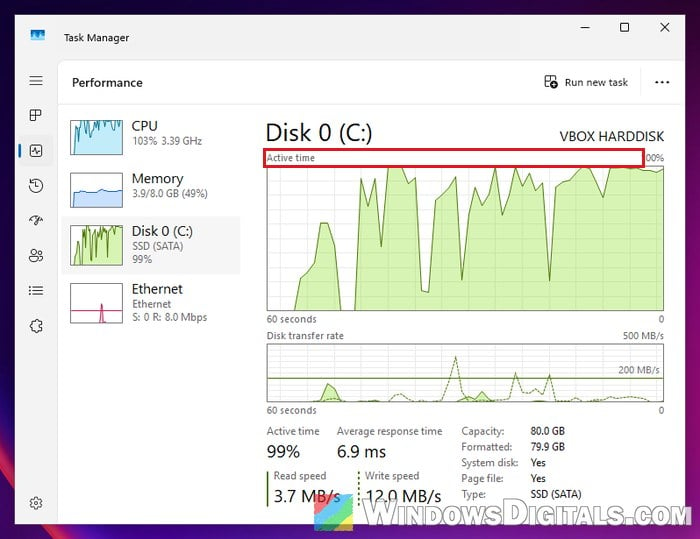
A drive that copies a big file quickly can hit 100% for a moment, and that’s normal. What’s not normal is 100% for minutes while the read and write speeds below it are close to zero, and the average response time climbs into the hundreds or even thousands of milliseconds.
That combination means each request is waiting a long time before the drive finishes it. Windows (and every app) waits along with it, which is why the mouse might still move while clicks and windows freeze.
When a request takes so long that Windows gives up on it, it resets the drive and logs Event ID 129 (“Reset to device, \Device\RaidPort0, was issued”, or another port number), usually from storahci (SATA drives) or stornvme (NVMe drives). To check for these:
- Press Win + R, type
eventvwr.mscand press Enter. - Go to Windows Logs > System, then click “Filter Current Log” on the right.
- Type “129” in the “<All Event IDs>” field and click OK.
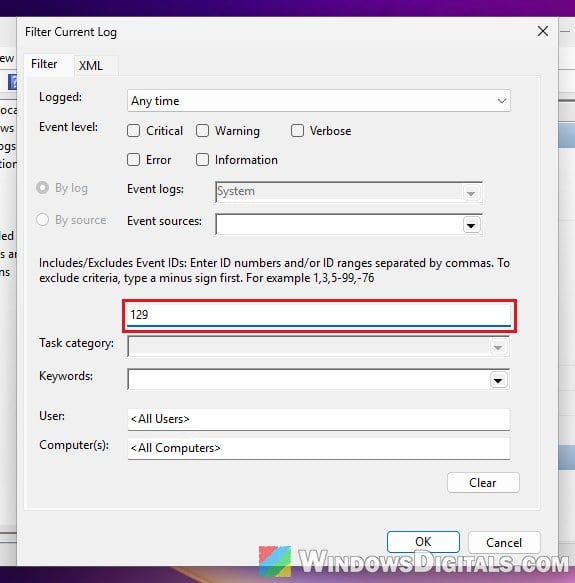
If you find a bunch of them around the times the PC froze, Windows is losing contact with the drive, and that’s what the fixes below are for.
Linked issue: Event: “The IO operation at logical block address…”
Check what’s using the disk
Before blaming the SSD, make sure it’s not one program keeping it busy. Task Manager doesn’t show much detail here, but Resource Monitor shows exactly which program is reading or writing which file.
- Press Win + R, type
resmonand press Enter. - Open the Disk tab.
- Under “Processes with Disk Activity“, look at the “Total (B/sec)” column. If the busiest program isn’t on top, click that column’s header to sort the list.
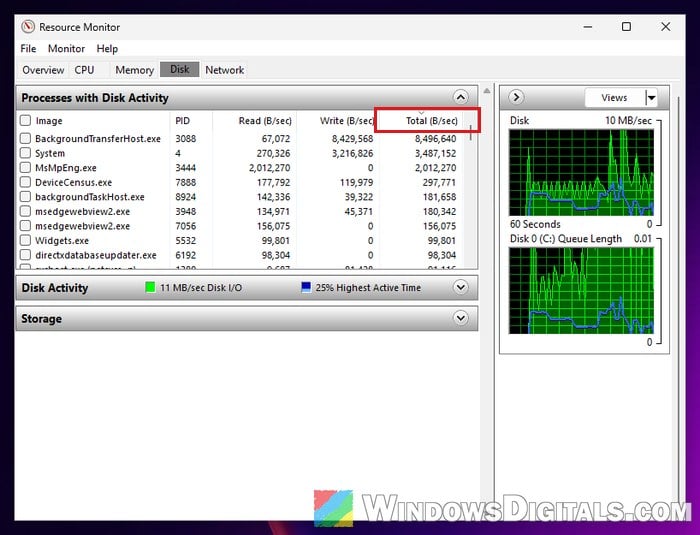
Common ones are Windows Update (TiWorker.exe), the search indexer, an antivirus scan and OneDrive. If one of them is behind it, it’s that program’s high disk usage you need to deal with, and these guides can help:
- “Windows Modules Installer Worker” High CPU/Disk Usage
- Antimalware Service Executable High Disk or CPU Usage
If nothing is moving much data but the drive is still at 100%, carry on with the fixes below.
Turn off link power management for the drive
This is the fix that has helped the most people on Microsoft’s forums. To save power, Windows can put the link between the drive and the PC into a low power state when it’s idle. With some SSDs and controllers, waking that link back up might not go smoothly, which can make requests pile up. Turning it off keeps the link fully awake.
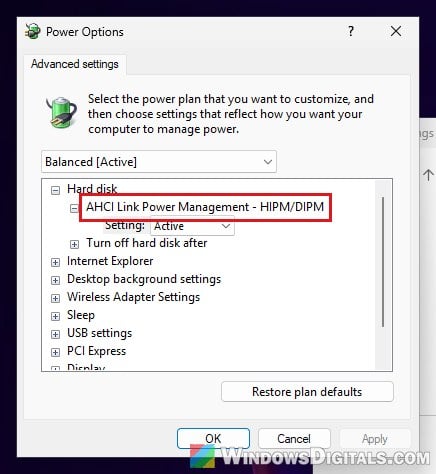
The setting for SATA drives (“AHCI Link Power Management – HIPM/DIPM“) is hidden by default, so unhide it first:
- Open Start, search for “cmd“, right-click Command Prompt and select Run as administrator.
- Run the following command:
powercfg -attributes 0012ee47-9041-4b5d-9b77-535fba8b1442 0b2d69d7-a2a1-449c-9680-f91c70521c60 -ATTRIB_HIDE
Then change the settings:
- Press Win + R, type
powercfg.cpland press Enter. - Click “Change plan settings” next to your current plan, then “Change advanced power settings“.
- Expand Hard disk > “AHCI Link Power Management – HIPM/DIPM” and set it to Active.
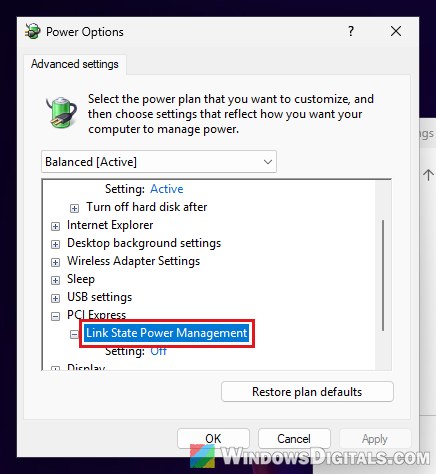
- Expand PCI Express > “Link State Power Management” and set it to Off. This one matters for NVMe drives too.
- Click OK and restart the PC.
Use the PC as usual for a while and watch the active time in Task Manager.
Please note that on a laptop, this uses a little more battery.
Free up space and let Windows trim the SSD
A nearly full SSD has to shuffle data around before it can write, so heavy writes slow down, and on cheaper drives with little fast cache they can slow to a crawl. Try not to let it fill up completely.
Windows also tells the SSD which blocks it can clean up (TRIM) through Optimize Drives, once a week by default. After freeing up space, run it by hand:
- Press Win + R, type
dfrguiand press Enter. - Select your SSD and click Optimize.
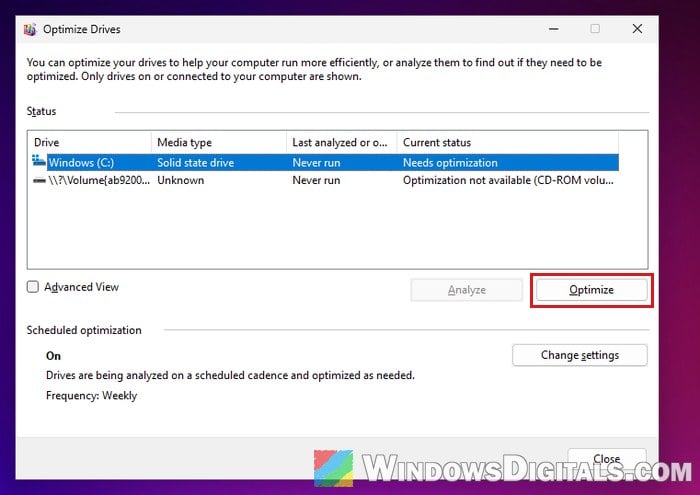
Once it’s done, open Task Manager again and see if the active time still sits at 100%.
Might be useful: Why is my A400 SSD So Slow in Read/Write Speed?
Update the SSD firmware, storage drivers and BIOS
A firmware update can fix stalls like this, so it’s worth seeing if yours has one. Your SSD maker’s own tool (Samsung Magician, Crucial Storage Executive or WD Dashboard, for example) can tell you, and usually shows the drive’s health too.
While you’re at it, install the latest BIOS, chipset and SATA (storage) drivers for your motherboard or laptop from its maker’s support page.
Be warned: A BIOS or SSD firmware update that gets interrupted (a power cut, or closing the tool halfway) can leave the motherboard or the drive unusable. Back up your files first and keep a laptop plugged in. If you’re not sure what you’re doing, it’s better to get someone who knows to help you.
Turn off MSI mode for the SATA controller (AHCI drives only)
Microsoft has documented an issue where some SSDs running on Windows’ standard AHCI driver (StorAHCI) don’t finish their requests properly when MSI mode is on. Windows keeps resetting the drive, Task Manager shows 100% disk with little or no workload, and the System log fills up with Event ID 129. Microsoft’s fix is to turn off MSI mode for the Standard SATA AHCI Controller.
This needs a registry change, and incorrectly changing the registry could break Windows. Please create a system restore point first. If in doubt, get someone who knows to help you instead.
- Right-click Start and open Device Manager.
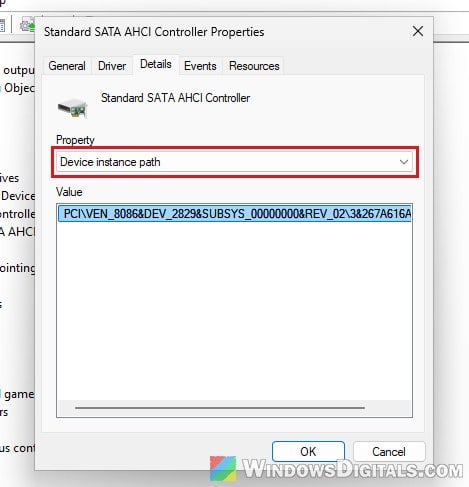
- Expand “IDE ATA/ATAPI controllers“. If there’s no “Standard SATA AHCI Controller“, this fix isn’t for you. Otherwise, right-click it and select Properties.
- In the Details tab, select “Device instance path” in the dropdown. Keep this window open.
- Press Win + R, type
regeditand press Enter. - Copy and paste the following path to the Registry Editor address bar, then replace
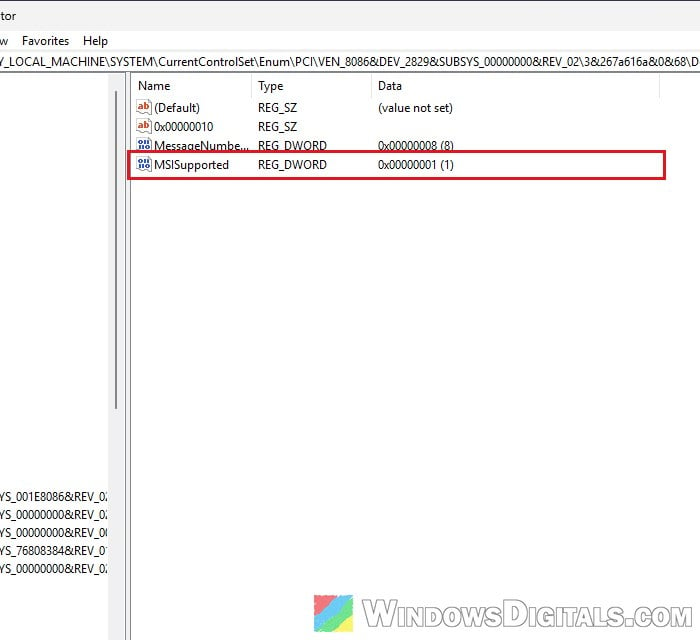
<device instance path>with the value from step 3 (right-click it in Device Manager and select Copy):HKEY_LOCAL_MACHINE\System\CurrentControlSet\Enum\<device instance path>\Device Parameters\Interrupt Management\MessageSignaledInterruptProperties
- Double-click MSISupported, change its value from 1 to 0 and click OK.
- Restart the PC.
If it makes no difference, set the value back to 1.
Learn more: All SSD Connectors Types Explained (SATA, M.2, NVMe, etc.)
Maybe the SSD is failing
If none of the above helps and the drive still sits at 100% with almost nothing moving, the bad news is that the SSD itself might be failing.
Back up your files first, then check the drive with CrystalDiskInfo or your SSD maker’s tool. On Windows 11, NVMe drives also show their health in Settings > System > Storage > Advanced storage settings > Disks & volumes > Properties. If the drive is still under warranty, contact the maker. If not, replacing the SSD is the way out.