If your screen suddenly goes black for a few seconds while gaming (or even while doing nothing), and Reliability Monitor then shows a “Hardware error” with LiveKernelEvent 141, or the PC ends up on a VIDEO_TDR_FAILURE blue screen pointing at nvlddmkm.sys, it’s your NVIDIA graphics card or its driver that stopped responding. This guide will explain what the error means and what you can do to fix it on Windows 11 or 10, starting with the most likely causes.
Also see: Windows 11/10 Computer Blue Screen When Idle (Fix)
Page Contents
What does LiveKernelEvent 141 actually mean?
If the GPU stops responding for more than about 2 seconds, Windows resets the graphics driver to get the screen back. This is called Timeout Detection and Recovery (TDR), and the black screen you see is that reset happening.
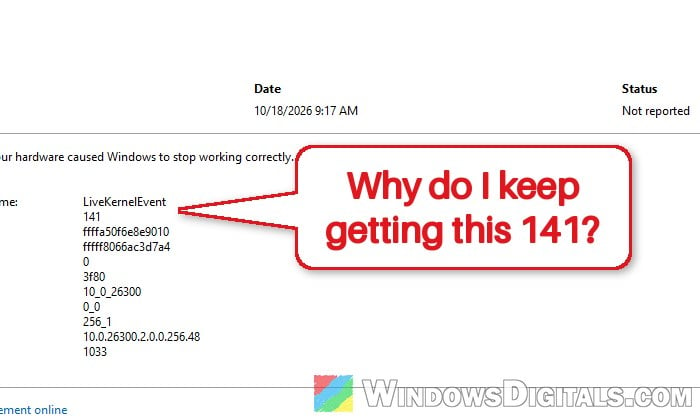
When the reset works, Windows keeps running and only saves a report, which shows up in Reliability Monitor as LiveKernelEvent with code 141. Microsoft describes it as one of the display engines failing to respond in time. You’ll often see codes 117 or 1b8 next to it, which are other reports from the same graphics family.
When the reset fails, or it happens more than five times in one minute, you get the VIDEO_TDR_FAILURE (0x116) blue screen instead. In other words, a 141 means Windows managed to recover, and a 0x116 blue screen means it didn’t.
To see what was logged, follow the steps below:
- Open Start, search for “reliability” and open View reliability history.
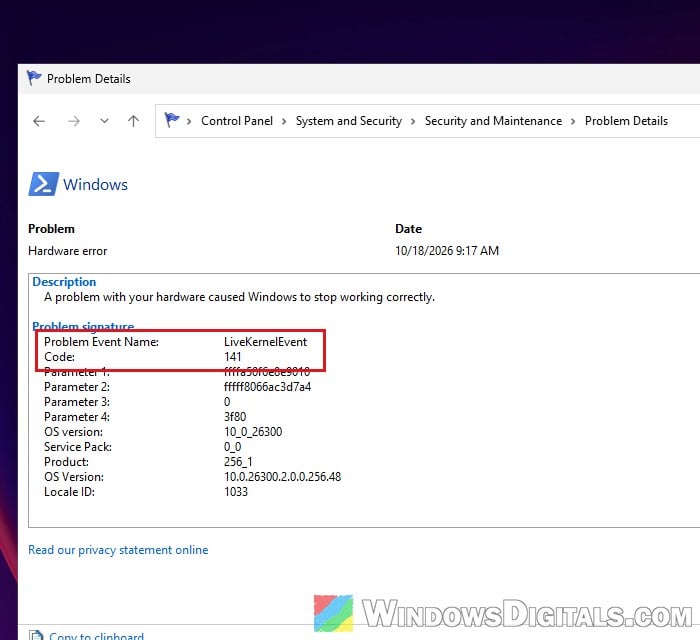
- Click the day with the red X, then double-click the Hardware error line (source Windows) under Critical events. Problem Details shows LiveKernelEvent as the problem event name and 141 as the code.
- For more detail, press Win + R, type
eventvwr.mscand press Enter to open Event Viewer. - Go to Windows Logs > System.
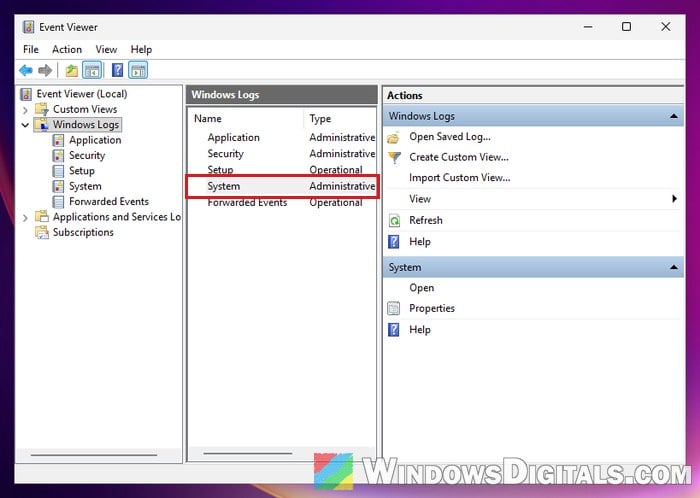
- Look for errors from nvlddmkm (NVIDIA’s driver) around the time of the crash.
As for why the GPU stops responding, Microsoft lists a few usual suspects: the display driver, overclocked parts or memory settings, not enough power, overheating, and faulty hardware. Here’s how to rule them out one by one.
Pro tip: Windows 11 Dump File Location
Clean reinstall or roll back the NVIDIA driver
Start with the driver, especially if the crashes began right after a driver update. Either go back to the previous driver, or wipe the current one and install it fresh.
To roll back to the previous driver:
- Right-click Start and open Device Manager.
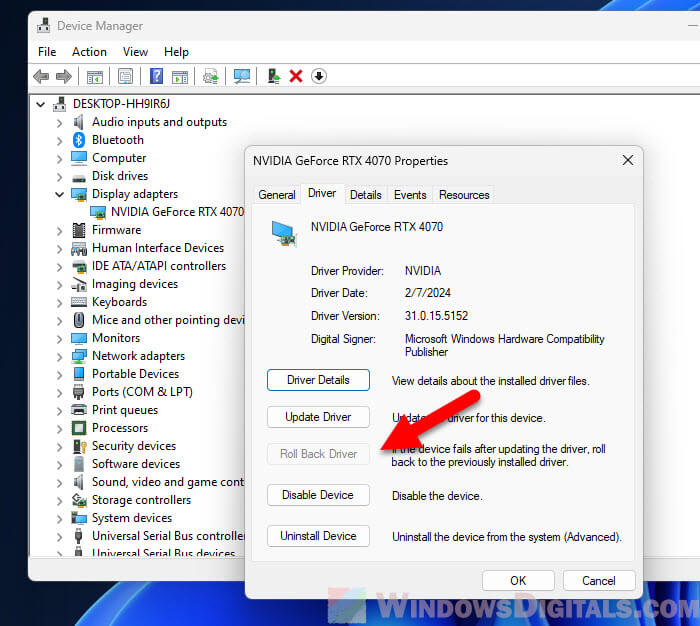
- Expand Display adapters, right-click your NVIDIA card and select Properties.
- In the Driver tab, click Roll Back Driver. If the button is greyed out, Windows didn’t keep the old driver, so use the clean reinstall below instead.
To do a clean reinstall, use Display Driver Uninstaller (DDU), a third-party tool that removes AMD, NVIDIA and Intel graphics drivers along with their leftovers:
- Download the latest NVIDIA driver for your card first.
- Download DDU from its maker’s page,
https://www.wagnardsoft.com/display-driver-uninstaller-DDU-. - Restart into Safe Mode. DDU itself recommends this, and it warns you when it starts if you’re not in Safe Mode.
- Run Display Driver Uninstaller and close the notices and the options window it shows when it starts.
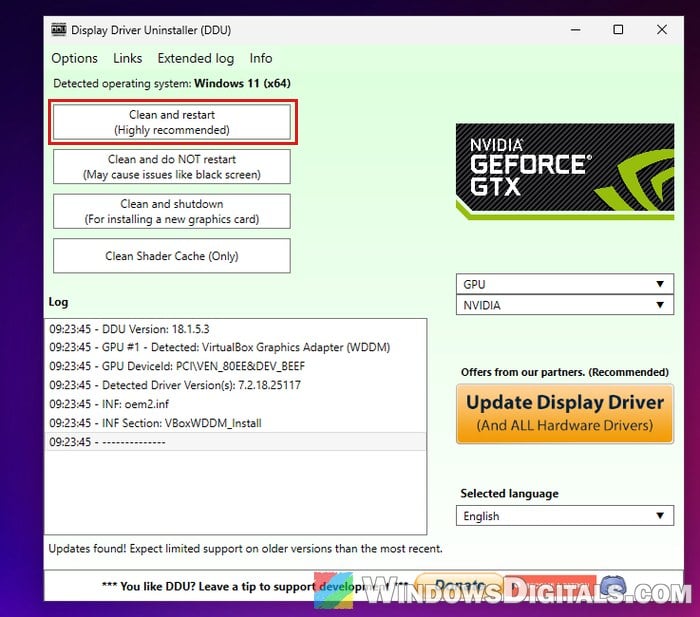
- Choose GPU as the device type and NVIDIA as the device, then click “Clean and restart (Highly recommended)“.
- After the restart, run the NVIDIA installer, choose Custom (Advanced) and tick Perform a clean installation.
Use the PC for a day or two and check Reliability Monitor again. Please note that a DDU cleanup doesn’t stop the 141s for everyone, and when it doesn’t, the cause is usually somewhere else.
Related guide: How to Update Graphics Driver in Windows 11
Check the GPU power cable and power supply
A short drop in power can be enough for the GPU to stop responding for a moment, which can explain why the black screens happen at idle, not only under load. A loose or badly seated power cable, or a power supply that’s too weak, is worth checking.
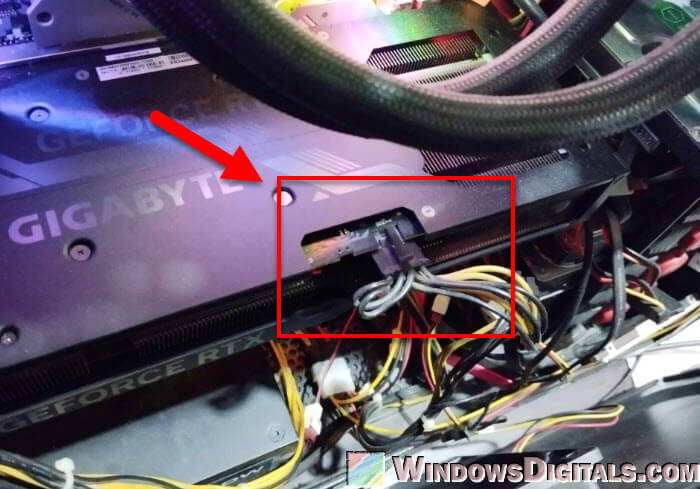
Here’s what you should check, with the PC turned off and unplugged:
- Make sure the power connector on the card (including the 12V-2×6 connector on cards that use one) is pushed in all the way, with no visible gap, on both the card and the power supply end.
- If your card takes two PCIe power plugs, use two separate cables from the power supply instead of one cable with a second plug hanging off it (a daisy-chained cable).
- Reseat the graphics card in its slot.
- Check that your power supply is strong enough for the card.
Then keep an eye on Reliability Monitor for new 141 entries.
Set “Power management mode” to “Prefer maximum performance”
This one is mostly for laptops. Keeping the GPU at its higher performance state, instead of letting it drop to a lower power state, has stopped the black screens for some laptop owners. The downside is that the card uses more power, so expect a bit less battery life.
- Open Start, search for “NVIDIA Control Panel” and open it.
- Go to Manage 3D settings.
- Set Power management mode to Prefer maximum performance and click Apply.
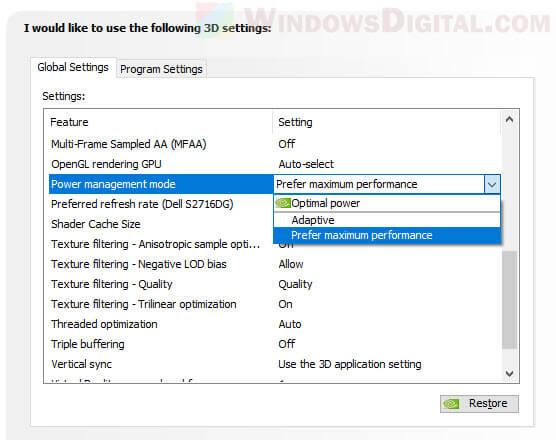
If the black screens stop, leave it on and try switching back after a newer driver comes out.
Might be useful: How to Fix Game Stuttering on Windows 11
On a laptop, check the integrated graphics driver
If the black screens only happen when you plug in or unplug the charger, the problem might be the laptop’s other graphics chip (Intel or AMD) rather than the NVIDIA one. Install the latest driver for that chip, for your exact model, from the laptop maker’s support page. Switching to integrated-graphics-only mode (Eco mode on ASUS laptops, for example) can also stop the crashes, at the cost of gaming performance.
Learn more: How to Uninstall Drivers in Windows 11
Undo overclocks and RAM profiles, and check cooling
Overclocked parts and memory settings and timings can also cause this error. If you’ve overclocked or undervolted the graphics card (with a tool like MSI Afterburner), reset it to default. If your RAM runs an XMP or EXPO profile in the BIOS, turn it off for a few days as a test, so the memory runs at its standard speed. If the crashes stop, bring the settings back one at a time. If you’ve never changed BIOS settings before, ask someone who knows their way around it to help you.
Overheating can do it too, so clean the dust out of the card’s fans and the case.
Test your memory
Faulty memory can also cause this error, and Windows has a built-in tool to check it:
- Press Win + R, type
mdsched.exeand press Enter. - Click Restart now and check for problems (recommended). Save your work first.
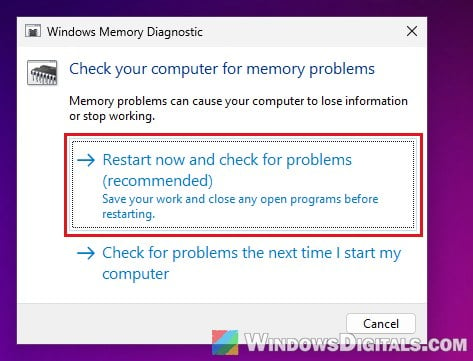
The result shows up in Event Viewer under Windows Logs > System as MemoryDiagnostics-Results. With two sticks, you can also run the PC on one at a time to see if the crashes follow one of them.
Maybe the graphics card itself
If you’ve tried all of the above and the 141s still keep coming back, the bad news is that the graphics card likely has a hardware problem. Some people on Reddit with this error ended up sending their card back for a replacement.
If you can, test the card in another PC, or another card in yours, since a faulty motherboard can cause this too. If your card or laptop is still under warranty, contact the manufacturer and mention the 141 reports and any VIDEO_TDR_FAILURE blue screens.