If your Windows 11 PC failed to start, went into “Preparing Automatic Repair“, and then showed screens like “Connecting to network” and “Downloading solution” before booting back up, it can look a bit alarming if you’ve never seen it before. It’s a newer recovery feature called Quick Machine Recovery, and it’s part of Windows, not a virus. This guide explains what it actually does, whether it’s safe, and how to check or turn it off.
Also see: Preparing Automatic Repair Windows 10/11 Black Screen Loop
Page Contents
What is Quick Machine Recovery?
Quick Machine Recovery is a Windows 11 feature that lets a PC that can’t start look for a fix from Microsoft by itself. When Windows fails to boot several times in a row, it starts the Windows Recovery Environment (where “Automatic Repair” runs), connects to the internet and checks Windows Update for a fix for that problem. If it finds one, it downloads it, applies it and restarts your PC.
That’s why Automatic Repair now looks different from what you might be used to. Instead of only trying to repair startup locally, it can go online first. According to Microsoft, the screens you’ll see go roughly like this:
- “The device ran into a problem and needs to restart“
- “Connecting to network“
- “Downloading solution“
It’s built on Startup Repair, so if Quick Machine Recovery is turned off, Windows just uses Startup Repair instead.
Linked issue: Windows 11/10 “Diagnosing your PC” Startup Repair Loop
Why does Automatic Repair connect to the internet now?
The idea is to fix problems that hit a lot of PCs at once, such as a bad update or driver that stops Windows from starting. Microsoft introduced it after the CrowdStrike outage in July 2024, when a faulty security update left a lot of Windows PCs unable to boot.
With Quick Machine Recovery, Microsoft can publish a fix through Windows Update, and affected PCs can download it from the recovery screen without anyone touching them. It only works over Ethernet or a Wi-Fi network that uses a normal WPA or WPA2 password.
Microsoft calls it a “best-effort” feature. It won’t find a fix for every problem, especially when the problem is only on your PC rather than on many PCs at once. In that case it moves on, and you still get the usual recovery options.
Is Quick Machine Recovery safe?
Yes. It’s a built-in part of Windows 11, and the fixes come from Windows Update, the same place your normal updates come from. It also only runs when Windows already can’t start, so it doesn’t change anything about how your PC boots normally.
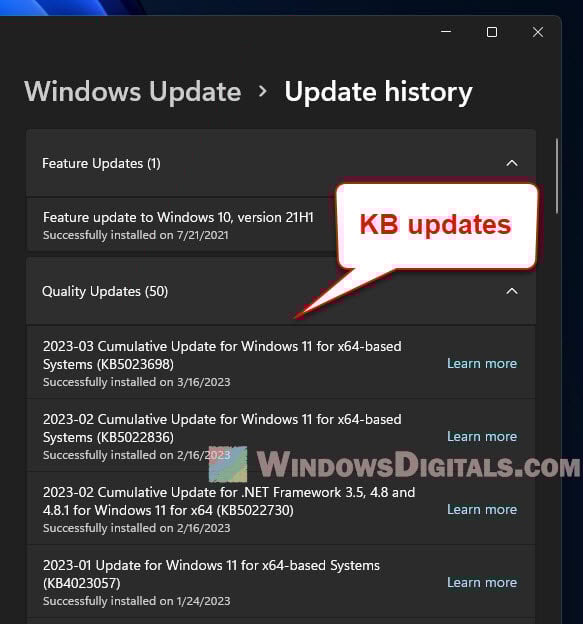
If you want to know whether it actually applied something, check your update history. Microsoft says a fix installed by Quick Machine Recovery shows up there as a quality update:
- Open Settings and go to Windows Update > Update history.
- Look under Quality updates for anything installed around the time your PC had trouble starting.
Might be useful: Windows 11: Recovery “Your PC needs to be repaired”
Is it turned on for your PC?
On Windows 11 Home, and on Pro PCs that aren’t managed by a company or school, Quick Machine Recovery is on by default and does one search for a fix each time it’s triggered. On Enterprise and Education editions, and on Pro PCs joined to a work domain or managed by an organization, it’s off by default unless your organization turns it on.
To check it or change it, follow the steps below:
- Open Settings and go to System > Recovery.
- Click Quick machine recovery.
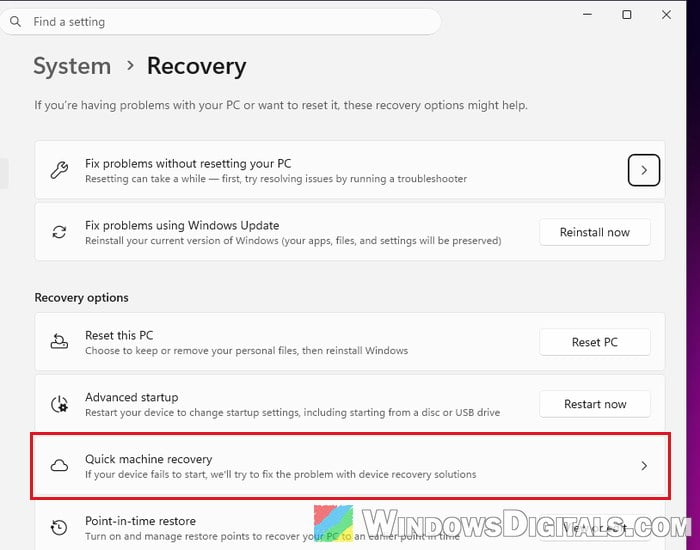
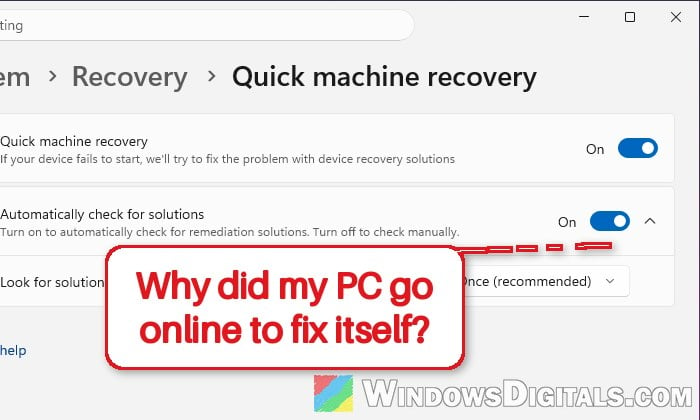
- Use the Quick machine recovery toggle to turn the whole feature on or off.
- If you leave it on, check Automatically check for solutions (whether Windows searches for a fix by itself) and Look for solutions (search once, or keep retrying at an interval).
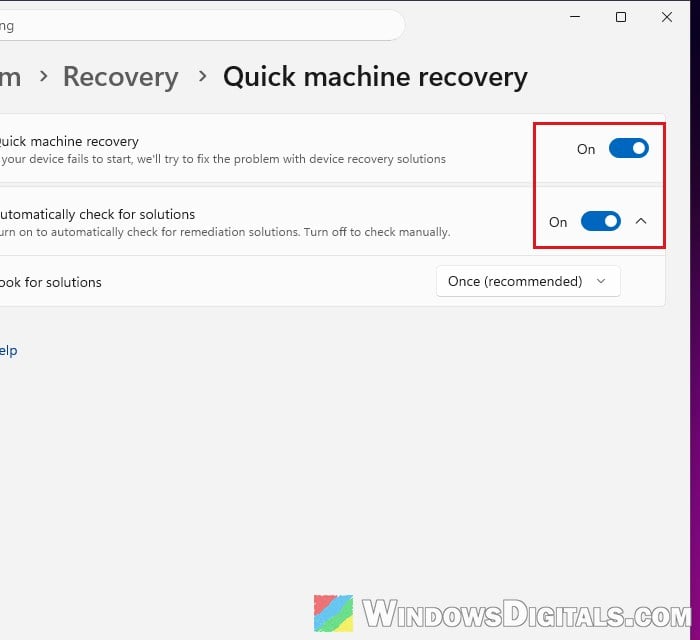
If both toggles show On, your PC will look for a fix online the next time Windows fails to start several times in a row.
Should you turn it off?
For most people, there’s no real reason to. It does nothing while Windows is working, and when Windows can’t start, it’s one more chance of getting back in without doing anything yourself.
If you’d rather your PC never goes online from the recovery screen, just turn the Quick machine recovery toggle off. Windows will then use Startup Repair only.
Pro tip: How to Startup Repair Windows 10/11 using Command Prompt
What if it doesn’t find a fix?
If Quick Machine Recovery can’t find a solution, Windows takes you to the usual recovery options instead (unless your PC is set to keep retrying). From there, under Troubleshoot > Advanced options, you can still run Startup Repair, use System Restore, or remove a recent update with Uninstall Updates.
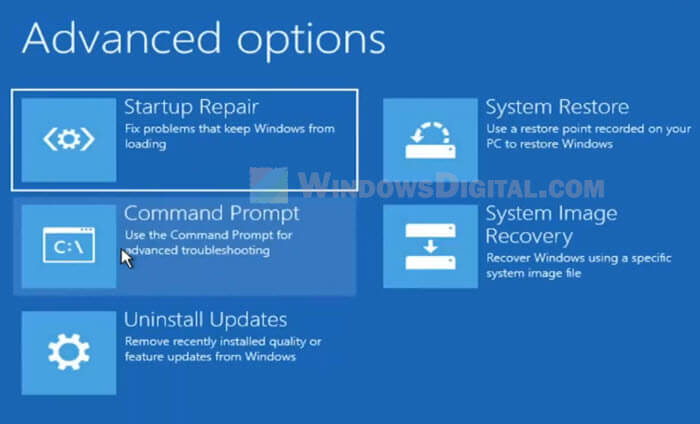
If the problem started right after an update, Uninstall Updates is the one to try. If you have a restore point from before the problem started, see: How to System Restore Windows 11/10 to a Previous Date.