If your laptop can’t connect to your work, school or campus Wi-Fi anymore after installing the October 2026 update KB5127648, while your phone and other devices connect just fine (and your home Wi-Fi still works), it’s not your Wi-Fi adapter. The update changed how Windows handles an old sign-in method that many of these networks still use. This guide will explain what changed and show you how to get connected again.
Also see: “Can’t connect to this network” WiFi/Hotspot Issue Windows 11/10
Page Contents
Why does KB5127648 break work or school Wi-Fi?
Many work, school and campus networks don’t use a single Wi-Fi password. Instead, you sign in with your own account (a setup called WPA2-Enterprise or 802.1X), and a lot of them do it with a method called PEAP-MSCHAPv2. On many work and school laptops, Windows signs in to these networks for you, using your Windows account.
That automatic sign-in relies on an old type of credential (NTLMv1) that Microsoft is phasing out. Since 2025, Windows 11 has only been logging a warning when it gets used. Starting with the October 13, 2026 update (KB5127648), Windows blocks it by default instead, unless a registry value called BlockNtlmv1SSO says otherwise. So the PC starts signing in to the network but never finishes, while devices that didn’t get the update keep connecting normally.
Some other things to know about this problem:
- It affects wired 802.1X networks too, not only Wi-Fi.
- Home Wi-Fi and other networks that use a normal Wi-Fi password (WPA2-Personal, like most home routers) aren’t affected.
- This isn’t a bug Microsoft will patch. It announced the change ahead of time, so waiting for a fix won’t help. As of mid-October 2026, it’s not on Microsoft’s list of known issues for the update either.
Pro tip: How to Check if a KB Update is Installed in Windows 11
How to tell if this is your problem
When Windows blocks this kind of sign-in, it writes an error to a log in Event Viewer. Here’s how to check it:
- Press Win + R, type
eventvwr.mscand press Enter. - In the left pane, go to Applications and Services Logs > Microsoft > Windows > NTLM > Operational.
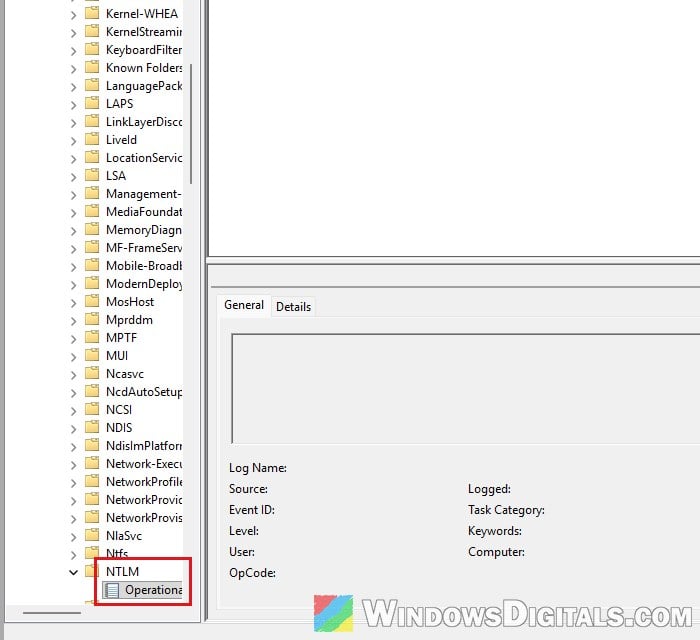
- Look for Error entries with the Event ID 4025 from around the time you tried to connect.
If you see them, it’s this issue. If the log is empty, it can still be worth trying the fix below, since it’s quick and easy to undo.
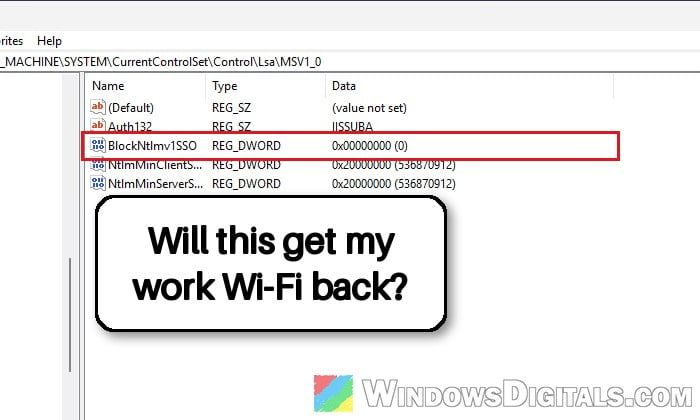
Set BlockNtlmv1SSO to 0 in the registry
This is the fix that has worked for most people on Microsoft’s forums and Reddit, and it’s the setting Microsoft itself documents for this change. Setting BlockNtlmv1SSO to 0 puts Windows back in “audit” mode, where it only logs a warning and lets the sign-in go through. You keep the rest of the October security update.
Incorrectly changing the registry can cause serious problems in Windows, so please at least create a system restore point first. You’ll also need administrator rights. If it’s a work or school laptop and you don’t have them, send this page to your IT department instead (see the last section).
Here’s what you should do:
- Search for “Registry Editor” in the Start menu, then click Run as administrator.
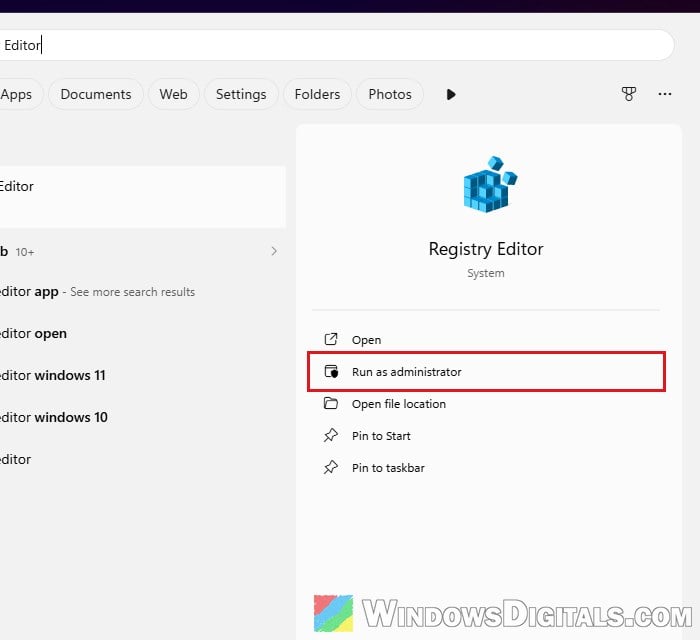
- Copy and paste the following path to the address bar, and press Enter:
HKEY_LOCAL_MACHINE\SYSTEM\CurrentControlSet\Control\Lsa\MSV1_0
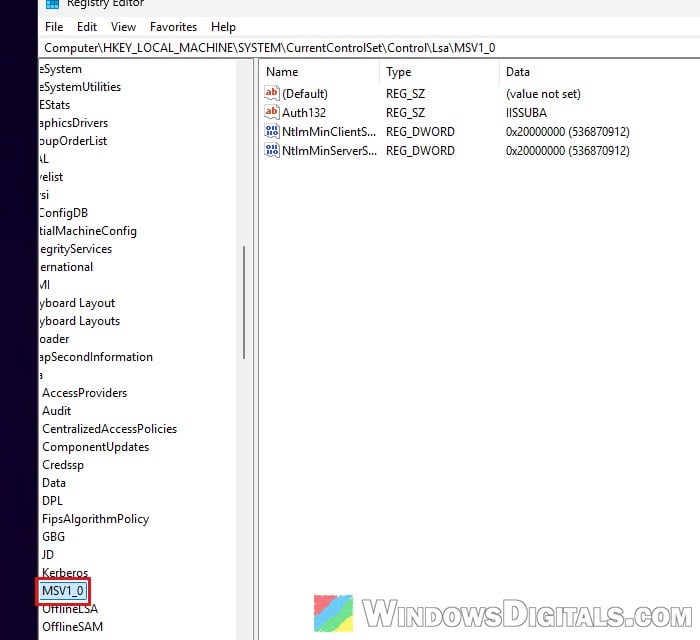
- If BlockNtlmv1SSO is already in the right pane, skip to step 5. Otherwise, right-click an empty space in the right pane and select New > DWORD (32-bit) Value.
- Name it
BlockNtlmv1SSOand press Enter. - Double-click BlockNtlmv1SSO, set its Value data to 0, and click OK.
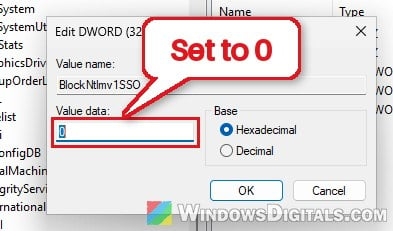
- Close Registry Editor and connect to the network again.
According to Microsoft, the change applies without a restart, but if the network still won’t connect, restart your PC and try once more. To undo it later, just delete the BlockNtlmv1SSO value.
Do it with one PowerShell command instead
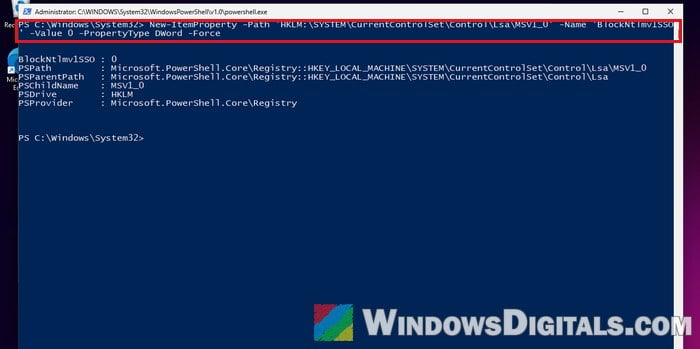
If you’d rather not click through Registry Editor, search for “PowerShell” in the Start menu, click Run as administrator, and run this command. It creates the same value, or sets it to 0 if it already exists:
New-ItemProperty -Path 'HKLM:\SYSTEM\CurrentControlSet\Control\Lsa\MSV1_0' -Name 'BlockNtlmv1SSO' -Value 0 -PropertyType DWord -Force
Is it safe to leave it like this?
Setting the value to 0 turns back on a weaker sign-in method that Microsoft has just switched off for security reasons. Microsoft describes it as a temporary exception for networks that can’t move away from that method yet. For most people, that’s worth it until the network moves to something safer. Moving the network to a safer sign-in method is up to your IT department or school, not you.
Related guide: Windows Registry Key “Access is Denied” Error
Uninstall KB5127648 (only as a short-term fix)
Removing the update also brings the connection back straight away. But it removes all of October’s security fixes, Windows Update will install it again sooner or later, and the next updates block the same sign-in anyway. Only use this if the registry change doesn’t work for you and you need to get online right now.
To uninstall KB5127648, follow the steps below:
- Open Settings and go to Windows Update > Update history.
- Scroll down and click Uninstall updates.
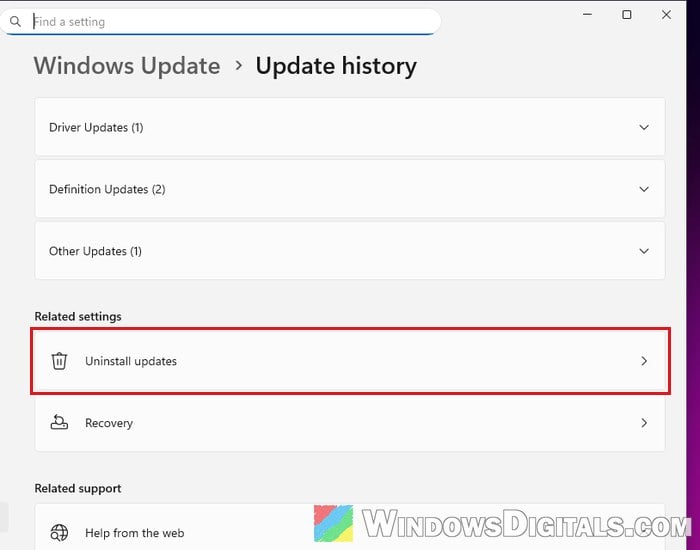
- Find KB5127648 in the list and click Uninstall.
- Restart your PC when it’s done.
Once your PC is back on, connect to the work or school network again and see if it signs in.
If you prefer the command line, you can also try this in an admin Command Prompt (if it fails, use the Settings steps above):
wusa /uninstall /kb:5127648
Pausing updates on the Windows Update page will keep it away for a while, but that also delays every other security update, so set the registry value as soon as you can.
Type your network password instead (if the above doesn’t work)
The block only stops Windows from signing in automatically with your Windows account. If you turn off the option to sign in with your Windows account for that network and type your network user name and password yourself (often DOMAIN\username), it has worked for some people. It doesn’t work for everyone, though, and the details often aren’t saved, so you may have to type them again the next time you connect.
Linked issue: Windows 11 Can’t Connect to Ethernet but WiFi Works
For IT admins: fixing it on every PC
If many devices are affected, push the same registry value to them rather than fixing each one by hand, with a Group Policy Preferences registry item (Computer Configuration > Preferences > Windows Settings > Registry) or an Intune remediation script. Both set BlockNtlmv1SSO (REG_DWORD) to 0 under HKLM\SYSTEM\CurrentControlSet\Control\Lsa\MSV1_0.
That’s a stopgap. The lasting fix is to move Wi-Fi and wired 802.1X sign-in away from PEAP-MSCHAPv2 to certificate-based EAP-TLS. Turning on Credential Guard, which Microsoft recommends in general, won’t bring PEAP’s automatic sign-in back, since Credential Guard blocks it as well.