If every download in Microsoft Store sits on “Verifying dependencies” for a while and then fails with error 0x80248014, so you can’t install any app at all, it’s usually not the app or the Store that’s broken. This guide will show you what’s likely blocking it and how to get the Store working again on Windows 11 or 10.
Also see: Can’t Download or Install Apps on Microsoft Store
Page Contents
Why does Microsoft Store show error 0x80248014?
Error 0x80248014 is actually a Windows Update error code. Microsoft Store uses Windows Update’s services to download apps and the components they depend on, which is what “Verifying dependencies” is about. So when something is wrong on the Windows Update side, the Store fails too. That’s also why many people with this error find that Windows Update can’t install updates either.
The most common reasons are:
- A policy that blocks Windows Update or the Store. This is usually set by a privacy or “debloat” tool, a tool used to stop Windows updates, or by the IT admin on a work or school PC.
- Damaged Windows Update files or cache.
We’ll start with the Store’s own cache, since it’s the quickest thing to rule out, even though it isn’t a known fix for this error.
Linked issue: Microsoft Store “Error encountered – One of the update services is not running properly”
Clear the Microsoft Store cache
Clearing the Store’s cache takes a few seconds and doesn’t remove any of your apps. Here’s how to do it:
- Press Win + R to open the Run dialog box.
- Type
wsreset.exeand click OK.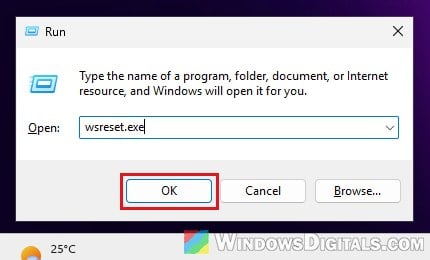
- A blank Command Prompt window opens. Wait for it to close by itself (about 10 seconds), after which Microsoft Store opens.
Try downloading the app again. If it still fails with 0x80248014 after “Verifying dependencies”, move on to the next fix.
Check if a policy is blocking Windows Update or the Store
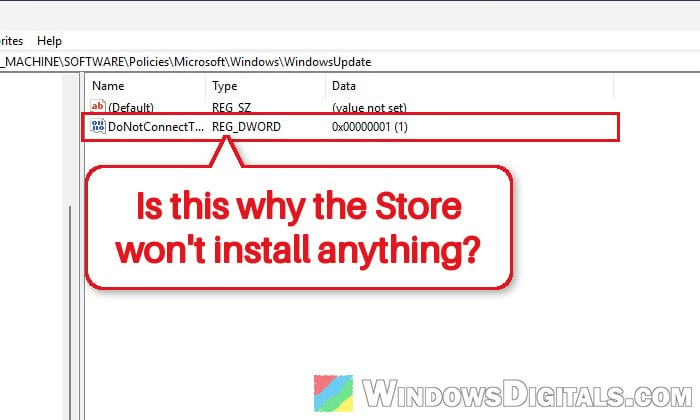
Two policies have been found behind this exact error. The first is “Do not connect to any Windows Update Internet locations“, which, according to Microsoft, can stop the PC from accessing the Store. The second is “Turn off the Store application“, which blocks the Store outright. If you’ve ever used a privacy tool such as O&O ShutUp10, or a tool to stop Windows from updating, one of these may have been switched on along the way.
If this is a work or school PC, these policies are most likely set by your organization on purpose, so ask your IT admin instead of changing them.
We’ll check both in Registry Editor, which works on Home and Pro alike. Changing the wrong thing in the registry can cause problems in Windows, so only touch the two values below, and please at least create a system restore point first. If you’re not sure what you’re doing, it’s better to get someone who knows to help you.
- Press Win + R, type
regeditand press Enter. Click Yes if asked. - Copy and paste the following path to the address bar and press Enter:
HKEY_LOCAL_MACHINE\SOFTWARE\Policies\Microsoft\Windows\WindowsUpdate
- Look for a value called DoNotConnectToWindowsUpdateInternetLocations on the right. If it’s there and set to 1, double-click it, change the value data to 0, and click OK.
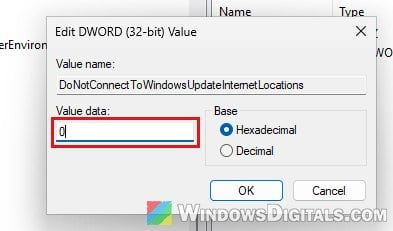
- Now go to the following path:
HKEY_LOCAL_MACHINE\SOFTWARE\Policies\Microsoft\WindowsStore
- If there’s a value called RemoveWindowsStore set to 1, double-click it, change the value data to 0, and click OK.
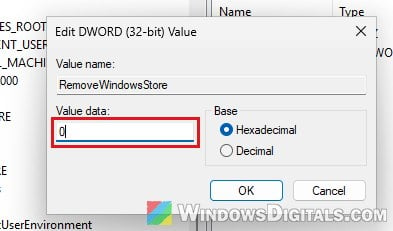
- If you changed either value, restart your PC.
After the restart, open Microsoft Store and try the download again.
If you’re on Pro edition, you can do the same in the Group Policy Editor (gpedit.msc): set “Do not connect to any Windows Update Internet locations” (under Computer Configuration > Administrative Templates > Windows Components > Windows Update) and “Turn off the Store application” (under Windows Components > Store) to Not Configured.
If neither value is there (or the keys don’t exist at all), neither policy is set on your PC, so move on to the next fix.
Reset Windows Update components
If no policy was set, the next likely cause is damaged Windows Update files. Resetting the Windows Update components clears out the files Windows Update has downloaded and its database, so both Windows Update and the Store start fresh. It can get the Store working again, especially when Windows Update is failing at the same time.
- Click Start, type “cmd“, and select Run as administrator for Command Prompt, then click Yes.
- Type the following commands one by one, and press Enter after each:
net stop usosvc
net stop wuauserv
net stop bits
ren C:\Windows\SoftwareDistribution SoftwareDistribution.old
net stop cryptsvc /y
ren C:\Windows\System32\catroot2 Catroot2.old
net start cryptsvc
net start bits
net start wuauserv
net start usosvc
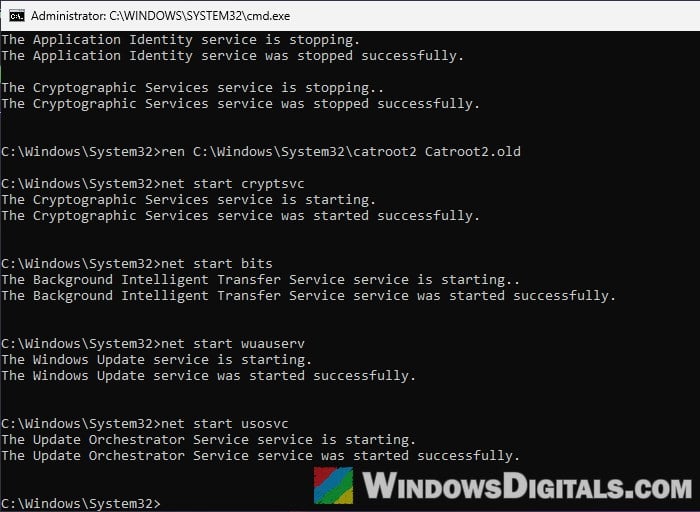
- Messages like “is not started” or “has already been started” are fine.
- If a
rencommand says “Access is denied“, run thenet stopcommands above it once more, then therencommand.
- Restart your PC.
- Open Windows Update (on Windows 11, Settings > Windows Update), click Check for updates, and install whatever it finds.
Then open Microsoft Store and try the download again.
Pro tip: How to Restart Windows Update Service on Windows 11
Repair or reset the Microsoft Store app
If Windows Update works again but the Store still fails, you can repair the Store app itself. It’s a long shot for this error, but it’s harmless. On Windows 11:
- Open Settings and go to System > System Components.
- Click the three dots next to Microsoft Store and select Advanced options.
- Click Repair. If that doesn’t help, click Reset.
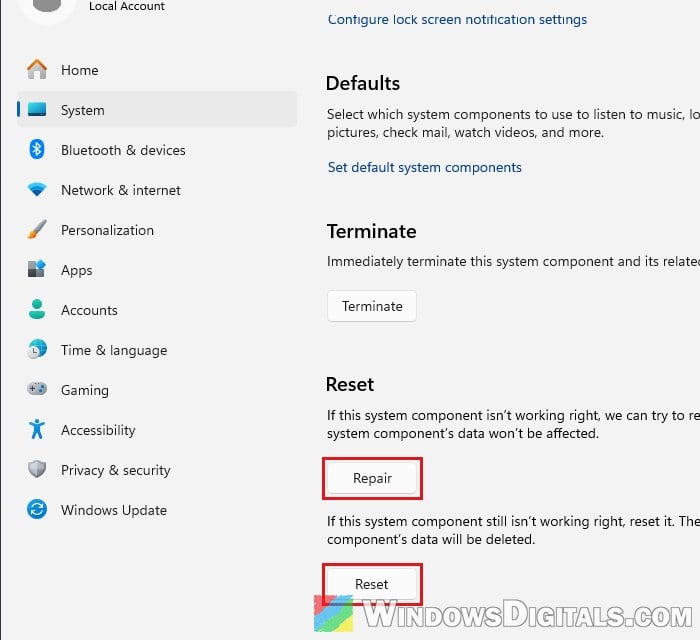
Repair keeps the Store’s data. Reset clears it, so you’ll have to sign in to the Store again, but your installed apps stay where they are. Then check if the app downloads now.
Repair Windows as a last resort
If nothing above works, the damage is probably deeper in Windows itself. On Windows 11, you can reinstall your current version of Windows without losing your apps and files by going to Settings > System > Recovery and clicking Reinstall now under “Fix problems using Windows Update“. If that option isn’t there, or you’re on Windows 10, an in-place upgrade with the Windows installation media does the same kind of repair.
Learn more: “Reinstall your current version of Windows” Message