If you have a 2-in-1 (convertible) laptop and Windows 11 keeps switching to tablet mode by itself, with the screen briefly resizing and jumping back, or the keyboard and touchpad suddenly stopping, you’ve probably also noticed that the tablet mode switch from Windows 10 is gone. This guide will explain why it happens and what you can do to stop it.
Also see: How to Do Split Screen on Windows 11/10 Laptop Tablet Mode
Page Contents
Why does Windows 11 keep switching to tablet mode?
According to Microsoft, Windows 11 doesn’t have an option to turn tablet mode on or off. It switches by itself when the keyboard is detached or the laptop is folded into a tablet, and switches back when it’s a laptop again. Windows works out which mode you’re in from the hinge or keyboard sensor (through its driver) and just goes along with it.
So when the sensor or its driver reports the wrong thing, Windows 11 follows it. You’ll typically see:
- The layout jumping to tablet mode and back within a couple of seconds, often right after waking from sleep, after signing in, while typing, or when the lid moves.
- The keyboard and touchpad turning off when the screen is opened too far.
- On some laptops, a touch-optimized taskbar and check boxes on File Explorer items that won’t go away.
Since there’s no setting to turn it off, the fixes below deal with the hardware side instead.
Don’t open the screen all the way flat
On some 2-in-1s, tablet mode starts as soon as the screen is opened past a certain angle. On a Dell Latitude 7430 2-in-1, for example, opening the screen nearly flat (past about 200 degrees) turns tablet mode on and disables the built-in keyboard and touchpad.
If that’s what happens to you, keep the screen opened slightly less than flat while you type. It’s only a workaround, but it needs no changes in Windows at all.
Update the BIOS and your laptop maker’s drivers
The sensor that reports laptop or tablet mode depends on the BIOS and a few drivers from your laptop’s maker. An outdated one can make the laptop misread its own position. Get the latest versions from your laptop maker’s support website (enter your model or service tag there), especially:
- The BIOS (or UEFI firmware)
- The Intel HID Event Filter driver, which can make Intel laptops misread their position
- Intel Dynamic Platform and Thermal Framework
- The touchpad and keyboard drivers
Be warned: A BIOS update is riskier than a driver update. Keep the laptop plugged in and don’t turn it off or interrupt it while it runs, or the laptop may not start again. If you’re not sure what you’re doing, it’s better to get someone to help you.
Restart after installing them, then use the laptop for a while to see if it still switches. This won’t fix every case, though, since the switching can happen even with the latest BIOS and drivers.
Related guide: How to Install or Update Driver in Windows 11
Disable the device that reports tablet mode
If your laptop keeps switching even though you’re not touching it, the device that tells Windows which mode it’s in is probably sending false signals. Disabling it in Device Manager should stop Windows from switching on its own. The catch is that you also lose automatic screen rotation, and the laptop won’t switch to tablet mode when you actually fold it. Here’s how to do it:
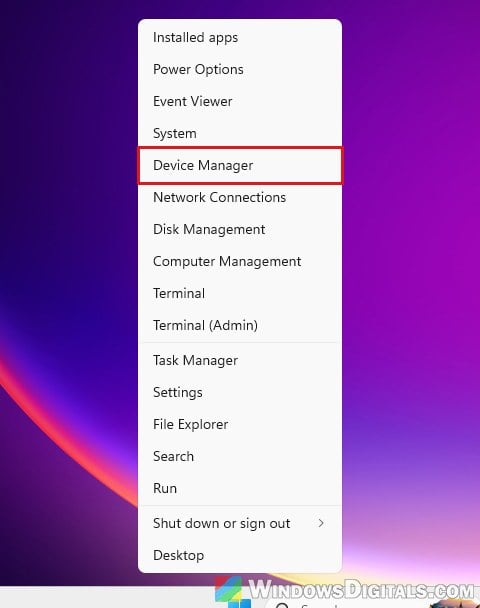
- Right-click the Start button and select Device Manager.
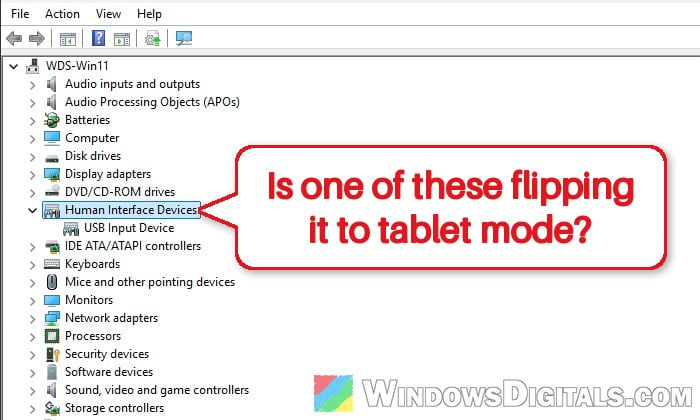
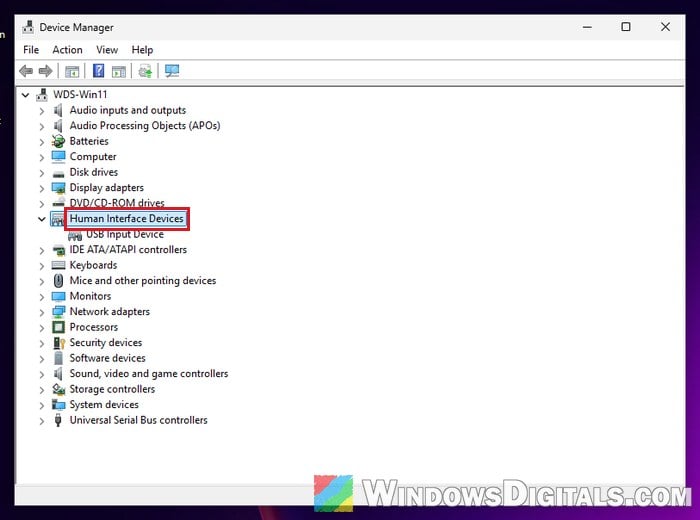
- Expand Human Interface Devices and look for HID-compliant Convertible Slate Mode Switch or Intel(R) HID Event Filter.
- Right-click it and select Disable device.
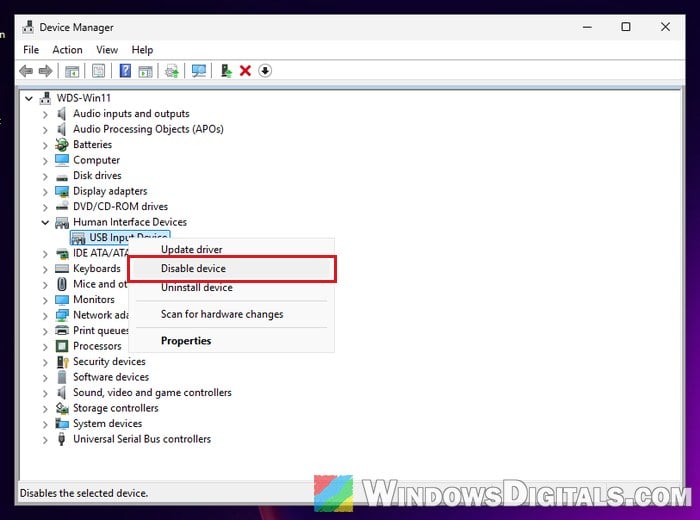
- Click Yes to confirm.
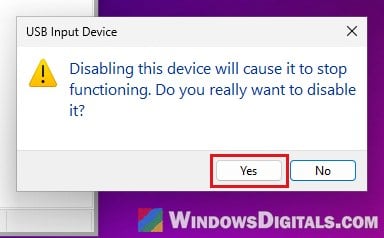
- Restart your laptop and see if it still switches.
- If it does, expand Sensors and disable sensors like HID Sensor Collection V2, Intel Integrated Sensor Solution or Simple Device Orientation Sensor the same way.
Disable them, don’t uninstall them, so you can easily undo it. If something you need stops working, right-click the device and select Enable device.
Pro tip: How to See What Drivers Are Installed in Windows 11
Set ConvertibleSlateMode in the registry
Windows keeps the current mode in a registry value called ConvertibleSlateMode. According to Microsoft, 1 means laptop mode (a physical keyboard is available) and 0 means tablet mode. Setting it to 1 can get a laptop out of tablet mode, even one that isn’t a 2-in-1 at all.
Please note that on a real convertible, the driver behind the sensor updates this value every time the mode changes, so it may simply be set back. If you have a convertible, try the Device Manager method above first.
Incorrectly changing the registry can cause serious problems, so please create a system restore point first. If in doubt, get someone who knows to help you instead. Here’s how to do it:
- Press Win + R, type
regeditand press Enter.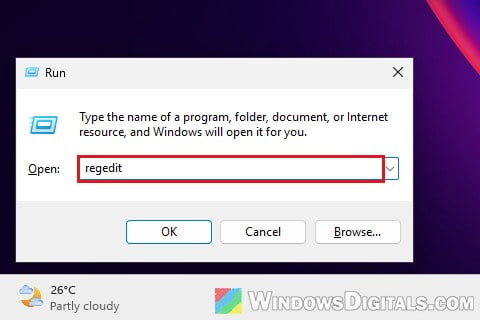
- Copy and paste the following path into the address bar and press Enter:
HKEY_LOCAL_MACHINE\SYSTEM\CurrentControlSet\Control\PriorityControl
- Double-click ConvertibleSlateMode, set its Value data to 1 and click OK. If there’s no ConvertibleSlateMode value, skip this method and use the Device Manager one above.
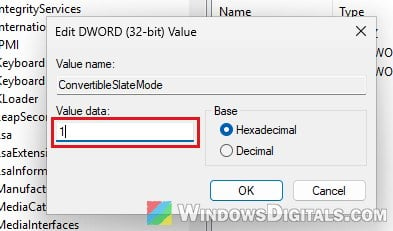
- Restart your laptop.
After the restart, check whether the taskbar and File Explorer are back to the normal desktop layout.
Could it be a faulty sensor?
If nothing above helps, the hinge or rotation sensor itself may be failing. Some laptops, such as certain Dell models, may have an option in the BIOS (press F2 at the Dell logo) for the convertible or tablet behavior, so it’s worth a look, but not every model has one.
If your laptop is still under warranty, contact the manufacturer and tell them the laptop keeps switching between tablet and laptop mode by itself. A failing sensor is a hardware problem, and Windows can’t fully work around it.