If you’re using Google Chrome and your search engine keeps changing to Yahoo, with every search you type in the address bar quickly passing through sites like smartingly.com, freeesoftheap.org or searchpluspro before the Yahoo results show up, something is hijacking Chrome’s search settings. This guide will show you how to get Google back and how to find what keeps putting Yahoo back.
Also see: Removing Survey-smiles.com Malware from Chrome
Page Contents
Why does Chrome keep switching to Yahoo?
This kind of redirect is the work of a browser hijacker. It sends your searches through its own sites first, which earns it money from the Yahoo results you end up on. Yahoo itself isn’t the problem. It’s just where the searches end up.
The tricky part is that the setting usually comes back. Common reasons are:
- A program installed on your PC, often bundled with free software downloaded from somewhere other than its maker’s website. It can leave an updater or a scheduled task behind that quietly changes Chrome back, like OneBUpdate (from a browser called OneBrowser).
- An extension that controls your search engine or new tab page.
- A policy set on Chrome, which can force extensions or settings on it and makes Chrome say it’s “managed by your organization”.
- McAfee’s search setting, which can switch your searches to Yahoo, usually after you click past one of its pop-ups without reading it.
- Chrome Sync, which can copy the bad search engine back from your Google account even after you reinstall Chrome.
In many cases reported by users on Reddit, deleting the Yahoo entry or removing extensions only helped for a few hours or days, so go through the sections below instead of stopping at the first one.
Change the default search engine back and check the fake “Yahoo”
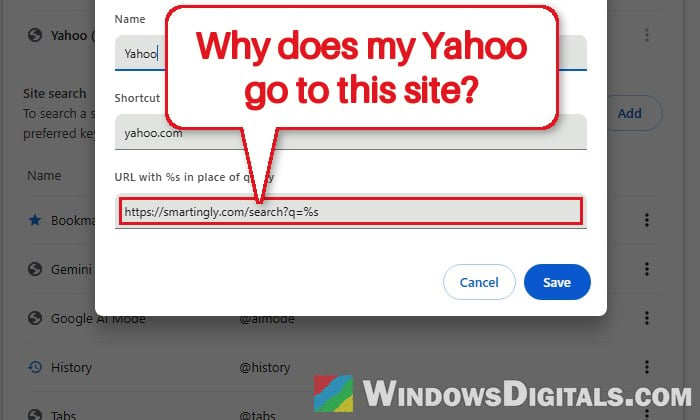
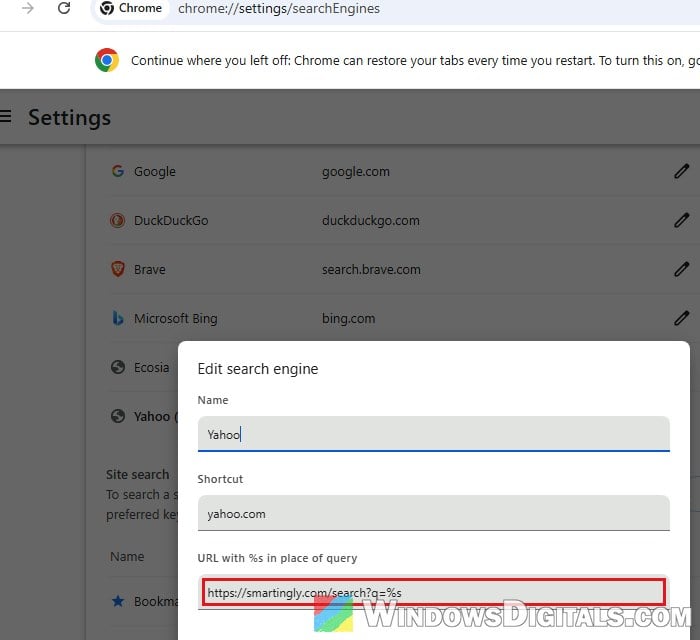
The entry in Chrome’s search engine list may say “Yahoo”, but its address can point to a different site, like smartingly.com. Once another search engine is the default, the fake entry can be removed, and sometimes it disappears by itself. Here’s how to do it:
- In Chrome, type
chrome://settings/searchEnginesin the address bar and press Enter. - Click the pencil (edit) button next to the “Yahoo” entry. If it won’t open, skip to step 4.
- Look at the URL with %s in place of query field. If it shows smartingly.com or another unfamiliar site instead of yahoo.com, that’s the fake one. Click Cancel.
- Click the three-dot button next to Google (or another search engine you trust) and select Make default.
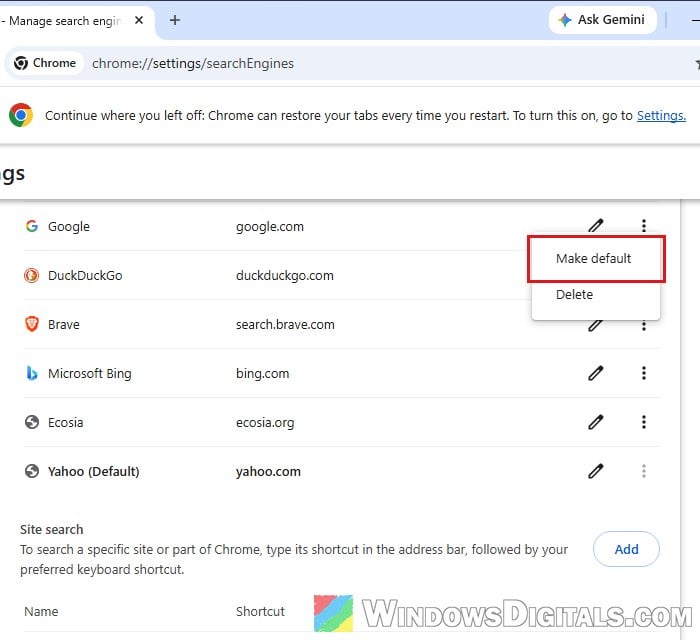
- Click the three-dot button next to the fake “Yahoo” entry and select Delete.
- Next, go to
chrome://settings/onStartup. If Open a specific page or set of pages is selected, remove any page in its list that you don’t recognize.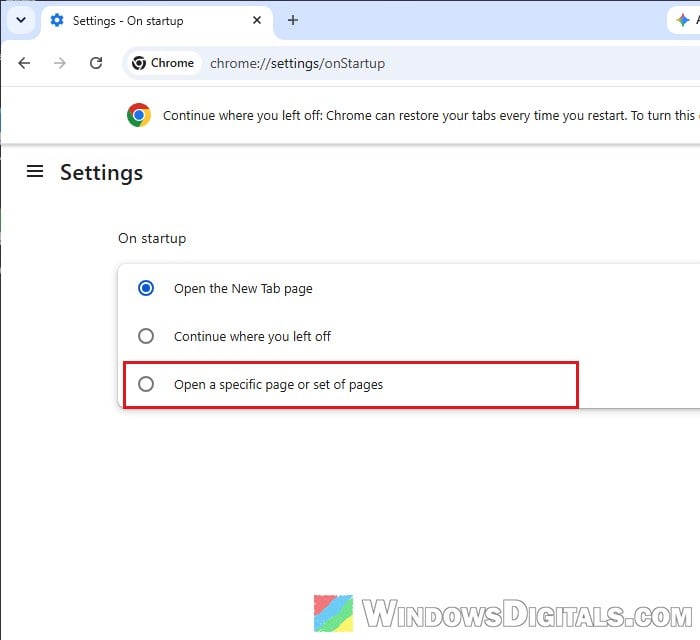
Search for something again and see if it goes straight to Google. If Yahoo comes back later, something is changing it, so carry on below.
Might be useful: Syndication or a.Realsrv.com Spam on iPhone, Android or PC
Uninstall the program that keeps bringing it back
Most hijackers come with something you installed, so the surest fix is to remove that program. Google’s own advice starts here too:
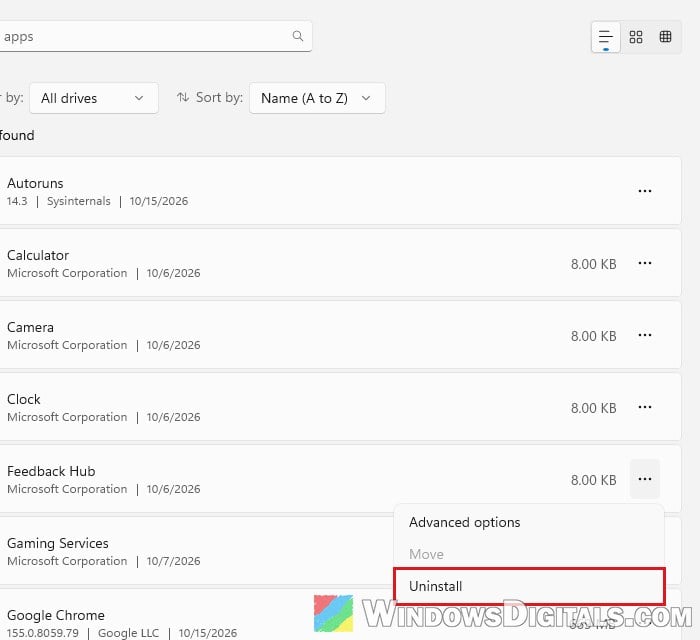
- Open Settings > Apps > Installed apps.
- Look for anything you don’t remember installing, especially around the time the redirects started. Unknown browsers (such as OneBrowser), “search”, “PDF” or “converter” tools are common suspects.
- Click the three-dot button next to the program and select Uninstall.
- Restart your PC once you’re done.
What if you have McAfee installed?
If McAfee came with your PC or you installed it yourself, check it first. Its secure search uses Yahoo, and for quite a few people this was the whole cause, not a virus. Turn off its secure search option in McAfee, or uninstall McAfee WebAdvisor and remove its extension from Chrome. If you don’t use McAfee at all, just uninstall it.
Remove unknown extensions and check Chrome’s policies
An extension can change your search engine too, and a policy can force settings or extensions on Chrome. To check both:
- Type
chrome://extensionsin the address bar and press Enter. - Click Remove on any extension you don’t recognize or use. Be extra careful with shopping and coupon extensions.
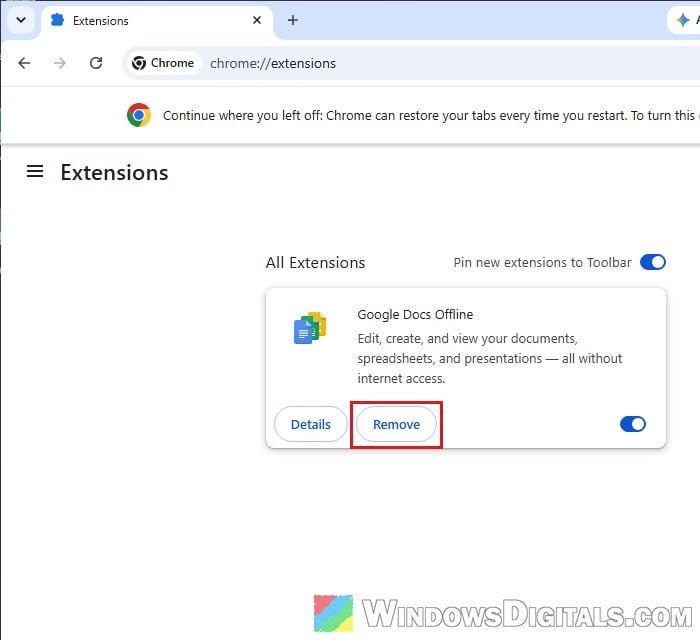
- Then type
chrome://policyin the address bar and press Enter. If it shows policies you never set, a program has added them.
Another sign is “Managed by your organization” at the bottom of Chrome’s three-dot menu on a PC that no company or school manages. If the policies are still there after the steps below, Autoruns can find what’s left of the program.
Linked issue: Is “AdBlock Next” Popup and Extension Safe or a Virus?
Reset Chrome settings
Resetting Chrome resets your startup page, new tab page, search engine and pinned tabs, turns off your extensions, and deletes cookies and other temporary site data. Bookmarks, history and saved passwords aren’t affected. To reset Chrome:
- Type
chrome://settings/resetin the address bar and press Enter. - Click Restore settings to their original defaults, if the “Reset settings?” box doesn’t open by itself.
- Click Reset settings to confirm.
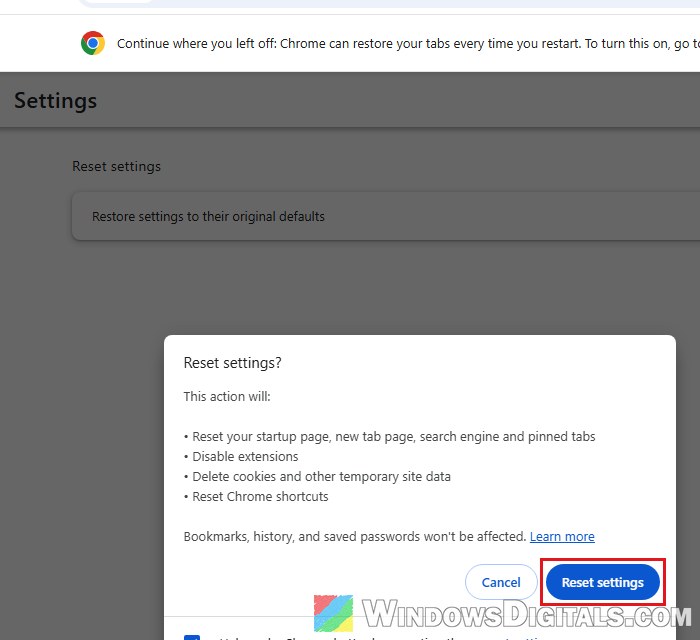
The reset applies to every device signed in to the same account. Afterwards, turn back on only the extensions you need.
Stop Chrome Sync from bringing it back
If the redirect comes back even after Chrome is reset or reinstalled, the bad search engine may be stored in your synced Chrome data. Here’s how to check and clear it:
- Go to
chrome://settings/syncSetup/advanced(it opens Your account in Chrome’s settings). - Under In your Google Account, turn off Settings.
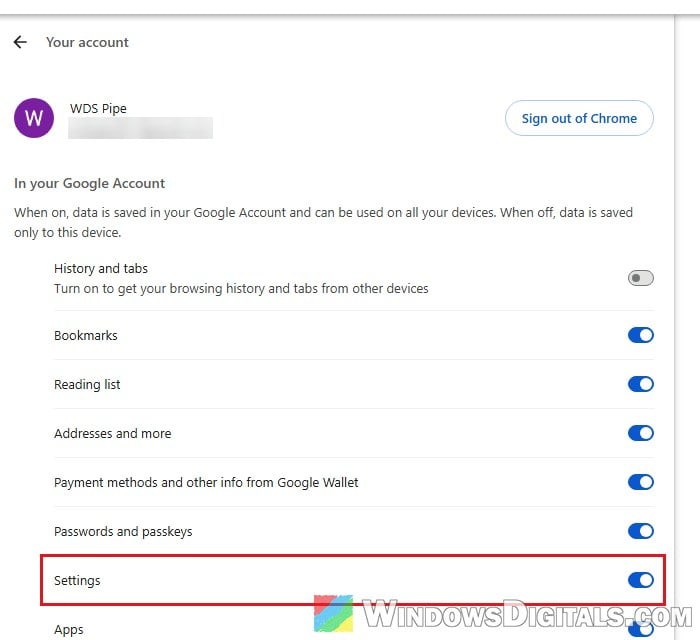
- Close Chrome completely, open it again and search for something. If it goes straight to Google, the problem is in your synced data.
- To clear it, go to
https://chrome.google.com/dataand select Delete data. Then fix the search engine as shown above and turn Settings back on.
Deleting the data removes the synced copy of your bookmarks, passwords and other Chrome data from your Google account, so make sure this PC still has everything you need first.
Find what restarts the hijacker with Autoruns
If the search engine still changes back, there’s probably a scheduled task or startup entry left over that resets it in the background. Autoruns is a free Microsoft Sysinternals tool that lists everything set to start automatically, scheduled tasks included. Here’s how to use it:
- Download Autoruns from Microsoft’s page:
https://learn.microsoft.com/en-us/sysinternals/downloads/autoruns - Extract the zip file, right-click Autoruns64.exe and select Run as administrator.
- Open the Scheduled Tasks tab.
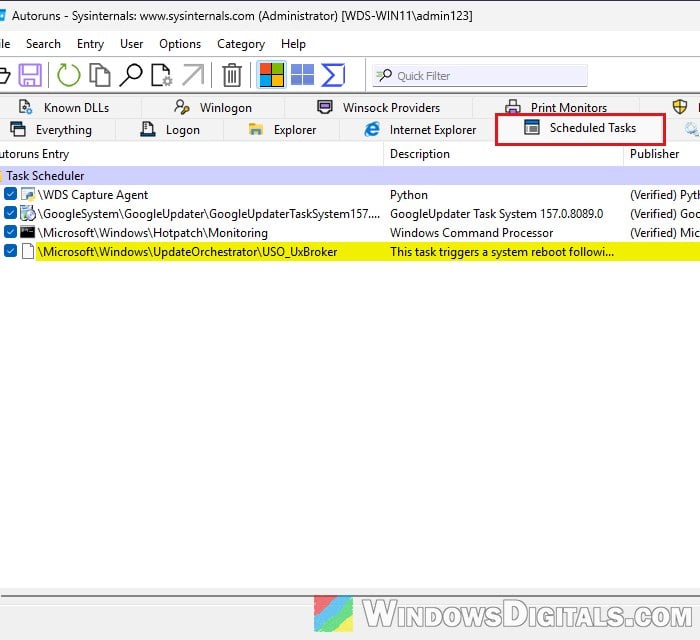
- Click Options and select Hide Microsoft Entries, so that mostly third-party entries are left.
- Look for entries with names or publishers you don’t recognize, or that run from a folder under
AppData\Local(such as OneBUpdate). - Check the Logon tab the same way.
- Uncheck the box next to a suspicious entry to disable it.
- Uninstall the program it belongs to from Installed apps, if you haven’t already.
Unchecking can be undone, so do that rather than deleting entries you’re not sure about (you can just Google a name first).
Scan your PC with Microsoft Defender
Finally, run a full scan to catch anything left. The Microsoft Defender Offline scan is especially useful, since it scans before Windows loads, where persistent malware has a harder time hiding.
- Open Windows Security and go to Virus & threat protection.
- Click Scan options.
- Select Full scan and click Scan now.
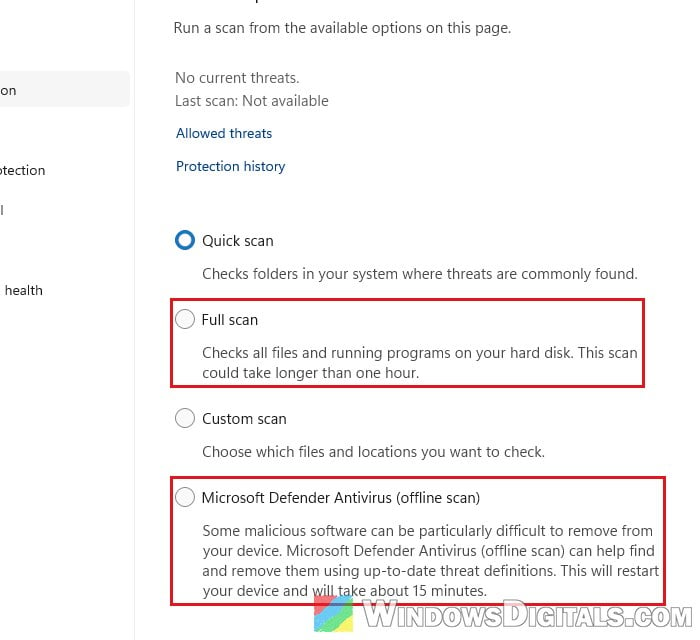
- When it’s done, select Microsoft Defender Antivirus (offline scan) and click Scan now. Save your work first, since it restarts your PC.
If the redirect still comes back, resetting Windows is the last resort.