If you’re trying to connect to a Windows 11 PC with Remote Desktop using a standard (non-admin) account and the connection fails with error 0xC000000D and the message “The token that was passed to the function is invalid“, you’re running into a known bug that Microsoft confirmed on October 13, 2026. This guide will explain what causes it and how to get Remote Desktop working again until Microsoft fixes it.
Also see: Windows 11 Remote Desktop “An authentication error has occurred”
Page Contents
Why does Remote Desktop fail with error 0xC000000D?
According to Microsoft, after installing the September 22, 2026 preview update (KB5124010) or any later update, non-admin users might not be able to connect by Remote Desktop to PCs that have Administrator protection turned on. It happens on Windows 11 versions 24H2, 25H2, 26H1 and 26H2.
Administrator protection is a newer Windows 11 security feature. Instead of keeping admin rights ready in the background like the classic User Account Control (UAC) does, it gives you admin rights only when you approve a task with Windows Hello. It’s off by default, so most home PCs don’t have it on.
That’s why the bug mostly shows up at work. Microsoft says it mainly affects company-managed PCs used as Remote Desktop hosts. Organizations that use Microsoft’s Windows security baselines get Administrator protection turned on by default with the October 2026 security update, so it can be on even if nobody at your company switched it on by hand.
And no, installing the latest update won’t fix it. The October 13, 2026 security update (KB5127648) still lists this as a known issue. Uninstalling the updates isn’t a good way around it either. The bug comes with KB5124010 and every update after it, the October 13 security update included, and removing a security update also removes its security fixes.
Please note that this isn’t the older Remote Desktop error that says “The token supplied to the function is invalid”. That one comes from a CredSSP update mismatch between the two PCs and has a different fix.
Related problem: KB5124010 Update Crashing Games and Apps on Windows 11
Turn off Administrator protection on the remote PC
Microsoft’s workaround is to temporarily turn off Administrator protection on the PC you’re connecting to (the Remote Desktop host), not the one you’re connecting from. Once it’s off, standard users can sign in by Remote Desktop again.
You’ll need an administrator account on that PC to change it. Since standard users can’t get in remotely, sign in at the PC itself or have its admin do it. Keep in mind that this switches the PC back to the classic way admin rights work, so it loses the extra protection until you turn it back on.
If it’s a work PC, the setting most likely comes from your organization through Intune, Group Policy or a security baseline. A change you make on the PC can be overwritten by those policies, so ask your IT department instead. If you’re the IT admin, reset the User Account Control Type Of Admin Approval Mode policy in Intune or Group Policy, and adjust the security baseline if that’s where it’s set.
Using Local Security Policy
Microsoft documents this as one way to turn the feature on or off on a single PC. Here’s how to do it:
- Press Win + R to open the Run dialog box.
- Type
secpol.mscand press Enter to open Local Security Policy.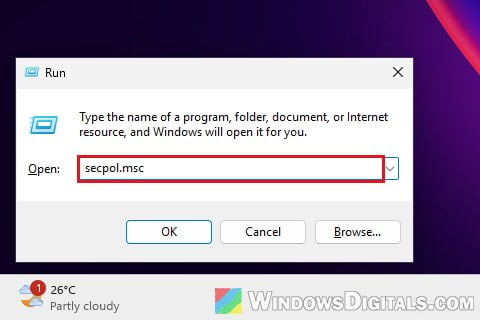
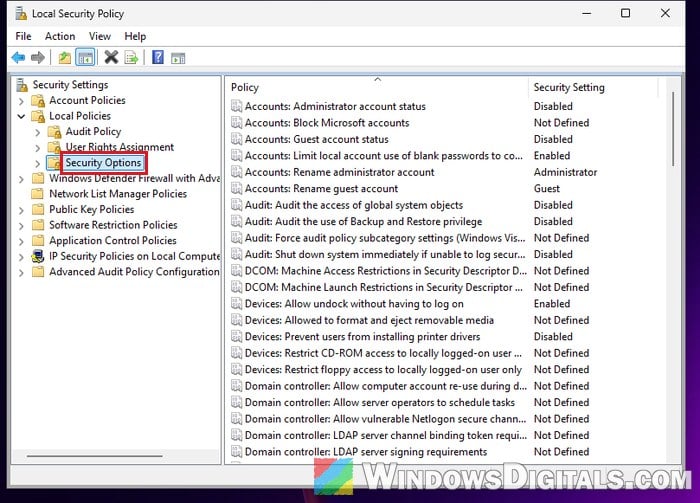
- Go to Security Settings > Local Policies > Security Options.
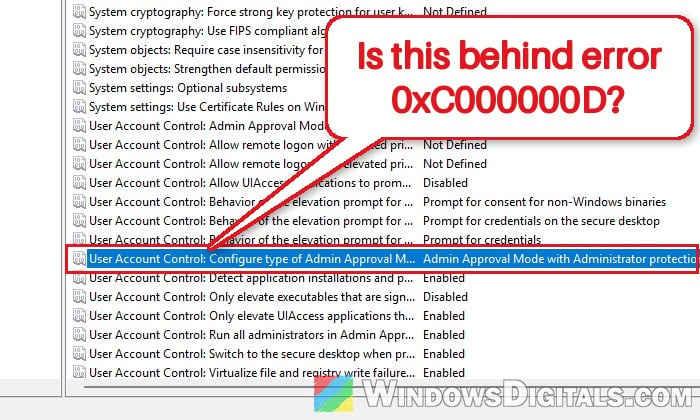
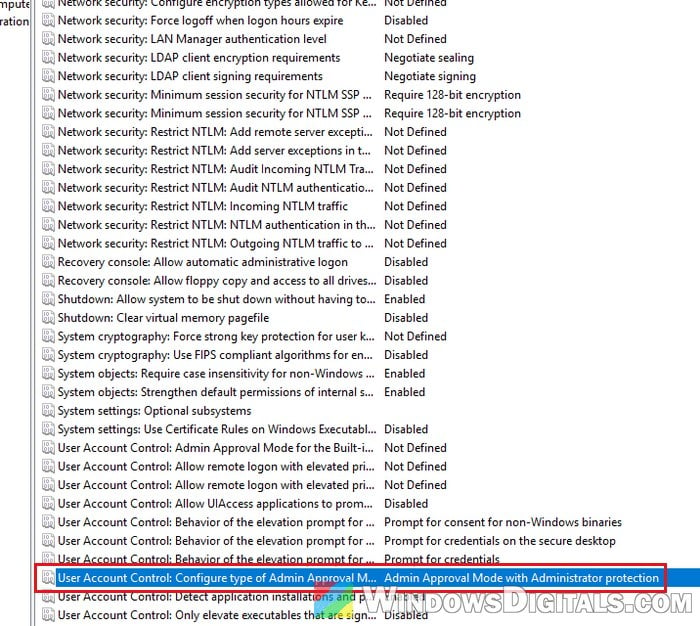
- Find “User Account Control: Configure type of Admin Approval Mode” (if its Security Setting column shows “Admin Approval Mode with Administrator protection“, the feature is on) and double-click it.
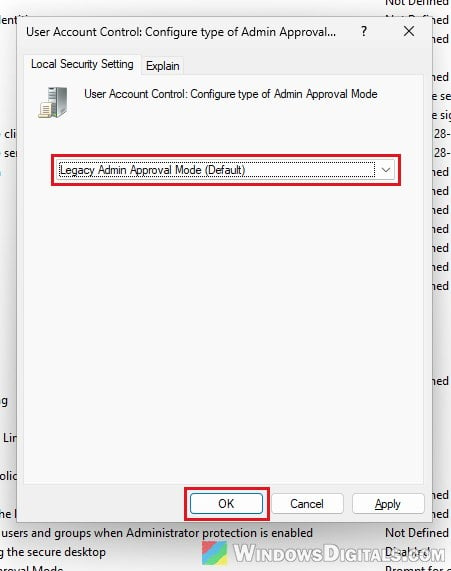
- Select “Legacy Admin Approval Mode (Default)” from the drop-down menu and click OK.
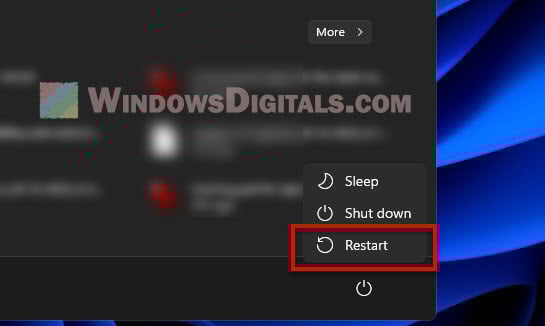
- Restart the PC. The change only takes effect after a restart.
After the restart, try connecting again with the standard account. If the policy already said “Legacy Admin Approval Mode (Default)“, check the Windows Security app below, or ask your IT department whether the feature is set through Intune.
Using the Windows Security app (if your PC has the option)
Microsoft is also adding an Administrator protection switch to the Windows Security app. For now it’s only in Insider preview builds and will reach everyone gradually, so your PC may not have it yet. If it does, here’s how to use it:
- Open the Start menu, search for Windows Security and open it.
- Select Account protection and find the Administrator protection settings.
- Turn the toggle off.
- Restart the PC when it asks you to.
After the restart, try connecting again with the standard account.
Might be useful: How to Remote Desktop Over The Internet in Windows 11
Turn Administrator protection back on after Microsoft’s fix
Microsoft has marked the issue as mitigated on the Windows release health page and says it’s working on a fix for a future Windows update. That page is the one to check: once the fix is out, the issue’s status will change there.
When the fix arrives and is installed on the remote PC, turn Administrator protection back on the same way: set “User Account Control: Configure type of Admin Approval Mode” to “Admin Approval Mode with Administrator protection” (or turn the toggle in Windows Security back on), then restart the PC.