If you’ve been told to disable MPO (Multiplane Overlay) to stop flickering in Discord or Chrome, green squares on the screen, or crashes in apps like Premiere Pro, you might have noticed that Windows 11 has no switch for it anywhere in Settings. This guide will show you how to turn MPO off through the registry, how to check that it’s really off, and when you should turn it back on.
Also see: Windows 11 Desktop Randomly Flashes On and Off
Page Contents
What is MPO and why do people turn it off?
Multiplane overlay is a feature that lets your graphics card put several layers of what’s on screen (a video, an app window, the desktop) together by itself, before the image is sent to your monitor. According to NVIDIA, MPO improves performance and lowers power use because the graphics hardware takes over that job from the Desktop Window Manager.
The problem is that MPO doesn’t always behave, especially with several monitors. It can cause flickering Discord and browser windows, green squares, a green screen in VLC and crashes when you alt-tab, often with FreeSync on and two monitors running at different refresh rates. Users on Reddit also found that turning MPO off stopped micro-stutter in games, browser crashes during YouTube videos, and a game that froze at startup with DLSS frame generation and NVIDIA’s Freestyle filters both on.
So only turn MPO off if you actually have one of these problems.
If you have an RTX 50 series card, NVIDIA says its Release 610 drivers support MPO on all monitors in multi-monitor setups, with Windows at build 26100.7705 or 26200.7705 or later. It’s worth updating your graphics driver and Windows first, in case that’s enough, before you edit anything.
Pro tip: How to Update Graphics Driver in Windows 11
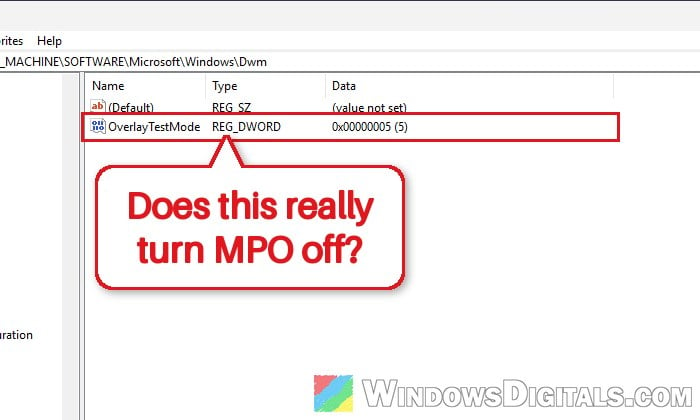
Disable MPO with NVIDIA’s registry fix (OverlayTestMode)
This is the method NVIDIA gives on its own support page (https://nvidia.custhelp.com/app/answers/detail/a_id/5157/), as a small file called mpo_disable.reg, with mpo_restore.reg to undo it. To use it, double-click mpo_disable.reg, click Yes when Registry Editor asks, and restart your PC. The value it adds goes into Windows’ own Desktop Window Manager settings, so it isn’t an NVIDIA driver setting.
Both methods in this guide are registry edits, and incorrectly changing the registry can cause serious problems in Windows. Please at least create a system restore point first. If you’re not comfortable editing the registry, it’s better to get someone who knows to help you instead.
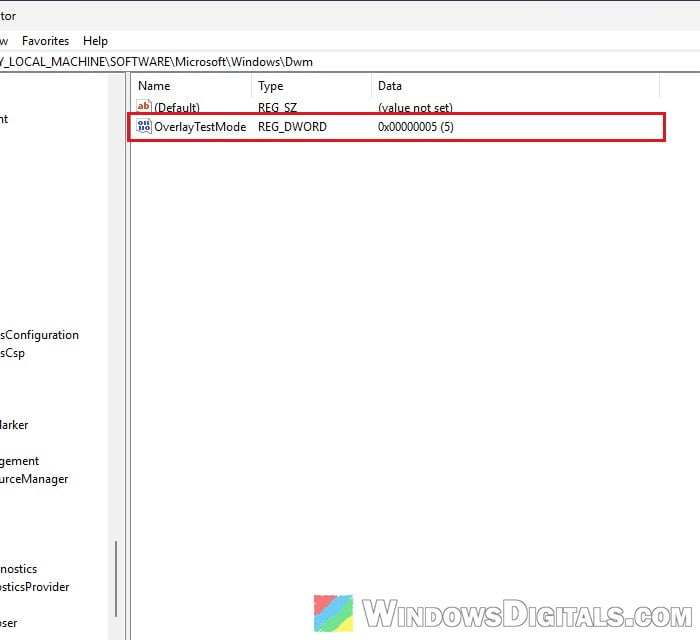
To add the value yourself instead of running the file:
- Press Win + R, type “regedit” and press Enter. Click Yes if User Account Control asks.
- Copy and paste the following path to the address bar and press Enter:
HKEY_LOCAL_MACHINE\SOFTWARE\Microsoft\Windows\Dwm
- Right-click an empty area on the right side, select New > DWORD (32-bit) Value, and name it “OverlayTestMode“.
- Double-click OverlayTestMode, set its Value data to “5” and click OK.
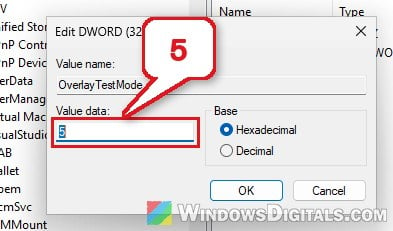
- Close Registry Editor and restart your PC.
After the restart, check whether MPO is actually off (next section), then see if the flickering or crashing is gone.
Related concern: Is it bad to have monitors with different refresh rates?
Check if MPO is really off
Some users found that OverlayTestMode did nothing on their PC, so it’s worth checking instead of guessing. The DirectX Diagnostic Tool can save a report that shows how many overlay planes each display has.
- Press Win + R, type “dxdiag” and press Enter. If it asks whether you want to check if your drivers are digitally signed, you can click No.
- Wait for the green progress bar at the bottom to finish (it can take half a minute), then click “Save All Information…” and save the text file somewhere easy to find, like your desktop.
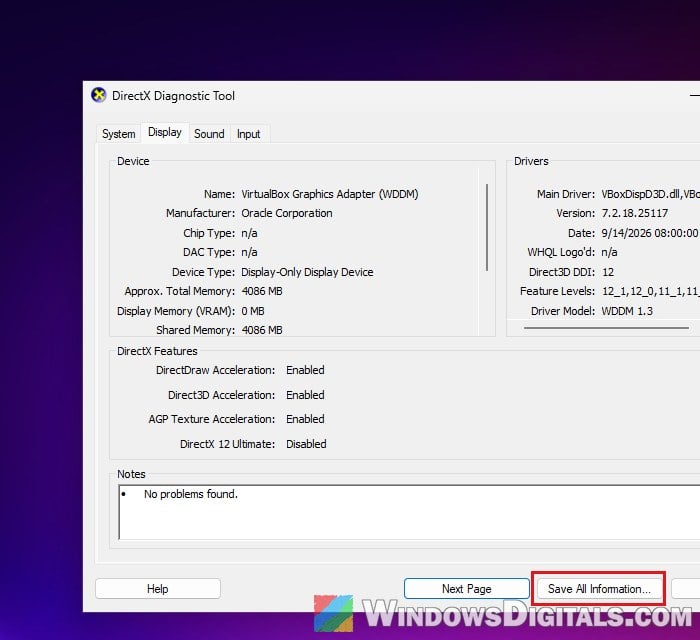
- Open the saved DxDiag.txt and search (Ctrl + F) for “MPO“.
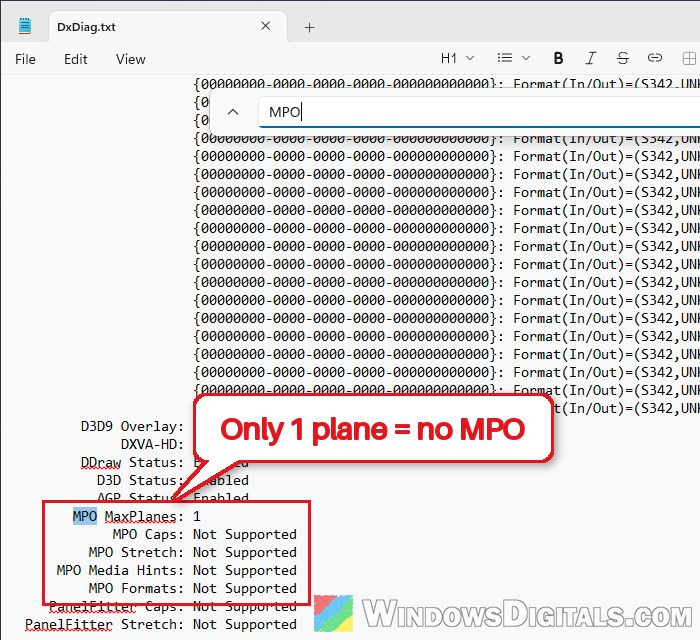
When MPO is on, you’ll usually see MPO MaxPlanes with a number above 1 and a list of features next to MPO Caps. With MPO off, MPO MaxPlanes shows 1 and the other MPO lines say “Not Supported” (like the screenshot above), or there are no MPO lines at all. The report has a part for each display, so check every monitor: the problems may only stop once MPO is off on all of them, not just one.
Related guide: How to Check DirectX Version in Windows 11
Use DisableOverlays if MPO is still on
On some Windows 11 25H2 PCs, OverlayTestMode is simply ignored and dxdiag still lists several planes. What works there is a different value in another key. On other PCs, OverlayTestMode still works on recent builds. Microsoft often rolls out changes to some PCs before others, which may explain the difference. So try NVIDIA’s method first and only move to this one if dxdiag says MPO is still on.
Please be warned that DisableOverlays is the more aggressive switch. It can cause crashes in DX12 games, so treat it as a last resort.
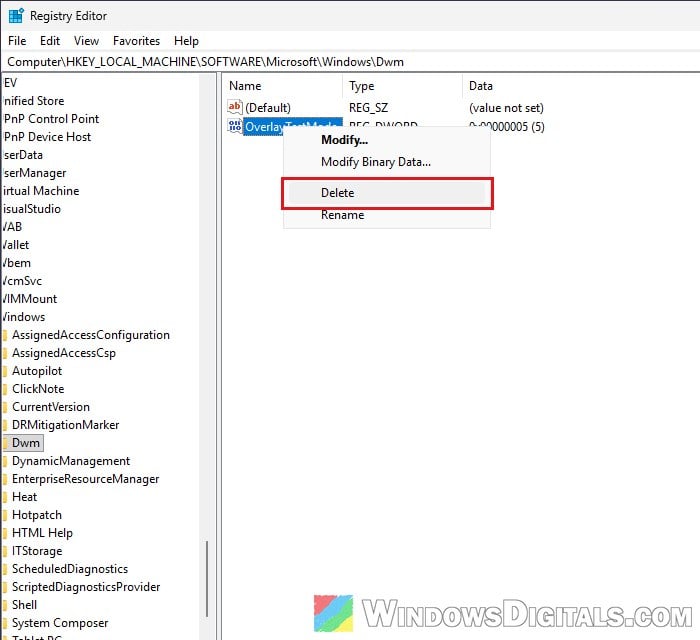
- Open Registry Editor again, go to the Dwm key (same path as above), right-click OverlayTestMode and select Delete.
- Copy and paste the following path to the address bar and press Enter:
HKEY_LOCAL_MACHINE\SYSTEM\CurrentControlSet\Control\GraphicsDrivers
- Right-click an empty area on the right, select New > DWORD (32-bit) Value, and name it “DisableOverlays“.
- Double-click it, set Value data to “1” and click OK.
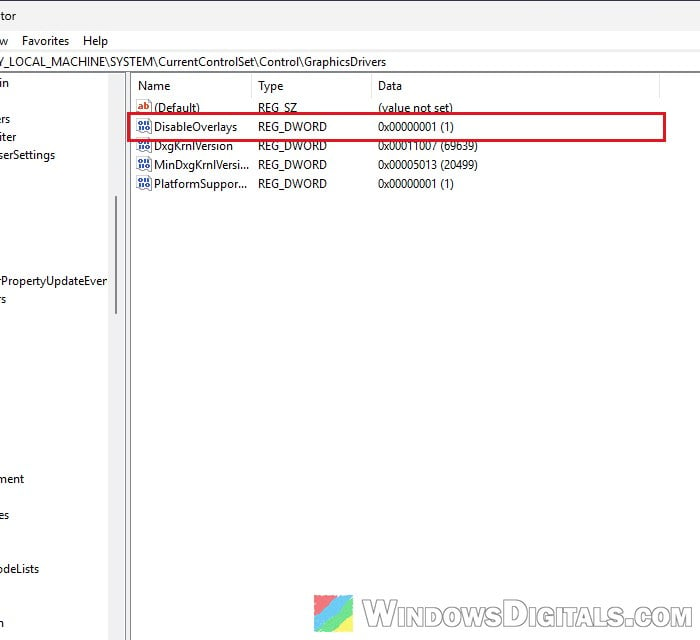
- Restart your PC and check dxdiag again.
Might be useful: Game Stuttering and Lag on Dual Monitor (Fix)
When to leave MPO on (or turn it back on)
MPO is there for a reason, so it’s not something to switch off “just because”. Leave it on, or turn it back on, if:
- Your games start flickering or crashing. Turning MPO off can fix crashes in an app like Premiere Pro but make every DX12 game flicker and crash instead. Turning MPO back on fixes the games.
- Nothing changed. If the flicker or crash is still there with MPO off, MPO wasn’t the cause, and you’re only giving up its benefits.
- You play games in borderless windowed mode and have no problems. MPO can help lower input lag there.
How to turn MPO back on
To undo either method, delete the value you added and restart:
- Open Registry Editor and go to the key you changed: the Dwm key for OverlayTestMode, or the GraphicsDrivers key for DisableOverlays (same paths as above).
- Right-click the value and select Delete, then confirm with Yes.
- Restart your PC.
NVIDIA’s mpo_restore.reg does the same for OverlayTestMode. If you need MPO off for one thing and on for another, like the Premiere Pro user who needed it off for editing and on for gaming, you can simply keep NVIDIA’s two files and run the one you need, followed by a restart each time. They only switch OverlayTestMode, though: if you had to use DisableOverlays, add and delete that value by hand instead.