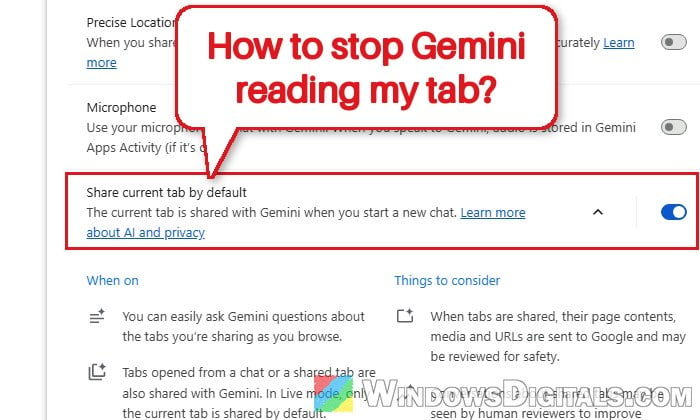
If you’ve turned on Gemini in Chrome, you might not know that it shares the tab you’re on with every new chat by default, without asking you each time. Google says so on its own help page. This guide will show you how to turn that off, how to remove a tab you’ve already shared, and how to hide or completely disable Gemini in Chrome.
Also see: How to Permanently Lock SafeSearch on Google in Chrome
Page Contents
What does Gemini in Chrome share from your tab?
When you open Gemini with the Ask Gemini button at the top of Chrome and start a new chat, Chrome sends Gemini the page content and the URL of the tab you’re looking at, so it can answer questions about that page. According to Google, some of the page content Gemini uses might not even be visible to you on the screen. Any other tab you add to the chat is shared the same way, and Chrome’s own settings page notes that tabs you open from a chat or from a shared tab are shared with Gemini too.
This only happens if you’ve turned Gemini in Chrome on in the first place, since Chrome asks you to start it the first time. But once it’s on, the tab sharing is the default. That first prompt is also easy to accept by accident.
Gemini in Chrome also needs you to be signed in to Chrome with a Google account, so you won’t see any of its settings while you’re signed out. It’s available on Windows, Mac and Chromebook Plus in most countries. With a work or school account, your administrator has to allow it first.
Turn off “Share current tab by default”
This switch is what makes Chrome attach your current tab to every new Gemini chat. Turning it off doesn’t disable Gemini, so you can still ask it questions or share a tab by hand when you actually want to. Here’s how to do it:
- Open Chrome, click the three-dot More menu in the top-right corner and select Settings.
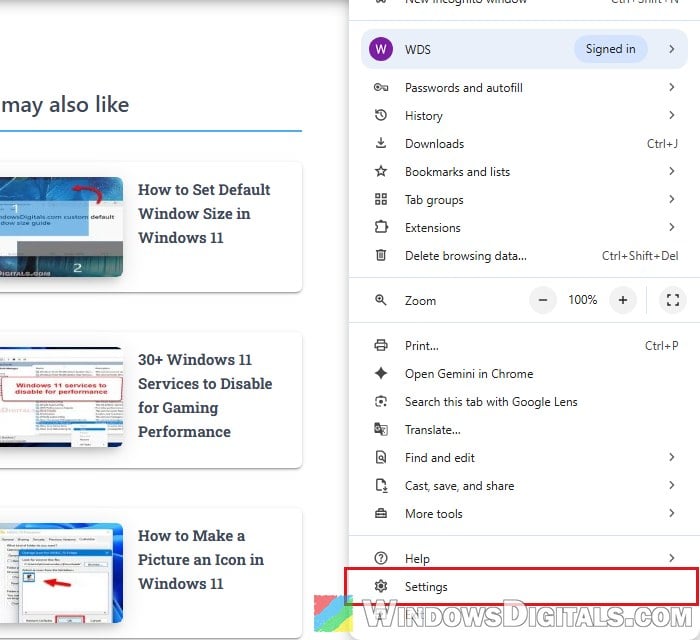
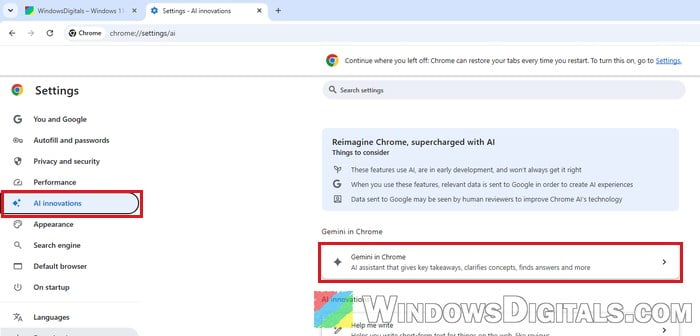
- Click AI innovations on the left, then click Gemini in Chrome.
- Under Permissions, turn off “Share current tab by default“.
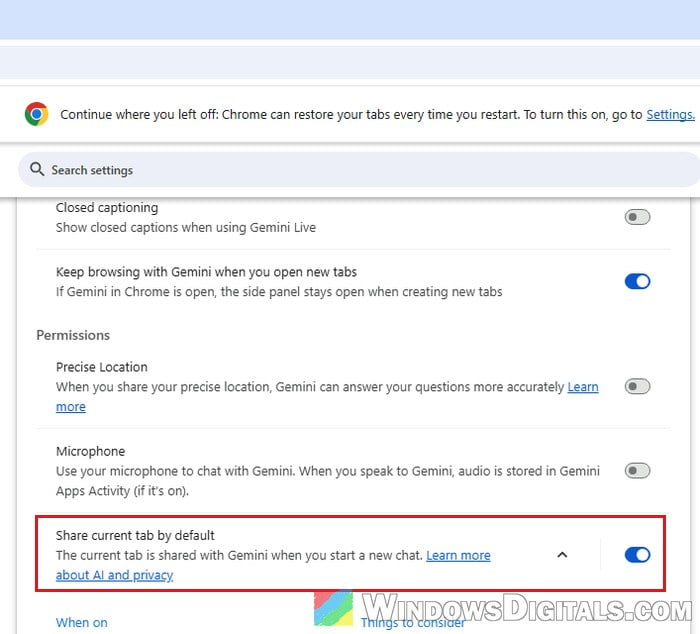
From now on, a new Gemini chat starts without your current tab attached.
Remove a tab from a chat you already started
The switch above only affects new chats. If you’re in a chat where your tab is already shared, you’ll need to remove it from that chat yourself:
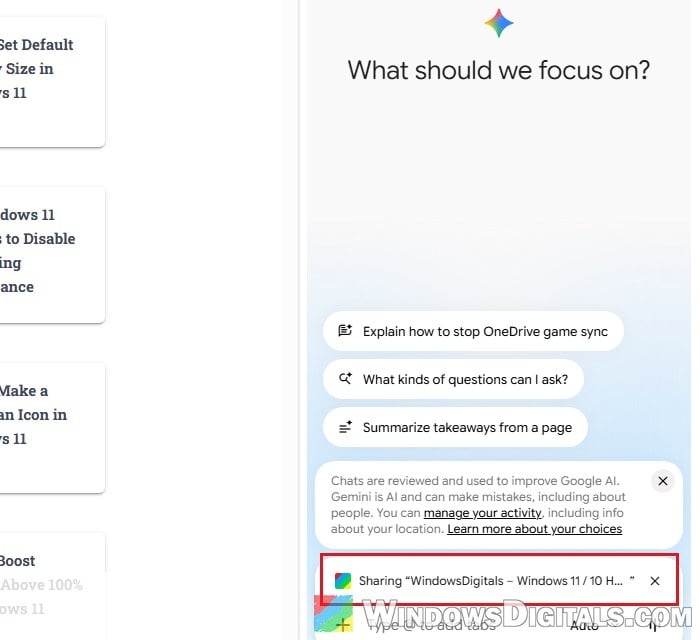
- Open the Gemini panel with the Ask Gemini button. Just above the text box, you’ll see “Sharing” followed by the tab’s name.
- Click the X next to it to remove that tab from the chat.
Might be useful: Turn Off Google Chrome Notifications on Windows 11/10
Hide the Gemini button in Chrome
If you don’t use Gemini at all and just want the button gone, you can hide it. Please note that this only hides the button. It doesn’t change the tab-sharing setting, so turn that off as well if that’s what you’re worried about.
- Go to Settings > AI innovations > Gemini in Chrome again.
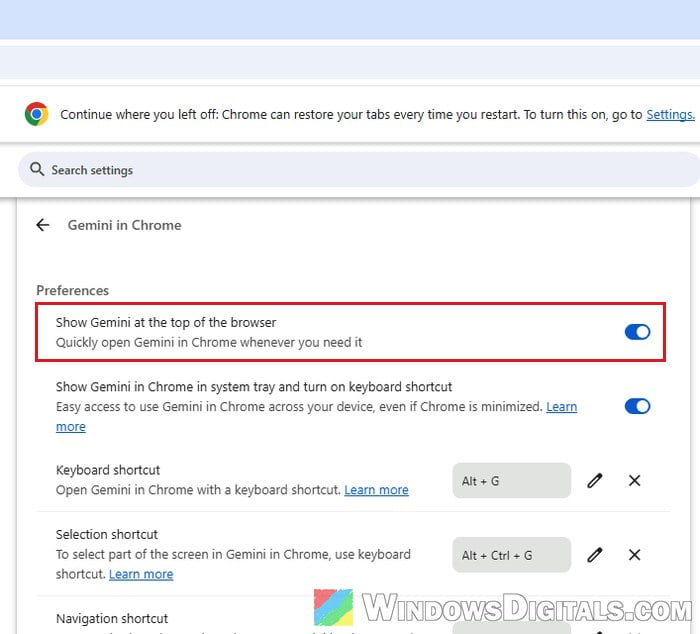
- Under Preferences, turn off “Show Gemini at the top of the browser“.
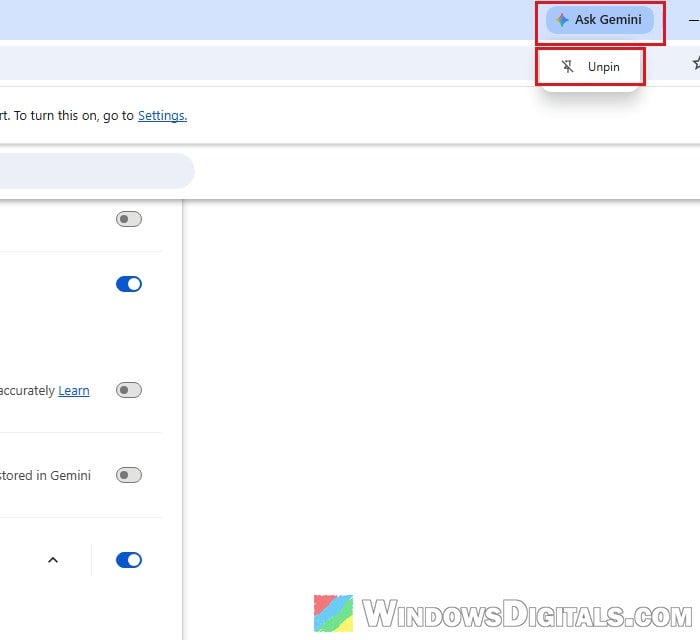
Or unpin it directly: right-click the Ask Gemini button at the top of the Chrome window and select Unpin.
Turn off Gemini in Chrome completely (registry)
Google gives organizations a Chrome policy called GeminiSettings that turns Gemini in Chrome off. Setting it to “1” means “Do not allow Gemini integrations“. It’s meant for work PCs, but Chrome reads it from the registry on a personal PC too. When we tested it on a normal, personal copy of Chrome signed in to a Google account, the Ask Gemini button was gone after restarting Chrome, and Chrome’s settings showed that the browser is managed.
Incorrectly changing the registry could cause problems in Windows, so please at least create a system restore point first. If you’re not sure what you’re doing, the settings above are enough for most people.
- Press Win + R, type “regedit” and press Enter. Click Yes if you’re asked for permission.
- Copy and paste the following path to the address bar of Registry Editor and press Enter:
HKEY_LOCAL_MACHINE\SOFTWARE\Policies
- If there’s no Google key under Policies, right-click Policies, select New > Key and name it “Google“.
- If there’s no Chrome key under Google, right-click Google, select New > Key and name it “Chrome“.
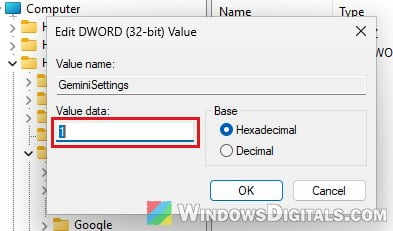
- Right-click the Chrome key, select New > DWORD (32-bit) Value and name it “GeminiSettings“.
- Double-click GeminiSettings, set its Value data to “1” and click OK.
- Restart Chrome. To check that it worked, type “chrome://policy” in the address bar and press Enter. You should see GeminiSettings with the value 1 and the status OK. The Ask Gemini button at the top of Chrome should also be gone.
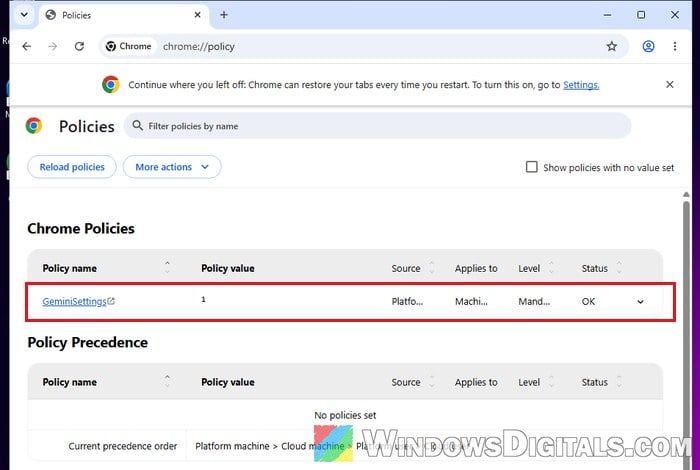
Once a policy is set, Chrome’s menu will say “Managed by your organization“. Don’t worry, this is normal. It only shows up because Chrome found a policy on your PC.
To bring Gemini back later, delete the GeminiSettings value (or set it to “0“) and restart Chrome.
Linked issue: Windows Registry Key “Access is Denied” Error