If a File Explorer window for your USB drive keeps opening by itself and you see Command Prompt windows flashing open and closed on your Windows 11 or 10 PC, even though Microsoft Defender or Malwarebytes says your PC is clean, it’s most likely a USB worm that came with the flash drive. This guide will explain what’s going on and show you how to remove it from both your PC and the USB drive.
Also see: Unknown Program in Task Manager Startup Tab Windows 11/10
Page Contents
Why does the USB drive keep opening and CMD windows flash?
This is the typical behavior of a type of malware often called a USB worm or “shortcut virus”. It’s been around for years, and Microsoft wrote about a newer one called Raspberry Robin in 2022. The signs are usually the same: the drive keeps popping open, CMD windows flash, and regular scans find nothing.
Here’s roughly how it works:
- The infected USB drive has shortcut (.lnk) files that look like your folders, sometimes named after a USB brand. Your real files are still there, just hidden.
- When you click one of those shortcuts, it runs Command Prompt (cmd.exe) in the background, which starts a script or installer stored on the drive. That’s the flashing CMD window you see.
- Some versions also open the drive’s folder for you, so it looks like the shortcut did what you expected while the worm runs in the background. That’s the drive window that keeps popping up.
- The worm then adds itself to startup entries or scheduled tasks so it runs again every time you sign in, and copies itself to other USB drives you plug in.
Scans don’t always catch it, especially the script-based versions. Even scanners like Malwarebytes and Microsoft Safety Scanner can miss it. Even when the files get deleted, the startup entry can be left behind, which keeps the CMD windows coming back.
Related concern: Chrome or Firefox keeps opening new tabs on its own, virus?
Unplug the USB drive first
Before anything else, unplug the infected USB drive and don’t open any shortcuts on it until it’s cleaned. Every click on one of those shortcuts can run the worm again. If you’ve plugged other USB drives into this PC lately, they might be infected too.
Run a Microsoft Defender Offline scan
A normal scan runs while Windows (and the malware) is running. The Microsoft Defender Offline scan restarts your PC and scans it without loading Windows, so malware that hides while Windows is running can’t hide as easily. Save any open work first, since your PC will restart. Here’s how to run it:
- Open Windows Security from the Start menu.
- Go to Virus & threat protection and select Scan options.
- Select Microsoft Defender Antivirus (offline scan).
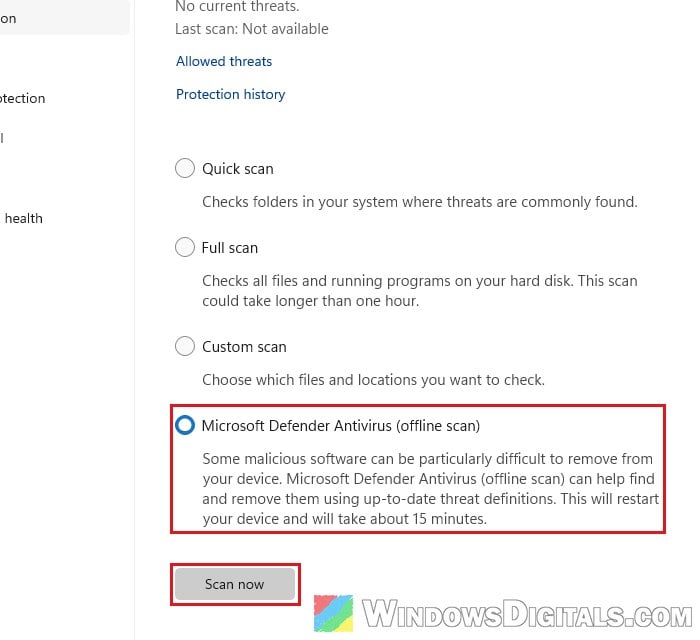
- Click Scan now and accept any prompt that appears. Windows restarts, runs the scan (Windows Security says it takes about 15 minutes), and restarts again when it’s done.
After the scan, open Windows Security again and check Protection history to see if anything was found and removed.
Pro tip: How to Scan an .exe File for Viruses to Check If It’s Safe
Find and remove what keeps starting it
If the CMD windows still flash after the scan, something is still telling Windows to run the worm. Removing those startup entries by hand should stop it.
Check “Startup apps” in Task Manager
Here’s what to do:
- Press Ctrl + Shift + Esc to open Task Manager.
- Select Details on the left. If you see wscript.exe, right-click it and select End task, so the script isn’t still running while you clean up.
- Select Startup apps on the left.
- Look for anything you don’t recognize, especially entries with no publisher, or ones that run wscript, cmd, a .vbs or .js file, or something from your AppData folder.
- Right-click a suspicious entry and select Open file location to see the file it runs.
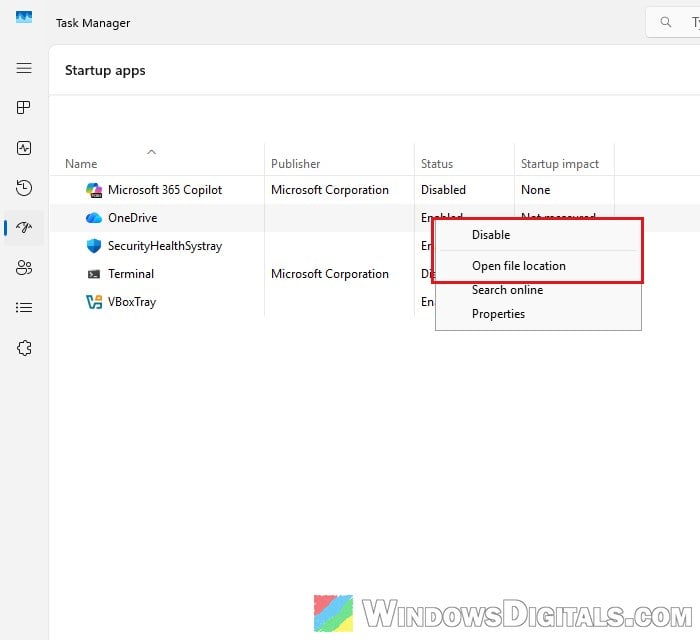
- Right-click the entry again and select Disable.
Restart your PC and see if the CMD windows still appear.
Look deeper with Autoruns
Task Manager doesn’t show everything. Autoruns, a free Microsoft Sysinternals tool, lists every place a program can start itself from, including the Run and RunOnce registry keys, the Startup folder and scheduled tasks.
- Download Autoruns from Microsoft at
https://download.sysinternals.com/files/Autoruns.zipand extract the ZIP file. - Right-click Autoruns64.exe and select Run as administrator.
- Click Agree on the license agreement the first time you run it.
- Open the Options menu and make sure Hide Microsoft Entries is ticked, so most of Windows’ own entries are hidden from the list.
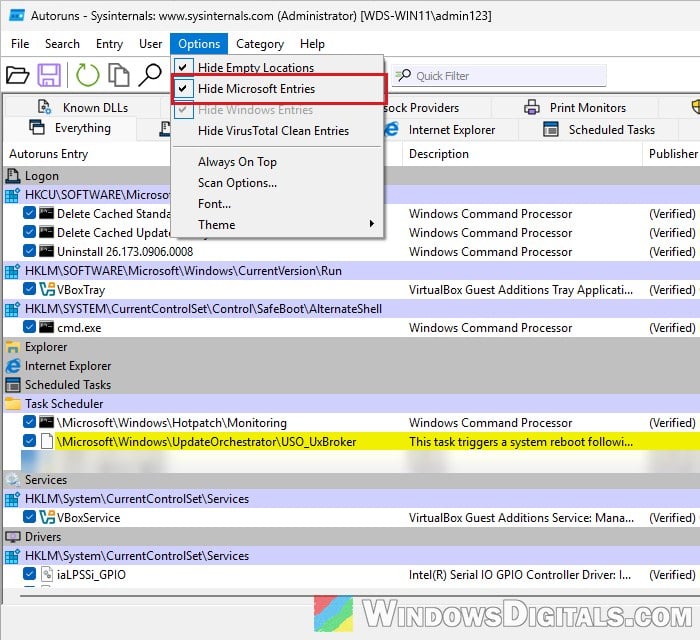
- Check the Everything, Logon and Scheduled Tasks tabs for entries that point to a script (.vbs, .js), to your USB drive’s letter, or to a random-looking file in AppData. Don’t panic over every cmd.exe line, though: Windows has a few of its own, signed by Microsoft, and they still show up with this option ticked.
- Uncheck a suspicious entry to disable it.
- Once you’re sure, right-click it and select Delete.
- Delete the file it pointed to.
Restart your PC and see if the CMD windows and the drive window are gone.
Clean the USB drive and get your files back
Once your PC is clean, you can deal with the drive itself. Your files are usually still on it, just hidden. The worm marks them as hidden system files, and the attrib command removes the hidden, system and read-only attributes it set.
- Plug the USB drive back in, but don’t open it by double-clicking anything on it.
- Note its drive letter in This PC (for example, E:).
- Search for “cmd” in the Start menu and open Command Prompt.
- Type the following command, replacing E: with your drive’s letter, and press Enter:
attrib -h -r -s /s /d E:\*.*
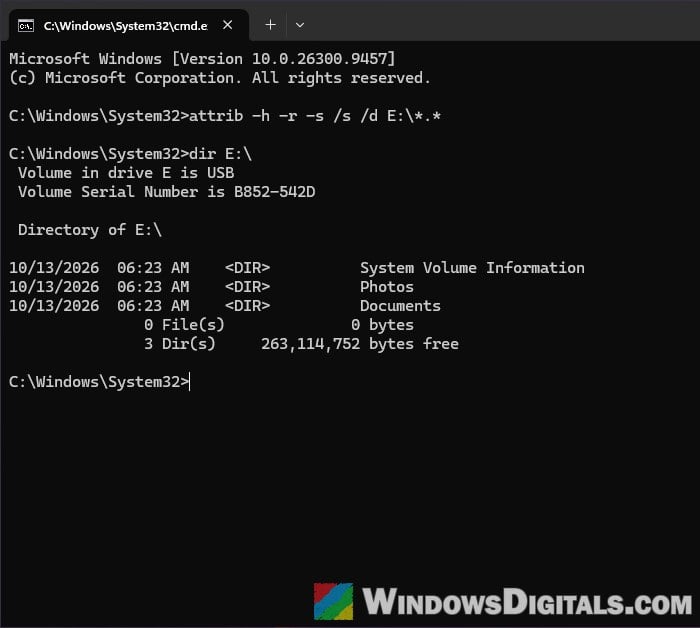
- Open the drive in File Explorer. Your folders should be visible again.
- Delete the shortcut (.lnk) files and any unknown .vbs or .js files on the drive.
- Copy your files off the drive.
- Format the drive to make sure nothing is left.
Do the same for every other USB drive that was plugged into this PC while it was infected.
See hidden files in File Explorer
If you just want to check what’s hidden on the drive, open File Explorer and select View > Show > Hidden items. Please note that files marked as both hidden and system files (which the worm does) still won’t show up this way, so you’ll still need the attrib command above.
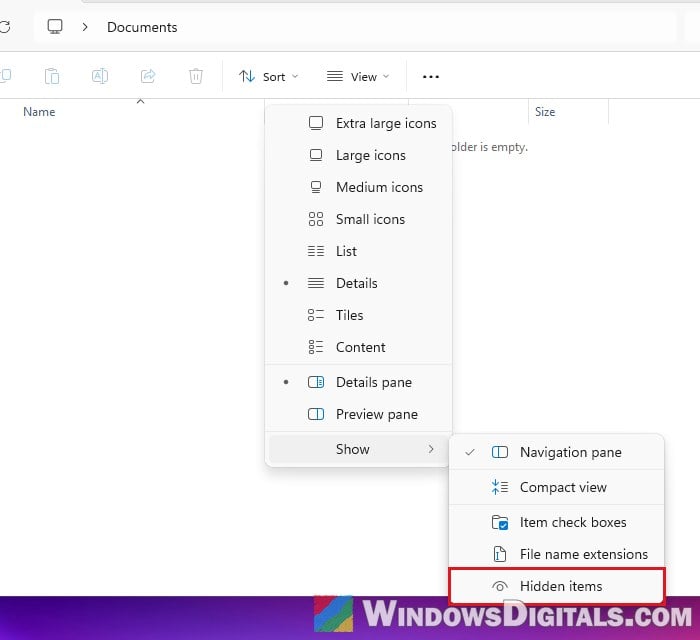
Learn more: How to Show Hidden File Name Extensions in Windows 10 File Explorer
Turn off AutoPlay
Microsoft recommends turning off autorun for removable drives to stop this kind of worm. On a home PC, the closest setting is AutoPlay:
- Open Settings and go to Bluetooth & devices > AutoPlay.
- Turn off Use AutoPlay for all media and devices.
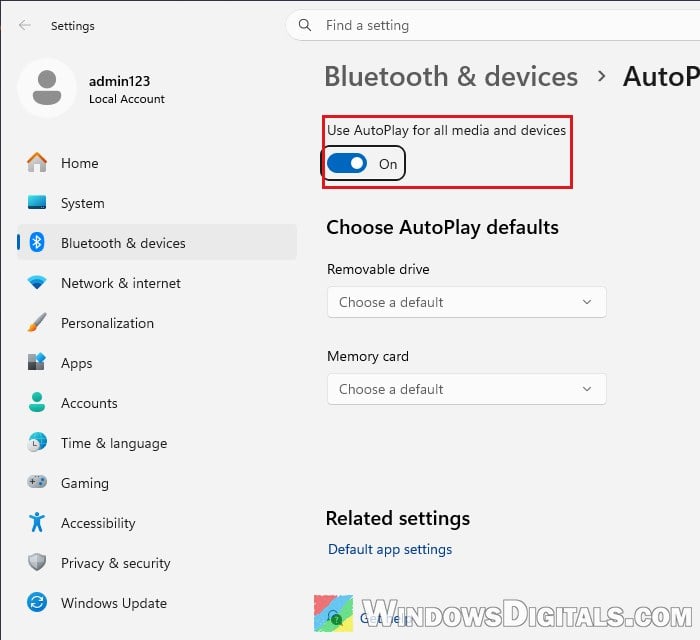
This way, Windows won’t open or run anything by itself when you plug in a USB drive.
Reset Windows as a last resort
If the CMD windows keep coming back no matter what you remove, something may still be hidden that these steps can’t find. At that point, back up your personal files (not programs, and not from the infected drives), and reset Windows. For detailed instructions, read: How to Reset Windows 11/10 to Factory Default.