If you’ve opened Task Manager on Windows 11 and noticed a green leaf next to Google Chrome, you’ve probably also found that the Efficiency mode button is greyed out when you try to turn it off. Some people notice it while a download in Chrome is taking forever and wonder if the leaf is what’s slowing it down. This guide will explain why Chrome is in Efficiency mode, how to turn it off, and whether it really has anything to do with slow downloads.
Also see: Why Does Task Manager Show Multiple Chrome Instances?
Page Contents
Why is Chrome in Efficiency mode?
In most cases, it’s Chrome that puts itself in Efficiency mode, not Windows. According to Microsoft, Chrome and Edge both lower the priority of some of their own processes and use Windows’ power-saving features for them, and Task Manager simply shows that as “Efficiency mode”. Chrome does this for its background processes, such as tabs you aren’t looking at, so they use less power and leave more room for what you’re actually doing.
In Task Manager, Efficiency mode does two things to a process: it lowers its priority to low and tells Windows to run it in the most power-efficient way (Microsoft calls this EcoQoS). On processors that have both performance and efficiency cores, it can also mean the process is moved to the slower efficiency cores.
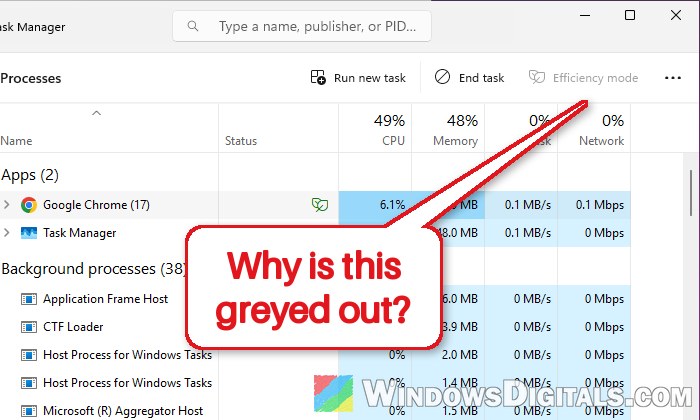
As for why the button is greyed out, that part is simpler. Task Manager can’t change Efficiency mode for a whole group of processes, and “Google Chrome” in the list is a group of many processes. You have to expand the group and turn it off for each process instead. You don’t need to run Task Manager as administrator for this.
Related concern: How to Disable CPU Throttling (Settings) in Windows 11
Turn off Efficiency mode for each Chrome process
This is the quickest way to get rid of the leaf. It only works for the processes running right now, but it’s an easy way to test whether Efficiency mode is what’s slowing things down.
Here’s how to do it:
- Press Ctrl + Shift + Esc to open Task Manager.
- In the Processes tab, find Google Chrome under Apps. If you select it, you’ll see that the Efficiency mode button is greyed out.
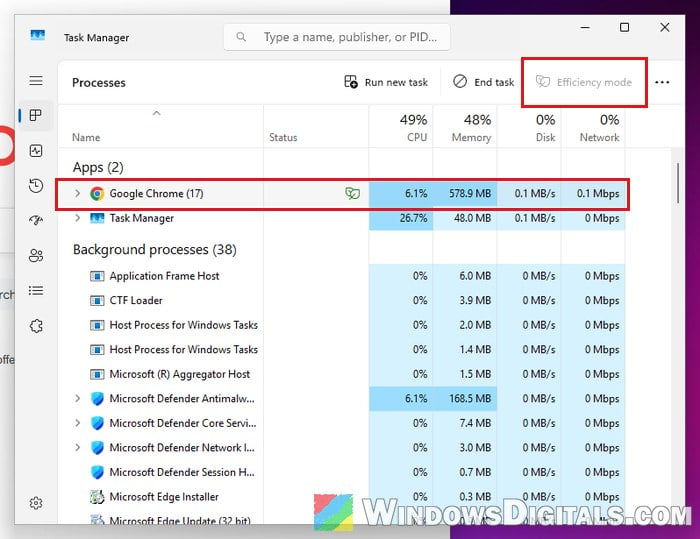
- Click the arrow next to Google Chrome to expand it.
- Look at the Status column and find a Chrome process that says Efficiency mode (it may be cut short to “Efficiency…” in a small window) with the leaf icon next to it.
- Right-click that process and click Efficiency mode to uncheck it.
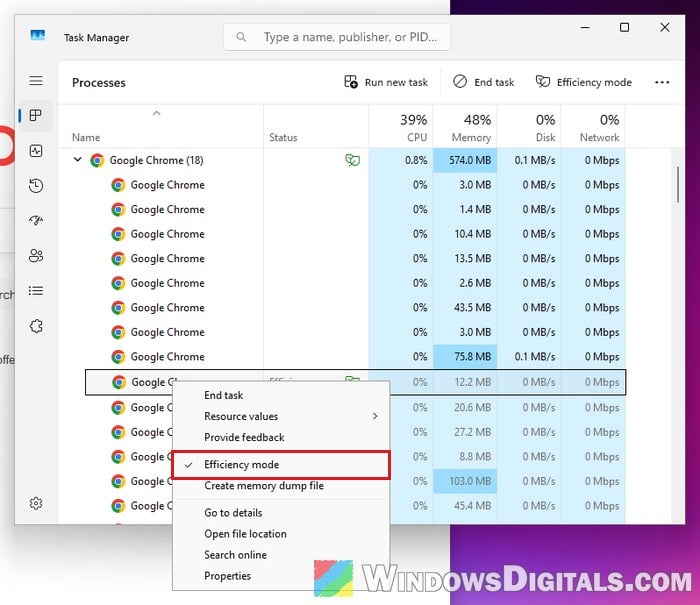
- Repeat this for every other Chrome process that still says Efficiency mode.
Once no Chrome process has it anymore, the green leaf next to Google Chrome goes away.
Please note that this doesn’t last. Chrome will put new tabs and tabs you switch away from back into Efficiency mode, and everything starts over when you restart Chrome. If you want it gone for good, see the next section.
Might be useful: How to Set Process CPU Affinity or Priority Permanently in Windows 11/10
Stop Chrome from using Efficiency mode at all
The leaf comes from a Chrome feature called UseEcoQoSForBackgroundProcess, which is turned on by default. You can turn it off by starting Chrome with a command-line switch added to its shortcut.
Keep in mind that this feature is there to save power. With it turned off, Chrome’s background tabs can use more battery on a laptop.
Follow the steps below:
- Close Chrome completely. The easiest way is to type “chrome://quit” in the address bar and press Enter.
- Right-click the Google Chrome shortcut on your desktop and select Properties.
- In the Shortcut tab, click inside the Target box and press End to go to the very end of it (after the closing quotation mark, if there is one).
- Type a space, then paste the following:
--disable-features=UseEcoQoSForBackgroundProcess
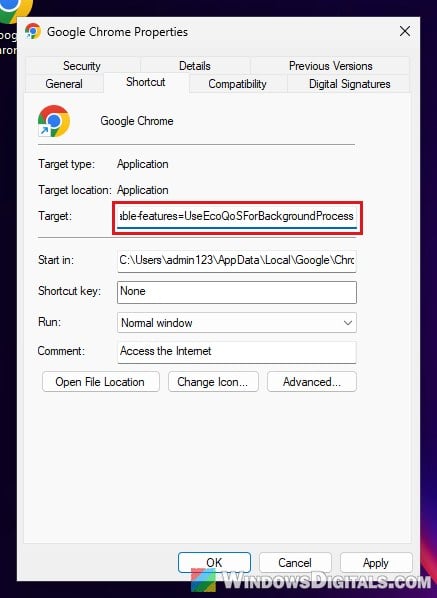
- Click OK. If Windows says the name in the Target box is not valid, the space before the two dashes is probably missing.
- Open Chrome from this shortcut.
To check that the switch is being used, type “chrome://version” in Chrome’s address bar and press Enter. The Command Line row should include the switch you just added.
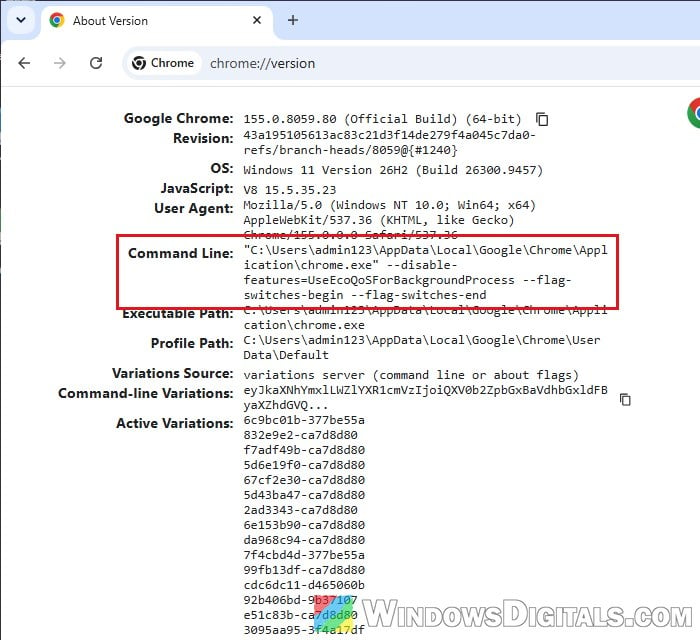
After that, open a few tabs and check Task Manager again. None of the Chrome processes should show Efficiency mode anymore, and the leaf next to Google Chrome should be gone.
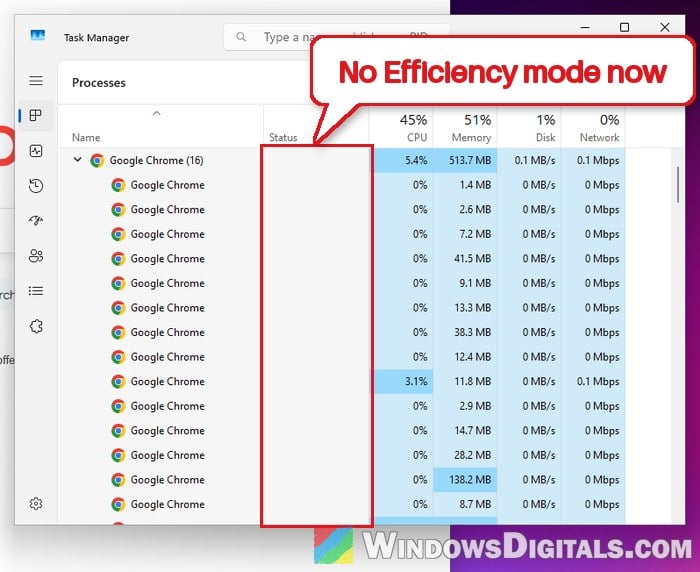
The switch only works when Chrome is started from that shortcut. A pinned taskbar icon or the Start menu entry may use its own shortcut, so if the leaf comes back when you open Chrome that way, add the same switch there too. If the leaf still shows up, make sure Chrome wasn’t still running in the background when you opened it: close it with “chrome://quit” and reopen it from the edited shortcut.
Pro tip: How to Keep a Tab Active in Chrome
Does Efficiency mode slow down Chrome downloads?
Probably not. Efficiency mode only changes how much CPU time a process gets and how power-efficiently it runs. It doesn’t put any limit on your internet speed, and Microsoft’s own description of the feature doesn’t mention network or download speed at all.
That said, if a download is crawling and Chrome shows the leaf, it’s easy to test. Turn off Efficiency mode for the Chrome processes as shown above, then start the download again and see if the speed changes.
If it doesn’t, try downloading the same file in another browser, like Microsoft Edge. If Edge is just as slow, the problem isn’t Chrome at all, and it’s more likely your connection or the server you’re downloading from.