If you press Ctrl + V in Excel and nothing happens (the copied cells stay selected with the dashed border, the destination stays empty and there’s no error message), it’s most likely caused by a recent Office security update, not your workbook. This guide will explain what broke copy and paste in Excel and show you how to fix it or work around it.
Also see: How to Open Clipboard History in Windows 11
Page Contents
Why did copy and paste suddenly stop working in Excel?
The September 8, 2026 security updates for Office came with a bug that makes paste operations in Excel fail silently. According to Microsoft, the source stays selected, the destination doesn’t change, and there’s no error at all. Dragging the fill handle to copy a formula down and AutoFill can stop working too, and some people couldn’t even copy whole sheets anymore.
The update affected the one-time purchase and volume versions of Office:
- Excel 2016 (the update for it is KB5002914)
- Office LTSC 2019, Office LTSC 2021 and Office LTSC 2024
- Excel Online in Office Online Server
Microsoft 365 (the subscription version) wasn’t affected. Word and other apps still paste fine, since the bug is only in Excel. Pasting into Excel from another app usually still works as well.
Microsoft has since released fixes for every affected version, so in most cases you just need to get Excel to the fixed version.
Update Excel to the fixed version
These are the fixed versions for each Office:
- Office 2016: update KB5002665 (September 16, 2026, or the latest version of it)
- Office LTSC 2019: build 10417.20211 or later
- Office LTSC 2021: build 14334.20918 or later
- Office LTSC 2024: build 17932.21000 or later
- Office Online Server: KB4461632
Check which Excel version you have
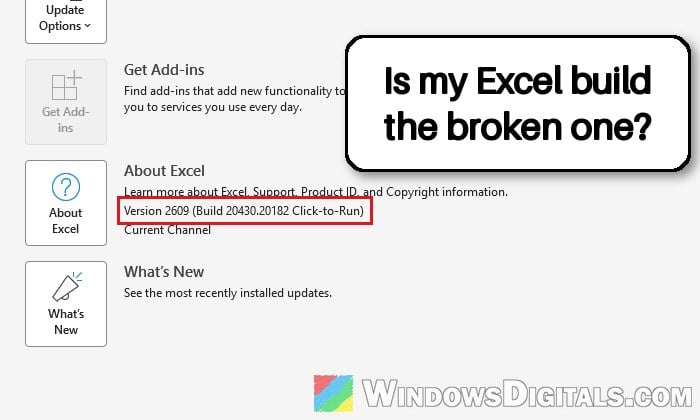
First, find out which version and build of Excel you’re using, and whether it’s a Click-to-Run or an MSI installation. Here’s how:
- Open Excel and click File, then Account.
- Under Product Information, you’ll see your Office product and its version number. The type of installation (such as Click-to-Run) is shown there too.
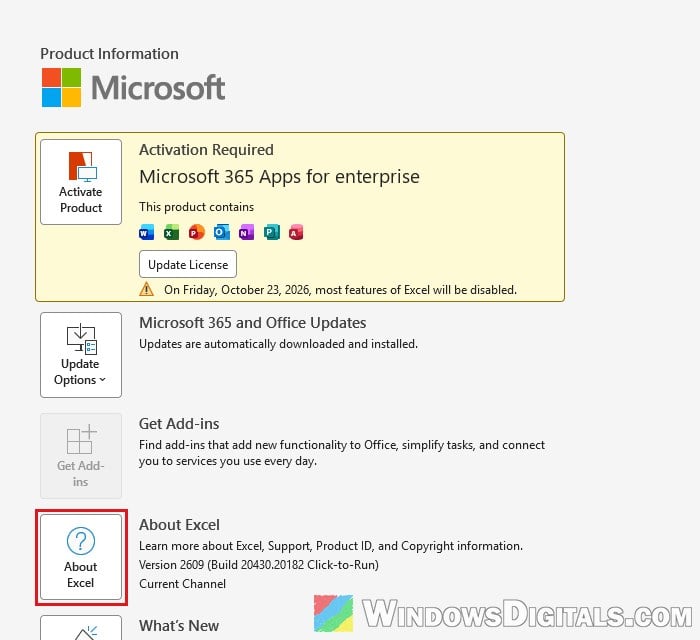
- Click About Excel to see the full version and build number, and whether it’s 32-bit or 64-bit.
Office LTSC 2019, 2021 or 2024 (Click-to-Run)
To install the fix right away, follow the steps below:
- In Excel, go to File > Account.
- Click Update Options, then select Update Now. If you don’t see Update Now, click Enable Updates first.
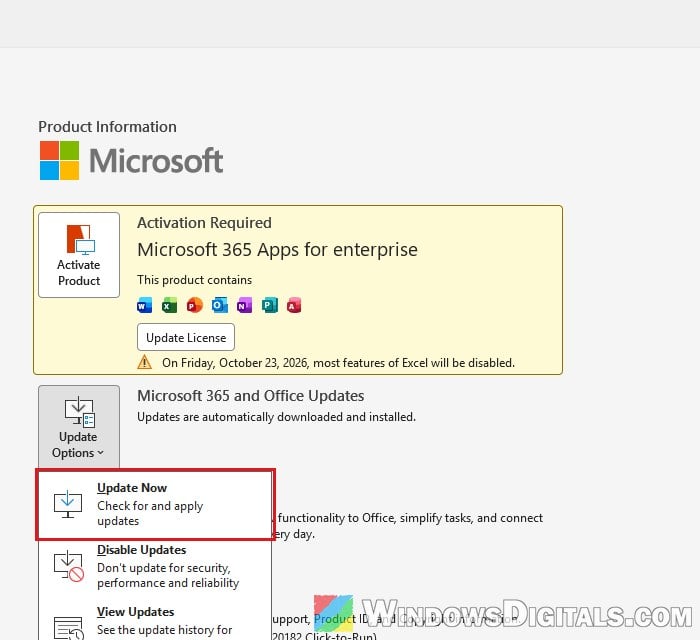
- Wait for the update to finish.
If there’s no Update Options button at all, your Office is likely a volume license copy or its updates are managed by your company. In that case, use Microsoft Update (see the Windows Update steps below) or ask your IT department.
Office 2016 (MSI)
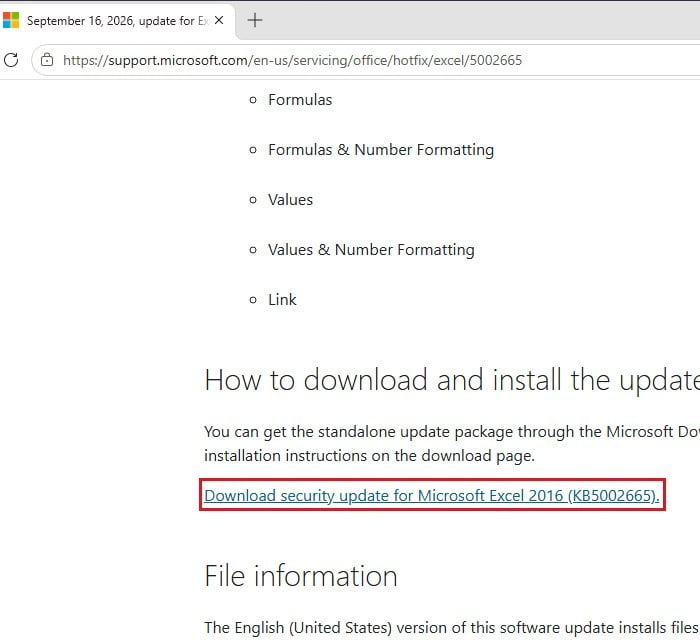
For the MSI-based Office 2016, the fix is KB5002665. Microsoft offers it as a standalone package from the Microsoft Download Center. Go to https://support.microsoft.com/help/5002665, scroll down to “How to download and install the update” and click “Download security update for Microsoft Excel 2016 (KB5002665)“. Download the package that matches your Office (32-bit or 64-bit) and run it.
Let Windows Update install Office updates
Windows Update can also install Office updates for you. Here’s how to turn that on:
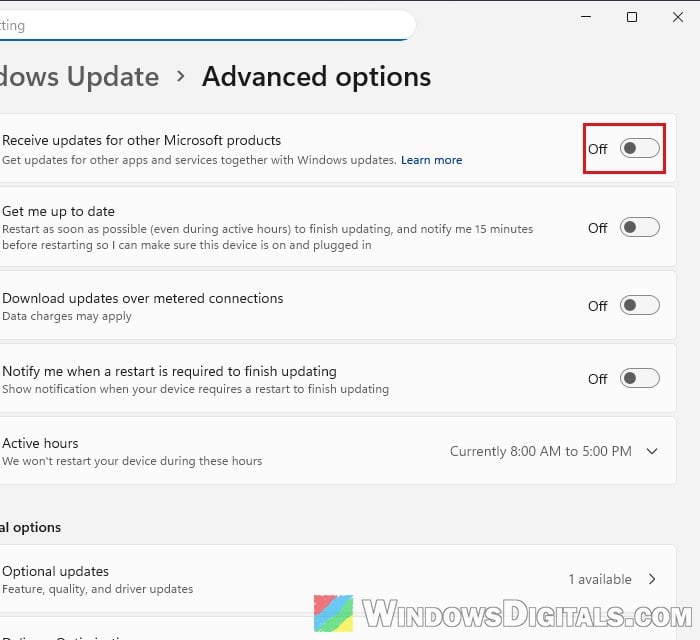
- Open Settings > Windows Update > Advanced options.
- Turn on “Receive updates for other Microsoft products“.
- Go back to Windows Update and click Check for updates.
Once Excel is on the fixed version, restart it and try copying and pasting a few cells again.
Suggested read: How to Open XLSX or XLS File in Windows 11
Use Paste Special until the fix is installed
If you can’t install the fix yet, Paste Special is the workaround Microsoft suggests. It also helps when paste still fails in one workbook: Microsoft said that even after the first fix, paste could fail in Office 2016 and Office LTSC 2019 if the workbook has conditional formatting (the latest version of KB5002665 should cover that). Here’s how to use it:
- Copy the cells as usual with Ctrl + C.
- Click the cell where you want to paste.
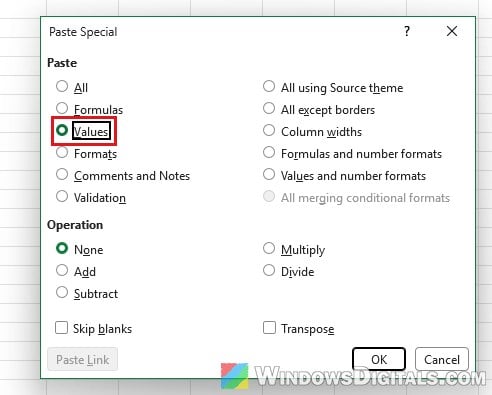
- On the Home tab, click the arrow under Paste and select Paste Special. You can also just press Ctrl + Alt + V.
- In the Paste Special window, select Formulas, Formulas and number formats, Values or Values and number formats and click OK, or click Paste Link.
The downside is that, depending on the option, you lose the formatting or the formulas, and it’s slower than a normal paste.
Might be useful: How to Copy, Cut, Paste, Rename or Delete via Right Click in Windows 11
Try the cut, undo, then paste trick
This might sound a little bit silly, but cutting the cells first can get the paste to go through. It doesn’t work for everyone, but it only takes a few seconds to try:
- Select the cells you want to copy and press Ctrl + X.
- Press Ctrl + Z right away to undo the cut.
- Click the destination cell and press Ctrl + V.
If the cells paste, you can keep using this until Excel is updated.
Roll back the Office update (last resort)
If none of the above helps and you really need normal copy and paste back, you can roll Office back to the version before the broken update. Before Microsoft’s fix came out, this was the usual way to get paste working again.
Be warned: The September updates patched security holes in Excel (28 in Excel 2016 alone), including ones that let a malicious file run code on your PC. Rolling back removes those fixes. Only do this if you can’t install the fixed version, and if your PC is managed by your company, ask your IT department first.
For Office LTSC 2019, 2021 or 2024 (Click-to-Run), here’s what you should do:
- Close all Office apps.
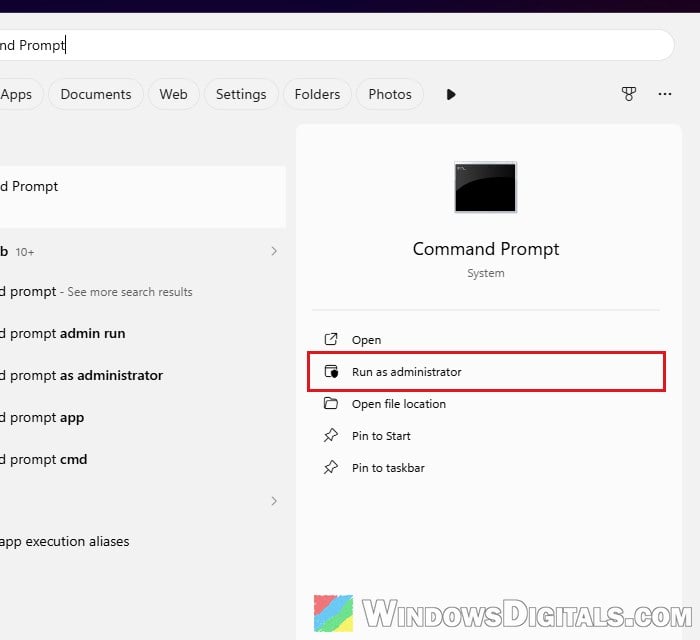
- Open Command Prompt as administrator.
- Run the following command, replacing
<version>with the build for your Office:"C:\Program Files\Common Files\Microsoft Shared\ClickToRun\OfficeC2RClient.exe" /update user updatetoversion=<version>
- Office LTSC 2024:
16.0.17932.20910 - Office LTSC 2021:
16.0.14334.20848 - Office LTSC 2019:
16.0.10417.20197
- Office LTSC 2024:
- Wait for Office to finish rolling back, then open Excel and test copy and paste.
- To stop Office from installing the broken build again, go to File > Account > Update Options > Disable Updates. Turn updates back on once you can move to the fixed build.
For Office 2016 (MSI) with KB5002914 installed, run this command in an administrator Command Prompt to remove that update:
"C:\Program Files\Common Files\Microsoft Shared\OFFICE16\Oarpmany.exe" /removereleaseinpatch "{90160000-0012-0000-1000-0000000FF1CE}" "{27882596-A8ED-4382-9C71-6CD2DD19F732}" "1033" "0"
The 1033 part is the language code for English (United States). The long code in the first curly brackets identifies the Office product, so the command may not work as is on every Office 2016 edition. It only removes KB5002914, not the October update. If you can install KB5002665 instead, do that. Once the command is done, open Excel and try copying and pasting again.
What if paste broke again after the October update?
After the October 13, 2026 security update for Excel 2016 (KB5002934), at least one user has reported paste failing again in the same way, even in blank workbooks and in Safe Mode. Microsoft hasn’t listed it as a known issue for that update, and in that case, uninstalling KB5002934 didn’t bring paste back.
If this is happening to you, use Paste Special (Ctrl + Alt + V) for now (Values still worked in that case). You can also report it to Microsoft from Excel via Help > Feedback > Report a Problem, with your Excel build number and the updates you have installed.
Office 2016 reached its end of support on October 14, 2025, so moving to a supported version of Office is the long-term answer.