If your main monitor on DisplayPort lost signal while NVIDIA’s Game Ready driver 617.42 was installing, and it now stays black every time Windows loads even though the BIOS or motherboard logo shows up fine, you’re not the only one. It seems to be linked to having two monitors running at different refresh rates, like a 144Hz screen on DisplayPort and a 60Hz one on HDMI. This guide will show you how to get your picture back and what you can do to fix it.
Also see: Nvidia RTX 4000 Series can’t detect HDMI, But DP OK
Page Contents
Why does the DisplayPort monitor go black after the update?
NVIDIA released driver 617.42 on October 6, 2026, and it doesn’t list this as a known issue. Here’s what the reports so far describe:
- The main monitor is on DisplayPort at a high refresh rate (144Hz, for example), and a second monitor is on HDMI at 60Hz.
- The screen goes black during the driver install and doesn’t come back. After a restart, you see the motherboard logo, but the screen goes black as soon as Windows loads, because the sign-in screen opens on that main monitor.
- In some cases, the install also changed which display Windows uses, so Windows is sending the picture somewhere you can’t see it.
- Switching the DisplayPort monitor back to 144Hz can bring the black screen back.
One laptop owner also saw flickering everywhere (in the browser, in Settings) after the same driver. Whatever the cause, the way out is to get back to the desktop first, then go back to the driver that worked.
Pro tip: Is it bad to have monitors with different refresh rates?
First, get back to the Windows desktop
You can’t fix anything while the screen is black, so start here. Either of these can bring the picture back:
- Use the black screen shortcut: press Win + Ctrl + Shift + B at the black screen. According to Microsoft, this shortcut wakes the device when the screen is blank or black.
- Unplug the DisplayPort cable and restart the PC with only your other monitor (the HDMI one) connected, so Windows has no choice but to use that screen. If you only have one monitor and it has an HDMI input, connect it with an HDMI cable for now.
Once you can see one screen, you can press Win + P and pick Extend or PC screen only to make Windows use the screens the way you want.
If none of that works, start Windows in Safe Mode, which loads only a basic set of drivers. Turn the PC off three times while it’s starting up to get to the recovery screen, then go to Troubleshoot > Advanced options > Startup Settings > Restart, and press 4 or F4 for Enable Safe Mode.
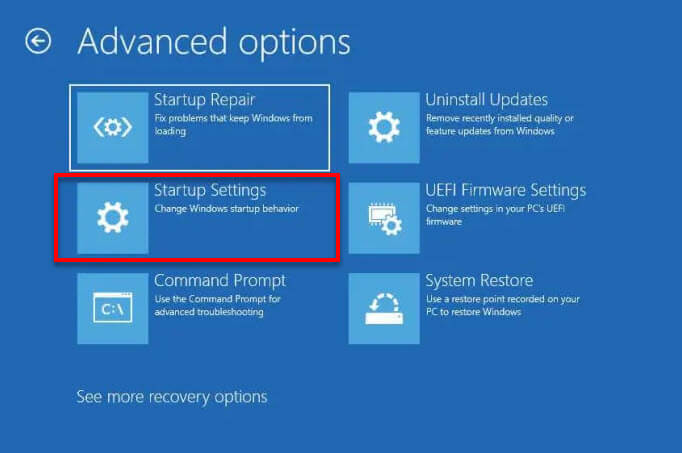
For more detailed instructions, read: Enter Safe Mode in Windows 11/10 when PC isn’t booting.
Check which display is the main one
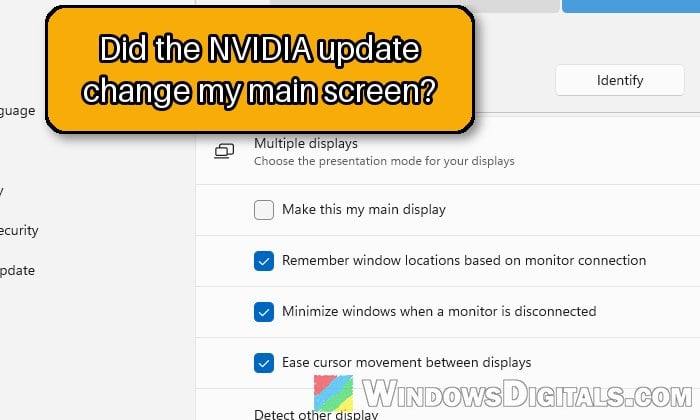
If the driver install switched your main display, Windows may still think the HDMI screen is the one to use. Once you’re on the desktop with both monitors connected (or right after plugging the DisplayPort cable back in), check it in Settings:
- Open Settings > System > Display.
- Click Identify to see which number belongs to which monitor.
- Select your DisplayPort monitor in the diagram at the top.
- Expand Multiple displays and tick Make this my main display.
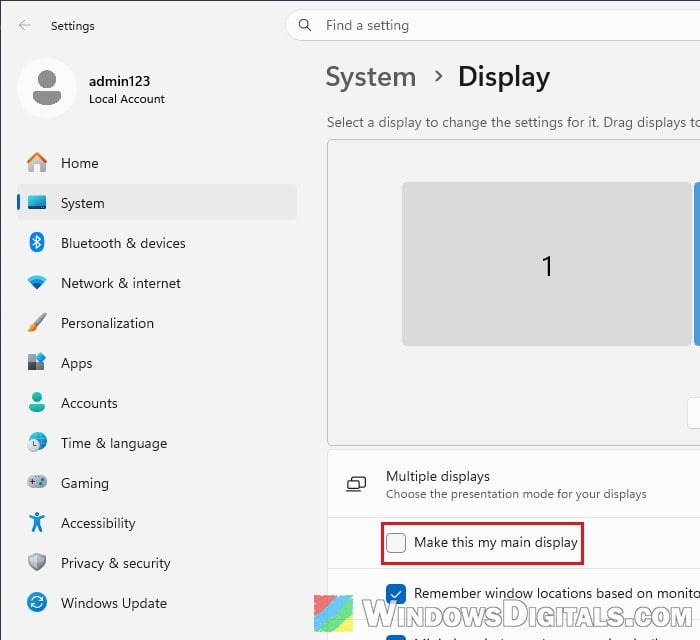
If the DisplayPort monitor doesn’t show up at all, click Detect under Multiple displays. Then restart the PC and see if the sign-in screen now shows up on the DisplayPort monitor.
Linked issue: 144Hz Monitor Only Showing 60Hz in Windows 11, Why?
Roll back the NVIDIA driver
The most direct fix is to go back to the driver you had before 617.42. Windows usually keeps the previous driver after an update, so you can switch back to it from Device Manager in a few clicks. This works from Safe Mode or from your other monitor.
Here’s how to do it:
- Right-click the Start button and select Device Manager.
- Expand Display adapters.
- Right-click your NVIDIA graphics card and select Properties.
- Go to the Driver tab and click Roll Back Driver.
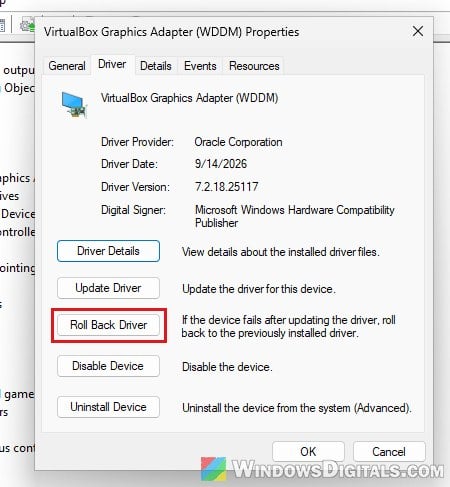
- Pick a reason and click Yes.
- Restart the PC.
Then plug the DisplayPort cable back in and see if the screen stays on when Windows loads. If Roll Back Driver is grayed out, Windows didn’t keep the previous driver, so use the next method instead.
Do a clean reinstall of the previous driver
If rolling back isn’t possible, or the screen still goes black, remove the driver completely and install the older one cleanly. Before you start, download the previous Game Ready driver for your card from NVIDIA’s drivers page (https://www.nvidia.com/en-us/drivers/), plus Display Driver Uninstaller (DDU) from wagnardsoft.com, and keep both on your desktop. DDU is a tool from Wagnardsoft that removes NVIDIA, AMD and Intel graphics drivers along with their leftovers.
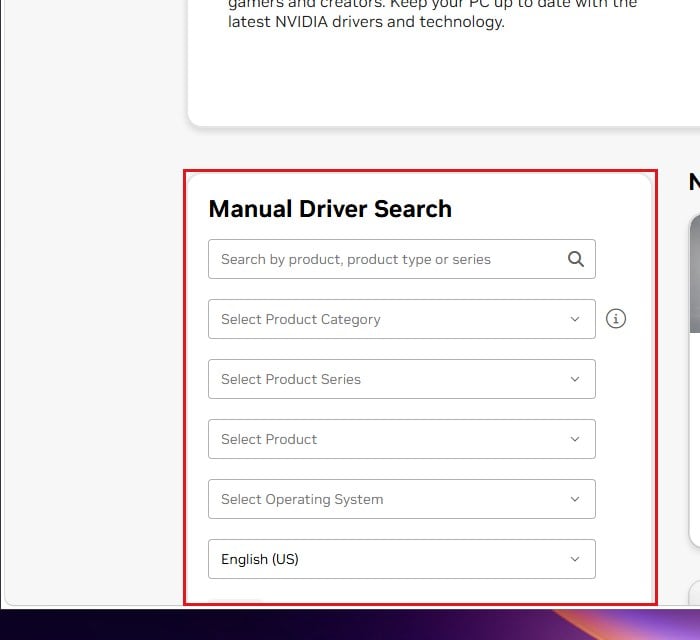
Here’s what you should do:
- Unplug the DisplayPort cable so only your other monitor is connected.
- Disconnect from the internet (unplug the Ethernet cable or turn off Wi-Fi). This stops Windows Update from installing its own NVIDIA driver in the middle of the process.
- Boot into Safe Mode (see above).
- Run DDU and remove the NVIDIA driver.
- Restart normally and run the older NVIDIA driver installer.
- Choose Custom (Advanced).
- Tick Perform a clean installation and finish the install.
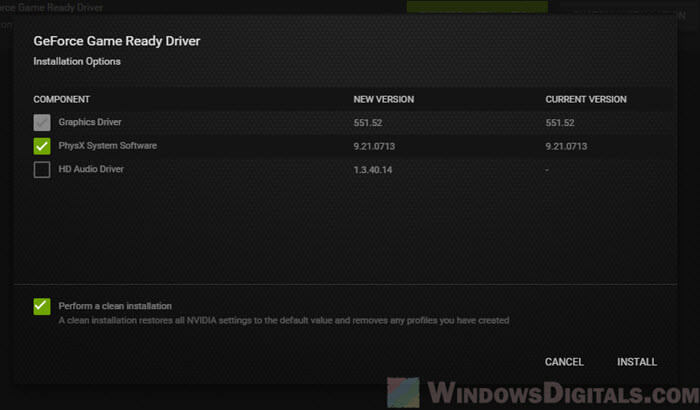
When it’s done, plug the DisplayPort cable back in, check the main display as shown above, reconnect to the internet, and see if the screen stays on when Windows loads.
Might be useful: How to Uninstall Drivers in Windows 11
Set the refresh rate back carefully
After the fix, your DisplayPort monitor might come back at 60Hz. You can raise it again under Settings > System > Display > Advanced display > Choose a refresh rate (see: How to Change Desktop Screen Refresh Rate in Windows 11).
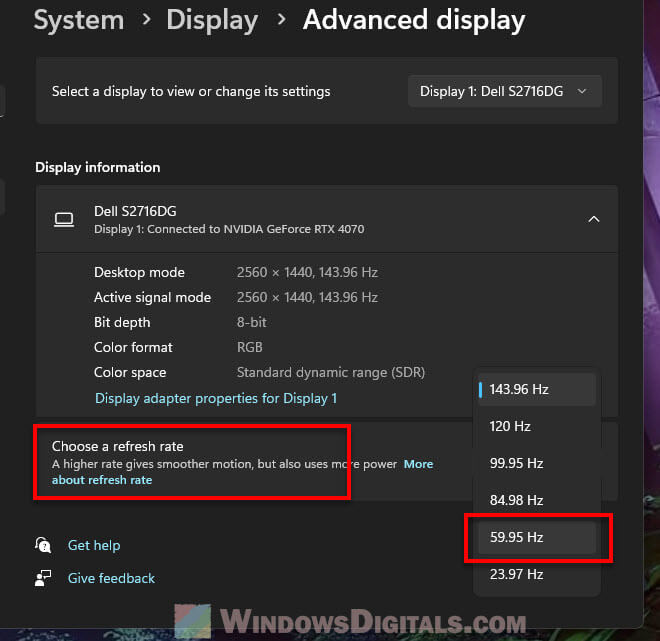
If you’re still on 617.42 and the screen goes black again as soon as you pick 144Hz, keep a lower refresh rate for now, or stay on the older driver until NVIDIA releases a newer one. Before updating again, check the new driver’s release notes and wait a few days to see whether people with the same setup report the problem.