If you’ve started using Copilot Cowork in Microsoft Copilot, or your company turned it on for you, you might not be comfortable with how much it can do by itself, like opening hidden tabs in Microsoft Edge and clicking through websites with your own sign-ins. This guide will show you where to switch off Cowork’s automatic actions in Edge, how to lock that setting with a policy, and how to keep Cowork asking before it sends or changes anything.
Also see: Can’t Remove School or Work Email from Windows 11 or 10
Page Contents
What can Copilot Cowork do on its own?
Cowork is the agent part of Microsoft Copilot. Instead of only answering questions, it carries out tasks for you: it can send emails, schedule meetings, create documents, post in Teams and run prompts on a schedule. Work and school accounts get it through their company, and personal accounts with a Microsoft 365 Personal, Family, Premium or Pro plan can try it as a preview.
The part you’ll probably care about most is browser use. When a task needs a website, Cowork opens a hidden tab in Microsoft Edge on your PC and works there, using the sign-ins, cookies and sessions you already have. That can save time, but it also means an AI is clicking around in your accounts. Edge has a setting that controls this, and it’s the first thing you should check.
Turn off “Allow Cowork to take actions on your behalf” in Edge
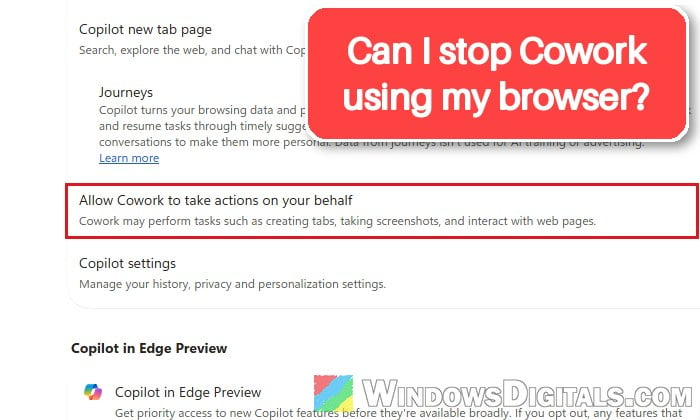
The setting sits on Edge’s Copilot and AI settings page. When it’s off, Cowork can’t take actions in Edge for you, so it can’t open tabs, take screenshots or interact with web pages there. You don’t need admin rights for this.
Here’s how to do it:
- Open Microsoft Edge.
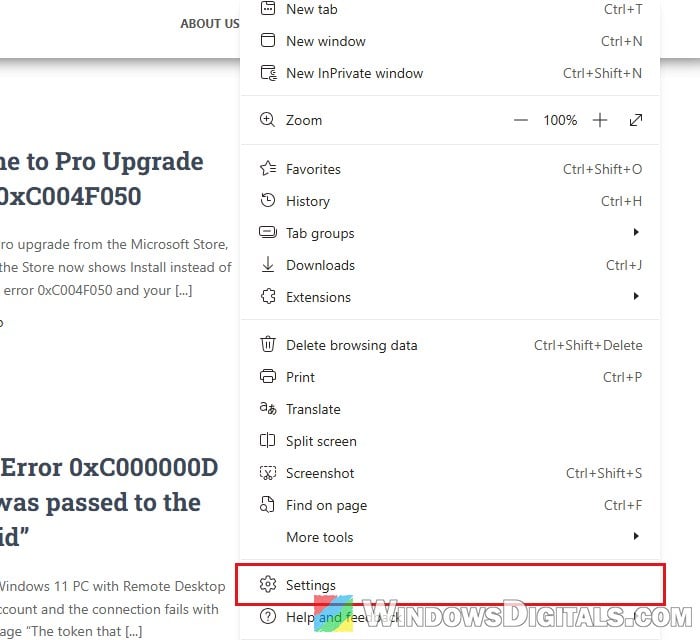
- Click the three dots (Settings and more) at the top-right corner, or press Alt + F, and select Settings.
- Click Copilot and AI in the left menu. You can also type
edge://settings/aiin the address bar to jump straight there. - Under Copilot in Edge, turn off the switch for “Allow Cowork to take actions on your behalf“.
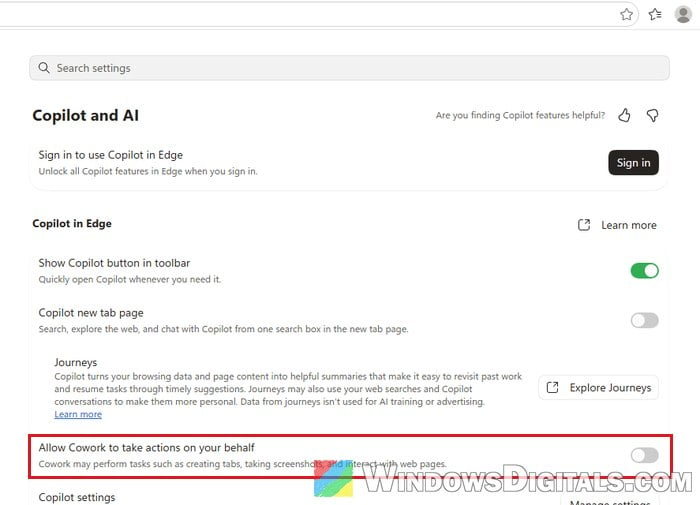
The change takes effect right away. Note that Edge doesn’t have to be your default browser for Cowork to use it, so check this setting even if you normally browse with Chrome or Firefox.
If the switch is grayed out, a policy on your PC or from your organization already decides it for you. On a work computer, that’s your IT admin’s call.
What happens to Cowork after you turn it off?
Cowork itself keeps working. It can still do the parts of a task that don’t need the browser, such as pulling information from Outlook or drafting a document, and it should tell you which steps it skipped so you can do those yourself.
Related concern: “Some settings are managed by your organization” Windows 11/10
Lock the setting with the registry (admin)
If you share the PC, or you want to make sure nobody turns the switch back on, you can set it with Edge’s own policy, CopilotCoworkToolActionsEnabled. When it’s set to 0, Cowork can’t take actions in Edge, and the switch on the settings page is locked. You’ll need an administrator account for this.
Please note that this policy doesn’t apply to an Edge profile that’s signed in with a personal Microsoft account. If you use Edge with a personal account, the settings switch above is the way to go.
Incorrectly changing the registry could cause serious problems in Windows. Please at least create a system restore point first, and if you’re not sure what you’re doing, it’s better to just get someone to help you instead.
To set the policy in Registry Editor, follow the steps below:
- Press Win + R, type “regedit” and press Enter. Click Yes if User Account Control asks.
- Copy and paste the following path to the address bar of Registry Editor and press Enter:
HKEY_LOCAL_MACHINE\SOFTWARE\Policies\Microsoft
- If there’s no Edge key under Microsoft, right-click Microsoft, select New > Key and name it “Edge“.
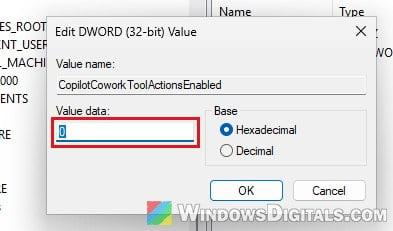
- With Edge selected, right-click an empty area on the right side, select New > DWORD (32-bit) Value, and name it “CopilotCoworkToolActionsEnabled“.
- Double-click it, set Value data to “0“, and click OK.
- Close all Edge windows and open Edge again.
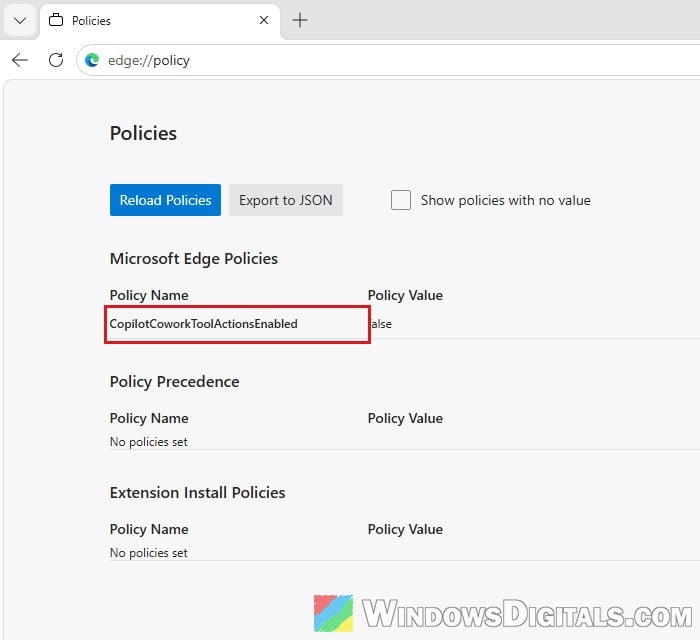
To check that it worked, type edge://policy in Edge’s address bar. CopilotCoworkToolActionsEnabled should be listed with the value false.
To undo it later, delete the CopilotCoworkToolActionsEnabled value. Setting it to 1 does the opposite: Cowork is always allowed to act and the switch is locked on.
Keep Cowork asking before it sends or posts anything
Outside the browser, Cowork already asks for your approval before sensitive actions like sending an email, posting a Teams message or scheduling a meeting. The catch is in how you approve:
- The action button (for example, Send, Post or Create) approves that one action only.
- More options (the dropdown next to it) approves the action and stops asking about similar actions for the rest of the session. For emails and Teams messages, it can also stop asking for one recipient, a whole domain, or for good.
- Cancel stops Cowork from taking the action.
If you want Cowork to keep checking with you, stick to the action button. When Cowork asks to edit one of your existing Office files, don’t pick Always allow either. If a task is already running and you don’t like where it’s going, use Pause or Cancel.
Pause or delete scheduled Cowork tasks
Cowork can also run prompts on a schedule, like a daily briefing, so it may do things while you’re not looking. To manage them, select Tasks and switch to the Automations view (it only shows when you have at least one scheduled prompt). From there, you can pause, edit or delete each one. The Schedule section of the side panel has the same options.
Tasks can also start by themselves when a matching email or Teams message arrives. By default, those tasks only prepare actions for your approval instead of acting on their own, so leave them that way if you set any up.
For IT admins: turn off browser use for users
Browser use for Cowork is off by default for an organization, so it only runs if an admin turned it on. To turn it off again, go to Copilot > Settings > View All > Cowork settings in the Microsoft 365 admin center and clear “Allow Cowork to use the Microsoft Edge browser to perform tasks on behalf of users” under Allow browser access. It can also be limited to specific security groups. The Edge policy above also works in Group Policy as “Allow Cowork to take actions on your behalf” under Administrative Templates > Microsoft Edge (after adding Edge’s administrative templates).
Related guide: How to Check Office 365 User License Using PowerShell
What about the Copilot app?
Browser tasks don’t run from the Microsoft Copilot desktop app at all, according to Microsoft. If you ask the app to do something on a website, Cowork tells you that browser tasks run in Cowork on the web. If your version of the app has a Web browsing page in its settings, it may show the same “Allow Cowork to take actions on your behalf” switch, and you can turn it off there as well. Either way, the Edge switch above is still the one that matters.