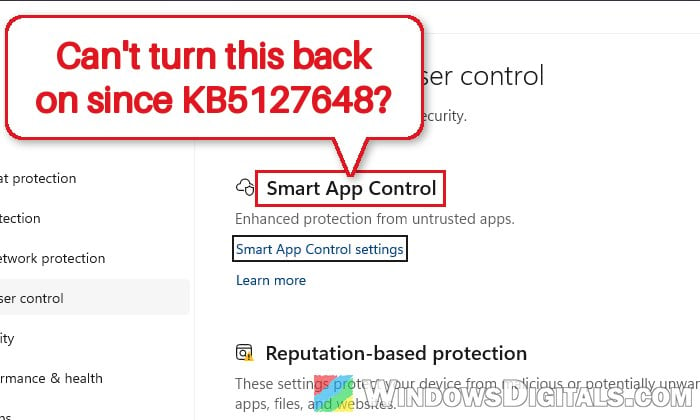
If you turned off Smart App Control at some point and now want it back, but the option to turn it on is grayed out in Windows Security after installing the October 2026 update KB5127648, it’s not something you did wrong. Microsoft has confirmed it’s a bug in that update. This guide will show you how to check that it’s this bug and how to get the switch working again with Microsoft’s own workaround.
Also see: “Smart App Control Has Blocked Part of This App” in Windows 11
Page Contents
Why is Smart App Control grayed out after the update?
Smart App Control used to be a one-way switch. Once you turned it off, the only way to get it back was to reset or reinstall Windows. Since the April 2026 security update, you can turn it on or off at any time from its settings page, without reinstalling anything.
The October 13, 2026 update (KB5127648) broke that on some PCs. According to Microsoft, after installing it, some devices can’t turn Smart App Control back on if it was turned off, and the On option may be grayed out. Microsoft lists it as a known issue for the update and says a proper fix will come in an upcoming release.
Some other things to know about this problem:
- It affects Windows 11 version 24H2, 25H2 and 26H2, all editions.
- If Smart App Control was already on when the update installed, you’re not affected, and it keeps protecting your PC as usual.
- Microsoft hasn’t said what causes it, but you don’t need to uninstall the update to fix it.
First, check that it’s this bug
Before changing anything, check that you’re really looking at this bug and not one of the other reasons Smart App Control can’t be turned on:
- Open Windows Security from the Start menu and go to App & browser control.
- Click Smart App Control settings.
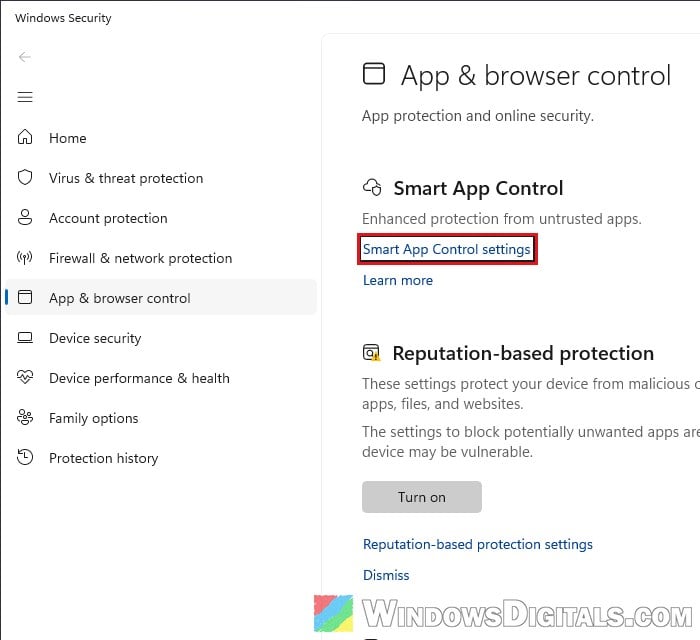
- If the On option is grayed out, open Settings > Windows Update > Update history and look for KB5127648 in the list.
If you have KB5127648 and the switch is grayed out, the fix below should help. Please note that according to Microsoft, Smart App Control also stays off on PCs that are managed by a work or school organization, PCs with developer mode set up, PCs in S mode, and PCs with optional diagnostic data turned off. If one of those applies to you, the registry workaround won’t change anything (on a work or school PC, that’s up to your IT admin).
Pro tip: How to Check if a KB Update is Installed in Windows 11
Apply Microsoft’s registry workaround
Microsoft’s workaround adds two values to the registry that bring back the option to turn Smart App Control on. It’s just two commands and a restart, and the rest of the October update stays installed.
Incorrectly changing the registry can cause serious problems in Windows, so please at least create a system restore point first. You’ll also need an account with administrator rights. If you’re not sure what you’re doing, it’s better to get someone who knows to help you instead.
Here’s how to do it:
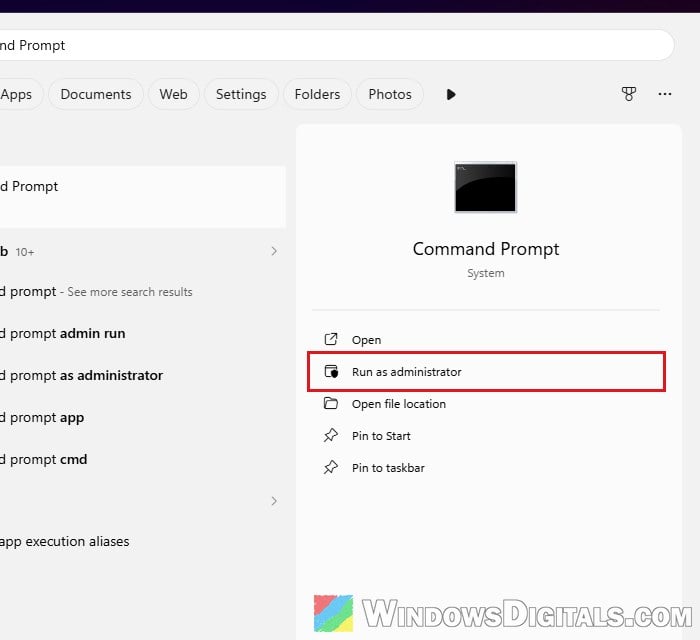
- Search for “Command Prompt” in the Start menu, then click Run as administrator. Click Yes if Windows asks for permission.
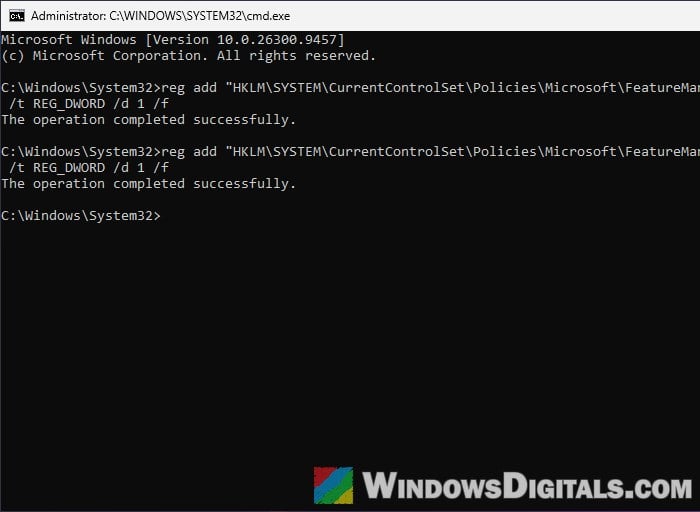
- Copy and paste the following commands one by one, and press Enter after each. Each one should answer with “The operation completed successfully.”
reg add "HKLM\SYSTEM\CurrentControlSet\Policies\Microsoft\FeatureManagement\Overrides" /v 2883193997 /t REG_DWORD /d 1 /f
reg add "HKLM\SYSTEM\CurrentControlSet\Policies\Microsoft\FeatureManagement\Overrides" /v 2850574478 /t REG_DWORD /d 1 /f
- Close Command Prompt and restart your PC. The change only applies after a restart.
- Once you’re back in Windows, open Windows Security > App & browser control > Smart App Control settings again.
- The On option should now be selectable. Select it.
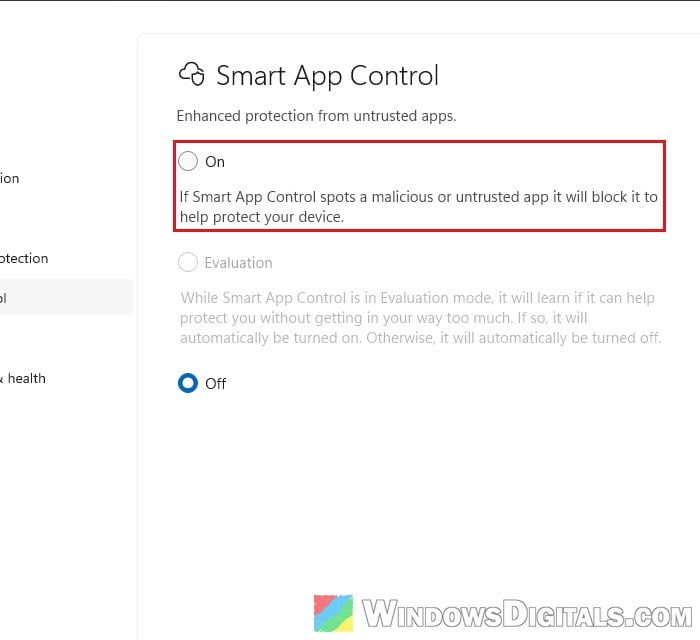
Once it’s on, Smart App Control may block apps it doesn’t trust, so if an app you use stops opening, see our guide on Smart App Control blocking apps.
Prefer to do it in Registry Editor?
You can also add the same two values by hand in Registry Editor:
- Search for “regedit” in the Start menu and click Run as administrator.
- Copy and paste the following path into the address bar at the top and press Enter:
HKEY_LOCAL_MACHINE\SYSTEM\CurrentControlSet\Policies\Microsoft
- If there’s no key called FeatureManagement under Microsoft, right-click Microsoft, select New > Key and name it
FeatureManagement. - Do the same inside FeatureManagement for a key called
Overrides, if it’s not there yet. - Right-click Overrides, select New > DWORD (32-bit) Value and name it
2883193997. Create a second one named2850574478. - Double-click each value, set its Value data to 1 and click OK, then restart your PC.
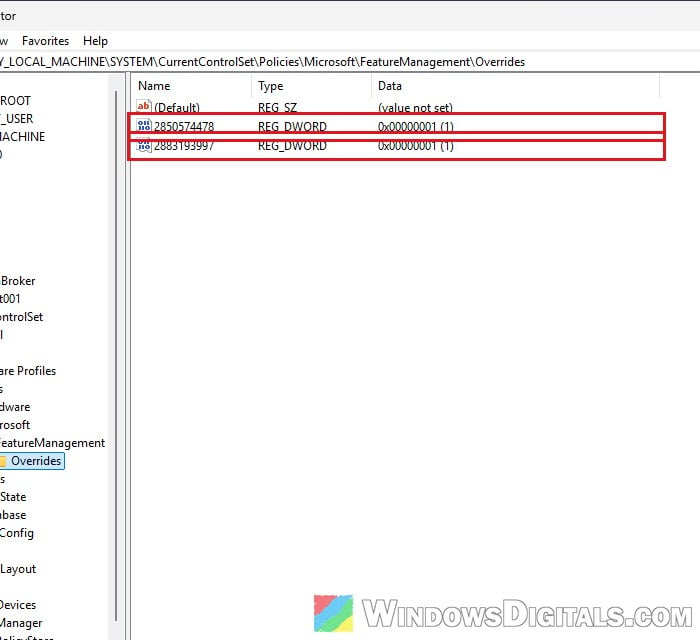
Related guide: Windows Registry Key “Access is Denied” Error
Use Group Policy instead (for IT admins)
If you manage many PCs, Microsoft also offers two Group Policy packages for enterprise-managed devices instead of the registry edit: “KB5074105 261015_19222 Feature Preview” and “KB5074105 261015_19221 Feature Preview“. Install both, set both of their policies to Enabled under Computer Configuration > Administrative Templates (the full path to each policy is on Microsoft’s page), then restart the devices. One restores the ability to turn Smart App Control on, and the other turns on extra logging for troubleshooting. The download links are in the known issues section of the KB5127648 support page.
Linked issue: Windows 11 Security Shows “Page not available”
Wait for Microsoft’s fix
If you’d rather not touch the registry and can live without Smart App Control for a while, you can also wait. Microsoft says it’s working on a resolution for an upcoming update.
If you’re on Windows 11 version 24H2 Home or Pro, though, don’t count on it. Microsoft says the October 2026 update was the last one for those editions, so a fix that comes in a later monthly update won’t reach them. On those PCs, the registry workaround above is the way to go, or you can upgrade to Windows 11 version 25H2 or 26H2, which still get monthly updates.