If you’re seeing a notification that says “Smart App Control has blocked part of this app” when you open a game, a launcher or an app on Windows 11, it means Windows let the app itself run but stopped one of the files it tried to load, such as a DLL, a plug-in or a mod that isn’t properly signed. This guide will explain why it happens, how to find out what was blocked, and what you can do about it.
Also see: Explorer.exe Blocked by Windows Defender or Firewall?
Page Contents
Why does Smart App Control block part of an app?
Smart App Control checks every app and file before Windows lets it run. According to Microsoft, it first asks Microsoft’s cloud service whether the file is likely to be safe. If the service has no answer for that file, Smart App Control only lets it run if it’s signed with a trusted certificate. Unknown unsigned files are blocked.
The “part of this app” version of the message shows up when the main app is trusted, but something it loads isn’t. Microsoft says the feature that depends on that file won’t work, but the rest of the app may keep working. That’s why a game can open its launcher and then fail when you click Play, or why mods suddenly stop loading.
Some common situations where this happens:
- A game or app update that ships new unsigned DLL files. Players of Grim Dawn saw it after a game update, and Roon users had four of its DLL files blocked after the Roon 2.71 update.
- Mod loaders and add-ons, such as MelonLoader, which loads unsigned mods.
- Brand new files that Microsoft’s cloud hasn’t seen often enough to rate yet, even if they’re signed.
- A fresh Windows 11 install, where Smart App Control may be on by default. One Minecraft player got error 0x800711c7 this way.
The good news is that this isn’t a sign of a broken Windows install. The bad news is that there’s no way to allow just one file, so turning the protection off is the last resort.
Linked issue: Virus and Threat Protection Missing in Windows 11
Find out which file was blocked
Before changing anything, it helps to know which file Smart App Control stopped. The quickest way is to click “Learn more” in the notification. If the notification has already gone, you can find it again in Windows Security:
- Open the Start menu, search for “Windows Security” and open it.
- Go to “Virus & threat protection” and click “Protection history“.
- Look for a recent entry labeled “Smart App Controls” or “Blocked app” and click it to see the details.
Not every block ends up in this list, though. If you can’t find an entry there, Event Viewer below has the full record.
Check Event Viewer for the exact file
Event Viewer shows the full path of every blocked file, which helps when the notification only names the app. Here’s what to do:
- Press Win + R, type
eventvwr.mscand press Enter. - In the left pane, go to Applications and Services Logs > Microsoft > Windows > CodeIntegrity > Operational.
- Look for events with ID 3077. Each one is a file that was blocked. (ID 3076 means a file would have been blocked, which only shows up in evaluation mode.)
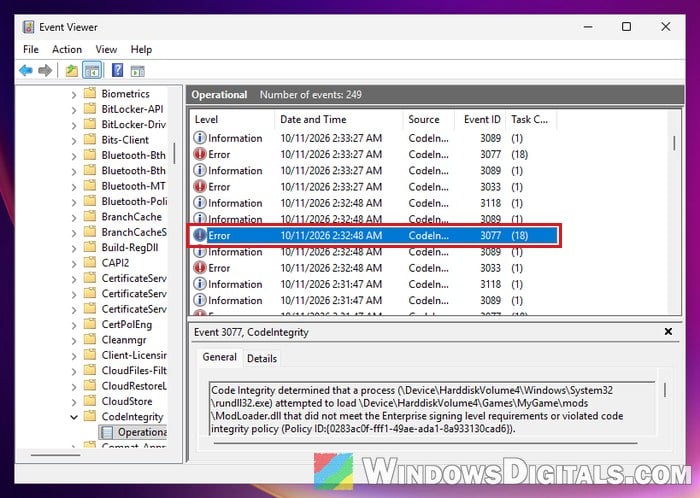
Once you know the file name, you can tell whether it belongs to the app itself, to a mod or plug-in you added, or to something you don’t recognize. If it’s a file you don’t recognize, don’t force it to run.
Might be useful: Can’t Clear Protection History in Windows 11/10 Defender
Update the app, or reinstall it from the official website
Since the block is about a file that isn’t signed, the real fix has to come from the app’s developer. When an app update causes it, a later update may ship properly signed files again. Roon’s support staff, for example, told affected users that a fix was coming on their side that wouldn’t need any changes in Windows.
Check the app or game for updates, or download a fresh copy from the developer’s own website and reinstall it. While you’re at it, install any pending updates from Windows Update too. In a Reddit thread about Elite Dangerous, the original poster got the game running again after updating Windows and the graphics driver and restarting, and another player said Windows Update fixed it for them as well.
Wait a day or two and try again
This one might sound a little odd, but it has worked for some people. Smart App Control relies on Microsoft’s cloud to rate files, and a file nobody has run before has no rating yet. Once enough people have run it, it can get one.
Two players on Reddit, one with Grim Dawn and one with Schedule I with mods, reported that the block went away by itself after waiting, from a few hours to two days. It’s not a guaranteed fix, but if you can wait, it’s the option that keeps your protection on.
Let the developer know
Microsoft’s own advice for apps that Smart App Control blocks is to contact the developer and ask them to sign their app with a valid signature. If the blocked file belongs to a mod or a small tool, the developer may not even know about the problem yet. Send them the file name from Event Viewer so they know exactly which file needs signing.
Turn off Smart App Control (only if you trust the app)
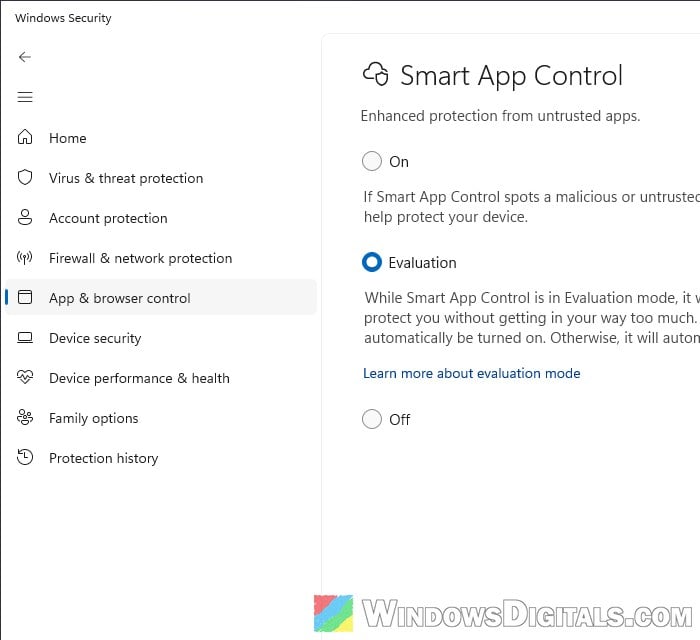
If you need the app working now and you trust where it came from, the only way to let the blocked file run is to turn Smart App Control off. Microsoft says there is currently no way to make an exception for a single app, and adding the app to your antivirus exclusions doesn’t help either, since Smart App Control is a separate feature. One Minecraft player fixed error 0x800711c7 this way, and a couple of others said it helped them too.
Please be warned that turning it off removes a layer of protection against malware and unwanted apps for every app, not just this one. Microsoft Defender keeps running either way. Also, on a PC that hasn’t installed the April 2026 update (see below), turning it off can’t be undone without resetting Windows, so run Windows Update first.
Here’s how to do it:
- Open the Start menu, search for “Windows Security” and open it.
- Click “App & browser control“.
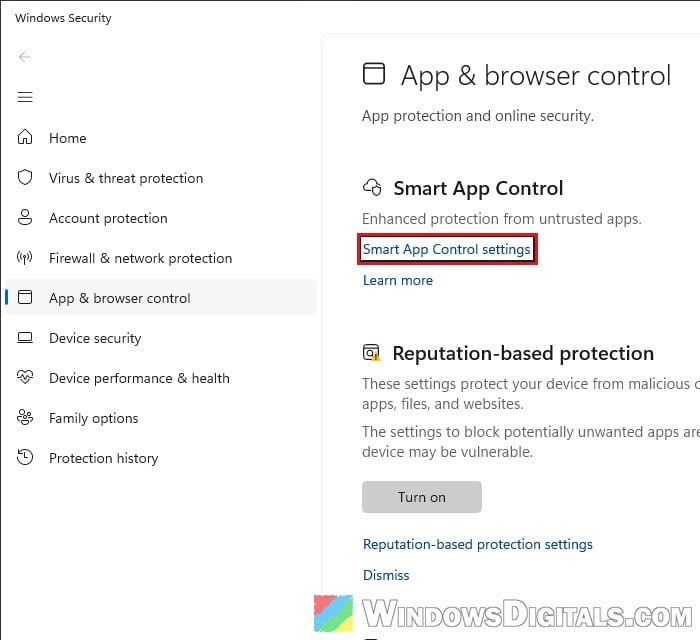
- Under “Smart App Control“, click “Smart App Control settings“.
- Select “Off“.
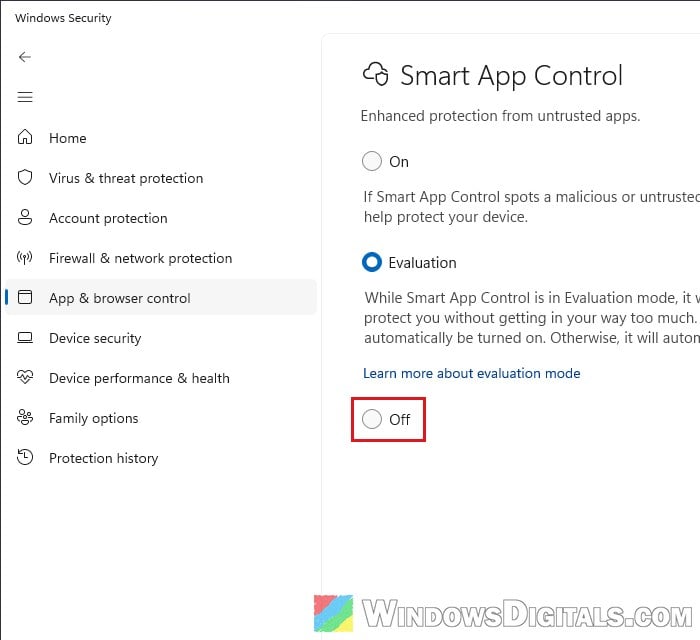
- If a User Account Control prompt appears, click “Yes“.
Then open the app again and check whether the part that was blocked works now. If it’s still blocked, restart your PC and try again.
Related concern: Windows 11 Security Shows “Page not available”
Can you turn Smart App Control back on later?
Yes, as long as your PC is up to date. Until recently, turning Smart App Control off was a one-way trip, and the only way to get it back was to reset or reinstall Windows. Since the April 2026 security update for Windows 11 24H2 and 25H2 (KB5083769), you can switch it on or off at any time from the same “Smart App Control settings” page, without reinstalling. Newer versions of Windows 11 can do this too. So once the developer releases a signed update, you can turn it back on.