If you double-click an attachment in the new Outlook for Windows on Windows 11 and nothing opens, or you get “Error occurred while opening the file. Please try again” (or “This action couldn’t be performed because Office doesn’t recognize the command it was given” for Office files), or the file seems to go to OneDrive and never opens, this guide will show you what usually causes it and how to fix it.
Also see: How to Get Outlook to Open Links in Chrome on Windows 11/10
Page Contents
Why won’t the new Outlook open attachments?
In the new Outlook, a single click on an attachment opens a preview inside Outlook, and a double-click is supposed to open it in the app Windows uses for that type of file. Microsoft rolled out this double-click behavior in late 2024. Outlook asks you to confirm before it opens each type of file, until you tell it to stop asking.
In practice, it doesn’t work this way for everyone. On Microsoft’s forums, some people were told that opening attachments in their desktop apps wasn’t supported yet or had been delayed, and others still see PDFs open in Microsoft’s own viewer instead of their usual PDF app.
Some common reasons for this are:
- A missing “Attachments” folder in the new Outlook’s own data folder (the most confirmed cause).
- A buggy update. In January 2025, a WebView2 update (version 132.0.2957.115) stopped attachments from opening for a wave of users until a newer version fixed it.
- The wrong default app for that type of file in Windows.
The good news is that Preview, Save As and Outlook on the web usually keep working, so you can still get to the file.
Linked issue: Microsoft 365 Outlook 1001 Error “Something went wrong”
Create the missing “Attachments” folder
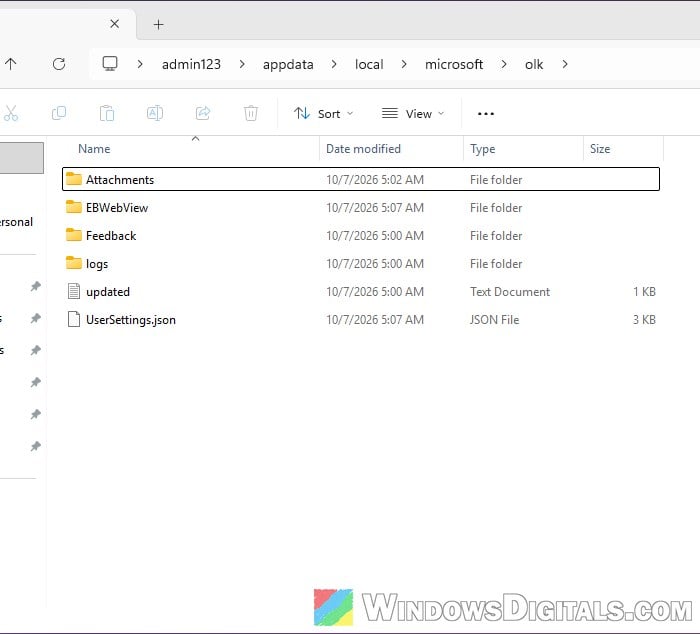
The new Outlook keeps its local files in a folder called Olk in your user profile, and it expects an Attachments folder inside it. For many people who got the “Error occurred while opening the file” message, that folder simply wasn’t there, and creating it was all it took.
This is the accepted answer on Microsoft’s Q&A forum for this error, and more than 200 people marked it as helpful. Here’s how to do it:
- Close the new Outlook.
- Press Win + R to open the Run dialog box.
- Type the following path and press Enter:
%userprofile%\appdata\local\microsoft\olk
- Look for a folder named Attachments.
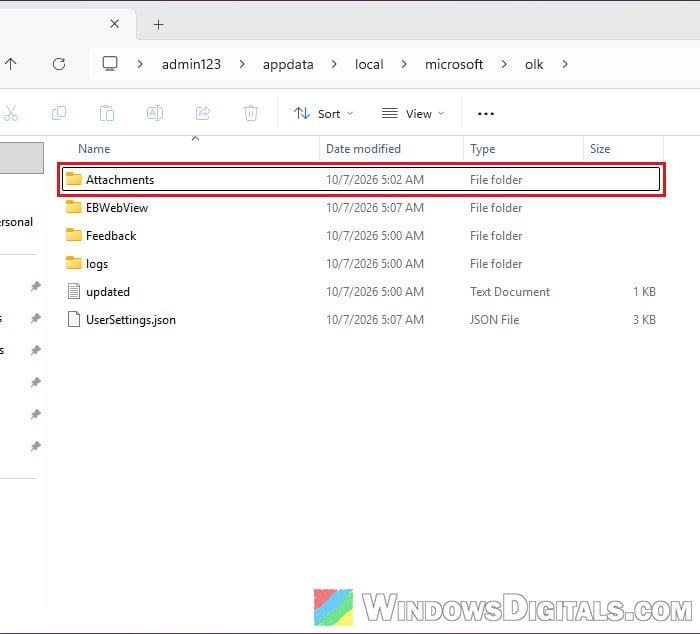
- If it isn’t there, right-click an empty space, select New > Folder, and name it Attachments.
Open the new Outlook again and double-click the attachment. If the folder was already there, this probably isn’t the cause, so try the next fix.
Update the new Outlook
In January 2025, a WebView2 update (version 132.0.2957.115) stopped attachments from opening for a wave of users. Once a newer version was out, the person who asked about it on Microsoft’s Q&A forum confirmed that attachments opened again. A volunteer moderator on the same forum also suggests keeping the new Outlook itself up to date.
The new Outlook is updated through the Microsoft Store and Windows Update, so check both:
- Open the Microsoft Store.
- Click Downloads at the bottom left.
- Click Check for updates.
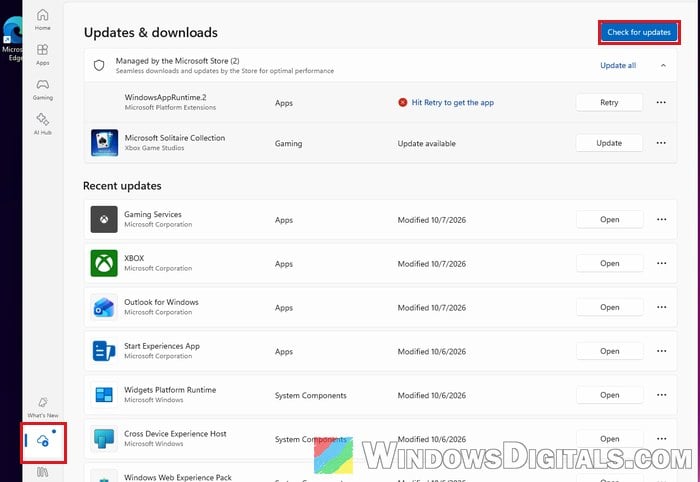
- If Outlook for Windows is listed with an update, install it, or click Update all.
- Go to Settings > Windows Update and click Check for updates.
Once the updates are installed, open the new Outlook and double-click the attachment again.
Related problem: Microsoft Store “Error encountered – One of the update services is not running properly”
Check which app opens that file type
The new Outlook just hands the file to whatever app Windows uses for that file type. So if PDFs are set to open in Edge, for example, that’s where they’ll open, even if you expected another PDF app.
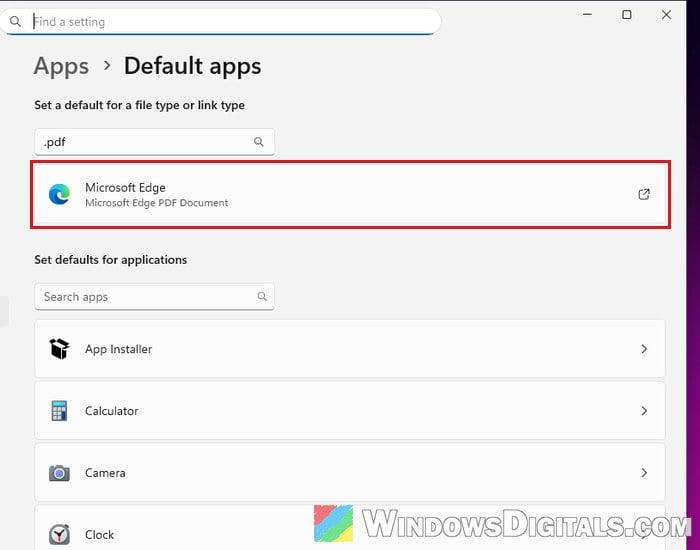
- Open Settings and go to Apps > Default apps.
- In the search box, type the file extension of the attachment, for example “.pdf“, and select it from the list.
- Click the app shown under it (Microsoft Edge in the example below), then choose the app you want to open that type of file with.
Go back to the new Outlook and double-click the attachment to see if it now opens in the right app.
Pro tip: How to Change Default App For File Extension in Windows 11
Check for the confirmation prompt
This one is a quick check rather than a real fix. Before the new Outlook hands a file to another app, it shows a confirmation prompt for that type of file, such as a PDF or a Word document, and the file only opens after you confirm it. Double-click the attachment again and look for that prompt before deciding that nothing happens. If you’d rather not see it every time, uncheck “Always ask before opening this type of file” in that prompt, and Outlook will open that type of file straight away from then on.
Repair or reset the new Outlook
If attachments still won’t open, Windows can repair the new Outlook app without touching your data, or reset it completely. Try Repair first, since Reset deletes the app’s data and you’ll need to sign in and set up your account again.
- Right-click the Start button and select Installed apps.
- Type “Outlook” in the search box. The new Outlook may be listed as Outlook (new) or simply Outlook by Microsoft Corporation.
- Click the three-dot button next to it and select Advanced options.
- Scroll down to the Reset section and click Repair.
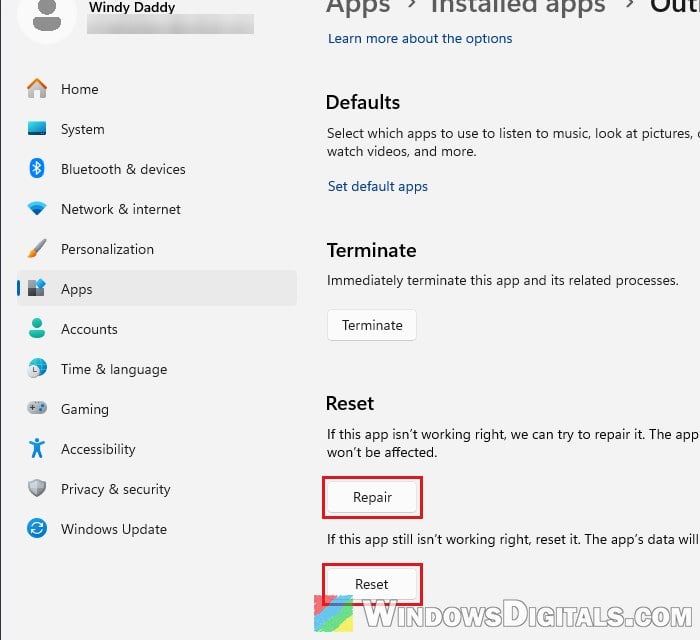
- If that doesn’t help, come back to the same page and click Reset.
Then open the new Outlook and try the attachment again.
Save the attachment first, as a workaround
If you just need the file now, save it first. In the threads about this problem, saving the attachment and opening it from your PC usually worked even when double-clicking didn’t. Click the drop-down arrow to the right of the attachment, select Save As, and then open the saved file from File Explorer.
Opening the same email in Outlook on the web is another option. One Reddit user whose attachments kept going to OneDrive in the new Outlook said they still opened fine there. And if you open attachments all day and none of this helped, I’d just switch back to the classic Outlook for now (using the toggle in the new Outlook), as answers on Microsoft’s Q&A forum also suggest.