If you’re playing PCVR games through Meta Quest Link (now called Meta Horizon Link) and the picture in the headset freezes or stutters badly after a few minutes, while the game keeps running on your monitor and you can still hear the audio, it’s most likely caused by a bug in the newer NVIDIA graphics drivers. This guide will explain what’s going on and what you can do until NVIDIA’s fix arrives.
Also see: Meta Quest 3 “General Device Problem” in Link (Cable)
Page Contents
Why does Quest Link freeze on newer NVIDIA drivers?
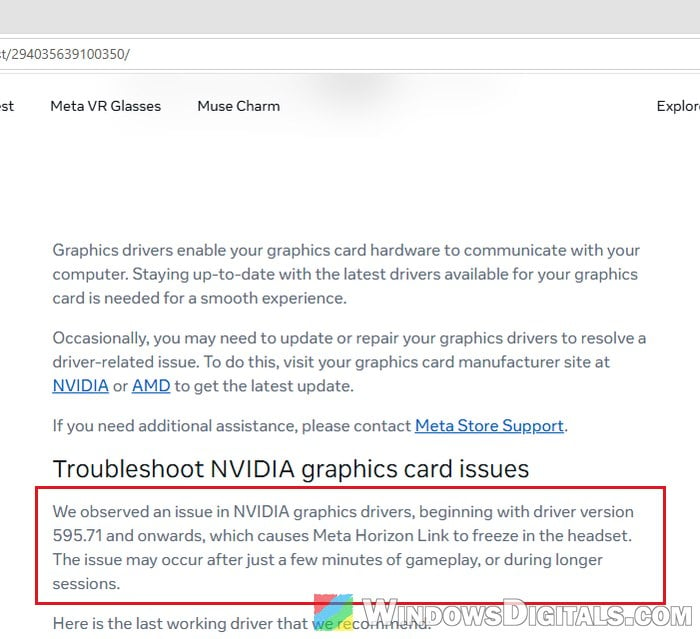
Meta says on its own help page that it has seen an issue in NVIDIA graphics drivers, starting with version 595.71, that makes Link freeze in the headset. For some it freezes within minutes, for others only well into a session. Some users trace it back a little further, to driver 595.59 from late February 2026, and say that 591.86 was the last driver that worked properly.
Here’s what it usually looks like:
- The image in the headset freezes, sometimes turns black, or tears and stretches when you turn your head.
- The game keeps running on the PC monitor, and head tracking and audio still work.
- Restarting Link, or even the PC, only helps until it freezes again.
It has been reported on Quest 3, Quest 3S, Quest 2, and Quest Pro, with cards from the GTX 16 series up to the RTX 5090. The Link app on the PC now also shows a warning that recommends driver 591.86 or earlier.
The good news is that NVIDIA has confirmed a fix. An NVIDIA staff member replied in the GeForce forum thread about this bug in early October 2026 that it’s fixed and will be in the next Game Ready Driver. Until that driver is out, here’s what has worked for other users.
Linked issue: Graphics Glitches/Artifacts in Oculus (Meta) VR Game
Turn off “Sliced Encoding” in Oculus Debug Tool
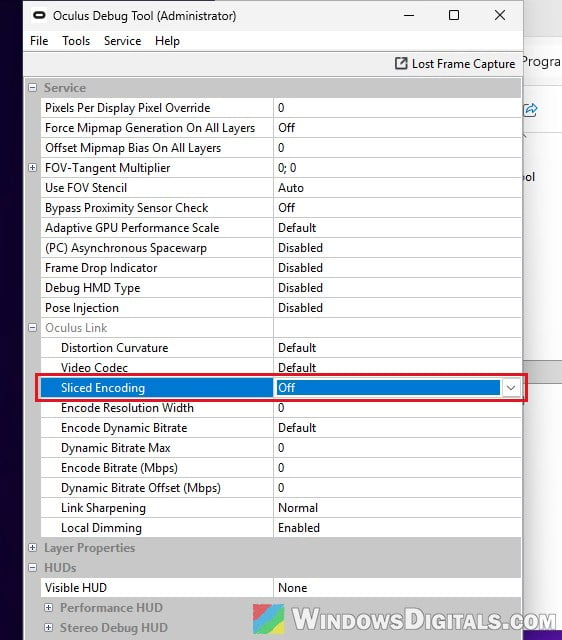
If you don’t want to go back to an old graphics driver, try this first. In a Reddit thread marked as solved, the poster said Link stopped freezing on the current NVIDIA driver after turning off Link’s Sliced Encoding setting. A user on NVIDIA’s forum fixed it the same way, along with a few other settings (more on that below).
Someone who says they work on Link at Meta also replied in the Reddit thread. They said sliced encoding does have something to do with the bug, but turning it off only lowers the chance of a freeze, so it can still happen. Even so, it only takes a minute and you get to keep your current driver.
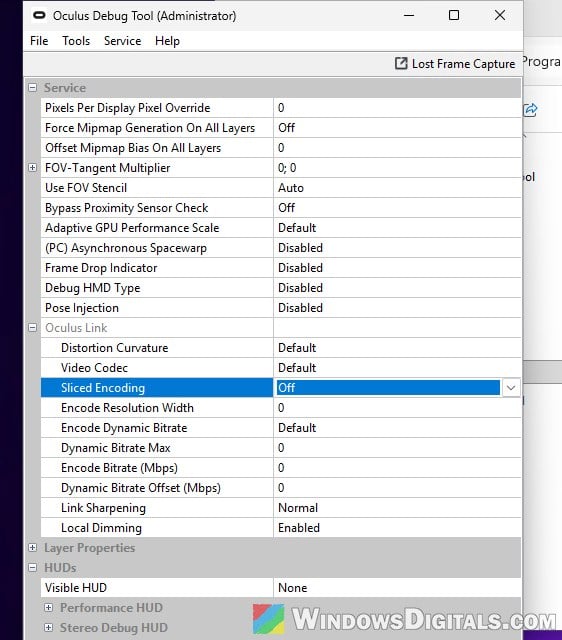
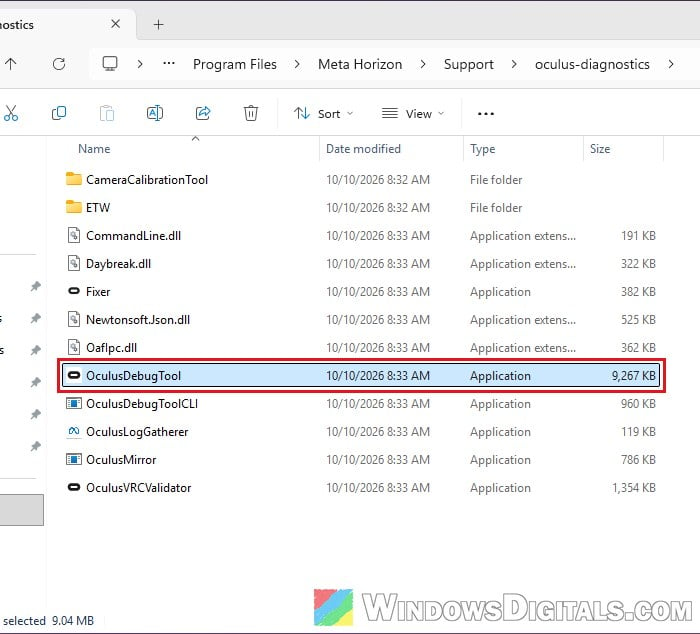
The setting is in the Oculus Debug Tool, which comes with the Link app. If the folder in step 1 doesn’t exist on your PC, look in C:\Program Files\Oculus\Support\oculus-diagnostics instead. Here’s how to change it:
- Open File Explorer and go to the following folder:
C:\Program Files\Meta Horizon\Support\oculus-diagnostics
- Double-click OculusDebugTool (not OculusDebugToolCLI). If Windows asks for permission, allow it.
- Under Oculus Link, click the value next to Sliced Encoding and change it to Off.
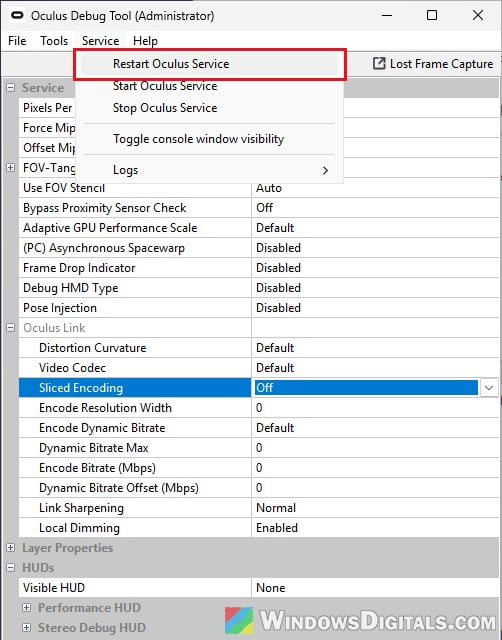
- In the menu bar, click Service and select Restart Oculus Service. Link settings in the Debug Tool only take effect after the service restarts.
- Start Link again and play as you normally would.
If you can now get through a full session, leave it off until the fixed driver is released.
The same Restart Oculus Service option is also handy when Link does freeze in the middle of a game. It can bring the picture back without restarting the whole PC. That only gets you back into the game, though. The freeze will usually come back unless you also use one of the workarounds in this guide.
Still freezing? Try the H.265 video codec
In the same Oculus Link section, there’s a Video Codec setting with three options: Default, H.264, and H.265. One user on NVIDIA’s forum said the freeze only happens with H.264. Another got Link stable on the latest driver with H.265 and Sliced Encoding off, along with a couple of other Debug Tool changes.
H.265 can also make things worse. One user said it stuttered badly on their PC and the freeze still happened. If that’s the case for you, set Video Codec back to Default. Remember to restart the Oculus service after each change.
Related problem: PC can’t detect Quest 3 (USB device not recognized)
Go back to the NVIDIA driver that Meta recommends
This is Meta’s official advice for now, and plenty of users on the Meta and NVIDIA forums confirm it works. Meta’s help page links to what it calls the last working driver: 591.86 for laptop GPUs and 591.59 for desktop GPUs. Desktop users also report that 591.86 works fine, and the warning in the Link app says 591.86 or earlier.
The downside is that you’ll be on a driver from December 2025 or January 2026, and some newer games may ask for a newer one. A few users also said Link still froze for them on 591.86, so it’s not a sure thing either.
To install the recommended driver, follow the steps below:
- Go to Meta’s help page at
https://www.meta.com/help/quest/294035639100350/. - Under “Troubleshoot NVIDIA graphics card issues“, click the link that matches your graphics card (laptop or desktop). It opens the driver’s page on NVIDIA’s website.
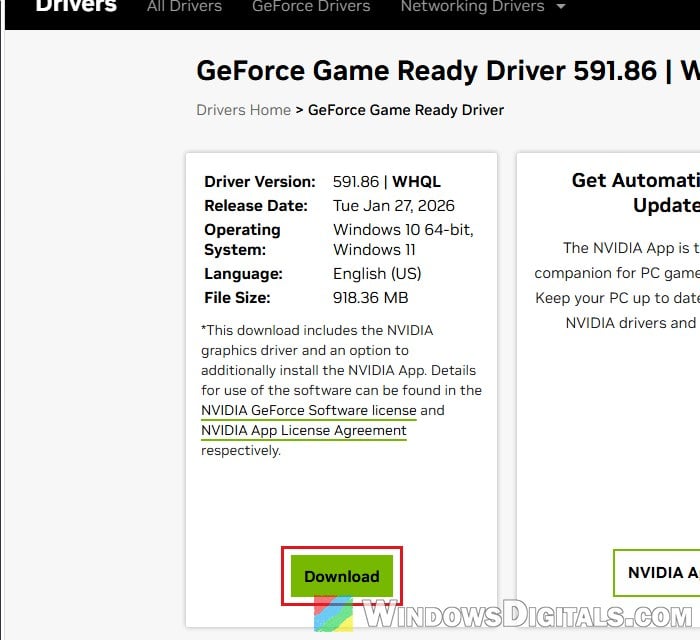
- Click Download and save the installer.
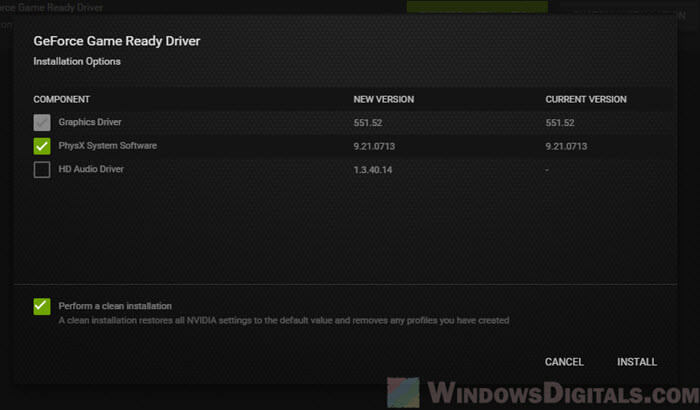
- Run the installer. When it asks for the installation type, choose Custom (Advanced).
- Check “Perform a clean installation” and continue, so that leftovers from the newer driver don’t get in the way.
- Restart your PC and try Link again.
Please note that you should skip any newer driver you’re offered later until NVIDIA releases the one with the fix, or the freezing will most likely come back.
Or roll back the driver from Device Manager
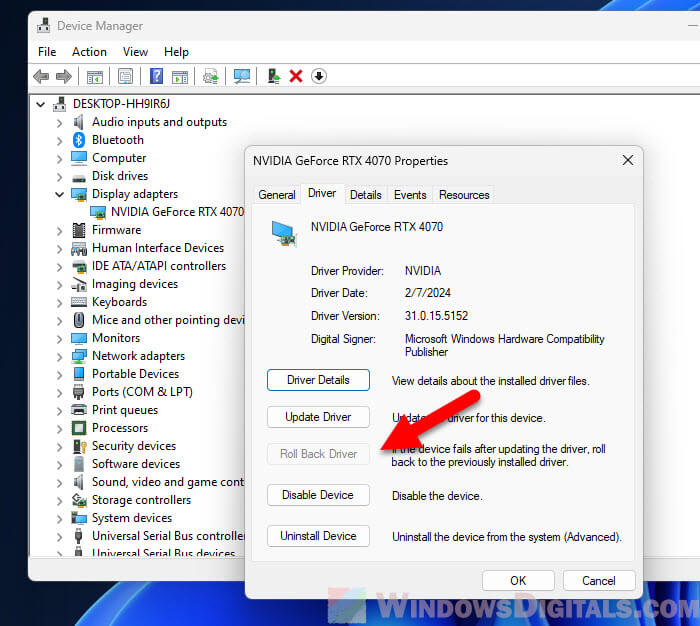
If Link was working fine before your last driver update, Windows 11 or 10 may still have the previous driver, and you can go back to it without downloading anything. This only works if the driver you had before was 591.86 or older. Also, if the Roll Back Driver button is grayed out like in the screenshot below, Windows has no older driver to go back to. In both cases, install the recommended driver as shown above instead.
- Right-click the Start button and select Device Manager.
- Expand Display adapters, right-click your NVIDIA graphics card and select Properties.
- Go to the Driver tab and click Roll Back Driver.
- Follow the prompts, restart your PC and try Link again.
Pro tip: How to Uninstall Drivers in Windows 11
Use Virtual Desktop in the meantime
Another option is to skip Meta’s Link app for now. Some users say they play on the latest NVIDIA drivers through Virtual Desktop without any freezing. It doesn’t work for everyone, though. The user who started NVIDIA’s forum thread had the same freeze with Virtual Desktop and Steam Link. Virtual Desktop is also a paid app, so try the free workarounds first.
Might be useful: WiFi 5 vs WiFi 6 vs WiFi 6E for Virtual Desktop (VR)
When will NVIDIA release the fix?
At the time of writing (October 10, 2026), the latest Game Ready Driver is 617.42, and users still report the freeze on it. NVIDIA staff said the fix will be in the next Game Ready Driver, later in October. A notice on the Meta forums says November instead. Either way, it should be weeks away.
Once that driver is out, install it, and then set Sliced Encoding and Video Codec back to Default in the Oculus Debug Tool if you changed them.