If you’ve noticed that the GameInput Redist Service is stuck on “Stopping” in the Services window and can’t be stopped, or that GameInputRedistService.exe keeps crashing every time you start your PC, you might also find that some games suddenly stop responding to your mouse or controller. This guide will explain what this service is and what you can do to fix it.
Also see: Explorer.exe Error on Shutdown or Restart in Windows 11
Page Contents
What is the problem?
You might see one or more of these:
- In “Services“, the “GameInput Redist Service” stays in the “Stopping” state, even after a restart, and the option to stop it is grayed out.
- Event Viewer shows an error that says the activation of a CLSID “timed out waiting for the service GameInputRedistService to stop“. The Microsoft Q&A thread about it calls it error 10029.
- A “GameInput has stopped working” message, or an application error for
GameInputRedistService.exe, appears every time Windows starts. - Games lose input. In one case reported on Microsoft Q&A, Minecraft Bedrock stopped picking up mouse or controller input while the service was stuck. Some players also reported short freezes in games like Helldivers 2.
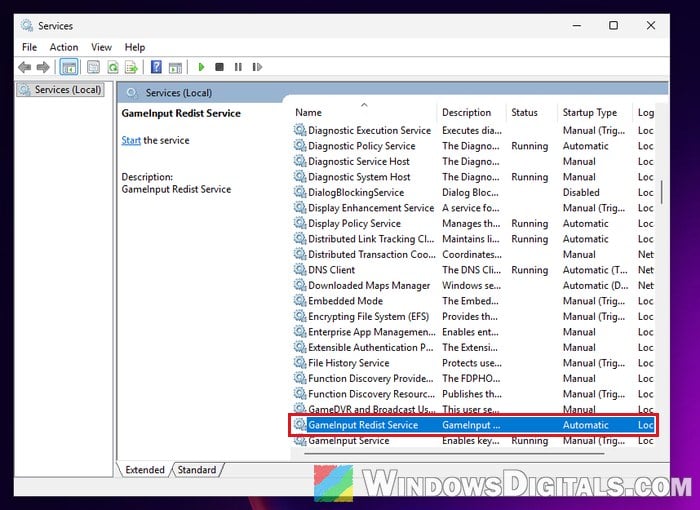
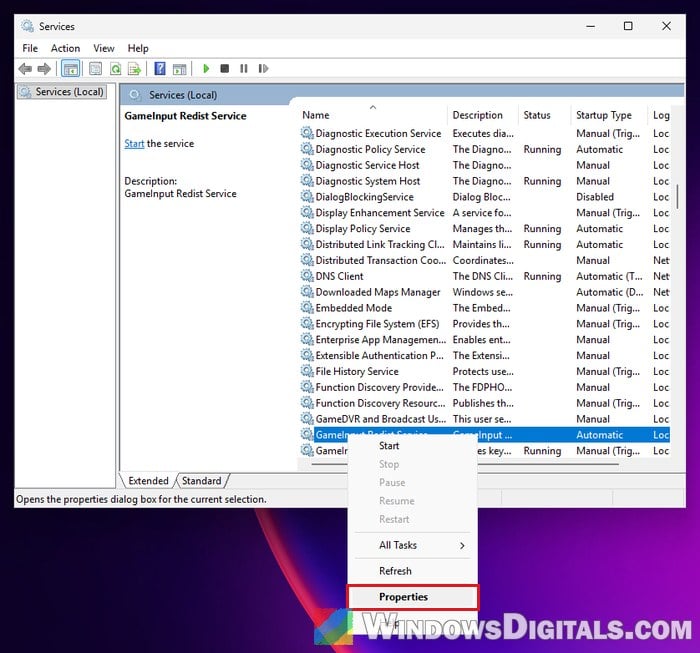
Here’s where the service sits in the Services window. When it’s stuck, its “Status” column shows “Stopping“.
What is GameInput and why does it act up?
GameInput is the part of Windows that games use to read your input devices. According to Microsoft, its service manages access to input devices like controllers for the games that use it. If you play PC games, you probably have two GameInput services:
- “GameInput Service“: the one that comes with Windows.
- “GameInput Redist Service“: installed by the “Microsoft GameInput” package in
C:\Program Files\Microsoft GameInput\x64. Games bundle this package with their installers, and it updates itself over time.
We couldn’t find anything from Microsoft about the stuck “Stopping” problem yet. What we do know is that a lot of users on Reddit and other forums started seeing GameInputRedistService.exe crash after a GameInput update in March 2026, and the fix confirmed most often was to remove Microsoft GameInput and install a fresh copy.
Might be useful: What is GamingServices.exe in Windows 11 or 10?
Uninstall and reinstall Microsoft GameInput
This is the fix most users confirmed for the startup crash, so try it first. Nobody has confirmed it for the stuck “Stopping” case yet, but it’s the same package that runs the service. Several users on Reddit said that removing every copy of Microsoft GameInput and installing the latest one made the errors go away. In one thread about Helldivers 2, the poster said this accounted for more than a quarter of the problems solved on the game’s official Discord.
Here’s how to do it:
- Press Win + I to open Settings.
- Go to “Apps” > “Installed apps“.
- Search for “GameInput“. If you see more than one “Microsoft GameInput” entry, you’ll need to remove all of them.
- Click the three dots next to “Microsoft GameInput” and select “Uninstall“.
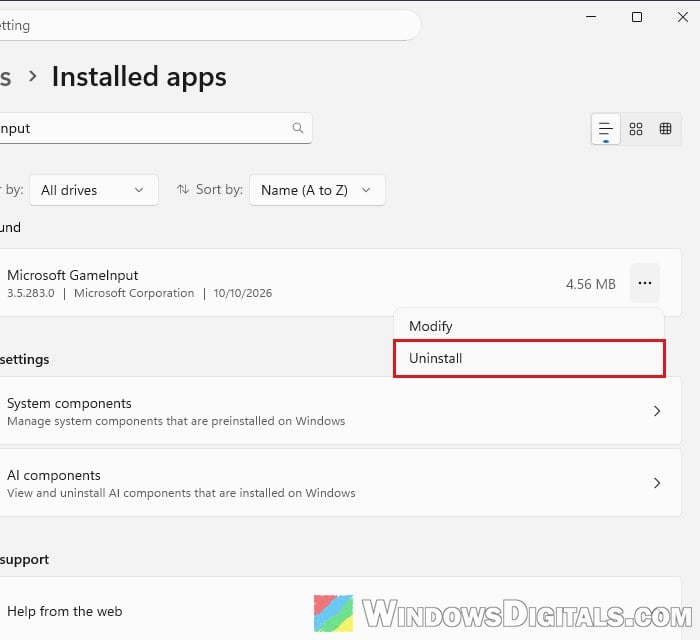
- Click “Uninstall” again to confirm.
- Restart your PC.
- Click “Start“, search for “Command Prompt“, right-click it and select “Run as administrator“.
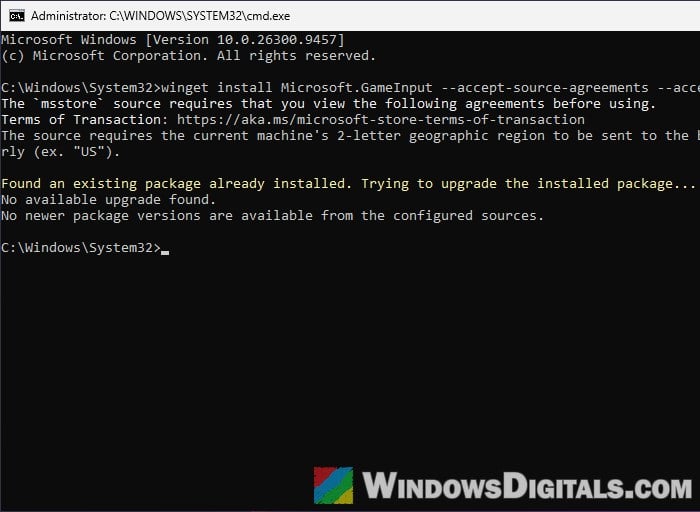
- Type the following command and press Enter to install the latest version of GameInput:
winget install Microsoft.GameInput --accept-source-agreements --accept-package-agreements
- Restart your PC again.
Microsoft gives the same winget install Microsoft.GameInput command in its own GameInput documentation. The two extra options accept the source and license agreements up front, so winget doesn’t stop and ask you.
Don’t be surprised if Microsoft GameInput is already back after the first restart. Users have noticed that Windows puts it back by itself, which is fine. In that case winget will say no newer version is available, which means you’re already up to date.
After this, open Services again and check whether the GameInput Redist Service is running normally, then launch the game that lost its input.
Note: One user on Microsoft Q&A couldn’t uninstall the extra GameInput entry because Windows treated it as a system component and its files were in use while the service was running. If that happens to you, try the next fix instead.
Linked issue: PS4 or PS5 Controller Stopped Working With Steam
Disable the GameInput services (workaround)
If reinstalling didn’t help, some users got around the problem by stopping the GameInput services from starting with Windows. Players who had crashes and freezes in games like Helldivers 2 said this stopped them. As we mentioned in our explorer.exe shutdown error guide, for most users controllers keep working fine with the GameInput Service disabled.
To disable the GameInput services, follow the steps below:
- Press Win + R, type
services.mscand press Enter. - Find “GameInput Redist Service“, right-click it and select “Properties“.
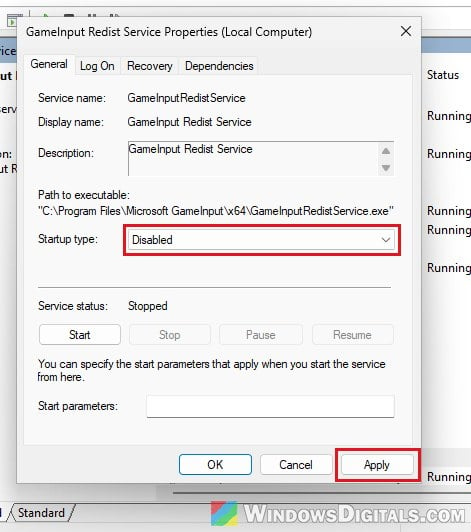
- Set “Startup type” to “Disabled“.
- Click “Apply“, then “OK“.
- If the problem continues, do the same for “GameInput Service“.
- Restart your PC.
Please note that disabling these services is a workaround, not a real fix. If a game starts having trouble with your controller afterward, change the startup type back to what it was before. Also, a user on Microsoft Q&A found the service still stuck on Stopping after a restart even though it was disabled, so this won’t help in every case.
Related guide: How to Disable Startup Services on Windows 11 or 10
Run DISM and SFC
If neither of the above worked, a Microsoft Q&A moderator suggested repairing Windows system files with DISM and SFC. Nobody has confirmed it fixes this, but there’s no harm in trying, and it will repair any corrupted system files it finds.
Here’s how to do it:
- Click “Start“, search for “Command Prompt“, right-click it and select “Run as administrator“.
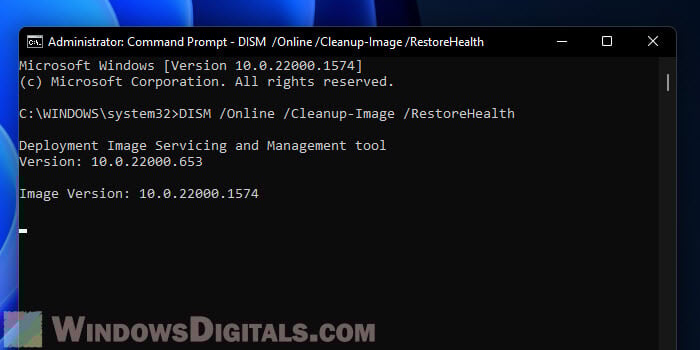
- Type the following command and press Enter. Wait for it to finish.
DISM /Online /Cleanup-Image /RestoreHealth
- Then type the following command and press Enter:
sfc /scannow
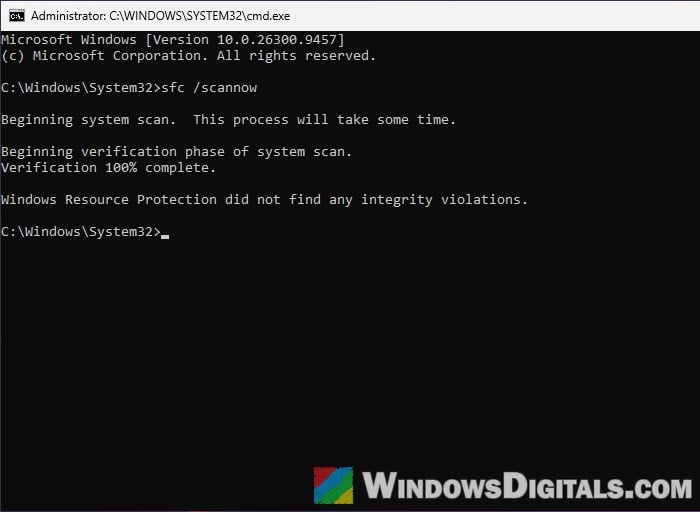
- Restart your PC once both are done.
If it’s still stuck after all this, there isn’t a confirmed fix yet. Since the GameInput package updates itself, the problem may go away with a later version.