Phone Link comes preinstalled on most Windows 11 PCs, and it’s supposed to stay quietly in the background until you open it to check your phone’s texts, calls or notifications. For some people, though, Phone Link keeps popping up on its own, sometimes over and over until it fills the screen and gets in the way of everything else, even on a PC that was never linked to a phone. This guide will show you how to stop it from opening by itself, and what to do when the pop-up won’t even let you reach Task Manager.
Also see: What is “Mobile devices” (CrossDeviceService.exe)?
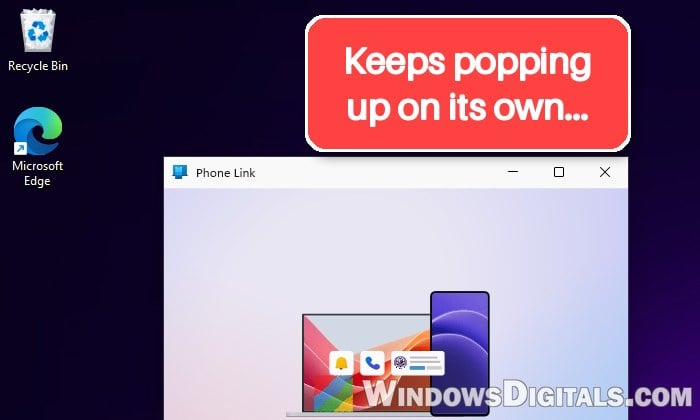
Why does Phone Link keep popping up?
Phone Link is part of Windows 11, and by default it’s allowed to run in the background. That means it can start with Windows and come back on its own, whether or not you’ve ever used it.
The pop-up usually shows up in one of two ways:
- The Phone Link window itself keeps opening, sometimes right after a Windows update. In the worst cases it reopens as soon as you close it, so you can’t use anything else on the PC.
- A reminder or notification keeps asking you to link your phone. These come from the suggestions Windows shows about using your phone with your PC, which are turned on by default.
If you never use Phone Link at all, you can skip straight to uninstalling it.
Close Phone Link first (and use Alt + F4 if it keeps coming back)
Before changing anything, get the window out of your way so you can work.
- Press Ctrl + Shift + Esc to open Task Manager.
- On the Processes page, right-click Phone Link and select End task.
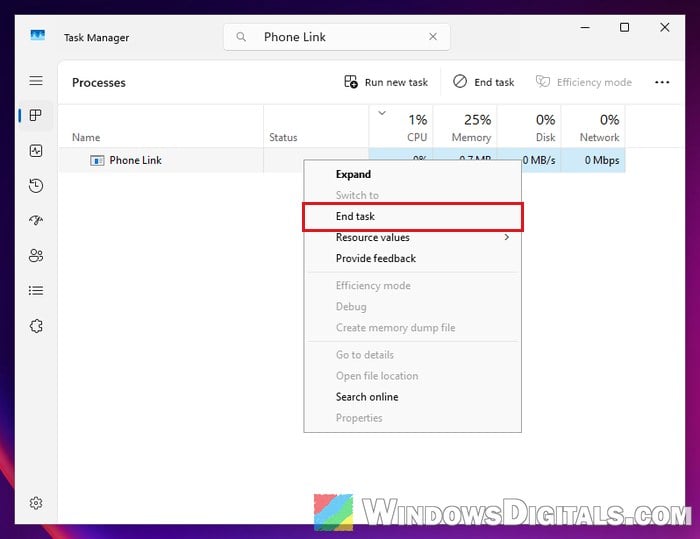
If Phone Link pops back up before you can even click anything, press Alt + F4 each time it appears. It’s a bit tedious, but it closes the active window right away and may give you enough time to get to the fixes below. If even that doesn’t work, jump to the Safe Mode section at the end.
Stop Phone Link from starting with Windows
If Phone Link is set to start when you sign in, it can come back after every restart no matter how many times you close it. Here’s how to turn that off:
- Press Win + I to open Settings.
- Go to Apps > Startup.
- Find Phone Link in the list and turn its toggle Off.
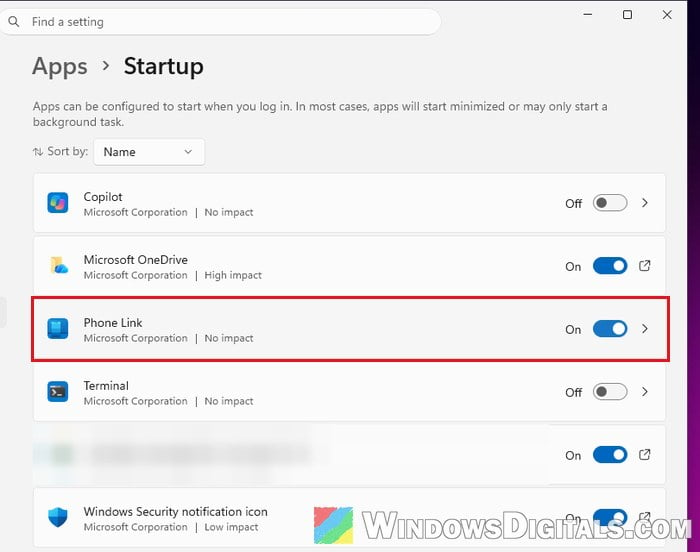
In this Startup list, clicking the Phone Link row itself (not the toggle) opens Phone Link’s own settings page, which is where the background permission and the repair buttons below are.
You can also turn it off from the Startup apps page in Task Manager: right-click Phone Link and select Disable. Restart your PC afterward and see if it still opens by itself.
On some PCs Phone Link isn’t listed there at all and starts anyway. If that’s yours, move on to the next fix.
Pro tip: How to Disable Startup Programs in Windows 11
Set Phone Link’s background permission to “Never”
This is the fix that has helped the most people on Microsoft’s forums. Even with the startup entry off, Phone Link can still launch because Windows lets it run in the background. Setting it to Never should stop it from starting on its own.
- Open Settings and go to System > System components.
- Find Phone Link, click the three dots (…) next to it, and select Advanced options.
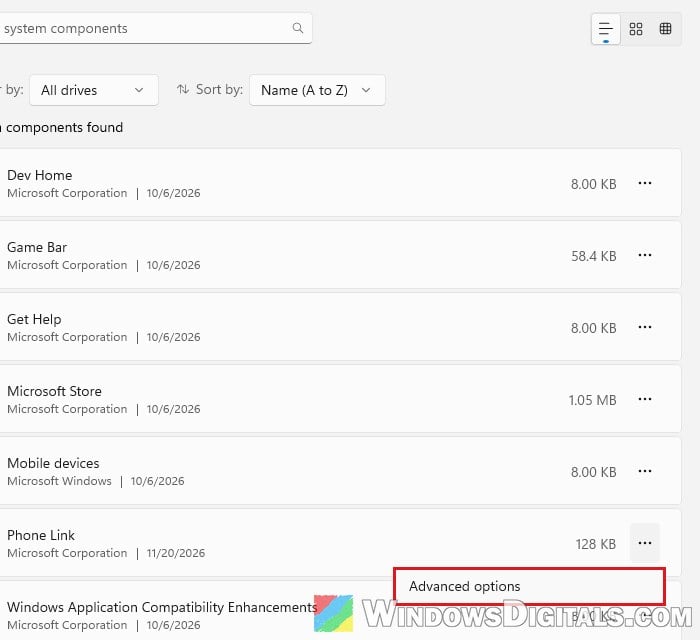
- Under Background component permissions, open the “Let this system component run in background” dropdown and select Never.
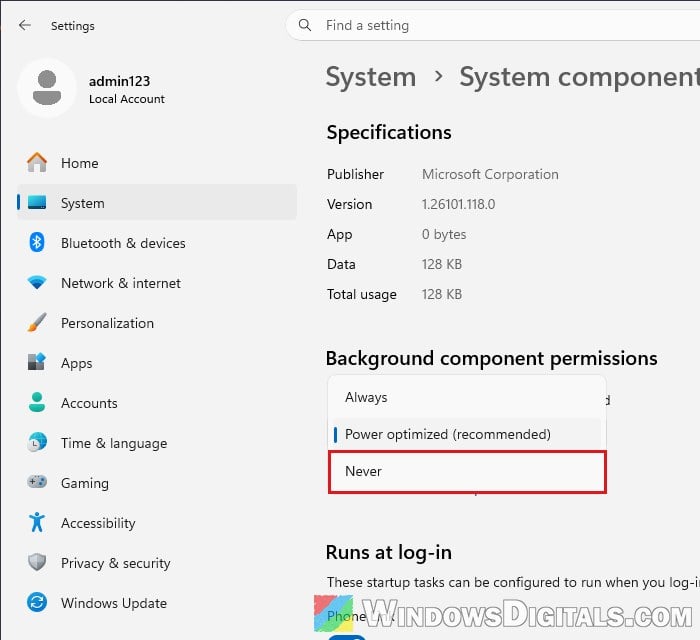
- Restart your PC.
The same page also has a Runs at log-in section with its own Phone Link switch, a second place to turn its startup off. On older versions of Windows 11, Phone Link is listed under Apps > Installed apps instead, where the section is called Background apps permissions and the dropdown “Let this app run in background“. It doesn’t stop Phone Link for everyone, since a few people still see it come back after this. If that’s you, keep going.
Turn off the mobile device suggestions in Settings
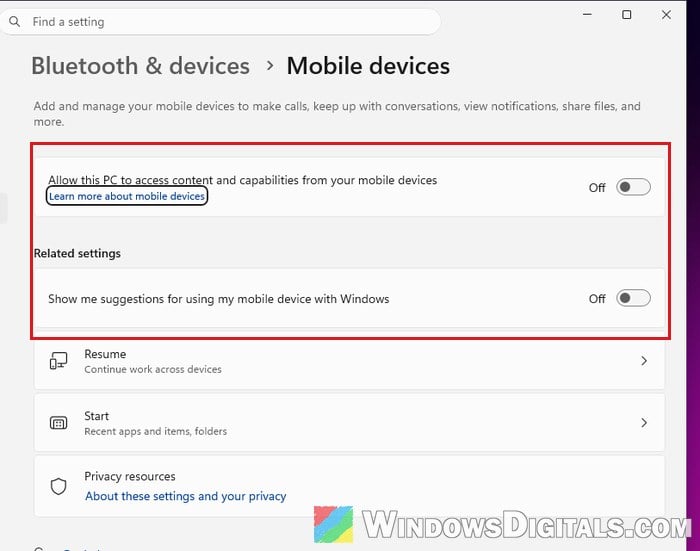
If what keeps popping up is a reminder or notification asking you to link your phone, it’s coming from Windows’ own mobile device settings rather than the Phone Link window. Turning off the suggestions stops those nudges, and turning off the main switch stops your PC from reaching your phones through Phone Link at all. Your Bluetooth pairing isn’t affected by either.
- Open Settings and go to Bluetooth & devices > Mobile devices.
- Under Related settings, turn off “Show me suggestions for using my mobile device with Windows“.
- If you don’t use Phone Link at all, also turn off “Allow this PC to access content and capabilities from your mobile devices” at the top.
Linked issue: Windows 11 Phone Link Stuck on Pair Devices (QR Code)
Repair or reset Phone Link
If Phone Link is stuck in a loop where it keeps reopening, repairing or resetting the app is worth a try. Windows has a built-in repair and reset for it, and they’re both on the same page as the background permission.
- Go back to Settings > System > System components > Phone Link > Advanced options, and scroll down.
- Click Terminate to close it.
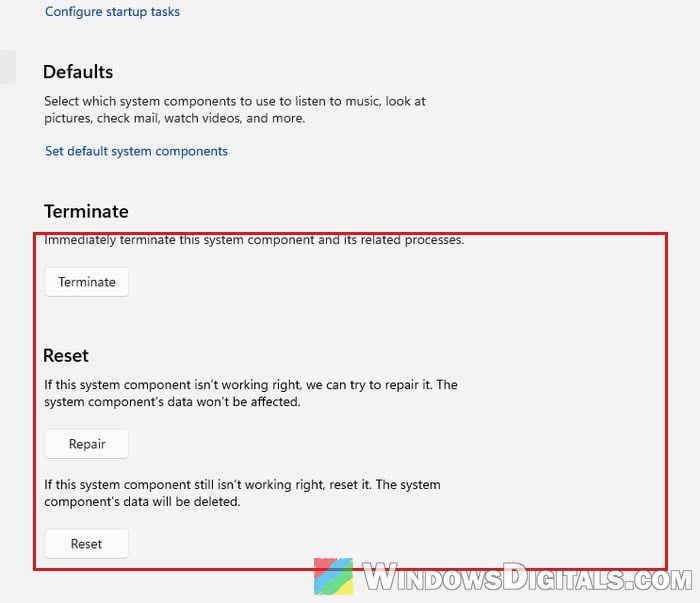
- Click Repair. Repair doesn’t touch Phone Link’s data.
- Restart your PC and see if the problem is gone.
- If it still keeps popping up, come back and click Reset.
Please note that a reset deletes Phone Link’s data on the PC, so if you use it with a phone, you may need to link the phone again afterward.
Uninstall Phone Link with PowerShell
If you never use Phone Link, removing it is the most thorough way to stop it. Since it’s a system component, its three-dot menu only has Advanced options and no Uninstall, but you can remove it with one PowerShell command. Don’t worry, this doesn’t touch your Bluetooth pairings, and you can always reinstall Phone Link later.
- Open the Start menu and type “PowerShell“.
- Right-click Windows PowerShell and select Run as administrator.
- Click Yes on the prompt.
- Copy and paste the following command and press Enter:
Get-AppxPackage -AllUsers Microsoft.YourPhone | Remove-AppxPackage -AllUsers
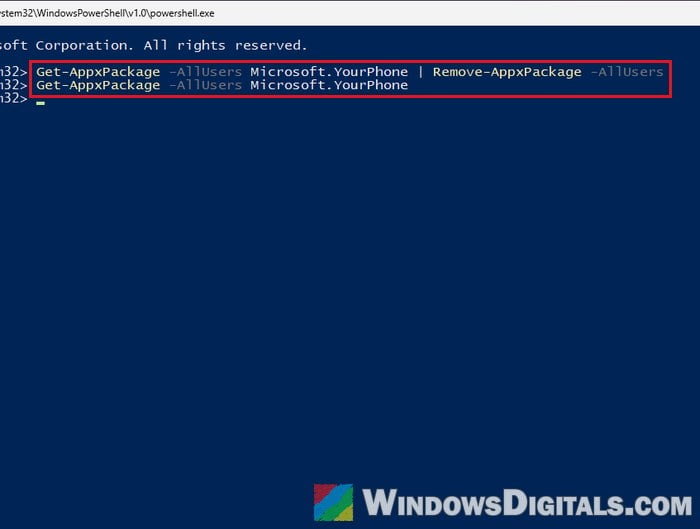
- To check that it’s gone, run the following command. If it returns nothing, Phone Link has been removed:
Get-AppxPackage -AllUsers Microsoft.YourPhone
- Restart your PC.
If you ever want Phone Link back, you can install it again from the Microsoft Store by searching for “Phone Link“.
If the pop-up won’t let you do anything, use Safe Mode
When Phone Link fills the screen so fast that you can’t stay in Task Manager or Settings long enough to change anything, start Windows in Safe Mode. Safe Mode starts Windows with only the basics, so the pop-up usually stays away long enough for you to apply the fixes above.
- On the sign-in screen (or from Start > Power), hold down Shift and click Restart.
- Go to Troubleshoot > Advanced options > Startup Settings, and click Restart.
- When the list appears, press 4 for Safe Mode or 5 for Safe Mode with Networking.
- Sign in, then turn off the startup entry and the background permission, or uninstall Phone Link with the PowerShell command above.
- Restart your PC normally.
If nothing above helps and the problem started right after a recent update, you can also restore your PC to an earlier date from Troubleshoot > Advanced options > System Restore, as long as a restore point was made before the pop-ups began.