When you click the taskbar or close a window, you might see Task View suddenly take over the screen in Windows 11, with your windows shrunk to thumbnails and the desktops bar at the bottom, even though you never pressed Win + Tab. For some people it pops up when they just hover over taskbar icons, and sometimes the Xbox Game Bar opens along with it. This guide will explain what keeps setting it off and how to stop it.
Also see: How to Close Virtual Desktop in Windows 11
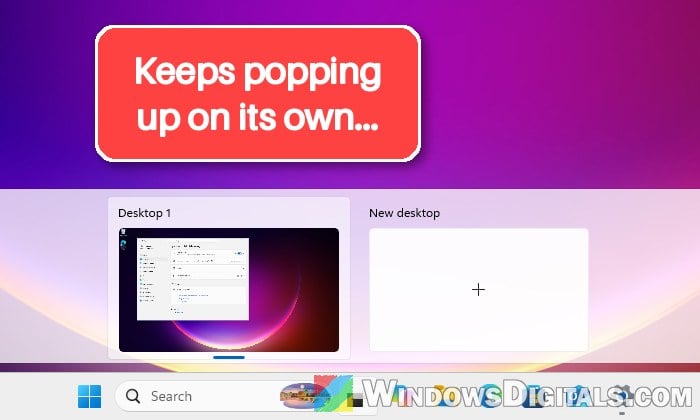
Why does Task View keep opening on its own?
Besides Win + Tab, several other things can open Task View, and any of them can set it off by mistake:
- A bug in Windows that opens Task View a split second after the desktop gets focus, for example right after you close a window.
- A game controller or its USB receiver, since holding the Xbox button opens Task View.
- Snap Assist, which looks a lot like Task View.
- Mouse buttons and touchpad gestures set to Task View.
- A stuck key: if Tab is stuck, pressing the Windows key turns into Win + Tab.
- Apps that hook into the taskbar or Start menu, and software for keyboards and mice.
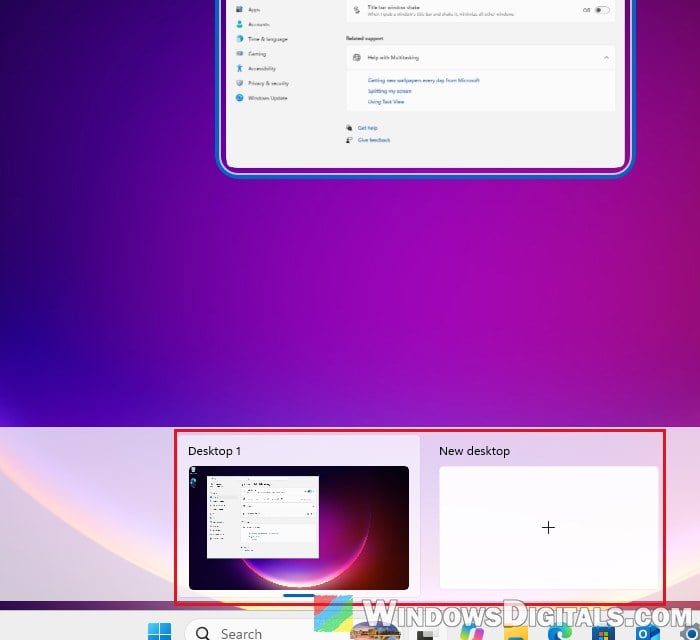
Turning off the Task View button on the taskbar won’t help, since it only removes the button, so start with the quick fixes below.
Restart Windows Explorer
Windows Explorer runs your taskbar and the desktop. Restarting it only takes a few seconds, and it has stopped Task View from popping up for some people. Here’s how:
- Press Ctrl + Shift + Esc to open Task Manager.
- Under Processes, find Windows Explorer (typing “explorer” in the search box helps).
- Right-click Windows Explorer and select Restart.
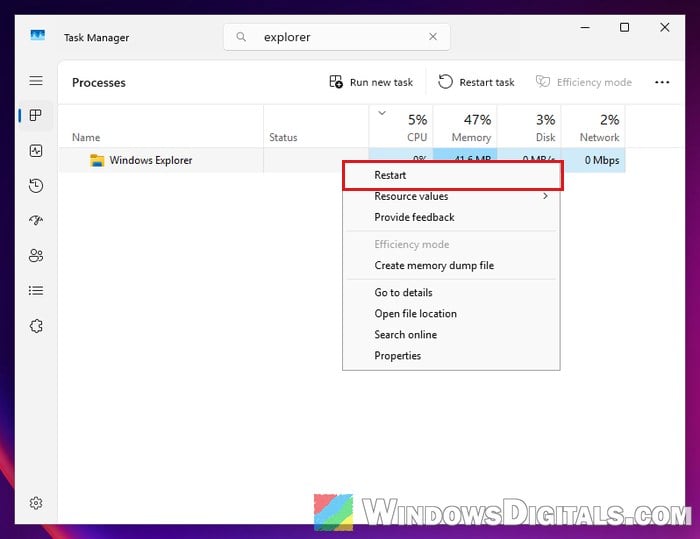
Once the taskbar comes back, close a window and see if Task View still opens.
Related guide: Restart Explorer.exe with CMD or PowerShell in Windows 11
Install the latest Windows updates
Microsoft fixed a bug where selecting the desktop could unexpectedly open Task View in its November 2025 update (KB5068861). The same kind of problem came back on Windows 11 25H2 in August 2026 and went away with a later update (KB5120998). It has also come back on some 26H2 PCs, with no confirmed fix there yet, so install everything on offer:
- Open Settings > Windows Update.
- Click Check for updates and install everything it finds, including an optional preview update with a Download & install link.
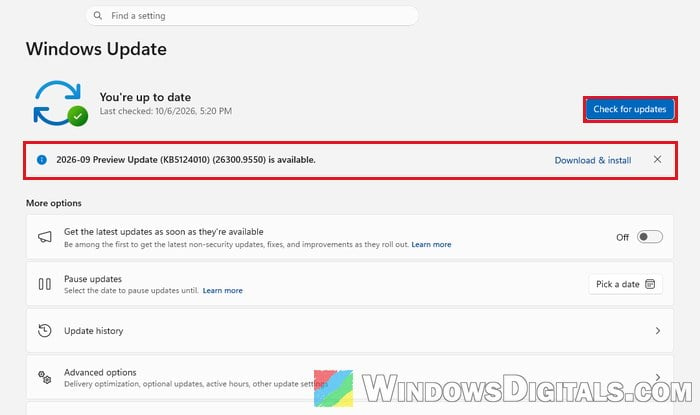
- Restart your PC when it asks you to.
After the restart, close a few windows and see if Task View still opens.
Unplug your game controller or its USB receiver
According to Microsoft, holding the Xbox button on a controller opens Task View in Windows 11, and pressing it opens the Xbox Game Bar. If a controller or its wireless USB receiver (dongle) sends that button by mistake, Task View and sometimes Game Bar pop up at random. Several users on Reddit and Microsoft’s forums found that unplugging a controller or its dongle (Razer, 8BitDo and GameSir ones, among others) made the problem go away. To test it:
- Unplug every game controller (wired ones included) and any USB receiver for one.
- Restart your PC and use it normally for a while.
- If Task View stops opening, the controller was the cause. Keep it (or its receiver) unplugged when you’re not playing.
To stop the controller from opening Game Bar, go to Settings > Gaming > Game Bar and turn off “Allow your controller to open Game Bar“. This only covers Game Bar, though, so it may not stop Task View.
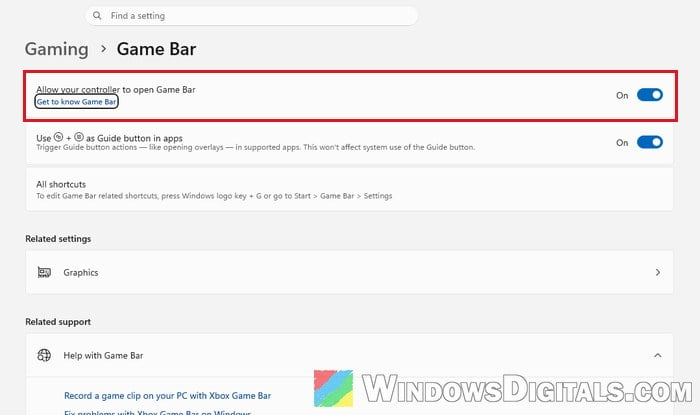
Might be useful: How to Remove Xbox Game Bar From Windows 11
Turn off XBOX mode and Game Mode
Newer Windows 11 builds have an XBOX mode, a full screen gaming experience that’s tied to the Xbox button. For some users, turning off XBOX mode stopped Task View from popping up. For others, turning off Game Mode and the Game Bar option above did. It doesn’t stop every case, but it’s easy to undo:
- Open Settings > Gaming > XBOX mode.
- Turn off Enable XBOX mode.
- On a gaming handheld, set Choose home app to None instead.
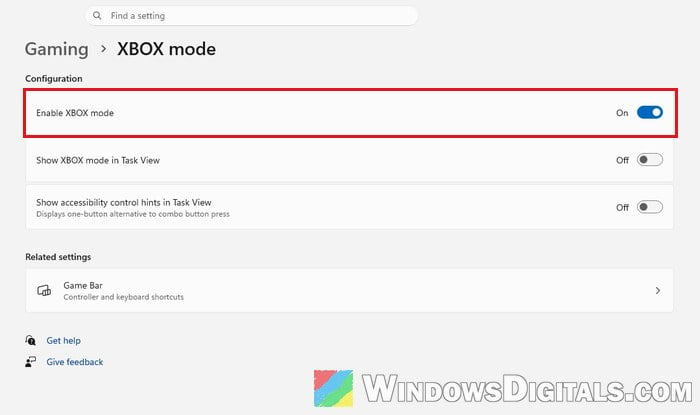
- Go back to Gaming, open Game Mode and turn off Game Mode.
Restart your PC and see if Task View still pops up.
Turn off snap suggestions (it might be Snap Assist)
When you close or minimize a snapped window, Windows shows thumbnails of your other windows so you can pick one to fill the gap. That’s Snap Assist, and it looks almost exactly like Task View. If it only shows up after you close or minimize something, this is likely it. To turn it off:
- Open Settings > System > Multitasking.
- Click the arrow next to Snap windows to expand it.
- Uncheck “When I snap a window, suggest what I can snap next to it“.
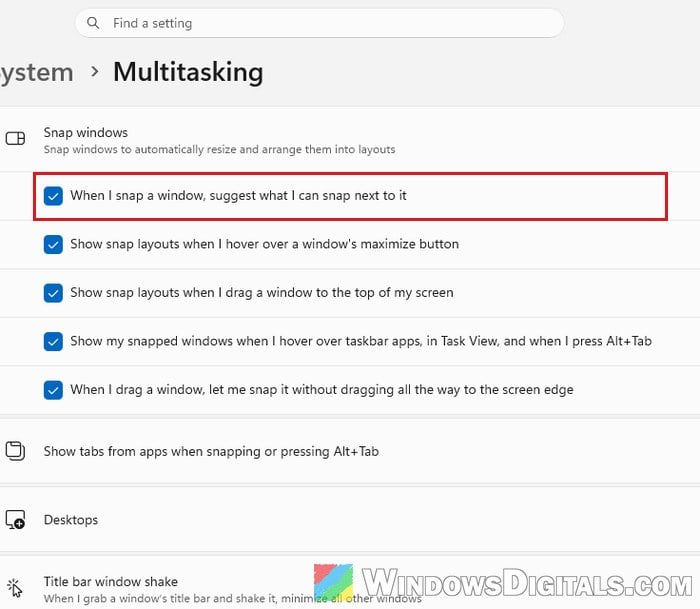
If that isn’t enough, turn off Snap windows altogether and test again.
Learn more: Windows 11: How to Use Snap Layouts to Snap Apps
Check your mouse buttons and touchpad gestures
Some mice have a button or gesture that opens Task View. On Logitech’s MX Master mice, for example, a single press of the gesture button opens Task View. Here’s what to check:
- Open your mouse’s app (Logitech G HUB or Options+, Razer Synapse and so on) and look for any button or gesture set to Task View or Win + Tab. Change it, or reset the mouse to its defaults. Some mice keep profiles in their own memory, so an old mapping can stay after you uninstall the app.
- Try another mouse for a day.
- On a laptop, open Settings > Bluetooth & devices > Touchpad, expand Three-finger gestures and Four-finger gestures, and set their swipes to Nothing to test. A three-finger swipe up shows all your open windows, and it’s easy to do by accident.
If Task View stops after one of these changes, that button or gesture was setting it off.
Make sure the Windows or Tab key isn’t stuck
If the Tab key is stuck, or sends a press every now and then, pressing the Windows key becomes Win + Tab, so Task View opens when you only meant to open Start or press Win + R. A quick way to check:
- Press Win + R, type “osk” and press Enter to open the On-Screen Keyboard.
- Without touching your keyboard, watch the Windows and Tab keys on it. If one stays lit up, that key is stuck.
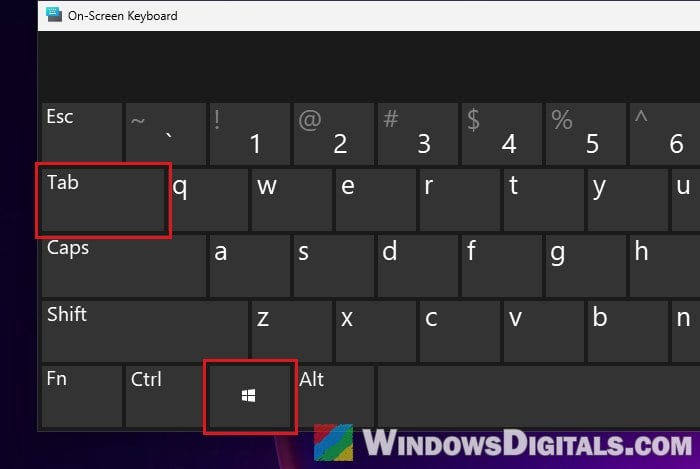
- You can also unplug your keyboard for a while and use just the mouse to see if Task View still opens.
Find the app that’s triggering it with a clean boot
Apps that change the taskbar or Start menu, and software for keyboards, mice, RGB lighting or macros, can also set off Task View. After one Windows 11 update, Start11 turned out to be the cause, and a newer version of Start11 fixed it. If you’re not sure which app it could be, a clean boot will tell you:
- Press Win + R, type “msconfig” and press Enter.
- Go to the Services tab, check “Hide all Microsoft services“, then click Disable all.
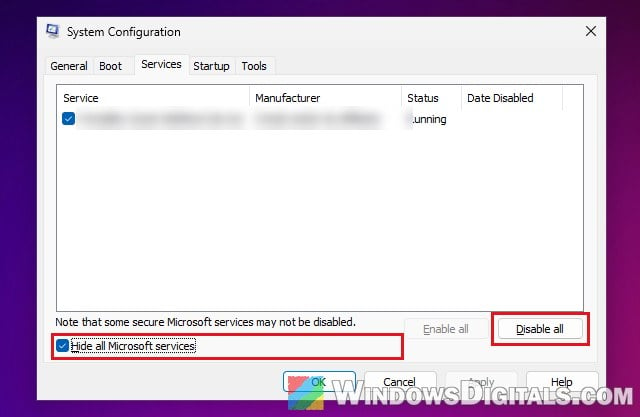
- Go to the Startup tab and click Open Task Manager.
- Disable every app in the list.
- Restart your PC.
If Task View no longer opens by itself, turn the services and startup apps back on a few at a time, restarting each time, until it comes back. The last group you turned on has the culprit. When you’re done, click Enable all on msconfig’s Services tab and turn your startup apps back on, but leave the app you found off, or update or remove it.