If your Steam download or game update keeps stopping with “Disk write error“, often near the very end after the speed drops to 0 B/s, it means Steam couldn’t save part of the game to your drive. Retrying usually gets a little further before it fails again, and some people end up downloading the same game two or three times. This guide will show you what’s blocking the write and how to get the download going again.
Also see: Steam Download Stuck on “Stopping” and the Game Won’t Uninstall, What to do?
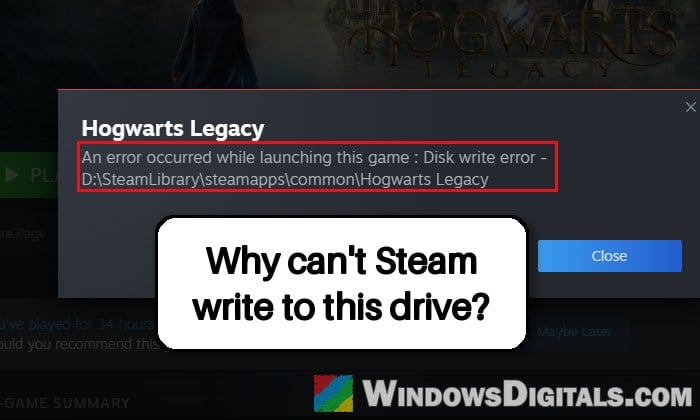
On the Downloads page, the game’s status changes to “DISK WRITE ERROR” with a retry button next to it. The same error can also pop up when you try to launch a game that’s already installed, like in the picture above.
Why does Steam say “Disk write error”?
Steam downloads a game in small pieces and writes each one to the library folder on your drive. When one of those writes fails, Steam stops the download and shows “Disk write error”. It’s not a connection problem, even though the speed is often the first thing that drops.
Some common reasons for this are:
- A temporary glitch, which a restart or clearing the download cache often gets past.
- Broken permissions on the Steam library folder.
- A drive that’s full, has file system errors or is starting to fail. A failing drive can also start refusing writes to protect your data.
- Games on an external USB drive.
- Security software blocking Steam from writing, or a damaged install of the game.
Start with the quick fixes below. If they don’t help, Steam’s log (further down) tells you whether it’s one game or one drive.
Linked issue: How to Fix Steam “Missing Downloaded Files” Error – Game or Workshop
Exit Steam fully and restart your PC
Yes, this might sound a little bit silly, but retrying after a full restart is sometimes all it takes.
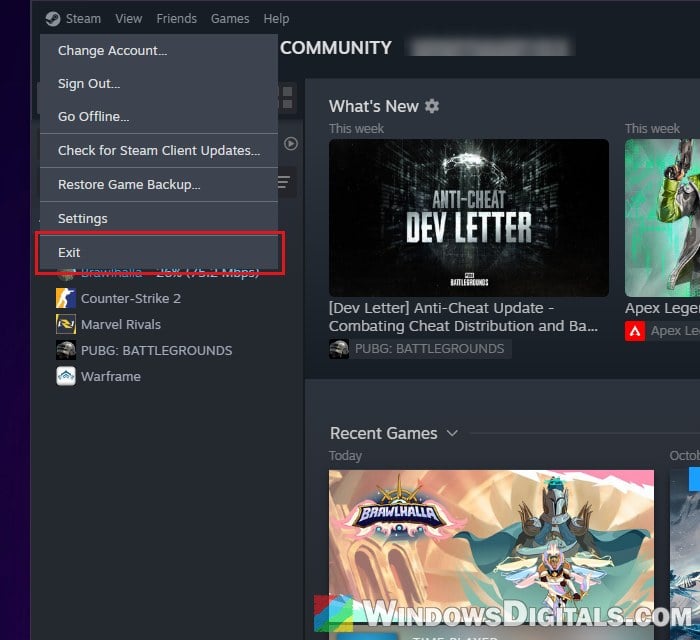
Closing the Steam window with the X doesn’t close Steam (it keeps running in the system tray), so exit it properly:
- Click the “Steam” menu at the top left of the Steam window and select “Exit“.
- Restart your PC.
- Open Steam again, go to the Downloads page and resume the download or update.
If it finishes this time, you’re done. If it stops again at roughly the same point, carry on with the fixes below.
Clear Steam’s download cache
Clearing the download cache makes Steam throw away the setup data it keeps on your PC and get it fresh from Steam’s servers. It’s worth trying if the download sat at 0 B/s before it failed, and your installed games stay where they are.
- In Steam, click the “Steam” menu and select “Settings“.
- Select “Downloads” on the left.
- Scroll down to “Clear Download Cache” and click “Clear Cache“.
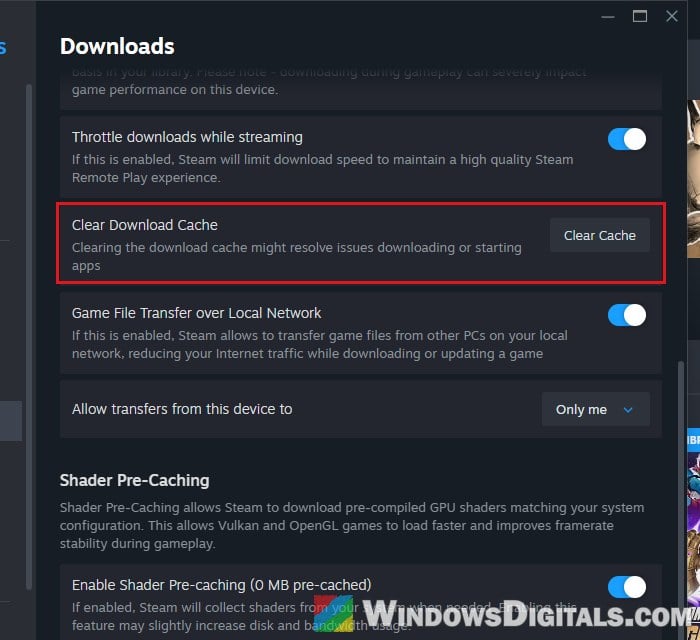
- Steam restarts and asks you to sign in again. Sign in and restart the download.
Please note that sometimes it only helps until the next restart. If the error keeps coming back, move on to the folder and drive checks below.
Repair the Steam library folder
According to Valve, Steam library folders need to be writable by all users to update properly, and those permissions sometimes break. Steam has a repair option for this, and it asks for admin rights so it can reset them.
- Go to “Steam” > “Settings” > “Storage“.
- Pick the drive the game is installed on from the drive list at the top.
- Click the “…” button at the right of the library’s folder bar and select “Repair Library“.
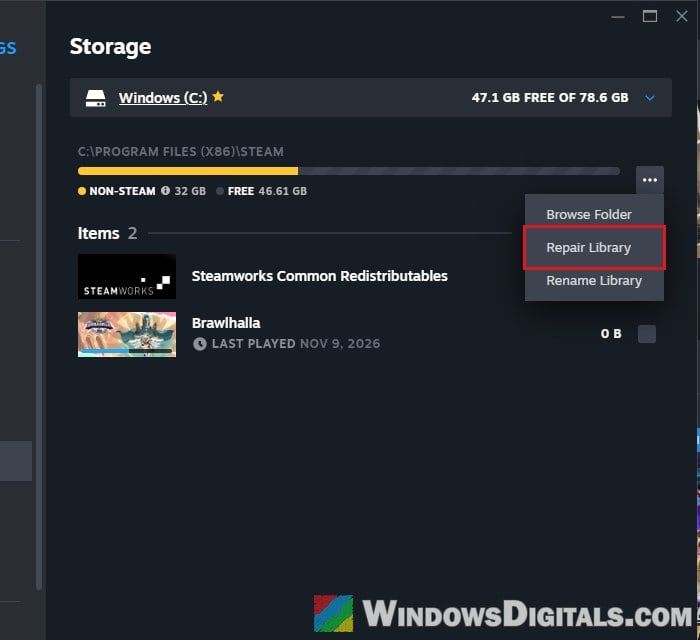
- Click “Yes” if Windows asks for permission.
Once it’s done, resume the download and see if it gets past the point where it used to fail.
Check which file Steam couldn’t write
Steam keeps a log of its downloads, and it’s the quickest way to see what actually failed. Lines about this error contain “Disk write failure” and name the game’s ID and the file or chunk it was writing.
- Open File Explorer and go to Steam’s logs folder (on a default install):
C:\Program Files (x86)\Steam\logs
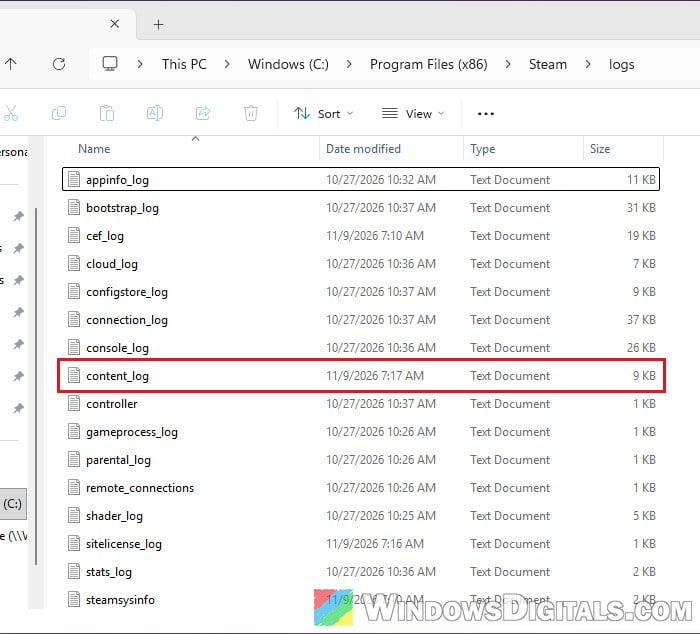
- Open “content_log” (content_log.txt) in Notepad.
- Press Ctrl + F and search for “Disk write failure“.
If the failed lines all point to one drive, check that drive (next section). If it’s only ever one game, skip to verifying that game.
Check the drive for errors and free space
When the error only happens on one drive (a second SATA drive, a new SSD, an external drive) while downloads to your main drive work fine, the drive itself is the most likely suspect. It’s also what most people on Reddit point to for this error.
First, make sure there’s enough free space, well beyond the update’s size.
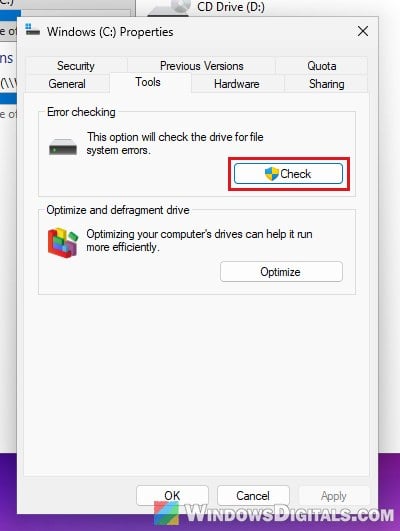
Then let Windows check the drive for file system errors:
- Open File Explorer and go to “This PC“.
- Right-click the drive with the Steam library and select “Properties“.
- Open the “Tools” tab and click “Check” under “Error checking“.
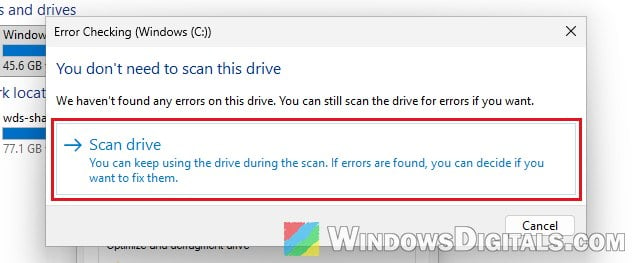
- Click “Scan drive” and wait for it to finish. If it finds errors, let it repair them.
Learn more: How to Run CHKDSK in Windows 10/11 from CMD or Before Boot
Is the drive starting to fail?
A clean scan doesn’t mean the drive is healthy. Check it with a health tool such as CrystalDiskInfo, which reads the drive’s own health data. If it shows a warning, or the drive sometimes shows up as unrecognized in Windows, copy anything important off it right away and plan to replace it.
For games on an external USB drive, try another USB port first. Better still, install them on an internal drive, since external drives are a common source of this error.
Related concern: Can You Play Games From an External Hard Drive or SSD?
Don’t worry about the “Read-only” box coming back
Many people with this error untick “Read-only” in the Steam folder’s properties and find it ticked again later. That’s normal and it isn’t what’s blocking Steam.
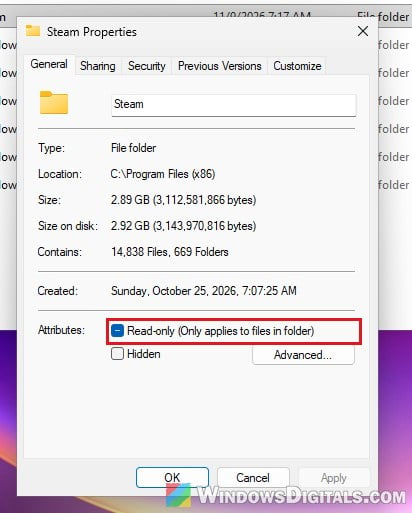
That box only applies to the files inside the folder. Microsoft explains that the folder Properties window can’t show or change a folder’s own read-only setting, so the box shows filled again whatever you do. Repairing the library (above) is the real way to fix Steam’s folder permissions.
Rule out your antivirus
Third-party antivirus programs can sometimes stop Steam from writing game files. To test it, pause the antivirus’s real-time protection and retry the download. If it finishes, add your Steam library folders as an exception in the antivirus.
Be warned: Don’t leave your antivirus off. Turn it back on as soon as the test is done.
Verify, move or reinstall the game
If the error only ever happens with one game, its installed files may be damaged. Verifying the game’s files checks them against Steam’s servers and fixes the ones that don’t match:
- Open the Steam “Library“, right-click the game and select “Properties“.
- Select “Installed Files” on the left and click “Verify integrity of game files“.
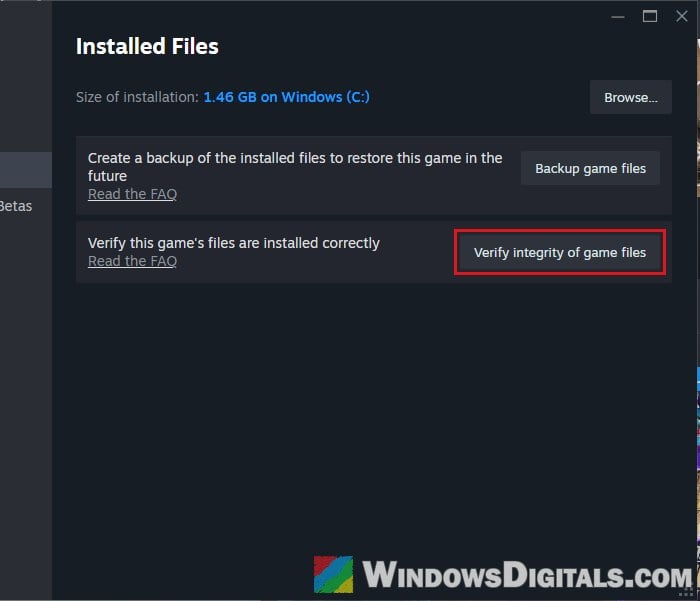
If that finds nothing and the update still fails, uninstalling and reinstalling the game has fixed it in some cases. And if downloads keep failing on one drive only, move the game to another drive. You need a Steam library folder on that drive first (if Steam won’t add one, see Fix: “Failed to Add New Steam Library Folder”). Then in “Steam” > “Settings” > “Storage“, tick the game in the list, click “Move“, and try the update there.