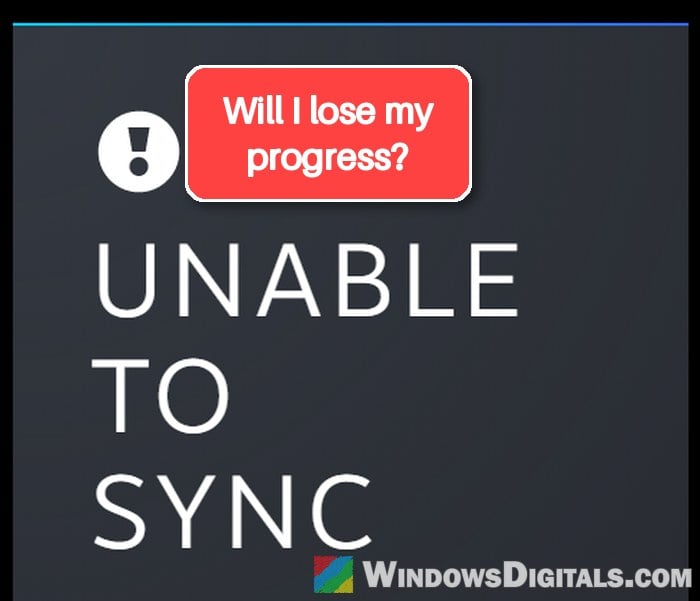
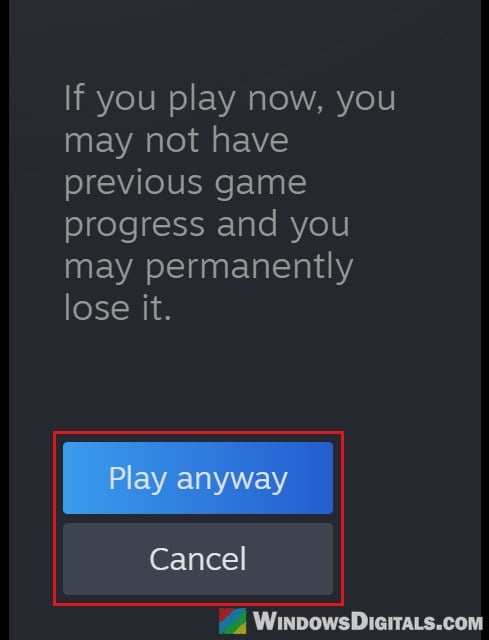
If you click Play on a game in Steam and get an “Unable to Sync” warning that says Warning – Steam was unable to sync your [game] saves with the Steam Cloud. If you play now, you may not have previous game progress and you may permanently lose it, you’re not alone. The game’s page in your library usually shows “Unable to sync” as its cloud status too. This guide will explain what usually causes it and how to fix it without losing your saves. If Steam is stuck on “Synchronizing Steam Cloud” instead of showing this warning, see the guide below.
Also see: “Synchronizing Steam Cloud” is Taking Forever
Page Contents
Check if it’s Steam’s servers first
Before you change anything on your PC, look at how the problem showed up. If every game suddenly shows the warning at once, and things like the Workshop or downloads are acting up as well, the problem is most likely on Steam’s side, not yours.
Steam’s servers had this problem twice in October 2026, on the 8th and the 20th. Both times, many people got the same warning on all their games at once, and it went away by itself once things were fixed on Steam’s end. The second time, Valve said it would be fixed shortly. During the first one, restarting and verifying game files didn’t help.
To check, you can look at https://steamstat.us/ (an unofficial status site, not Valve’s own) or simply search for Steam being down. If it is, wait it out and retry later.
Should you click “Play anyway”?
The warning only gives you two choices, “Play anyway” and “Cancel“. Which one to pick depends on where you played last. The warning is there because Steam can’t confirm your newest save is on this PC. If you played on another PC or a Steam Deck since, or reinstalled Windows or the game, click “Cancel“, or you might lose that progress. Only play anyway if you’re sure the saves on this PC are your latest.
Retry the sync
If Steam itself is fine, the simplest thing to try is just asking it to sync again. Since the warning itself has no retry button, do it from your library instead:
- Click “Cancel” on the warning.
- Open the game’s page in your “Library“.
- Click the “Unable to sync” cloud status on that page and choose to retry the sync.
If the status changes to synced, you can start the game normally.
Related problem: How to Fix Steam “Missing Downloaded Files” Error – Game or Workshop
Restart Steam completely
Closing the Steam window doesn’t close Steam. It keeps running in the system tray, so a sync that got stuck can stay stuck until Steam really restarts. Here’s how to do it:
- In Steam, click the “Steam” menu at the top left and select “Exit“.
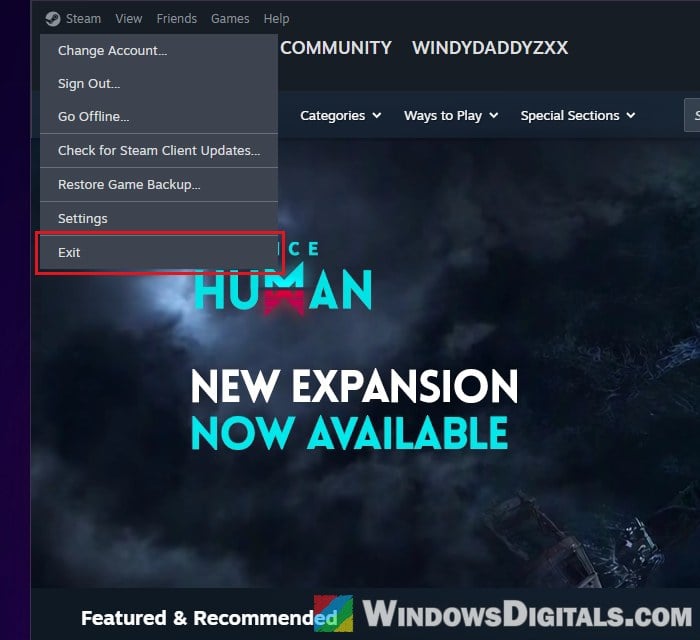
- Wait a few seconds, then open Steam again and start the game.
If that doesn’t help, restart the whole PC as well before moving on to the next fix.
Turn Steam Cloud off and back on for the game
This is the fix that has worked for the most people on Steam’s own forums and Reddit, though it doesn’t help with every game. Turning the game’s cloud setting off and on makes Steam start the sync over.
- In your “Library“, right-click the game and select “Properties“.
- In the “General” tab, under “Steam Cloud“, turn off the “Keep game’s saves in the Steam Cloud for [game]” switch.
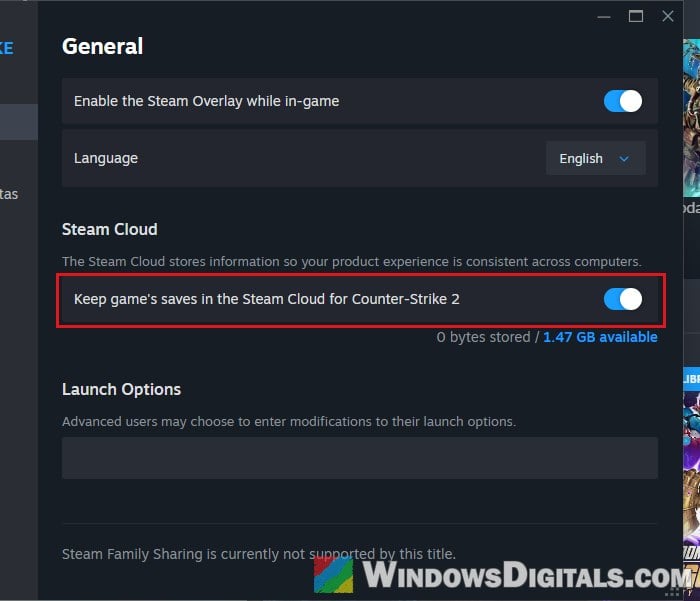
- Exit Steam completely (“Steam” > “Exit“), then open it again.
- Go back to the game’s “Properties” and turn the switch back on.
- Retry the sync from the game’s cloud status, or start the game.
You can also do the same with the global switch for all games. Go to “Steam” > “Settings” > “Cloud“, turn off “Enable Steam Cloud“, restart Steam, and then turn it back on.
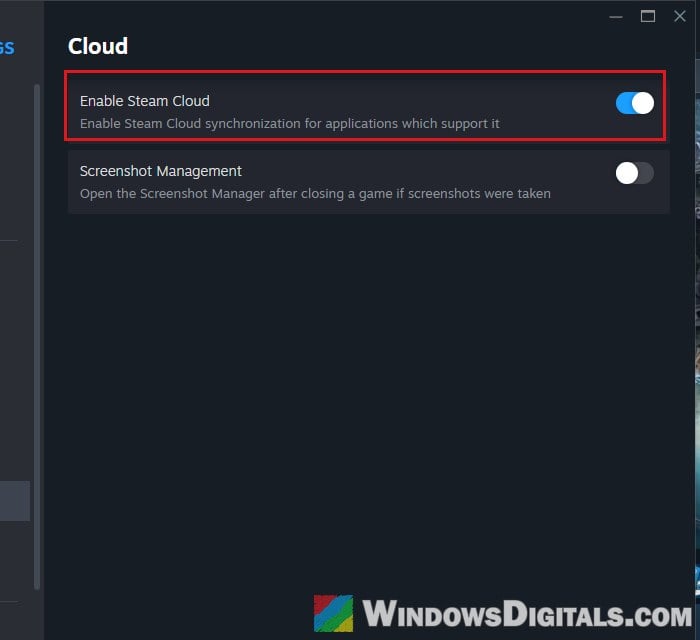
Please note that if Steam asks which files to keep after you turn the cloud back on, check the dates and pick the version you saved most recently. Playing in Offline Mode is a common reason for this kind of conflict.
Clear Steam’s download cache
Clearing Steam’s download cache is a quick thing to try.
- Open “Steam” > “Settings“.
- Go to “Downloads“.
- Scroll down to “Clear Download Cache” and click “Clear Cache” next to it.
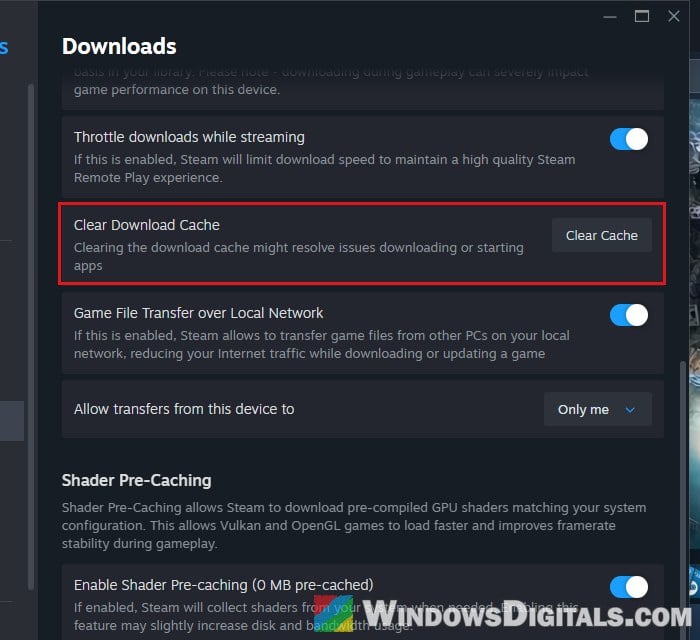
Sometimes this only gets rid of the warning once, and it comes back the next time you play. If that’s what happens to you, the next fix is worth a try.
Turn off IPv6 on your network adapter
It might sound like an odd fix, but a couple of people who kept getting the warning got rid of it by turning off IPv6 on their network adapter. It doesn’t work for everyone, but it’s easy to undo.
- Press Win + R, type “ncpa.cpl” and press Enter to open “Network Connections“.
- Right-click the network adapter you use (Ethernet or Wi-Fi) and select “Properties“.
- Uncheck “Internet Protocol Version 6 (TCP/IPv6)“.
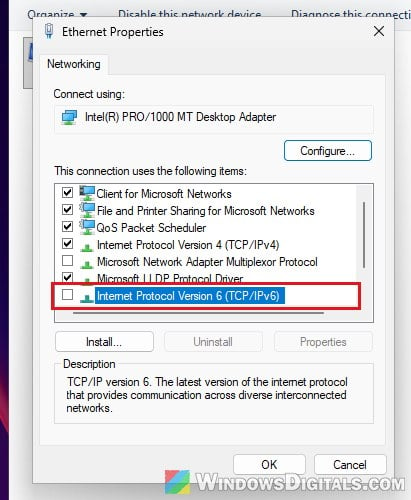
- Click “OK“, then restart Steam and try the game again.
If nothing changes, go back and check IPv6 again so you don’t leave it off for no reason.
Make sure Steam isn’t being blocked
Steam has to be able to reach the cloud and also write the saves to your PC. Some games keep their saves in your Documents folder, and Controlled folder access in Windows Security blocks unknown apps from changing files in Documents, Pictures, Videos, Music and Desktop. If it’s on and has blocked Steam, the sync can fail every time.
If you use a third-party antivirus or firewall, check if it has blocked Steam and allow it, then retry the sync.
If you use Windows Security with Controlled folder access turned on, allow Steam through it:
- Open “Windows Security” and select “Virus & threat protection“.
- Click “Manage ransomware protection“.
- Select “Allow an app through Controlled folder access“.
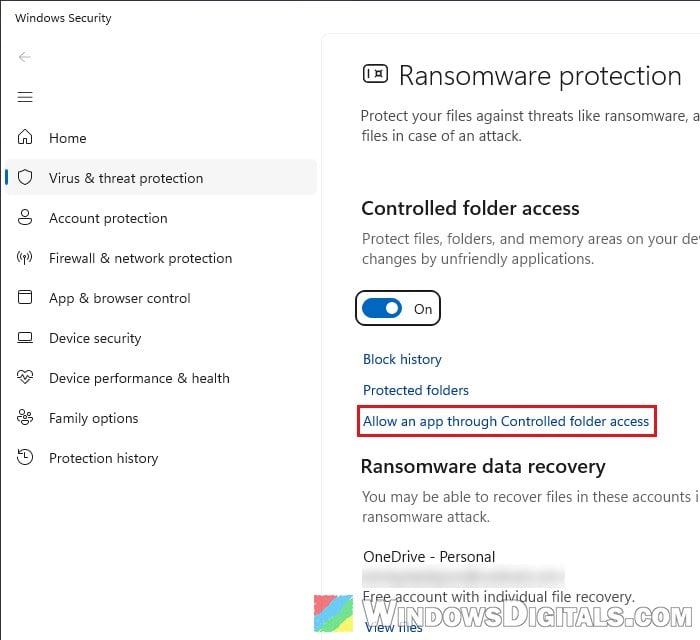
- Click “Yes” if Windows asks for permission.
- Click “Add an allowed app“, choose “Browse all apps“, and select
steam.exein the folder where Steam is installed.
Then go back to the game’s page in your library and retry the sync.
Important: Only add apps you trust here. Controlled folder access is there to protect your files from ransomware, so don’t turn it off altogether just for Steam.
Related guide: How to Allow an App Through Firewall in Windows 11
What if only one game keeps failing?
Sometimes it’s not Steam or your PC, but the game itself. Some games keep a stale list of save files that Steam keeps trying to sync, so that one game always shows “Unable to sync” while all your other games are fine. For at least one game, the developers themselves suggested turning Steam Cloud off for that game as a workaround.
If that’s what’s happening, turn off the Steam Cloud option in that game’s “Properties” (as shown above) and back up its save folder yourself once in a while, until the developer fixes it.