If you’ve noticed that OneDrive is filling up with your game saves, mods and shader caches, or a game suddenly loads slowly or throws errors at startup, it’s most likely because OneDrive is backing up your Documents folder, where many PC games keep their files. This guide will show you how to stop OneDrive from syncing your game files while keeping OneDrive itself.
Also see: How to Reset or Reinstall OneDrive in Windows 11
Page Contents
Why are your game files ending up in OneDrive?
A lot of PC games don’t save inside their install folder. They put saves, settings, mods and caches in Documents, usually in a folder like Documents\My Games\<game name> or one named after the publisher. That’s why some people find their saves in OneDrive even though the game itself is installed on another drive.
OneDrive has a feature called folder backup (under Manage backup) that moves your Desktop, Documents and Pictures folders into OneDrive so they’re uploaded to the cloud. OneDrive keeps asking you to turn it on, and it’s easy to click yes without noticing what it does. Once Documents is backed up, everything your games write there is uploaded too.
Users on Reddit have run into a few problems because of this:
- OneDrive storage fills up, for example with a Victoria 3 shader cache folder, or with Starfield mod data pulled in through a mod manager’s link to the game’s Data folder.
- Games load slowly or show errors because their files are duplicated or only stored in the cloud. One inZOI player said the game downloaded about a thousand files from OneDrive at every load.
- Mod setups break, as one Skyrim modder found out.
The catch is that OneDrive only backs up whole folders, so you can’t back up Documents but leave out My Games (Microsoft confirms there’s no way to pick subfolders).
Might be useful: Can You Play Games From an External Hard Drive or SSD?
Stop OneDrive from backing up the Documents folder
This is the fix most often recommended on Reddit, and it’s the method Microsoft describes. In one Skyrim modding thread, the top answer was simply to turn off the Documents backup so your files stay on your PC. A Starfield player with the same problem went this way too.
Before you start, copy your game save folders somewhere safe, like another drive or a USB stick, just in case.
Also, OneDrive can’t move files that are only stored online (the ones with a cloud icon in File Explorer’s Status column). If some of your game files are online-only, download them first: open your OneDrive folder in File Explorer, right-click Documents and select “Always keep on this device“, then wait for the download to finish.
- Click the OneDrive cloud icon in the notification area of the taskbar.
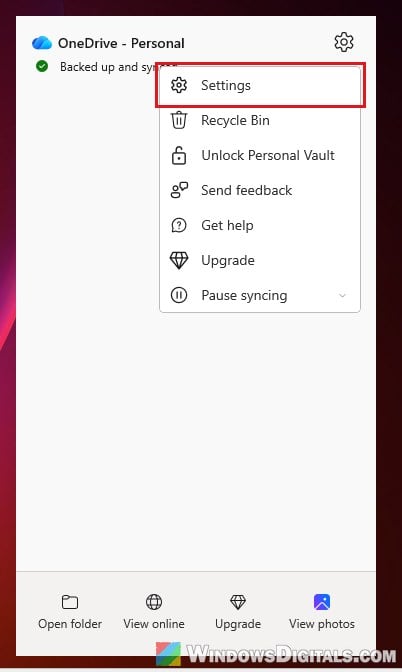
- Click the Help & Settings (gear) icon and select Settings.
- Go to the Sync and backup tab and click Manage backup.
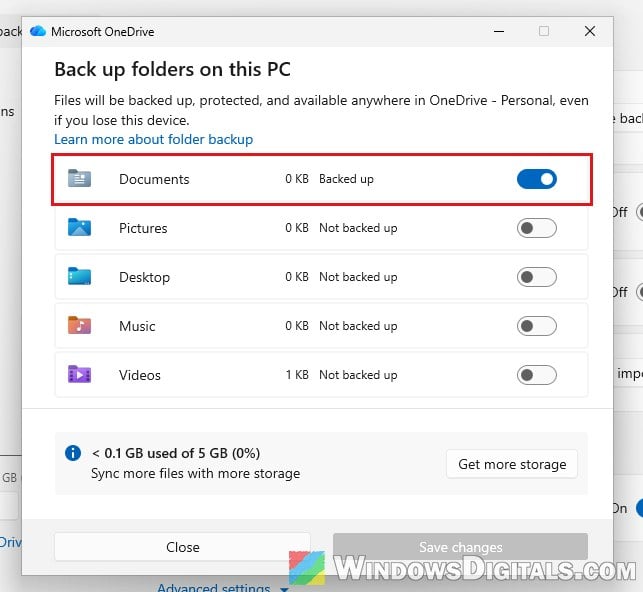
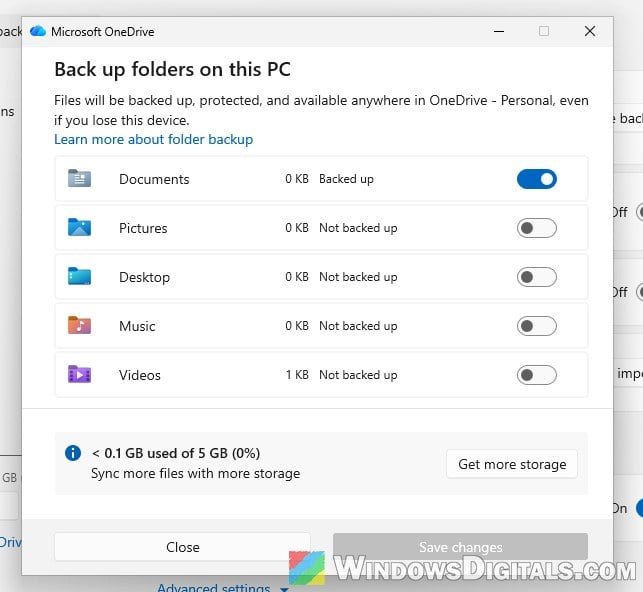
- In the “Back up folders on this PC” window, turn off the switch next to Documents.
- In the “Stop backing up Documents folder?” dialog, select “Stop backup and choose where to keep files“.
- Choose Only on my PC. Don’t pick Only in OneDrive: it moves the files to OneDrive and leaves the Documents folder on your PC without them, which is exactly what you don’t want for game saves.
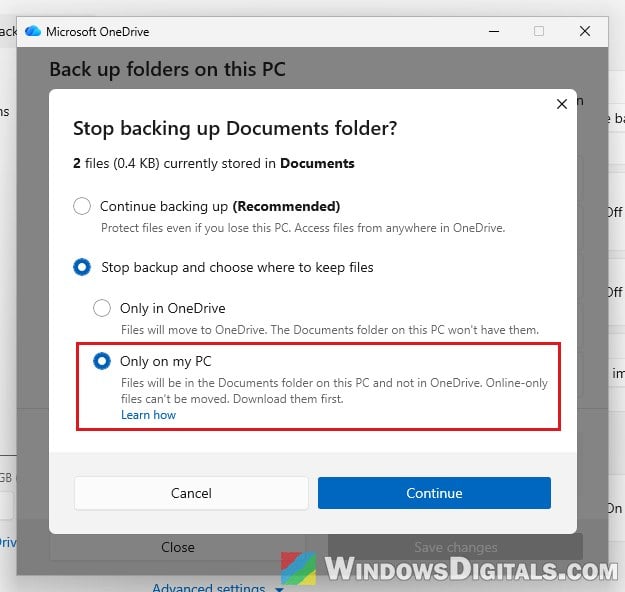
- Click Continue.
OneDrive then shows “Backup stopped for Documents folder“, and your game folders are back in the Documents folder on your PC. Start the game once and check that your saves still load. You can leave the backup on for Desktop and Pictures if you like, since each folder has its own switch.
Please note that if your files stayed in OneDrive instead, Microsoft says you’ll find a “Where are my files” shortcut in your Documents folder. Open it and drag the game folders you need back into your Documents folder on the PC.
What about documents you still want backed up?
Since you can’t leave out just the game folders, the easy way around it is to keep the documents you want in the cloud in a folder inside your OneDrive folder. A Starfield player on Reddit did exactly that after turning off the Documents backup. Anything you put there is still synced, while your games keep writing to the local Documents folder.
Check that Documents isn’t still inside OneDrive
One inZOI player found the game still saving to OneDrive\Documents even after turning OneDrive off. Closing OneDrive doesn’t move the Documents folder back, so it stays inside OneDrive until you stop the Documents backup. To check where your Documents folder is:
- Open File Explorer and click Documents in the left pane.
- Look at the address bar. If it shows OneDrive (or Start OneDrive when OneDrive is closed) and your account name before Documents, the folder is still inside OneDrive.
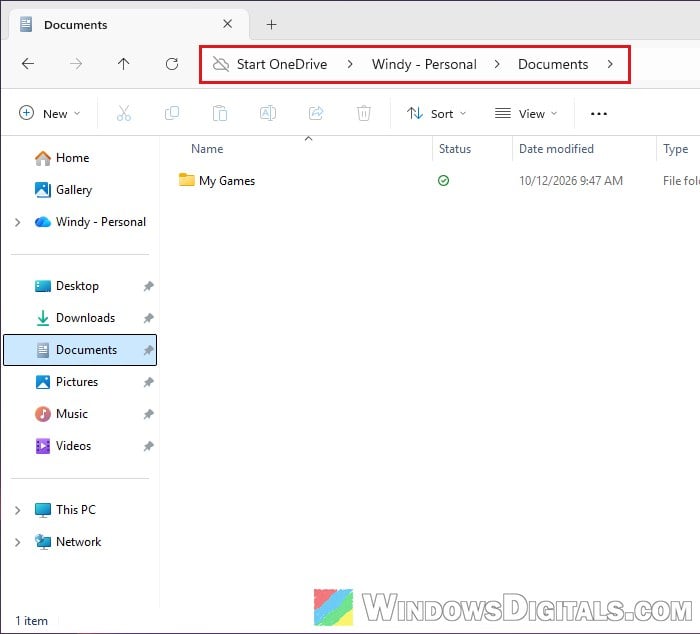
If it does, copy your save folders somewhere safe first. Then start OneDrive again (search for it in Start) and stop the Documents backup as shown in the first section, choosing Only on my PC. This moves Documents back to C:\Users\<your name>\Documents.
To confirm it worked:
- Go to
C:\Users\<your name>in File Explorer. - Right-click Documents and select Properties.
- Open the Location tab. It should show
C:\Users\<your name>\Documents.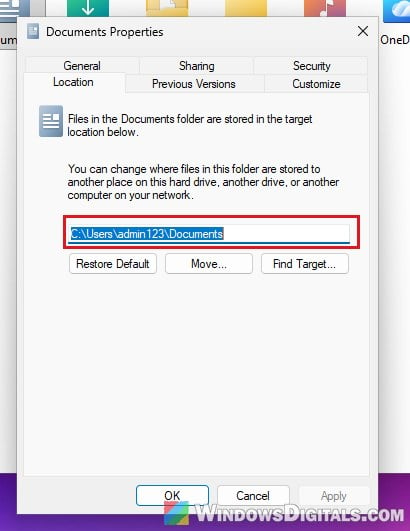
While Documents is inside OneDrive, the Location tab doesn’t show up at all. If it’s still missing after Documents is back on your PC, the guide below covers other causes.
Related guide: Windows 11 Folder Properties Location Tab Not Showing (Fix)
Keep the game folder on your device (quick workaround)
If a game throws an error every time you start it and you don’t want to touch the backup yet, you can just keep that game’s folder on your PC. Some Oxygen Not Included players got rid of an error at every launch this way.
- Open your OneDrive folder in File Explorer and go to Documents (and then My Games, if that’s where your game keeps its files).
- Right-click the game’s folder and select “Always keep on this device“.
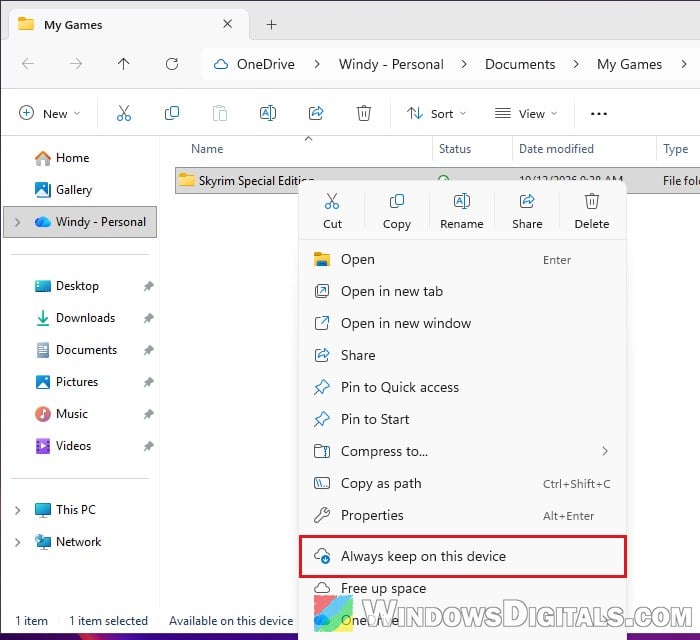
This only makes sure the files are always on your PC. OneDrive still uploads everything in that folder, so it won’t help with storage space.
Remove OneDrive altogether (if you don’t use it)
If you don’t use OneDrive for anything else, you can also uninstall it and open your OneDrive files in a browser when you need them. That’s what one Skyrim modder ended up doing. For detailed instructions, see: How to Disable or Remove OneDrive From Windows 11.