If you’ve just started playing Call of Duty: Modern Warfare 4 on PC and your FPS is way lower than it was in MW3 or Black Ops 7 on the same computer, sometimes dropping to 10 to 25 in Ground War, you’re far from the only one. Worse, lowering the graphics or the upscaler often doesn’t change the FPS at all. This guide will explain why that happens and what you can do to get your frame rate back up.
Also see: How to Fix Game Stuttering on Windows 11
Page Contents
Why is MW4 running so badly on your PC?
Since the game launched on October 23, 2026, players with all kinds of PCs, from an RTX 5060 or Intel Arc B580 to an RX 9070 XT, have been reporting the same thing: Modern Warfare 4 runs noticeably worse than the previous games did. Activision hasn’t pointed to one cause, but a few things are known:
- MW4 leans heavily on the CPU. Call of Duty has always been CPU-hungry, and MW4 seems even more so than Black Ops 7. When the CPU is the limit, your graphics card isn’t fully used, so lowering settings or upscaling more aggressively won’t give you more frames.
- The shaders aren’t finished yet. The game prepares its shaders in the background, and it does it again after each major update and after you install a new graphics driver. Until that’s done, the game can run poorly and stutter.
- An older graphics driver. Activision lists minimum driver versions for MW4, and AMD and NVIDIA have both released drivers made for it.
- DLSS 4.5 is heavier on older NVIDIA cards. The newer DLSS model (Preset M) takes more work than the one Black Ops 7 seems to use, and RTX 20 and 30 series cards feel it the most.
Pro tip: How to Show FPS in Games on Windows 11
Update to the graphics driver made for MW4
According to Activision, MW4 needs at least AMD driver 26.7.1, NVIDIA driver 616.56 or Intel driver 32.0.101.8974. Both AMD and NVIDIA have since released drivers specifically for the game:
- NVIDIA: Game Ready driver 621.01 (October 21, 2026) adds support for MW4.
- AMD: Adrenalin 26.10.1 adds support for MW4 and fixes stuttering in the game on Radeon RX 6000 series and newer cards.
To update your driver, follow the steps below:
- Close the game and its launcher.
- Go to your graphics card maker’s driver page (
https://www.nvidia.com/en-us/drivers/for NVIDIA,https://www.amd.com/en/support/download/drivers.htmlfor AMD) and download the latest driver for your card. NVIDIA users can also update through the NVIDIA app.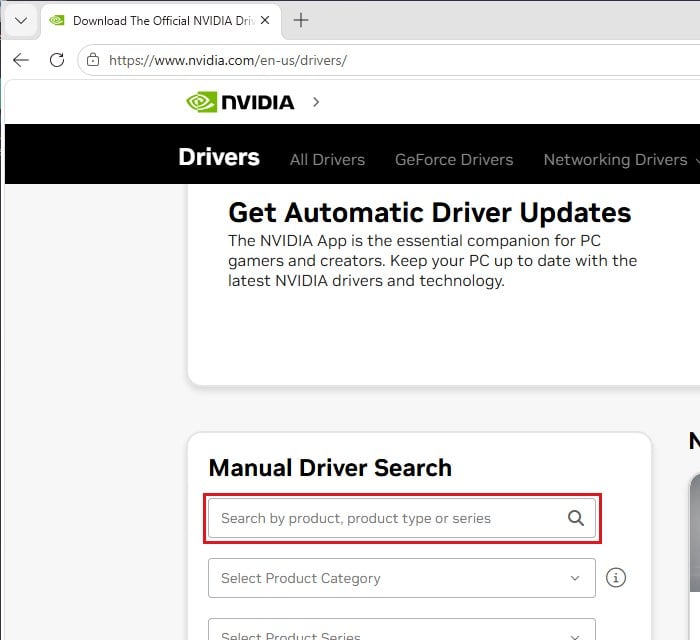
- Run the installer. If it offers a clean or factory reset install, choose it, so the old driver’s leftovers are removed.
- Restart your PC when it’s done.
A clean install of the newest driver has fixed it for some, but it doesn’t help everyone, and sometimes the FPS even drops after a driver update. Either way, the game will rebuild its shaders after a new driver, so give it time (next section) before you judge the result.
Let shader preloading finish, or restart it
MW4 uses Shader Preloading, which prepares the PC shaders before you even get into a match, and Activision says it runs again after every major update. On Steam, the game also has to compile its shaders once on the first launch. If you jump into a match while this is still going on, the game can run far below what your PC can do.
So after installing the game, an update or a new driver, give the shaders time to finish before you play, and restart the game once they’re done. If the FPS stays low anyway, or the game looks strange after a driver update, make it build the shaders again from scratch:
- Open the game’s Settings and go to Graphics.
- On the Display tab, select “Restart Shader Preloading” and confirm with Restart. This deletes the shader cache.
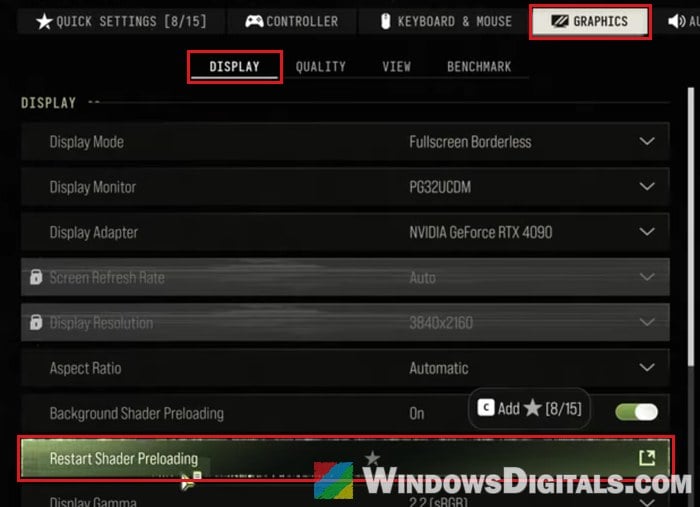
- Quit the game completely and start it again, then let the shaders finish before you play.
The first match after this may still stutter a little while the last shaders are built. Play two or three matches before you compare.
Linked issue: Game Keeps Compiling Shaders Every Time I Open It (Fix)
Check if your CPU is holding the game back
If your FPS doesn’t change no matter what settings you use, this is usually why. If your graphics card is waiting for the CPU, it can’t go any faster, and making the image lighter for the GPU does nothing. Upscaling can even make it worse, since a lower render resolution moves more of the load onto the CPU.
To find out which one is the limit:
- Play for a minute, then press Ctrl + Shift + Esc to open Task Manager (or use your GPU maker’s overlay while you play).
- Go to the Performance tab and select your graphics card (GPU).
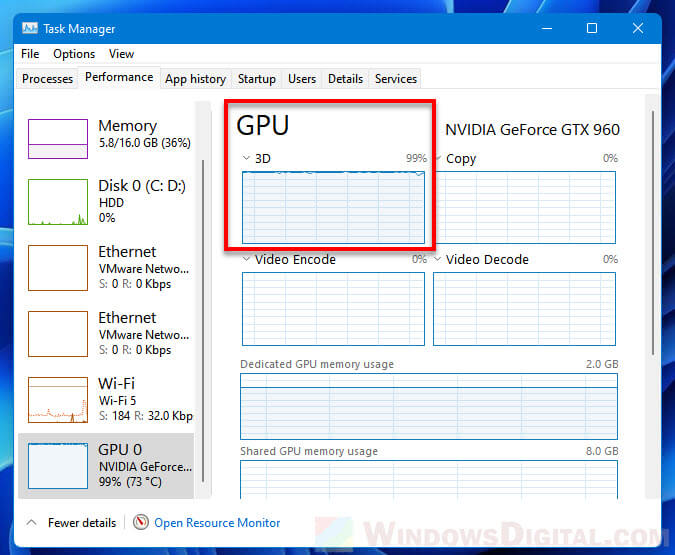
- Look at the GPU usage graph for the last 60 seconds. If it stayed close to 100%, your graphics card is the limit and lowering the graphics or using a stronger upscaler mode will help. If it stayed well below 100% while the FPS was low, your CPU is the limit.
If it’s the CPU, close everything you don’t need in the background while you play, including RGB and overlay apps, which can cost more FPS than you’d think. Don’t drop the upscaler to Ultra Performance either, as it only shifts more work to the CPU. In the long run, Call of Duty runs noticeably better on CPUs with AMD’s 3D V-Cache (the X3D models), which mostly helps the 1% lows and the stutter.
Related guide: GPU 100% Usage When Idle or Gaming (Good or Bad)
On an RTX 20 or 30 card, switch DLSS back to Preset K
On NVIDIA cards, DLSS may be part of why MW4 feels heavier than Black Ops 7. MW4 can end up on DLSS 4.5’s Preset M, a newer model that takes about five times the computing power. RTX 40 and 50 cards handle it better, but on RTX 20 and 30 cards it can cost around 20% of your FPS compared to Preset K, the DLSS 4 model. NVIDIA itself says RTX 20 and 30 owners may prefer to stay on Preset K.
To force Preset K for the game, use the NVIDIA app:
- Open the NVIDIA app and go to Graphics.
- Under Program Settings, select the game from the list.
- Scroll down to Driver Settings and open “DLSS Override – Model Presets“.
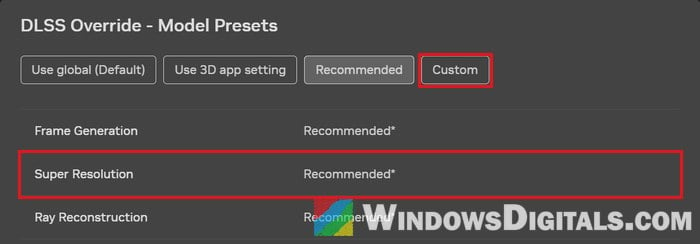
- Select Custom, set Super Resolution to Preset K and click Apply. Then restart the game.
The gain is usually small, but it can make the game feel smoother. RTX 40 and 50 owners can try it too, though the difference is smaller there.
Turn off ray tracing and on-demand texture streaming
If you’ve done all of the above and still want more frames, two settings are worth checking:
- Ray tracing: by far the most demanding option. Activision’s own ray tracing requirements start at an RX 9070 XT or RTX 5070 Ti, so on anything below that, turn it off first.
- On-Demand Texture Streaming: downloads higher quality textures while you play. It can cause stutter, so set it to Off and see if the game runs more smoothly.