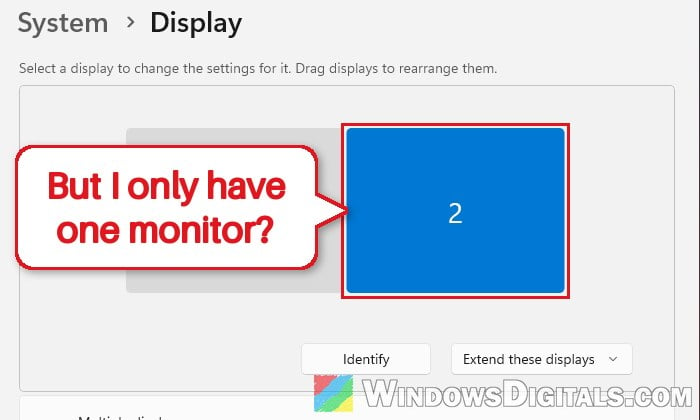
If you’re seeing a second or third monitor in Display settings that isn’t actually connected to your Windows 11 PC, like a monitor that broke, a TV you unplugged, or a screen that was never there at all, Windows is most likely holding on to an old or virtual display. Besides looking odd, this “ghost” monitor can make apps open on a screen you can’t see, or even make a laptop boot to a black screen. This guide will show you why Windows keeps showing it and how to get rid of it.
Also see: How to Move a Window That is Off-Screen in Windows 11
Page Contents
Why does Windows 11 show a monitor that isn’t there?
In most cases, it’s a monitor Windows saw before and never forgot. It’s a pretty common issue on Reddit and Microsoft’s forums, often after a second monitor died or got unplugged. The extra screen keeps showing up as “Display 2” (or 3) in “Settings” > “System” > “Display“, even after a restart.
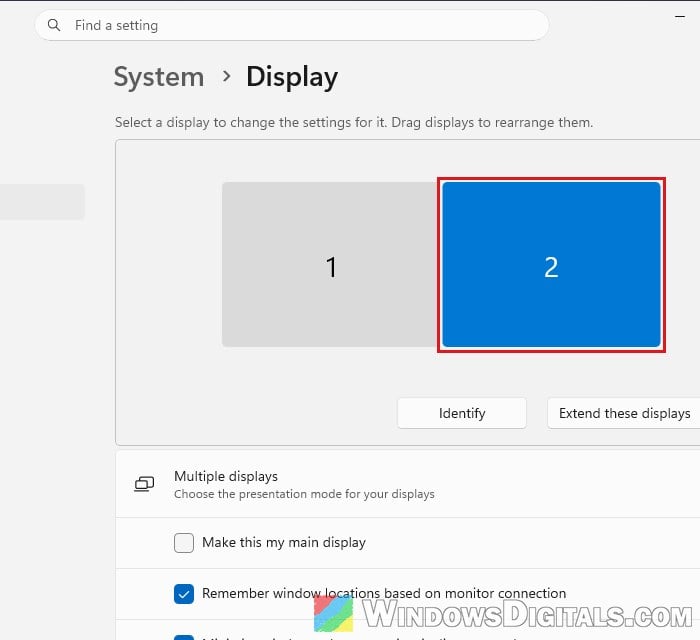
Some common reasons for this are:
- A leftover monitor entry: Windows keeps the old monitor installed after it’s disconnected. It’s still there in Device Manager, just hidden.
- The wrong projection mode: If the PC is still set to “Extend” or “Second screen only“, it can keep listing a screen that’s gone, for example on a laptop that was plugged into a TV.
- Two cables to the same monitor: A monitor connected with both HDMI and DisplayPort shows up as two monitors.
- Another HDMI device: Something like a soundbar plugged into the graphics card’s HDMI port can count as a monitor.
- An app that adds a virtual display: Game streaming hosts like Sunshine or Apollo, and apps that turn a tablet into a second screen (spacedesk, Duet Display), create displays that Windows lists like real ones.
The fixes below start with the quickest one.
Related problem: Windows 11 Desktop Icons Move to Secondary Monitor
Switch to “PC screen only” (or “Show only on 1”)
If Windows thinks a second screen is attached, it may still be trying to show your desktop on it. Telling Windows to use only your real screen is the fastest fix, and on laptops it’s often all it takes.
If you have two real monitors plus one that isn’t there, skip these steps and the Win + P shortcut below, since they would switch off one of your real screens. Use “Disconnect this display” instead, as explained right after them.
Here’s how to do it in Settings:
- Go to “Settings” > “System” > “Display“.
- If you’re not sure which number is your real screen, click “Identify“. It shows a number on each monitor.
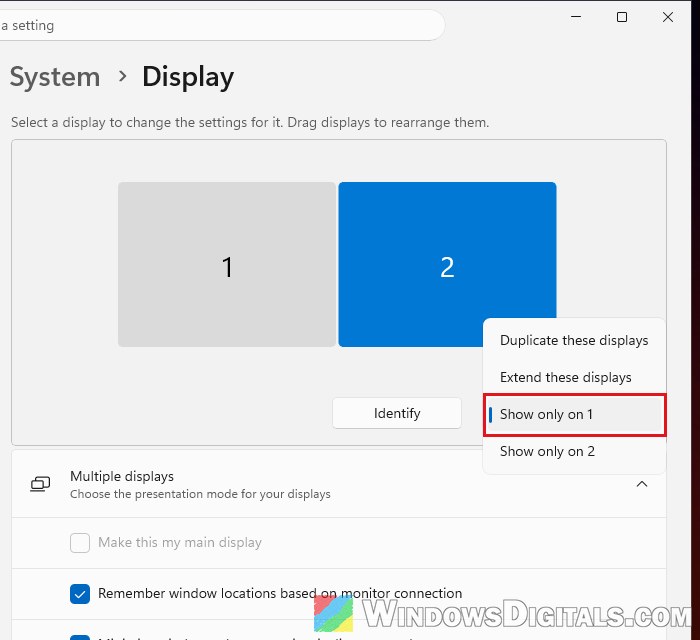
- Open the drop-down next to “Identify” (it usually reads “Extend these displays“) and choose “Show only on 1“, or the number of your real screen.
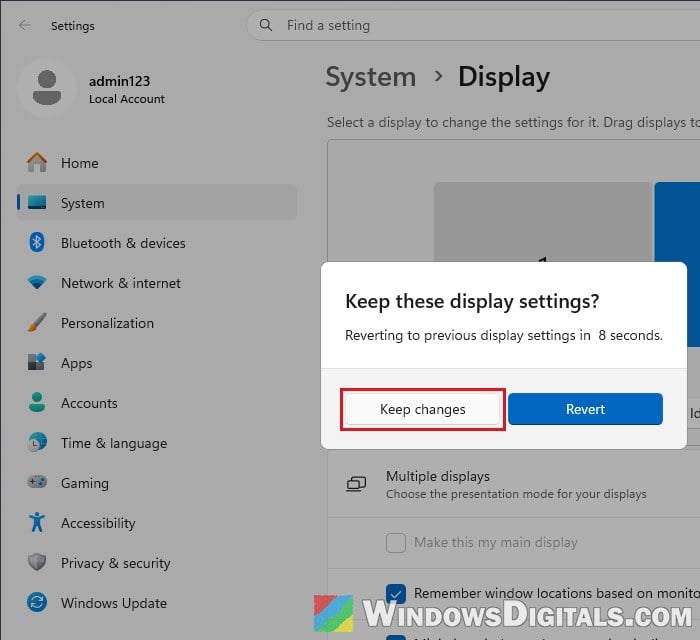
- Click “Keep changes” when Windows asks.
With three or more displays, the same drop-down also offers “Disconnect this display” for the selected screen. Select the display that isn’t there first, then choose that option and keep the change. On some laptops, the maker’s own display software can get in the way and show an error instead.
There’s also a quicker way with the keyboard. Press Win + P to open the “Project” panel and select “PC screen only“.
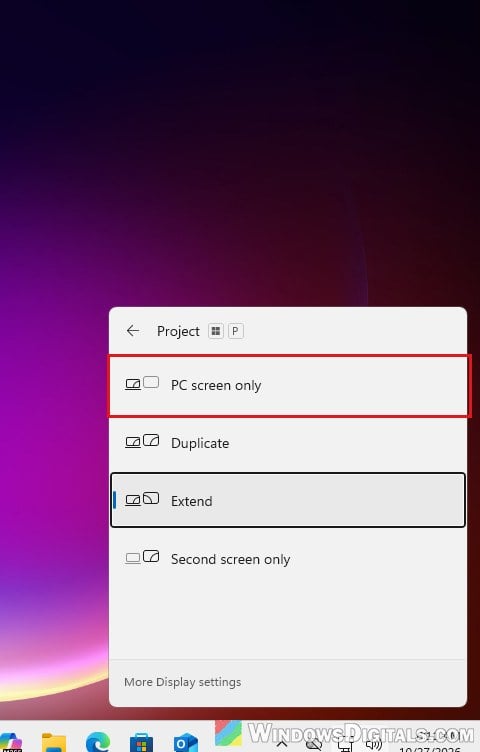
After this, apps should open only on your real screen. If Display settings still lists the extra display, move on to the next fix.
Related guide: How to Duplicate or Mirror Screen on Windows 10/11
Remove the hidden monitors in Device Manager
When you unplug a monitor, Windows keeps it installed in Device Manager as a hidden device. If that leftover entry is what Display settings keeps showing, removing it makes Windows forget the old monitor. This is the fix Dell recommends for these “ghost” or “phantom” monitors.
Follow the steps below:
- Right-click the Start button (or press Win + X) and select “Device Manager“.
- Click “View” > “Show hidden devices“.
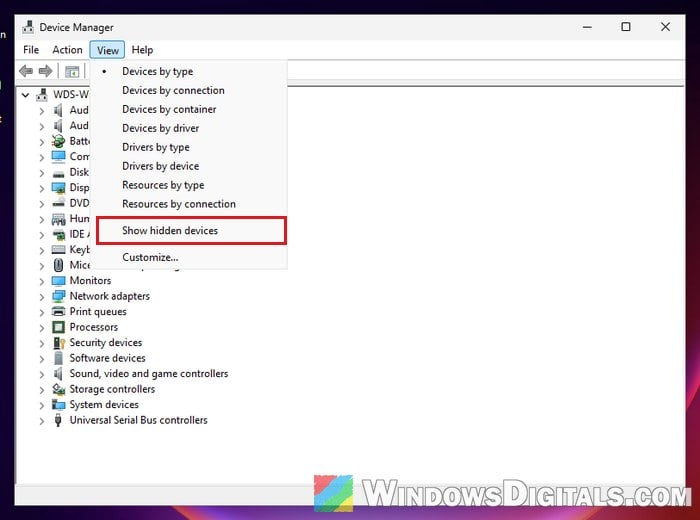
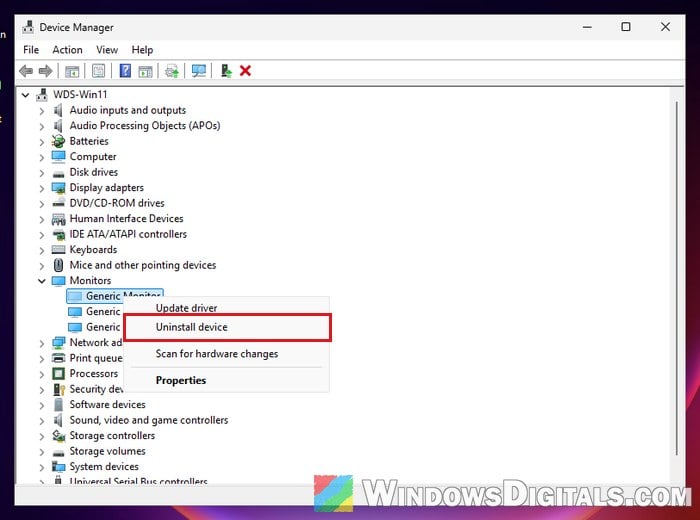
- Expand “Monitors“. Monitors that aren’t connected right now have a faded icon, while the ones with a normal icon are the screens actually plugged in. So with one screen, you should see only one normal icon.
- Don’t worry if all of them are named “Generic Monitor” or “Generic PnP Monitor“. The faded icon is what tells you which one isn’t connected.
- Right-click a faded monitor and select “Uninstall device“.
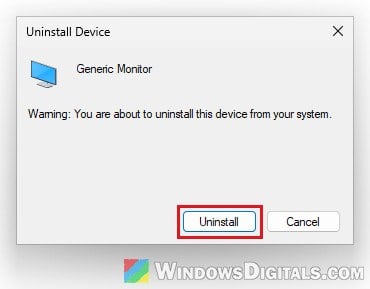
- Click “Uninstall” to confirm.
- Repeat steps 4 and 5 for every other faded monitor in the list.
- Restart your PC.
After the restart, open Display settings and see if the extra display is gone.
This doesn’t always stick. Sometimes the extra display stays, or comes right back after a restart. When that happens, something else may be bringing it back, so check the next sections.
Linked issue: Second Monitor Not Detected After Upgrading to Windows 11
Check your cables and HDMI devices
Take a quick look behind your PC. If your monitor is connected with both an HDMI and a DisplayPort cable, Windows sees two monitors, even though it’s one screen. Unplug one of the cables and keep the one you actually use.
The same goes for anything else plugged into your graphics card’s HDMI port. A soundbar connected there, for example, can show up as a second monitor. If you can, unplug it for a moment and see if the extra display goes away.
Look for apps that add a virtual display
If you’ve ever used a game streaming host (Sunshine, Apollo), an app that turns a tablet into a second screen (spacedesk, Duet Display) or a similar tool, it may be adding a virtual monitor, and Windows lists that in Display settings like any other screen.
This is one possible reason the extra display keeps coming back after you uninstall it in Device Manager. Close the app, or uninstall it if you don’t use it anymore, then restart your PC and check Display settings again.
Update or reinstall the graphics driver
If none of the above worked, the graphics driver may still remember the old monitor setup. Install the latest driver for your graphics card (Intel, NVIDIA or AMD) and restart your PC. According to Dell, only the monitors that are actually connected should show up in Display settings after that.
If you’re not sure which graphics card you have, press Ctrl + Shift + Esc to open Task Manager, go to the “Performance” tab and click “GPU“. For step-by-step instructions, see: How to Update Graphics Driver in Windows 11.
If updating doesn’t help, uninstall the graphics driver completely and then install it fresh, instead of installing the new one over the old one. On a laptop, you can get the graphics drivers from your laptop maker’s support page.