If you’re signed in to your Google account in Microsoft Edge and suddenly Google Search, Gmail, YouTube, Drive and every other Google site just keep loading on a blank white page, while all other websites open normally, it’s most likely a sign-in feature in Edge getting stuck. The tab spins forever without any error, yet the same sites work fine in an InPrivate window, in Chrome or in Firefox. This guide will show you what’s causing it and how to fix it.
Also see: How to Change Edge Default Search Engine to Google
Page Contents
Why do Google sites stop loading in Edge?
The most likely culprit is a newer security feature called Device Bound Session Credentials (DBSC). It ties your Google sign-in to a key stored on your PC (in the TPM chip), so that if malware ever steals your browser cookies, they can’t be used on another computer.
To keep that protection working, the browser has to check in with Google in the background every so often and renew your session. If that check gets stuck, every Google page you open waits for it to finish, and since it never does, the page never loads. That’s also why clearing Google’s cookies fixes it for a while: it throws away the stuck session, but the problem can come back later once a new one is set up.
This explains a few of the odd things people notice:
- It usually starts some time after signing in to Google, sometimes hours, sometimes a day later.
- It affects every Google site at once, and sometimes other sites where you used “Sign in with Google”.
- It works in InPrivate, because that window doesn’t use your saved Google sign-in.
It’s a pretty common issue right now that you’ll find discussed on Reddit and Microsoft’s forums, and so far Microsoft hasn’t listed it as a known issue.
Linked issue: Gmail Stuck on “Getting your Messages” (How to Fix)
First, check if Google works in InPrivate
Before changing anything, it’s worth a quick test to make sure you’re dealing with this exact problem and not something else, like a problem with your network.
Here’s how:
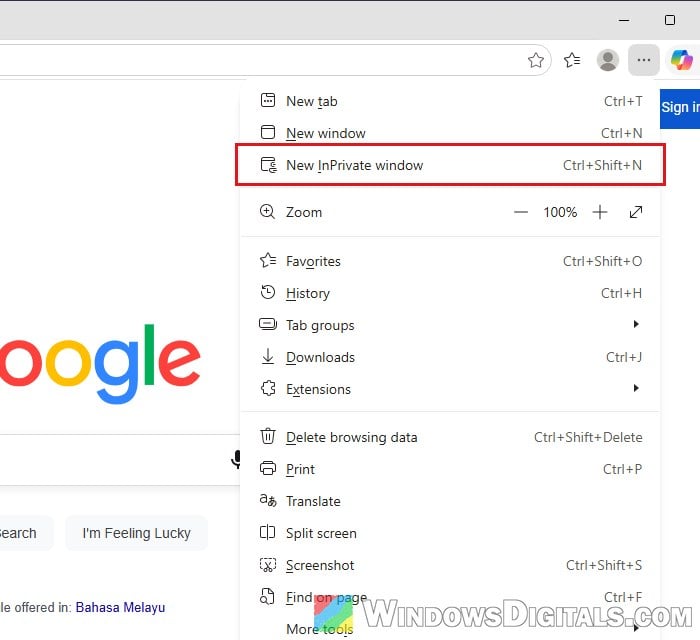
- In Edge, press Ctrl + Shift + N to open an InPrivate window. You can also click the three-dots “Settings and more” button and select “New InPrivate window“.
- Go to
google.comor YouTube in that window.
If Google loads fine in InPrivate but not in your normal window, it’s your profile’s Google sign-in that’s stuck, and the fixes below should work. If Google doesn’t load in InPrivate either, the problem is more likely your network or connection than Edge’s Google sign-in, and the fixes below may not help.
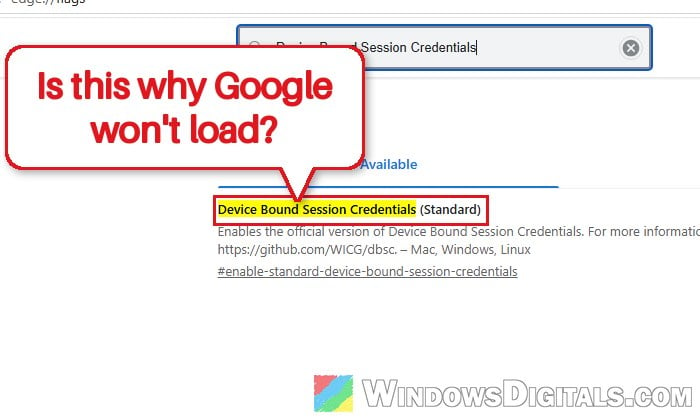
Turn off “Device Bound Session Credentials” in Edge flags
This is the fix that has worked for most people. It switches off the feature that keeps getting stuck, so Edge stops waiting on it and Google sites load normally again. It’s an experimental setting on Edge’s flags page, which sounds scarier than it is, and you can switch it back at any time.
Here’s how to do it:
- Type
edge://flagsin Edge’s address bar and press Enter. - In the search box at the top, type “Device Bound Session Credentials“.
- Find “Device Bound Session Credentials (Standard)” in the results.
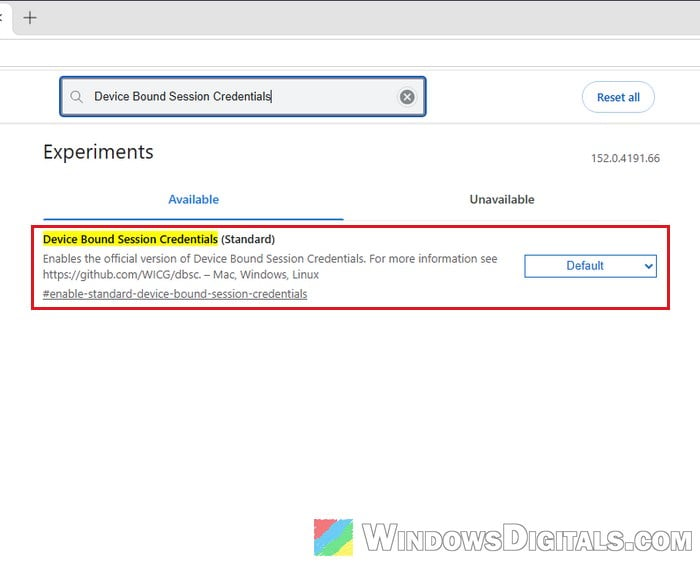
- Click the drop-down menu next to it and select “Disabled“.
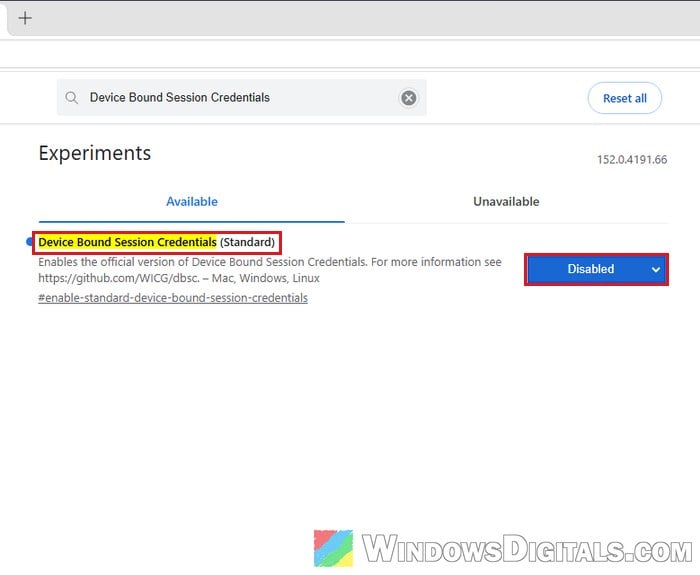
- Click the “Restart” button at the bottom of the page to restart Edge.
Once Edge reopens, try Google Search, Gmail or YouTube again.
Is there any downside to turning it off?
The main downside is security. With the flag turned off, your Google sign-in goes back to working the old way, so it isn’t tied to your PC anymore. Google may also show you more “I’m not a robot” checks and sign you out more often with it off. If that gets annoying, try setting the flag back to “Default” after a future Edge update and see if Google still gets stuck. Flags are experimental anyway, so this one may change or disappear with an update.
Suggested read: Microsoft Edge “Something went wrong, but we resolved it”
Delete only Google’s cookies, then restart Edge
If you’d rather not touch the flags, or Google is still stuck after restarting Edge, delete the cookies Edge keeps for Google. This removes the stuck sign-in without clearing everything else, so you stay signed in to all your other websites. You’ll be signed out of your Google account, so have your password ready.
Keep in mind that this alone usually only fixes it for a while: the problem can come back later. That’s why the flag in the previous section is the more lasting fix.
Follow the steps below:
- Click the three-dots “Settings and more” button in Edge and select “Settings“.
- Select “Privacy, search, and services” on the left, then click “Cookies“.
- Click “See all cookies and site data“.
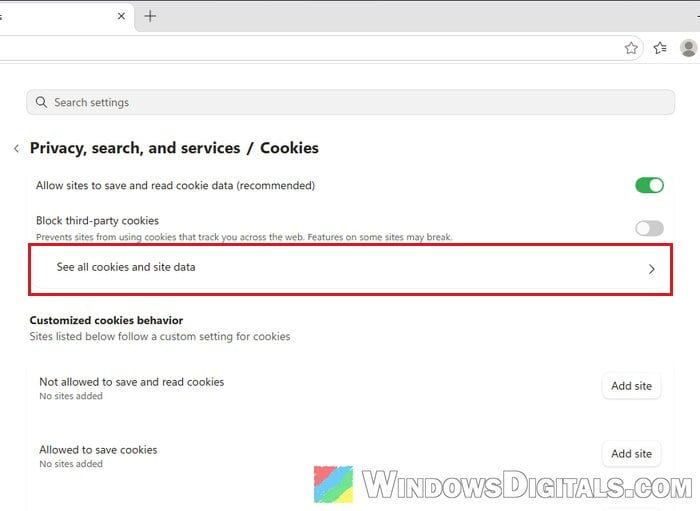
- Type “google” in the search box at the top right.
- For each Google site in the list (such as “google.com“, “accounts.google.com” and “www.google.com“), click the delete (trash bin) icon next to it.
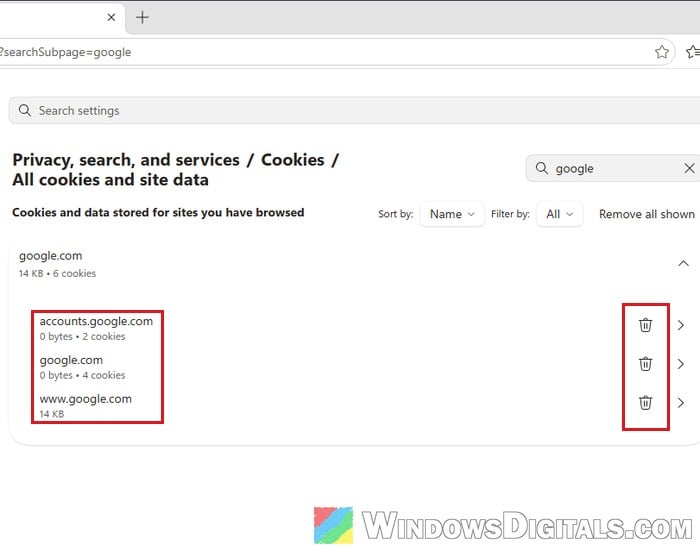
- Close Edge completely and open it again, then sign back in to Google.
Then open Gmail or YouTube and see if they load.
Related guide: How to Clear Cookies in Windows 11
Update or repair Microsoft Edge
If neither of the above helped, make sure Edge is up to date, since a later update may fix this. Go to “Settings and more” > “Settings” > “About Microsoft Edge“. Edge checks for updates by itself on this page. If it says updates are underway, wait a few minutes and refresh the page as it says, then restart Edge if it asks you to.
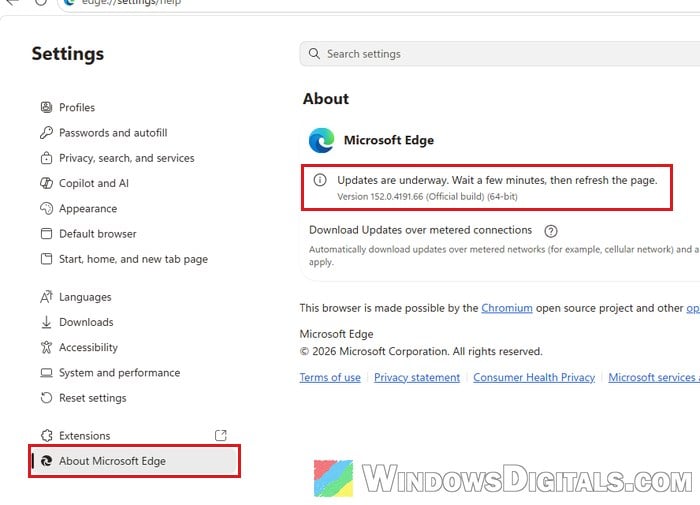
If Edge is already up to date, you can also repair it. According to Microsoft, repairing Edge shouldn’t affect your browsing data or settings. Close Edge first (for every user account if others are signed in to the PC), then:
- Right-click the Start button and select “Settings“, or press Win + I.
- Go to “Apps” > “Installed apps“.
- Find “Microsoft Edge“, click the three-dots icon next to it and select “Modify“.
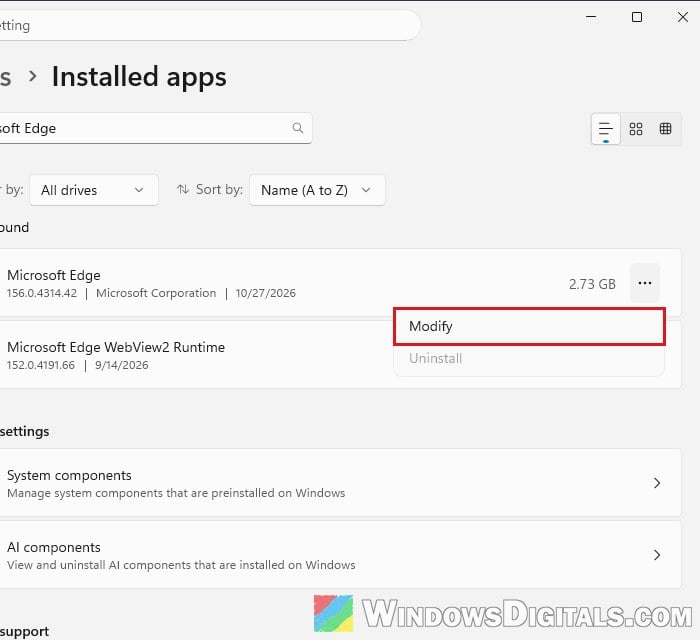
- Click “Yes” when Windows asks for permission.
- Make sure you’re connected to the internet and click “Repair“.
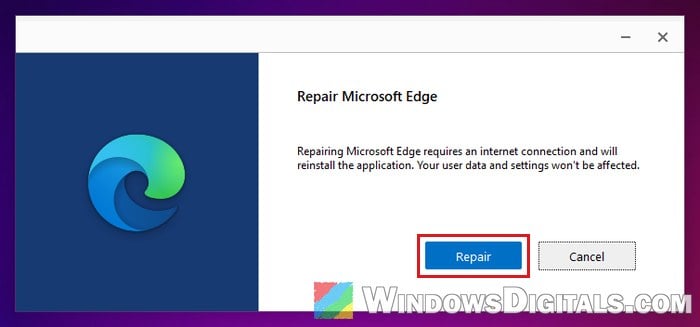
Once the repair finishes, open Edge and try Google again.
If the “Modify” option isn’t there, your work or school probably manages Edge on your PC, and you’ll have to ask their IT support instead.
If nothing so far has helped, you can also turn off your extensions at edge://extensions and test again, though this particular problem usually stays even with every extension off.
Might be useful: Microsoft Edge Not Playing YouTube Videos