If you’re trying to play Wardogs since the Season 2 update and the game gets stuck on the compiling shaders screen at 0% or 1%, or crashes partway through compiling, you’re not the only one. This guide will show you what could be wrong and how to get past that screen.
Also see: Game Keeps Compiling Shaders Every Time I Open It (Fix)
Page Contents
Why does Wardogs get stuck on compiling shaders?
Before you can play, Wardogs builds the shaders it needs for your graphics card and saves them in a cache. Since Season 2 went live on October 15, 2026, this takes far longer for a lot of players, and for some it never gets past the first percent. Neither Team17 nor BULKHEAD, the developer, has said anything about it yet.
The usual reasons are:
- A broken or too small shader cache, either the game’s own cache or your graphics driver’s.
- An unstable or overheating CPU. Shader compiling runs on your processor and keeps every core close to 100% until it finishes, so an overclock, an undervolt or poor cooling can make it crash.
- An outdated graphics driver, including one Windows Update quietly swapped in.
- The Elytra anti-cheat or certain Windows features getting in the way, which Team17’s crash checklist suggests ruling out.
This isn’t the WD-L020 crash, which came from the Windows update KB5124010 and was fixed in Wardogs update 0.1.2.
Linked issue: KB5124010 Update Crashing Games and Apps on Windows 11
Check if it’s really stuck first
The first compile after Season 2, a driver update or a cache reset can take a long time. Some players waited 20 to 30 minutes, while in Season 1 it took under a minute. So before changing anything, check whether your CPU is still working on it:
- Leave the game on the compiling shaders screen.
- Press Ctrl + Shift + Esc to open Task Manager.
- Look at the total at the top of the CPU column.
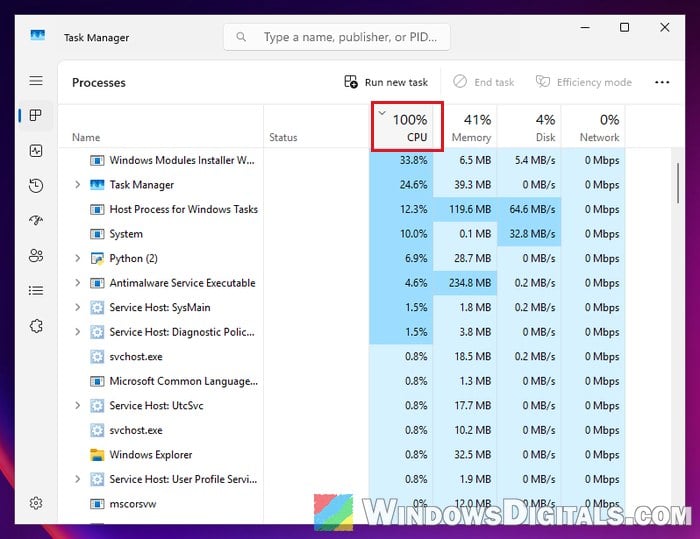
If the CPU usage stays high, it’s still compiling, so give it more time. If the percentage hasn’t moved for a long while and the CPU usage is close to zero, it’s really stuck.
Delete Wardogs’ own shader cache folders
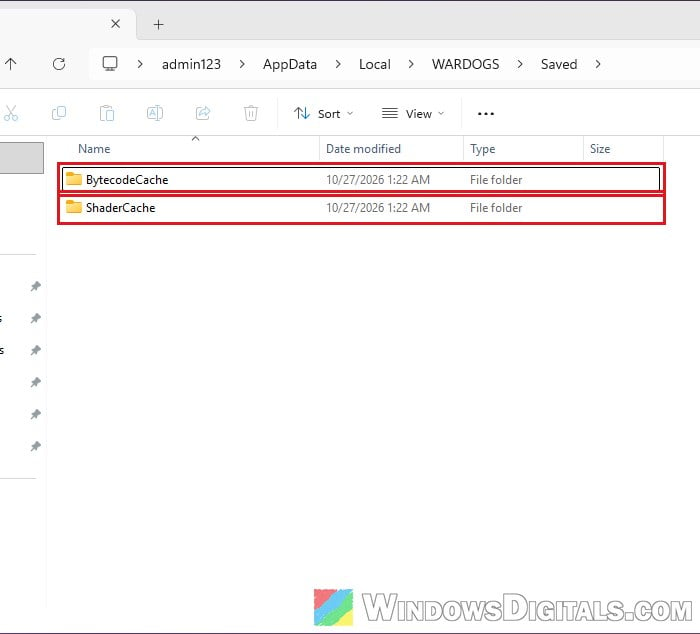
Wardogs keeps its compiled shaders in a folder under your AppData. If the files in there are broken, the game can keep failing on them, and deleting them makes it build a fresh set. Several players on Steam got past the screen this way.
- Close Wardogs completely.
- Press Win + R, type
%localappdata%and press Enter.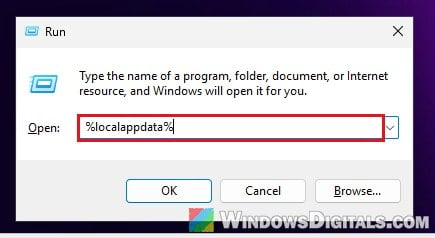
- Open the WARDOGS folder, then the Saved folder.
- Delete the BytecodeCache and ShaderCache folders.
- Start Wardogs again.
The first start after this compiles everything from scratch, so expect it to take a while. After that, it should only take seconds.
Reset your graphics driver’s shader cache and give it more space
Your graphics driver also keeps a shader cache of its own. If it’s broken, or too small to hold everything Wardogs builds after Season 2, the game may recompile the same shaders.
For NVIDIA graphics cards:
- Open the NVIDIA Control Panel and go to Manage 3D settings.
- Under Global Settings, find Shader Cache Size.
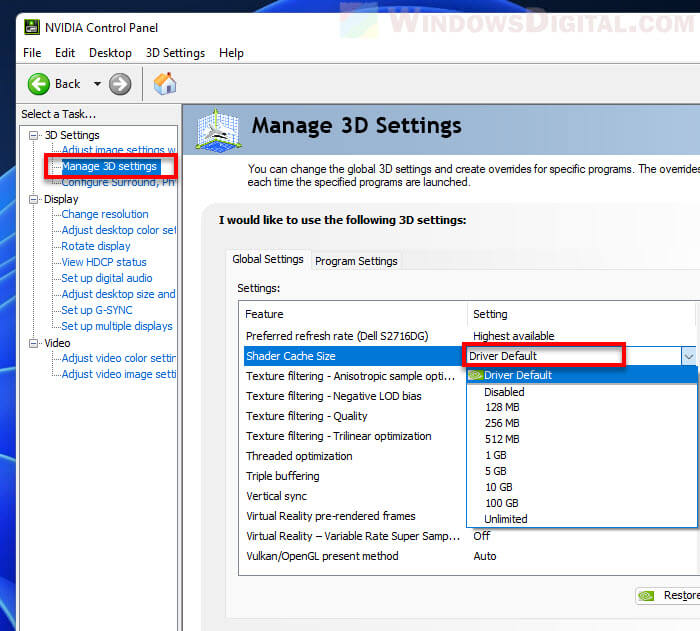
- Set it to Disabled, apply the change and restart your PC.
- Go back and set Shader Cache Size to Unlimited (or at least 10 GB), then apply it.
The same setting is also in the NVIDIA app, under Graphics > Global Settings. If you set it to Unlimited, the cache can grow to around 32 GB, so make sure the drive with Wardogs has plenty of free space.
For AMD graphics cards:
- Open AMD Software: Adrenalin Edition.
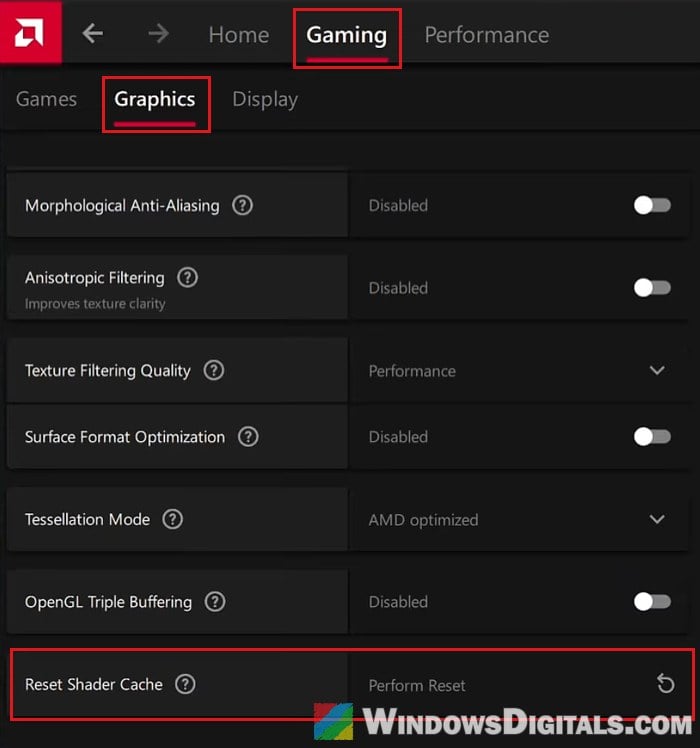
- Go to Gaming > Graphics and expand Advanced at the bottom.
- Next to Reset Shader Cache, click Perform Reset.
Then start Wardogs and let it compile once.
Pro tip: How to Clear DirectX Shader Cache (Windows 11)
Update your graphics driver (even if it says it’s up to date)
An outdated graphics driver is one of the first things to rule out when Wardogs crashes. Get the latest one from NVIDIA’s or AMD’s own website.
If you have an AMD card and Wardogs says your driver is out of date even though AMD Software says it’s current, Windows Update may have replaced the AMD driver with an older one. Download the latest driver from AMD’s website rather than relying on Windows Update, and do a clean install.
Verify the game files and repair Elytra
Broken game files or a broken anti-cheat can also make Wardogs crash, so check both.
- In your Steam library, right-click WARDOGS and select Properties.
- Go to Installed Files and click Verify integrity of game files.
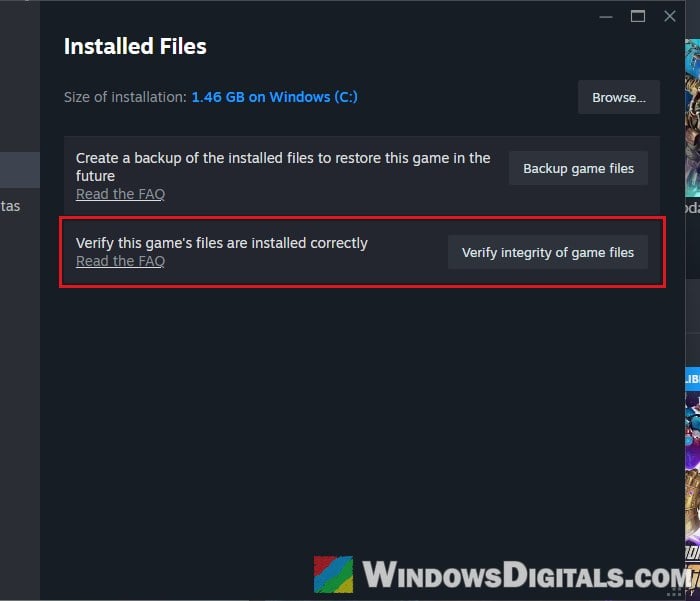
- Wait for Steam to finish and replace any broken files.
Then repair the Elytra anti-cheat that comes with the game:
- On the same Installed Files page in Steam, click Browse… to open the game’s folder.
- Open the Elytra folder and run the setup file inside it.
- Choose Repair and let it finish.
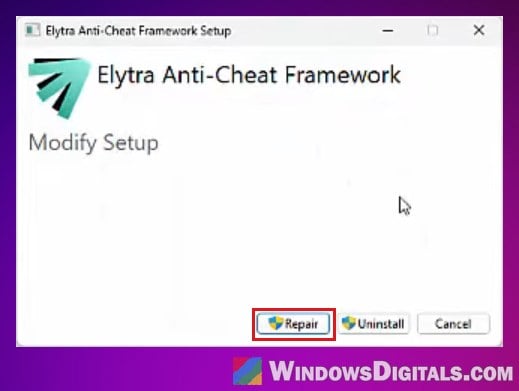
- Restart your PC and start Wardogs again.
Turn off Memory Integrity and virtualization features
Team17’s crash checklist also includes turning off Memory Integrity and Windows’ virtualization features (Hyper-V, Windows Sandbox, WSL2 (Windows Subsystem for Linux) and Virtual Machine Platform). Only try this if the fixes above didn’t help.
To turn off Memory Integrity:
- Search for “Windows Security” in the Start menu and open it.
- Go to Device security and click Core isolation details.
- Turn off Memory integrity, then restart your PC.
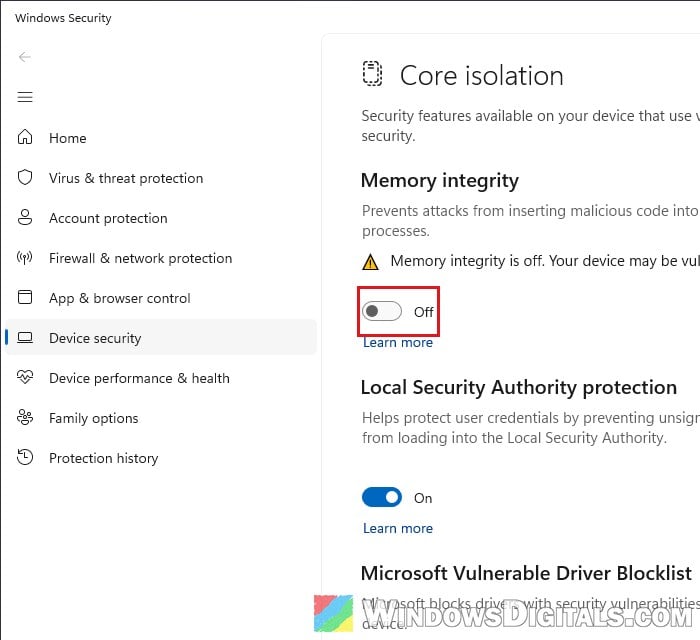
To turn off the virtualization features:
- Press Win + R, type
optionalfeaturesand press Enter. - Uncheck Hyper-V, Virtual Machine Platform, Windows Sandbox and Windows Subsystem for Linux (whichever of them you have).
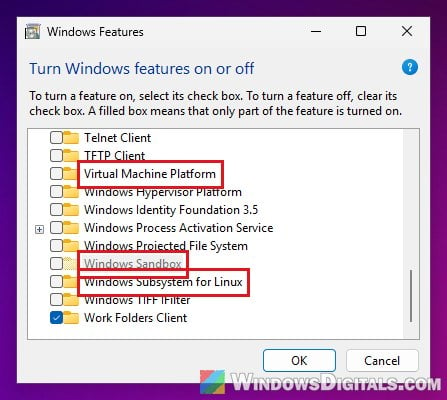
- Click OK and restart your PC when asked.
Then start Wardogs and see if the compile gets past 0%.
Important: Memory Integrity prevents attacks from inserting malicious code into high-security processes. If turning it off doesn’t fix Wardogs, turn it back on.
If you’re on a Windows Insider build, Team17 also suggests going back to a normal release.
Related concern: Memory Integrity Can’t Be Turned On (Windows 11)
Undo CPU overclocks and undervolts, and watch the temperatures
If the game crashes partway through compiling, sometimes getting further with each try, look at your CPU. Team17 says not to overclock your CPU or GPU, and an undervolt can cause the same kind of crash, since compiling shaders is one of the heaviest loads your processor gets. Put the CPU back to its default settings in your BIOS or tuning app and try again.
Also watch the temperatures while it compiles, and keep a laptop plugged in and on a hard surface.
If you have an Intel Core 13th or 14th Gen desktop CPU (above 65 W), update your motherboard’s BIOS to a version with Intel’s 0x12B microcode. Intel released it as its final fix for the instability that made these chips crash under heavy loads, shader compiling included.
Be warned: A BIOS update that goes wrong (a power cut halfway, the wrong file) can brick your motherboard. Follow your motherboard maker’s own instructions, and if you’re not sure what you’re doing, get someone who knows to help you.
The microcode only prevents the problem on chips that aren’t damaged yet. If the PC still crashes every time it compiles shaders, the CPU itself may be degraded, so contact Intel or the seller if it’s under warranty.
Contact Team17 Support
If nothing above gets you past the compiling shaders screen, contact Team17 Support. Their pinned support thread is at https://steamcommunity.com/app/1867240/discussions/3/562541634873494995/. Tell them your CPU, graphics card, driver version and what you’ve already tried.