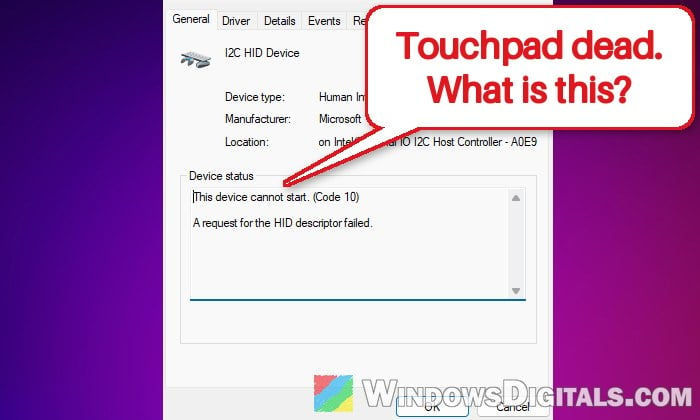
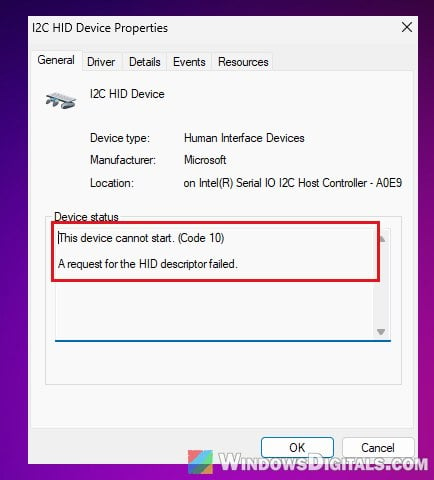
If your laptop’s touchpad suddenly stopped responding and Device Manager shows I2C HID Device with a yellow exclamation mark, along with the message “This device cannot start. (Code 10)” and “A request for the HID descriptor failed.“, it means Windows can’t start the driver that talks to your touchpad. This guide will explain why it happens and show you how to get the touchpad working again on Windows 11 or 10.
Also see: Keyboard or Mouse Not Working After Windows 11/10 Update
Page Contents
Why does the I2C HID Device show Code 10?
On many laptops, the touchpad sits on a small internal bus called I2C, and Windows uses its “I2C HID Device” driver to read it. That driver depends on another one, the I2C host controller driver. On Intel laptops it’s called “Intel(R) Serial IO I2C Host Controller” and you’ll find it under “System devices” in Device Manager. AMD laptops have an AMD I2C controller instead.
If either driver fails to start, you get Code 10. Some common reasons are:
- Windows is using a generic I2C controller driver instead of the one from your laptop’s maker.
- Windows turned the device off to save power and it didn’t come back.
- A broken filter value in the registry, usually left behind by old mouse or touchpad software.
- A loose or dirty touchpad cable inside the laptop (less common).
This problem shows up on Dell, HP, Lenovo, ASUS and MSI laptops alike and can come and go between restarts. Plug in a USB mouse while you work through the fixes below.
Pro tip: How to Install or Update Driver in Windows 11
Install the chipset and Serial IO drivers from your laptop’s maker
This is the fix that works most often. With only Windows’ generic I2C controller driver, the touchpad behind it can’t be read. Installing the drivers made for your exact laptop model usually brings the touchpad back after a restart.
Please note that AMD’s Adrenalin graphics driver won’t fix this, because it doesn’t include the chipset driver that runs the I2C controller.
Here’s what you should do:
- Find your laptop’s exact model name or number (usually on the sticker underneath).
- Go to your laptop maker’s support site (Dell, HP, Lenovo and so on) and open the drivers page for that model.
- Download and install these drivers and restart after each one. Starting with the chipset driver is a good order:
- Chipset (on AMD laptops, the AMD chipset driver package)
- Intel Serial IO (on Intel laptops; sometimes listed as an I2C or platform controller driver)
- Touchpad (often under a mouse, input or touchpad category)
- After the last restart, open Device Manager and check if the yellow mark on I2C HID Device is gone.
You can also try updating the I2C controller from Device Manager: expand “System devices“, right-click “Intel(R) Serial IO I2C Host Controller“, select “Update driver“, then “Search automatically for drivers“. For some people the problem came back later, though.
Reinstall the I2C HID Device
Removing the device and letting Windows set it up again can clear a driver that got stuck. Here’s how to do it:
- Right-click the Start button and select “Device Manager“.
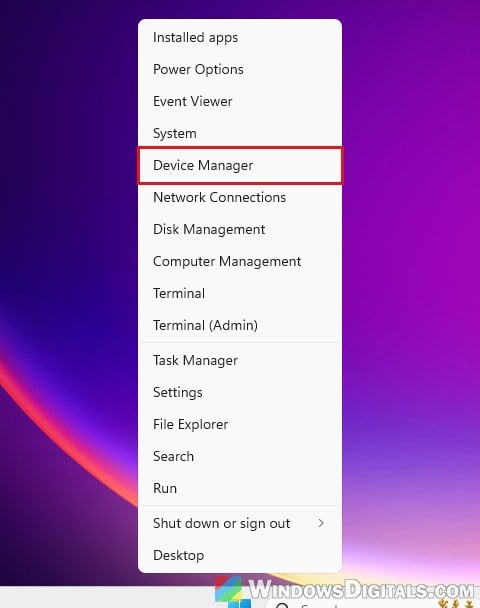
- Expand “Human Interface Devices“.
- Right-click “I2C HID Device” and select “Uninstall device“.
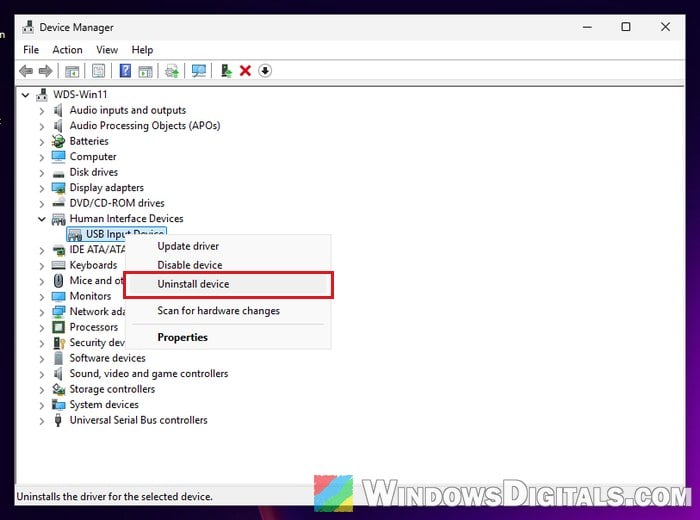
- If the dialog has a checkbox to remove the driver as well, tick it, then click “Uninstall“.
- Restart your laptop. Windows will find the touchpad again and reinstall its driver.
On some laptops this only fixes it until the next restart. If the yellow mark comes back, carry on with the next part.
Stop Windows from turning the touchpad off to save power
If the touchpad keeps failing after a while, Windows may be turning the device off to save power and failing to wake it. Reinstall the driver by hand first (the Power Management tab only shows up when the device is working), then turn off its power saving:
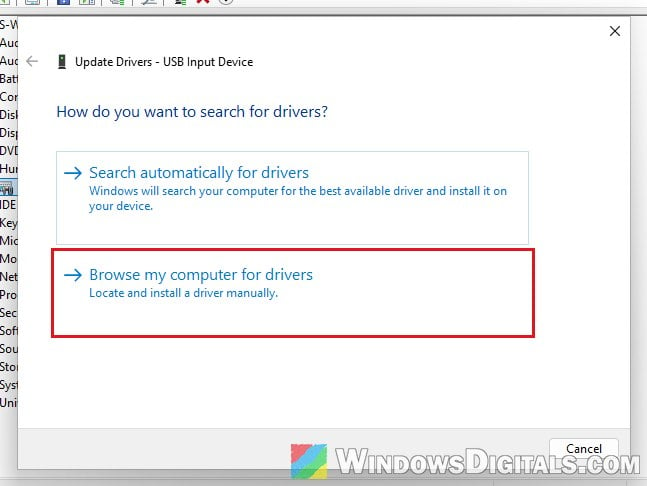
- In Device Manager, right-click “I2C HID Device” and select “Update driver“.
- Click “Browse my computer for drivers“.
- Click “Let me pick from a list of available drivers on my computer“.
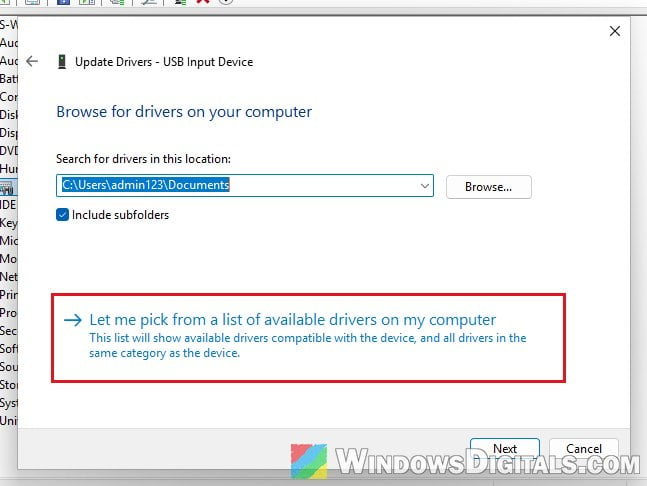
- Select “I2C HID Device” from the list and click “Next“.
- Once it’s installed and the touchpad works, right-click “I2C HID Device” again and select “Properties“.
- Go to the “Power Management” tab and uncheck “Allow the computer to turn off this device to save power“.
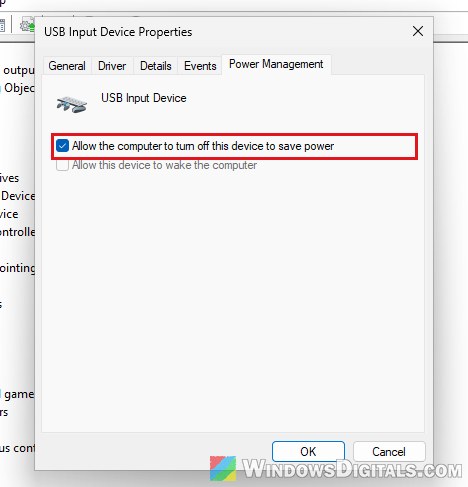
- Click “OK” and restart your laptop.
Might be useful: Can’t Completely Uninstall a Driver in Windows 11 (Fix)
Look for driver updates in Windows Update
Windows Update sometimes offers chipset, Serial IO or touchpad drivers from your laptop’s maker as optional updates, which don’t install by themselves.
- Open Settings > Windows Update > Advanced options > Optional updates.
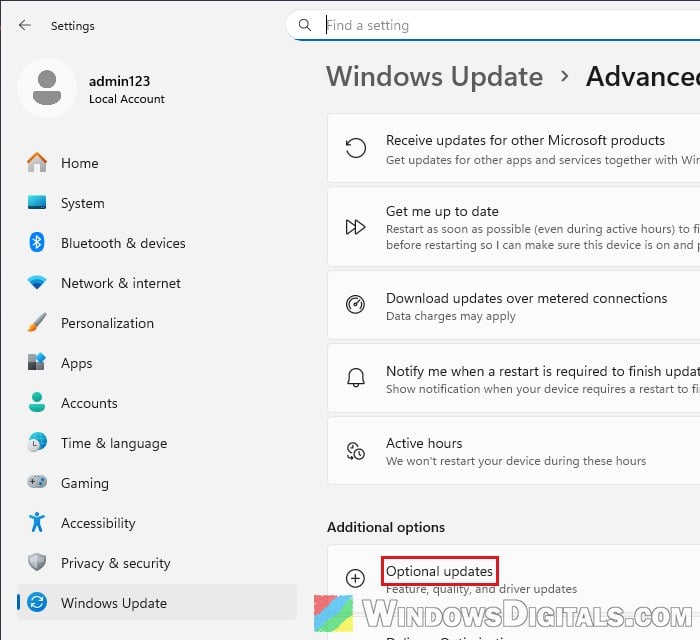
- If there’s a driver update for your chipset, Serial IO, I2C controller or touchpad, tick it and install it.
- Restart your laptop when it’s done and check Device Manager again.
Drain the power from your laptop
A power drain is harmless, takes a minute, and sometimes gets a stuck device working again:
- Shut down the laptop and unplug the charger, USB devices, SD cards and dongles.
- If the battery is removable, take it out.
- Press and hold the power button for about 30 seconds.
- Wait a minute, put the battery back (if you removed it), plug in the charger, turn the laptop on and try the touchpad.
Check if the touchpad works in the BIOS
Restart your laptop and press the key that opens the BIOS (usually F2, F10, Del or Esc, depending on the brand). If your BIOS shows a mouse cursor and the touchpad moves it, the touchpad itself is fine and the problem is on the Windows side. No cursor at all doesn’t mean it’s broken, since many BIOS screens are keyboard-only.
If your BIOS has a touchpad or internal pointing device option, make sure it’s enabled. Then leave with “Save & Exit“. Oddly enough, this alone has brought the touchpad back in Windows for some people.
Check the mouse “UpperFilters” value in the registry
Old mouse or touchpad software can leave a bad entry in the registry key Windows uses for all pointing devices. If its UpperFilters value doesn’t say “mouclass“, touchpads and mice can fail to start.
Incorrectly changing the registry in Windows could lead to serious problems. Please at least create a system restore point first, and back up the key. If you’re not sure what you’re doing, it’s better to just get someone to help you instead.
- Press Win + R, type “regedit” and press Enter.
- Copy and paste the following path to the address bar and press Enter:
HKEY_LOCAL_MACHINE\SYSTEM\CurrentControlSet\Control\Class\{4d36e96f-e325-11ce-bfc1-08002be10318} - Look at the “UpperFilters” value on the right. If it shows “mouclass“, it’s fine, so leave it alone and skip this fix.
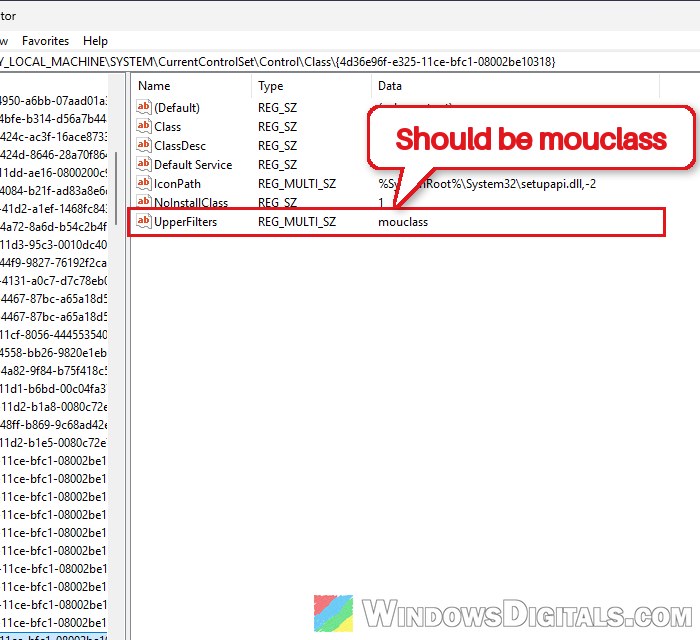
- If it shows something else or is missing, right-click “UpperFilters” and select “Delete” (if it’s there). Then right-click an empty area, select “New” > “Multi-String Value“, name it “UpperFilters“, double-click it and type “mouclass“.
- Click “OK” and restart your laptop.
After the restart, check if the touchpad works.
Related problem: Unknown USB Device (Set Address Failed) in Windows 11
Loose touchpad cable or hardware failure
If nothing above works, and especially if the touchpad doesn’t move the cursor in a BIOS that has one, it might be the hardware. The touchpad connects to the motherboard with a thin ribbon cable that can come loose or get dirty, and reseating and cleaning it has fixed Code 10 on some laptops.
If your laptop is still under warranty, contact the manufacturer instead of opening it yourself. Otherwise, a repair shop can check the cable for you.