If the built-in speakers on your ASUS ROG laptop (such as a Strix G16 or Zephyrus G14) suddenly went silent or sound faint and muffled, and Device Manager shows a warning on “Cirrus Logic Awesome Speaker Amps” with “This device cannot start. (Code 10)“, the speaker amplifier has stopped working, usually after the laptop wakes from sleep. This guide will explain why it happens and show you how to get the speakers working again.
Also see: Sound or Audio Not Working on Windows 11/10 After Update
Page Contents
Why do the speakers stop while headphones still work?
ROG laptops with these amps split their sound between two chips. The Realtek audio chip handles the headphone jack and the microphone, while a separate Cirrus Logic amplifier drives the internal speakers. In Device Manager, that amplifier shows up as “Cirrus Logic Awesome Speaker Amps” under “Sound, video and game controllers“. That’s why your headphones can keep working when the speakers go silent.
Code 10 means one of the device’s drivers failed to start it. With this amp, the error often comes with STATUS_DEVICE_POWER_FAILURE, and it typically shows up after the laptop wakes from sleep (sometimes after a Windows update). Most likely, the amp gets switched off to save power and doesn’t wake up properly. HP Envy laptops use the same Cirrus amps and can show the same error, and the Device Manager steps below work the same way on them.
Linked issue: Bluetooth Code 10 “STATUS_DEVICE_POWER_FAILURE” in Windows 11
Disable and re-enable the amp first (temporary fix)
Turning the amp off and on again in Device Manager often brings the speakers back right away. It’s only a temporary fix, since the error usually returns after the next sleep or restart, but it gets your sound back while you work on the fixes below. Here’s how to do it:
- Press Win + X and select “Device Manager“.
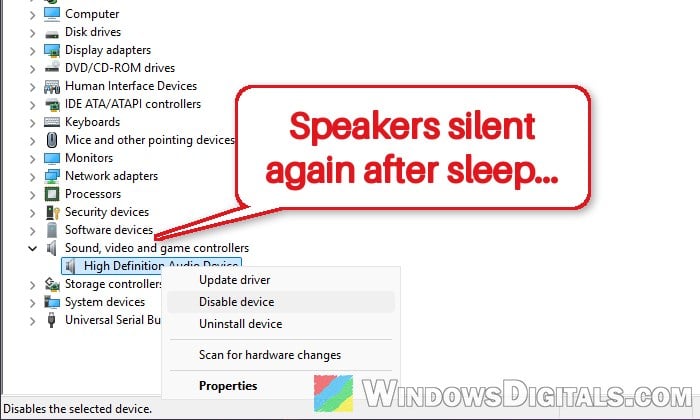
- Expand “Sound, video and game controllers“.
- Right-click “Cirrus Logic Awesome Speaker Amps” and select “Disable device“. Confirm with “Yes“.
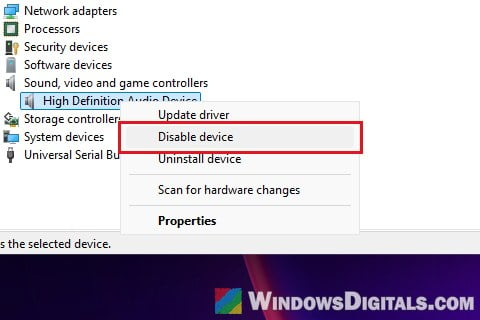
- Right-click it again and select “Enable device“.
Play something through the speakers. If the sound is back, move on to the next section so it doesn’t keep happening. For some people, a full restart also brings the sound back for a while.
Stop Windows from turning off the speaker amp
ASUS’s own support suggests this fix for the Cirrus amp. It has kept the error away even where driver updates and reinstalls only helped until the next restart. Windows is allowed to switch the amp off to save power, and when it does, the amp may fail to start again. Turning that option off should stop it from happening. To turn it off, follow the steps below:
- In Device Manager, expand “Sound, video and game controllers“.
- Double-click “Cirrus Logic Awesome Speaker Amps” to open its properties.
- Go to the “Power Management” tab. If there’s no such tab, skip to the next section.
- Uncheck “Allow the computer to turn off this device to save power“, then click “OK“.
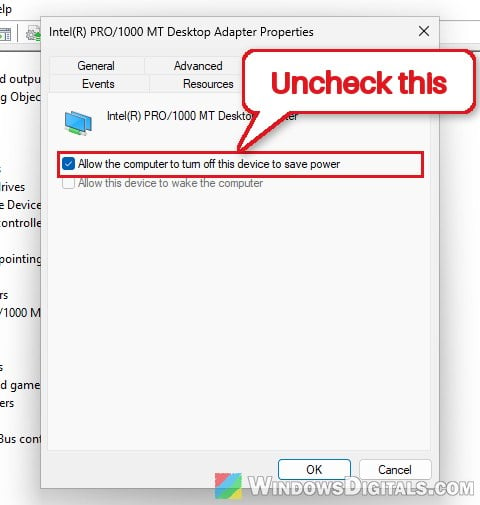
- Restart the laptop.
Use the laptop as usual for a few days, including sleep, and check whether the speakers keep working and the Code 10 warning stays away.
Might be useful: How to Change Default Audio Output Device on Windows 11
Reinstall the Cirrus SmartAMP driver from ASUS
If the error keeps coming back, the amp’s driver may be damaged or may have been changed by a Windows update. On the support page of ROG laptops with these amps, ASUS lists a “Cirrus SmartAMP Driver” next to the Realtek audio driver, and that’s the version to use. Do this together with the power setting above, since a reinstall alone often only fixes it until the next restart.
Follow the steps below:
- In Device Manager, right-click “Cirrus Logic Awesome Speaker Amps” and select “Uninstall device“.
- Tick “Attempt to remove the driver for this device” if it’s there, then click “Uninstall“.
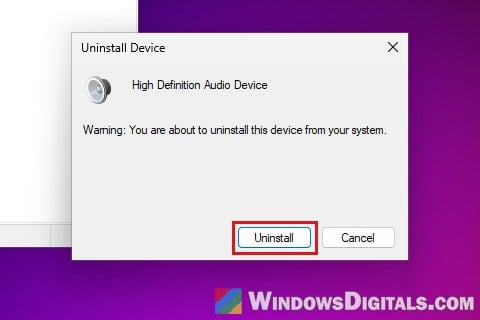
- Restart the laptop. Windows will usually reinstall a driver by itself.
- Go to ASUS’s support site, find your exact model (for example,
https://www.asus.com/supportonly/ga403ui/helpdesk_download/for the Zephyrus G14 GA403UI), and open “Driver & Tools“. - Choose “Windows 11 64-bit” as the OS and find “Audio” (click “Show all” if the Cirrus driver isn’t listed). Download and install the latest “Cirrus SmartAMP Driver“, and the “Realtek Audio” driver from the same list as well.
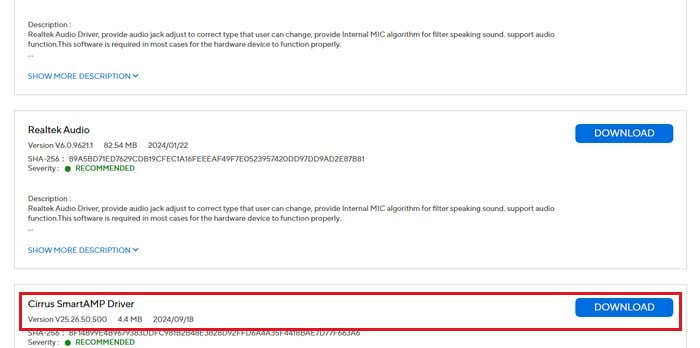
- Restart the laptop and check the speakers again.
Please note that Armoury Crate and MyASUS release drivers in batches, so the support page for your model is the most complete source. If you’re also reinstalling other drivers, install the chipset drivers first, then the I2C (Serial IO) driver, and the audio drivers last.
Related guide: How to Install or Update Driver in Windows 11
Do a hard reset (EC reset)
The embedded controller (EC) is a small chip on the motherboard that handles power for many of the laptop’s components. Resetting it can clear a stuck power state, and ASUS recommends it for hardware and power-related problems. Here’s how to do it:
- Save your work and remove any external devices (USB drives, docks, memory cards).
- Shut down the laptop, and keep the charger connected.
- Press and hold the power button for 40 seconds. On models that support a 20-second press, the power light starts flashing after about 15 seconds; release the button when the light stops flashing.
- Turn the laptop on and check the speakers.
Update the BIOS with Armoury Crate or MyASUS
A BIOS update is one of ASUS’s own steps for sound problems, and it might fix how the laptop powers the amp.
Be warned: Keep the charger plugged in the whole time and never force the laptop off during a BIOS update. An interrupted BIOS update can leave the laptop unable to start. If you’re not sure what you’re doing, it’s better to get someone to help you instead.
Using Armoury Crate
- Open Armoury Crate and go to Settings > Update Center.
- Click “Check for Update“.
- Install the BIOS update if one is listed.
Using MyASUS
- Open MyASUS and go to the “System Update” tab.
- Select the BIOS update and click “Update Selected Items“.
- Click “Restart” when asked, and let the update finish.
After the update and restart, check the speakers and Device Manager again.
Try System Restore, or it might be the hardware
If none of this helps, try restoring Windows to a date before the problem started, in case a recent update or driver change caused it. To check whether Windows is to blame at all, start the laptop from a Linux live USB and play some sound. If the speakers are just as silent or faint there, the amp or the speakers themselves have likely failed.
In that case, the bad news is that it needs a repair. If your laptop is still under warranty, contact ASUS support or a service center, and tell them what you’ve already tried.