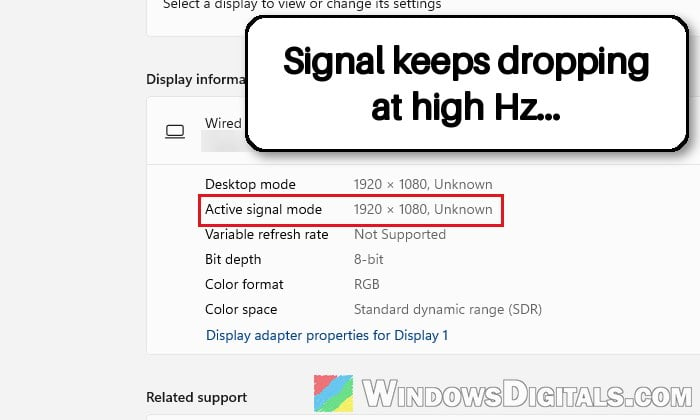
If your monitor randomly goes black or says it has lost signal for a few seconds while gaming or even just on the desktop, and you’re running an AMD Radeon RX 9070 XT (or another Radeon card like the RX 7800 XT) at 165Hz, 175Hz or 240Hz, it’s a pretty common problem with these cards. The fans keep spinning and the game audio often keeps playing, but the picture is gone. This guide will show you what usually causes it and what you can do to fix it.
Also see: Second Monitor Keeps Flashing or Going Black Randomly
Page Contents
Why does the screen go black at high refresh rates?
A high-resolution picture at 165Hz to 240Hz pushes a lot of data through the cable. A cable or port that works perfectly at 60Hz can start dropping out once it has to carry that much. Some common reasons for this issue are:
- The cable or port: An older or uncertified DisplayPort cable, or a loose connection, can lose the link at high refresh rates. DisplayPort is usually the weak spot, and the same monitor is often stable over HDMI.
- FreeSync and MPO: Variable refresh rate and Windows’ Multiplane Overlay (MPO) can misbehave together, especially with two monitors at different refresh rates.
- Radeon features or the driver: Extras like AMD Fluid Motion Frames (AFMF) or Anti-Lag, a bad driver install, or a newer driver version can cause it.
- A faulty card: In rare cases, the card’s DisplayPort output itself is the problem.
You’ll find it discussed a lot on Reddit and the Linus Tech Tips forum, and there’s no single fix for everyone. If AMD Software reports a driver timeout once the picture comes back, see AMD Driver Timeout Freezes the Screen but Audio Keeps Playing too.
First, test at a lower refresh rate
Before you buy a new cable, try this quick test. If the black screens stop when you lower the refresh rate, the link between your card and monitor is struggling at full speed, which points to the cable or port. Here’s how to do it:
- Press Win + I to open Settings, then go to System > Display > Advanced display.
- Click the drop-down next to “Choose a refresh rate” and pick a lower rate, for example 144Hz instead of 165Hz, or even 60Hz for the test.
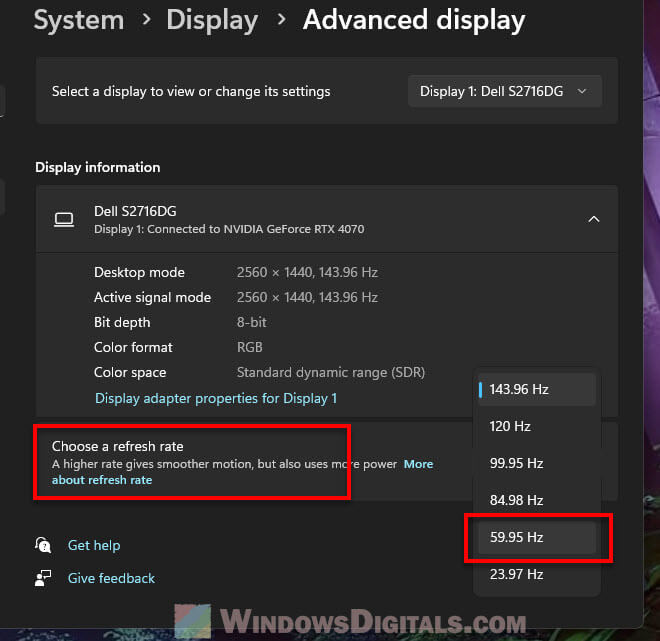
- Play the same game and see if the screen still goes black.
If it’s stable at the lower rate, keep it there for now and try the cable fix below to get your full refresh rate back.
Related guide: How to Change Desktop Screen Refresh Rate in Windows 11
Swap the DisplayPort cable or port, or try HDMI
This is the fix that has worked most often. High refresh rates leave very little room for a weak cable, and DisplayPort’s connection (especially at 4K with compression) is more sensitive than HDMI’s. Try these one at a time:
- Reseat the cable: Turn off the PC and monitor, unplug the cable for about 30 seconds, then push it back in firmly on both ends.
- Use a VESA-certified DisplayPort cable: A DP 1.4 or DP 2.1 cable that’s certified, rather than the oldest one in your drawer.
- Try another port: Use a different DisplayPort output on the graphics card and a different input on the monitor.
- Try HDMI 2.1: If your monitor has an HDMI 2.1 port, connect it with an Ultra High Speed certified HDMI cable. Quite often, the same monitor that kept dropping out over DisplayPort is completely stable over HDMI.
After each change, go back to your full refresh rate and see if the screen still drops out.
Turn off FreeSync to test
FreeSync makes games smoother, and most people should leave it on. Turning it off for a while is a quick way to see if it’s part of the problem. Here’s how:
- Right-click your desktop (select “Show more options” if you don’t see it) and open AMD Software: Adrenalin Edition.
- Go to Gaming > Display.
- Turn off “AMD FreeSync” (called “Radeon FreeSync” in older versions).
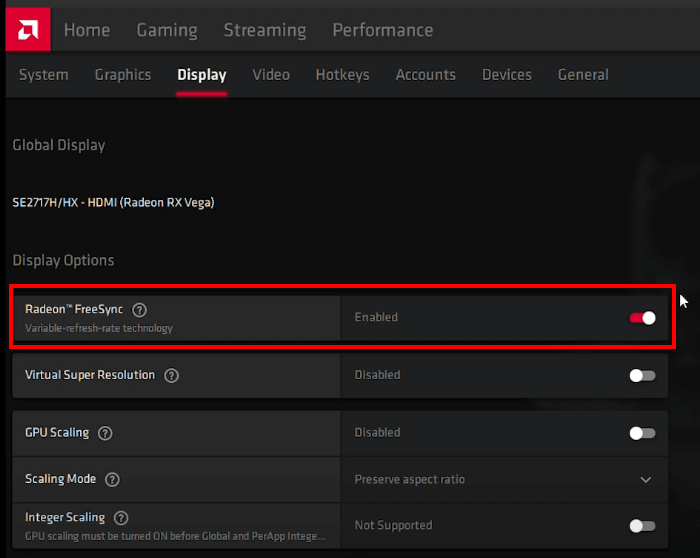
If the screen no longer goes black, leave it off for now and try the MPO fix below. If nothing changes, turn FreeSync back on.
Turn off Radeon extras like Fluid Motion Frames and Anti-Lag
Some of AMD Software’s extra features change how frames are made and shown, and they can trigger driver timeouts and black screens on these cards. To rule them out, turn them off globally:
- In AMD Software, open the global graphics settings (Gaming > Graphics in recent versions).
- Turn off AMD Fluid Motion Frames, Radeon Anti-Lag, Radeon Boost and Radeon Enhanced Sync.
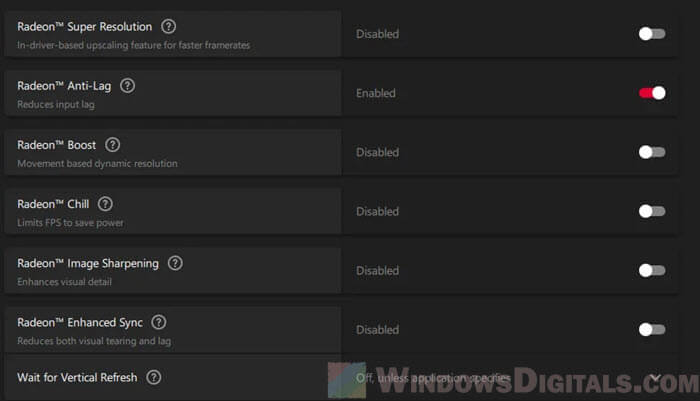
- Play again and see if the black screens are gone. If they are, turn the features back on one at a time to find the one causing it.
Might be useful: How to Turn Off VSync in Windows 11
Turn off MPO (Multiplane Overlay)
MPO is a Windows display feature that lets the graphics card draw video or a game in its own layer. It’s meant to help performance, but with FreeSync and two monitors at different refresh rates, it’s known to cause flickering and black screens on Radeon cards.
Incorrectly changing the registry can cause serious problems in Windows. Please at least create a system restore point first. Here’s how to do it:
- Press Win + R, type “regedit” and press Enter to open Registry Editor.
- Copy and paste the following path to the address bar and press Enter:
HKEY_LOCAL_MACHINE\SOFTWARE\Microsoft\Windows\Dwm
- Right-click an empty area, select New > DWORD (32-bit) Value and name it OverlayTestMode.
- Double-click OverlayTestMode, set its Value data to “5” and click OK.
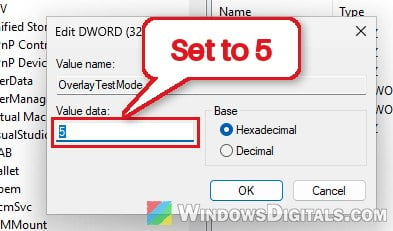
- Restart your PC.
Then see if the black screens stop, especially when moving windows between monitors. On some newer Windows 11 builds, MPO stays on after this. For how to check it and the other registry value that turns it off, see: How to Disable MPO (Multiplane Overlay) on Windows 11.
Do a clean reinstall of the AMD driver (or roll it back)
A driver that was installed over an older one can leave old files behind that clash with the new one. A clean reinstall with AMD’s own Cleanup Utility removes them first. If the black screens started right after a driver update, install the previous version instead. If you don’t use AMD Software’s extras, you can choose the “Minimal” or “Driver Only” install type when you reinstall.
For the AMD Cleanup Utility steps, see: AMD Driver Timeout Freezes the Screen but Audio Keeps Playing.
What if it also crashes under heavy load?
If the screen goes black mainly in demanding games and the PC freezes, the card might be hitting power spikes, especially with an older power supply. Undo any overclock or undervolt on the GPU, turn off EXPO or XMP for your RAM for a test, and try lowering the card’s power limit by about 10% in AMD Software’s tuning settings. This has stopped the crashes for some RX 9070 XT owners. The driver timeout guide above also covers resetting GPU clocks.
Maybe the card’s DisplayPort output is faulty
If the black screens only ever happen over DisplayPort, you’ve tried a certified cable and different ports, and HDMI is completely stable, the card itself may have a problem with its DisplayPort output.
If your card is still under warranty, contact the seller or the card’s maker and explain what you’ve tested. Ask them to test it over DisplayPort at the same refresh rate. If they can reproduce it, a replacement card is the fix. In the meantime, HDMI 2.1 (if your monitor has it) is a perfectly fine way to keep using it.