If you’ve found a browser called Ace on your Windows 11 or 10 PC that you don’t remember installing, your Chrome search box suddenly says “Ask Ace AI“, or a friend told you to switch to it, you’re probably wondering what it actually is and whether it’s safe. This guide explains what Ace is, why security tools flag it, and how to remove it if you don’t want it.
Also see: Is “AdBlock Next” Popup and Extension Safe or a Virus?
Page Contents
What is Ace browser?
Ace is a web browser with an AI assistant built in, made by the company behind ace.ai. It’s built on Chromium, so it works a lot like Chrome, with an Ask Ace button and a side panel where you chat with the assistant. It also comes as an extension that adds the same assistant to Chrome.
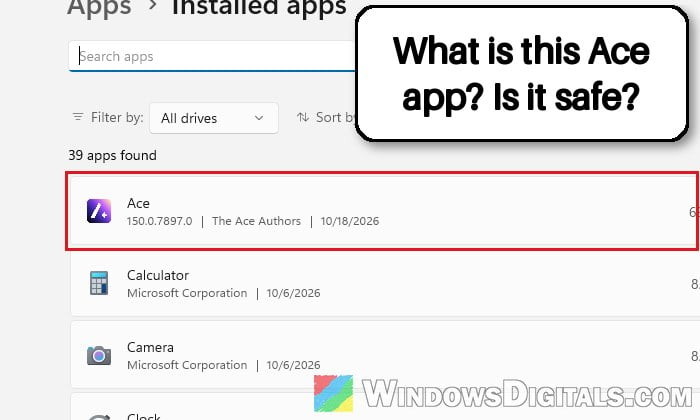
When installed, it shows up in Settings > Apps > Installed apps simply as “Ace“, with “The Ace Authors” as the publisher. Its installer, AceSetup.exe, is signed by BrowseAI LLC, which is the name you’ll see on the UAC prompt.
What does Ace change when you install it?
When I installed Ace from its official website on a test PC, the setup had a few things already ticked for you:
- “Send anonymous data to make Ace better” on the first screen.
- “Make Default“, “Pin to Taskbar” and “Import Chrome Profiles” on the next one, with just a small Skip link in the bottom-right corner.
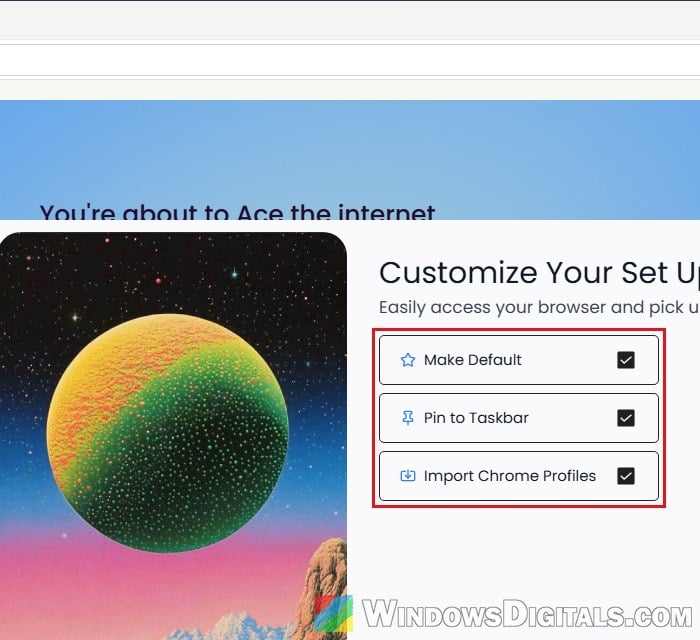
With those left on, Ace became the default browser right away, without Windows asking first. It also added itself to the startup apps and created an updater task in Task Scheduler. A startup entry and an updater task are normal for a browser. Becoming the default with no prompt at all isn’t, and it’s easy to miss when you click through the setup. That’s why some people feel Ace “took over” their PC.
Is Ace browser safe, or is it a virus?
Ace isn’t a virus in the classic sense. It’s a real browser, and if you download it on purpose from ace.ai, that’s what you get. However, security companies such as Gridinsoft classify it as a potentially unwanted program (PUP), mainly because of how it often arrives and what it changes.
Some of the reasons it gets flagged:
- It’s spread through bundled installers, fake download buttons, quiz pages and download ads, so many people get it without really choosing it.
- It can change your default browser and search engine, with searches going to Bing or Yahoo instead of your usual search engine.
- An Ace extension (one is called “Ace Browser Shield“) can be added to Chrome or Edge and locked so you can’t turn it off, sometimes with Chrome saying it’s “Managed by your organization“.
Several people on Reddit and Microsoft’s forums describe exactly this: Chrome’s search box replaced with “Ask Ace AI“, an extension that won’t go away, and Ace coming back after they thought they had removed it.
There’s also privacy to think about. A browser sees everything you do online, including logins and banking, and Ace’s setup ticks “Send anonymous data to make Ace better” for you. If you didn’t knowingly install Ace, or you don’t want an AI browser handling all that, it’s best to remove it. If you just want a browser you already know, Edge, Chrome or Firefox does everything most people need.
Linked issue: Chrome Keeps Redirecting to Yahoo Search Through smartingly.com
How to remove Ace browser
Ace uninstalls like any other app, but it leaves a few things behind, so remove those too. Go through these in order.
1. Uninstall Ace from Installed apps
Start by removing the browser itself:
- Open Settings > Apps > Installed apps and find Ace in the list.
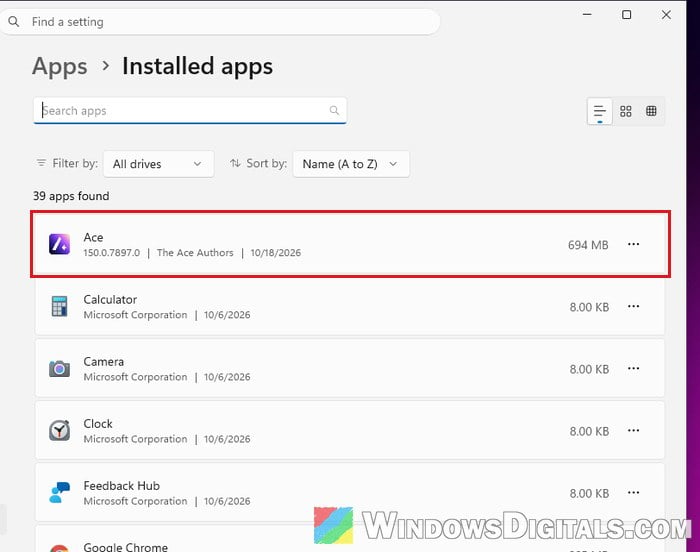
- Click the three-dot (More options) button next to it and select Uninstall.
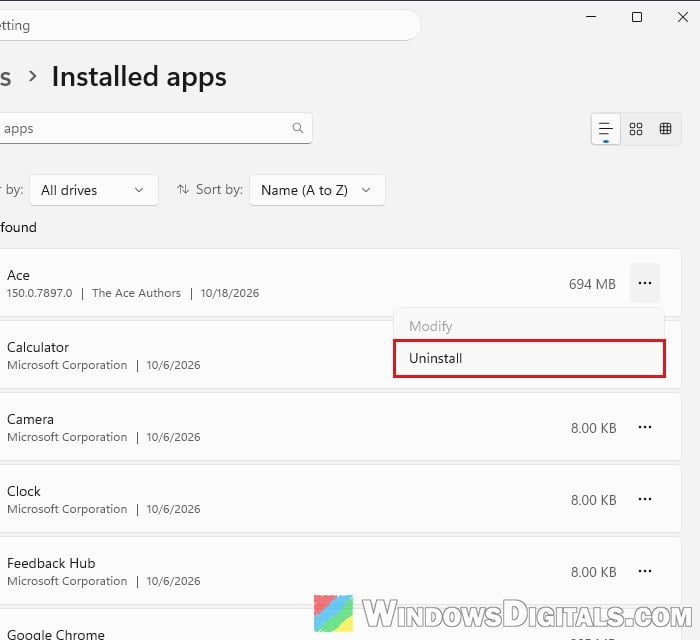
- Follow the prompts. If the uninstall is blocked, end any Ace processes in Task Manager first and try again.
Ace should no longer be in the list afterwards.
2. Set your own default browser back
Ace takes over web links and files like .htm and .html. Its own page under Default apps shows them, but don’t click Set default there, since that’s the button for Ace.
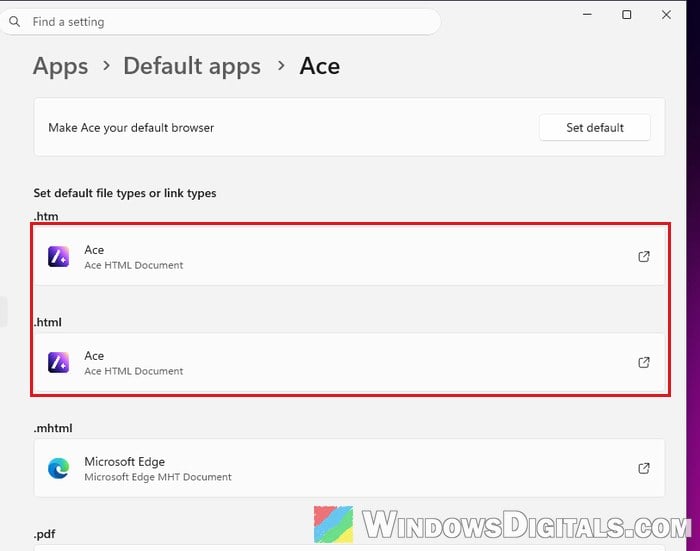
To give them back to your browser:
- Open Settings > Apps > Default apps.
- Select the browser you want to use, such as Google Chrome or Microsoft Edge.
- Click Set default at the top of that browser’s page.
Open a link from another app, such as an email, and check that it opens in your browser.
Pro tip: How to Set Chrome as Default Browser in Windows 11
3. Remove what Ace leaves behind
Next, clear out the startup entry, updater task and folders Ace leaves behind:
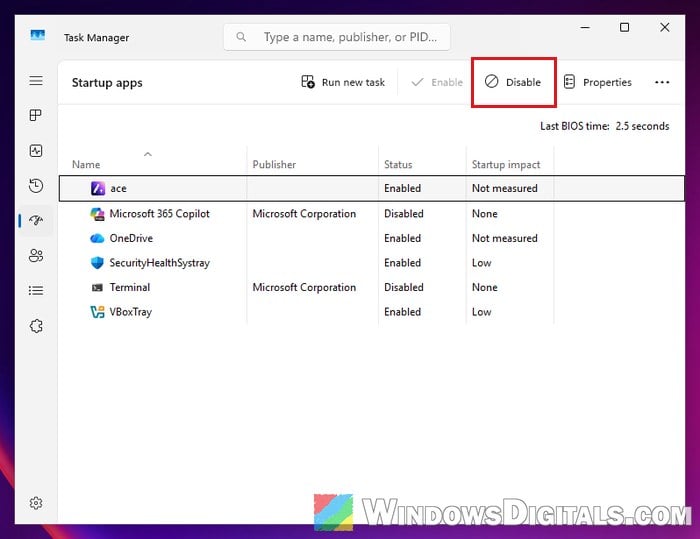
- Press Ctrl + Shift + Esc to open Task Manager.
- Open the Startup apps page.
- Select ace if it’s still listed.
- Click Disable.
- Search for “Task Scheduler” in the Start menu and open it.
- In the Task Scheduler Library, open the AceSystem folder and the AceUpdater folder inside it.
- Right-click the task whose name starts with AceUpdaterTaskSystem and select Disable or Delete.
- Press Win + R, type
%LocalAppData%and press Enter. - Delete the Ace folder if it’s still there.
- Press Win + R again, type
%AppData%, press Enter and delete any Ace folder there too.
Restart your PC and check that Ace doesn’t open by itself.
4. Remove the Ace extension and reset Chrome
If Ace came as an extension, or Chrome still shows “Ask Ace AI“, fix Chrome next:
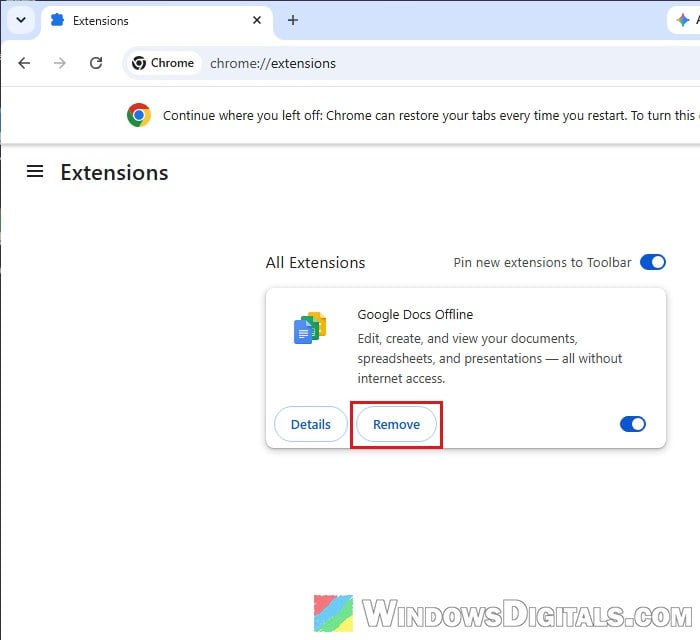
- In Chrome, go to
chrome://extensions(in Edge,edge://extensions). - Click Remove on any Ace extension or anything else you don’t recognize.
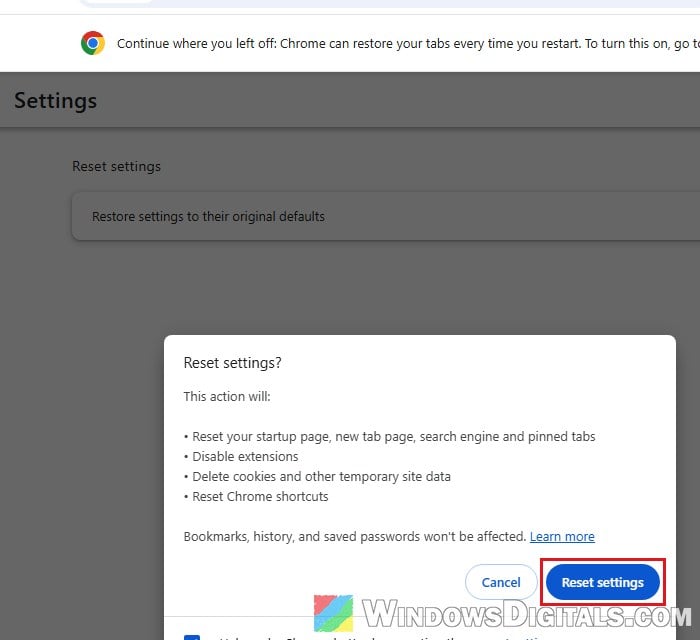
- Open the three-dot menu > Settings > Reset settings > “Restore settings to their original defaults“.
- Click Reset settings to confirm.
If Chrome won’t let you remove the extension, or says it’s “Managed by your organization” on your own PC, go to chrome://policy to see what’s being enforced. Google’s advice is to remove the unwanted program that set it (as in the first section above), then remove the extension and reset Chrome again.
A reset puts your startup page, new tab page, search engine and pinned tabs back to their defaults, turns off all extensions and deletes cookies, but keeps your bookmarks, history and saved passwords. Search something in the address bar afterwards and check that it goes to your usual search engine.
Related guide: How to Scan an .exe File for Viruses to Check If It’s Safe
5. Scan your PC for anything that came with it
Since Ace often arrives inside other installers, check that nothing else came along with it. Run a Full scan in Windows Security. If Ace keeps coming back, run a Microsoft Defender Offline scan as well.
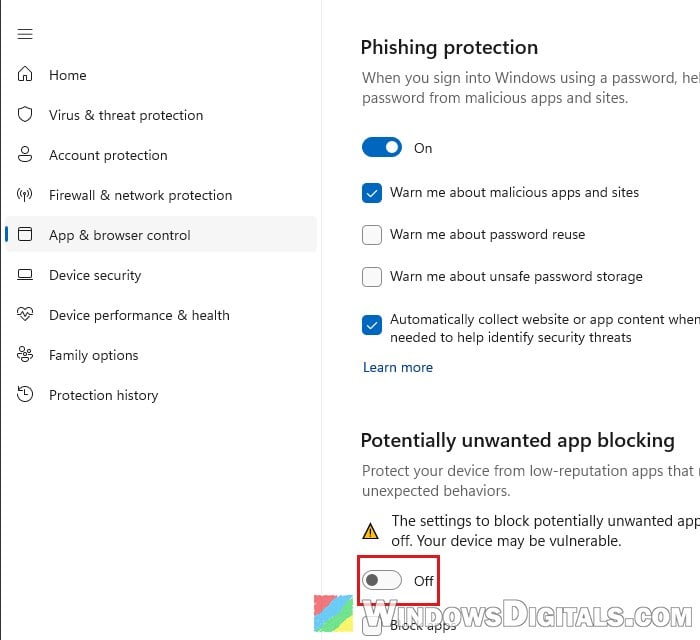
To stop programs like this from slipping in next time, turn on “Potentially unwanted app blocking” under Windows Security > App & browser control > “Reputation-based protection settings“.