If you’re trying to install the Windows 11 version 26H2 update but it fails with error 0x80072efd, and the restart Windows asks for doesn’t actually finish the install, this guide will explain what the error means and show you how to get the update through.
Also see: How to Fix Windows 11 or 10 Update Error 0x80072ee7
Page Contents
What does error 0x80072efd mean?
0x80072efd usually isn’t about broken files on your PC. It means Windows Update couldn’t connect to Microsoft’s update servers, or the connection timed out. According to Microsoft, it mostly happens when a firewall or a proxy blocks Microsoft’s download addresses.
That’s why it can show up even though your internet seems to work fine. Your browser might reach every website, while Windows Update, which uses its own connection settings, gets stuck. Some common culprits are:
- A VPN or proxy that’s on, or left behind by an app you’ve uninstalled.
- A third-party antivirus or firewall blocking Windows Update.
- Leftover files from failed attempts, which can get in the way when the update tries again.
Microsoft doesn’t list 0x80072efd as a known issue for 26H2, so start with the connection fixes below.
Might be useful: Windows 11 “Updates failed” with a “Retry” button
Turn off your VPN and proxy
If you use a VPN, disconnect it completely before you retry the update. Then check that Windows isn’t sending its traffic through a proxy you don’t need:
- Press Win + I and go to Network & internet > Proxy.
- Under Manual proxy setup, make sure Use a proxy server says Off, unless your work or school network needs one.
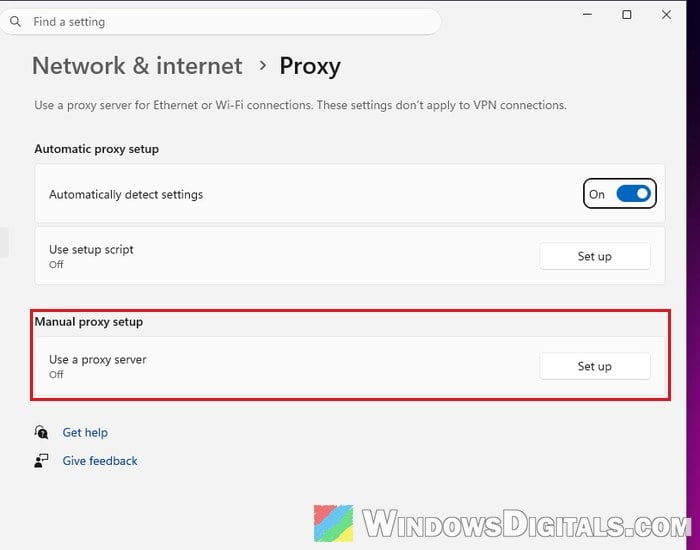
After that, go back to Windows Update and click Check for updates again.
Related guide: How to Disable Proxy Settings in Windows 11/10 Permanently
Reset the Windows Update proxy (WinHTTP)
Microsoft’s own docs say Windows Update checks for updates through WinHTTP, which has its own proxy setting, separate from the one in Settings. VPN and proxy apps sometimes change it and don’t always put it back, so Windows Update keeps trying to go through a proxy that no longer exists.
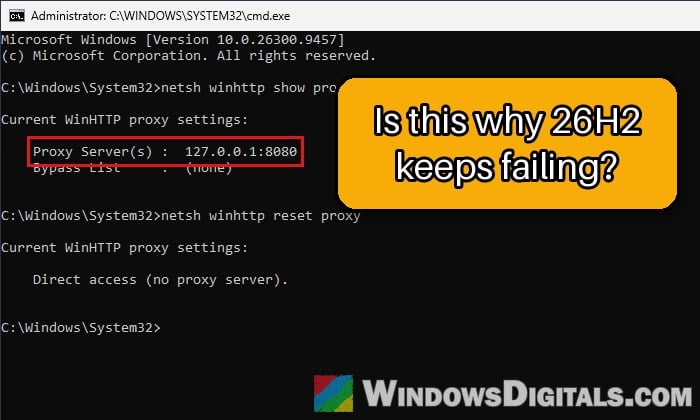
You can check and reset it with two commands:
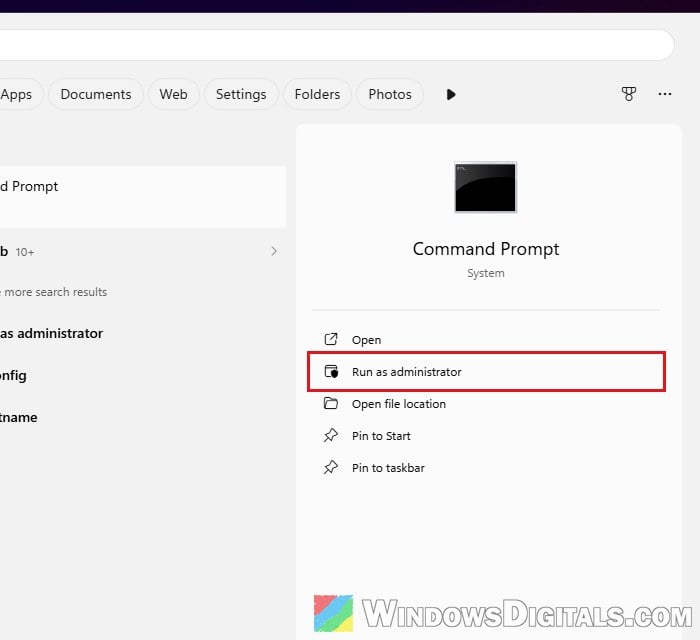
- Click Start, type “cmd“, then select Run as administrator on the right.
- Type the following command and press Enter to see the current setting:
netsh winhttp show proxy
- If it doesn’t say “Direct access (no proxy server).“, reset it with this command:
netsh winhttp reset proxy
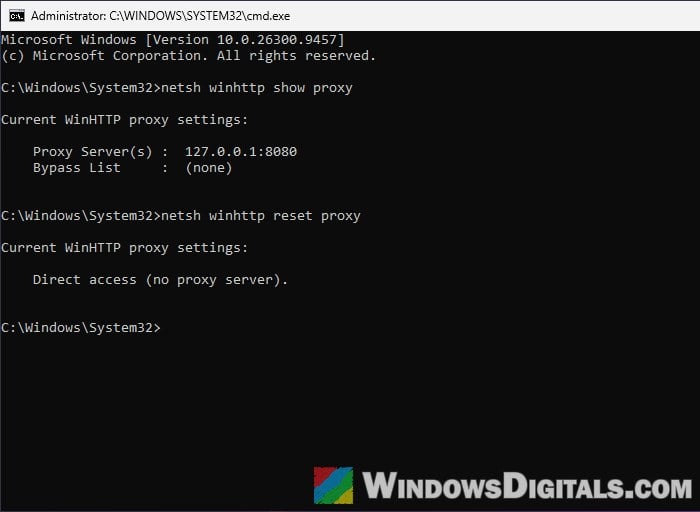
Windows Update now connects directly. Restart your PC and try the 26H2 update again.
Temporarily turn off third-party antivirus or firewall
If you use a third-party antivirus or firewall, it may be blocking Windows Update’s connection. Turn its protection or firewall off for a few minutes (usually from its icon in the system tray), then try the update again.
Don’t forget to turn it back on right after the update finishes. If the update goes through only with it off, check the app’s settings or contact its support so it stops blocking Windows Update.
Linked issue: 0x80244011 Windows Update Error (How to Fix)
Reset Windows Update components
If the failed attempts left broken files behind, resetting Windows Update’s folders makes it download everything fresh:
- Open Command Prompt as administrator, as in the previous section.
- Type the following commands one by one, and press Enter after each: Messages like “is not started” or “has already been started” are fine.
net stop usosvc
net stop wuauserv
net stop bits
ren C:\Windows\SoftwareDistribution SoftwareDistribution.old
net stop cryptsvc /y
ren C:\Windows\System32\catroot2 Catroot2.old
net start cryptsvc
net start bits
net start wuauserv
net start usosvc
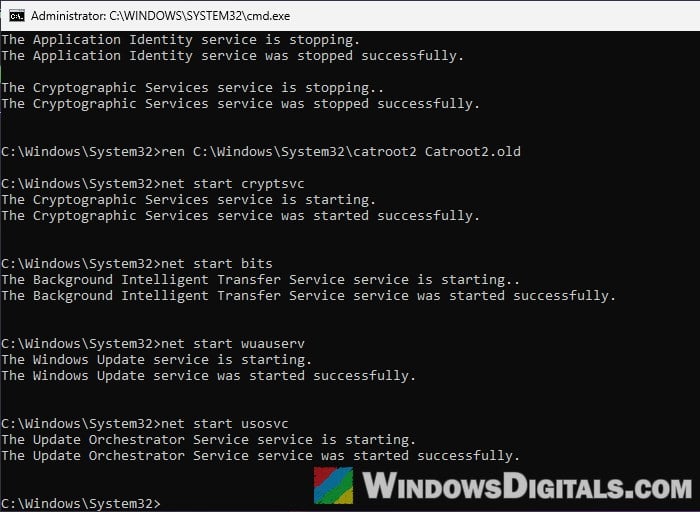
- The first line stops the Update Orchestrator, which would otherwise start Windows Update again in the background and keep the folder locked.
- **If a
rencommand says “Access is denied”**, a service started again before the rename. Run thenet stopcommands above it once more, then therencommand right after.
- Restart your PC and try the update again.
Install the 26H2 enablement package manually
If you’re on Windows 11 24H2 or 25H2, 26H2 is just a small “switch” called an enablement package (KB5121794). Microsoft says it isn’t on the Microsoft Update Catalog, but the file itself is on Microsoft’s download servers, and downloading it in your browser may work even when Windows Update can’t connect.
It only installs if your PC already has the September 22, 2026 preview update (KB5124010) or a later cumulative update, such as the October 13, 2026 update (KB5127648). The address below is for 64-bit (x64) PCs, not PCs with an Arm processor.
- Copy and paste this address into your browser to download the file:
https://catalog.sf.dl.delivery.mp.microsoft.com/filestreamingservice/files/94520a88-858f-4832-a57d-7211f6d84a4e/public/Windows11.0-KB5121794-x64_5e20a3cce48d6611b16bdec42b07167f5456586a.msu
- Double-click the downloaded .msu file (its name starts with
Windows11.0-KB5121794-x64) and follow the prompts to install it.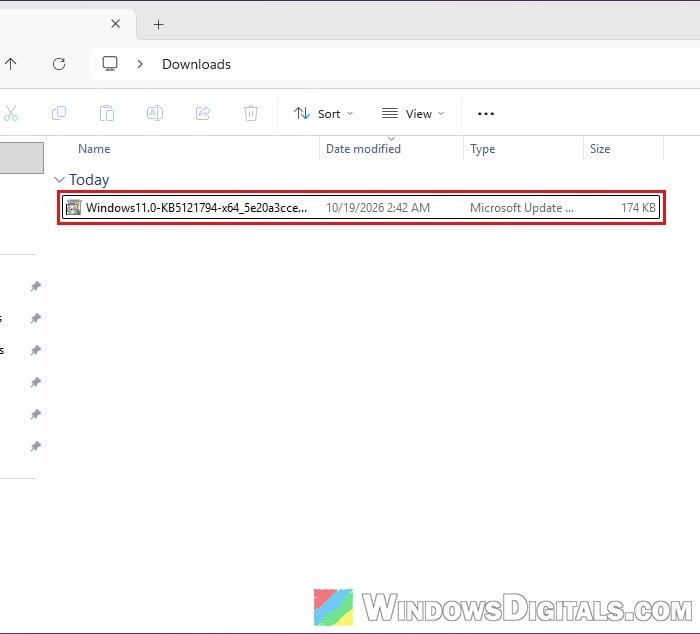
- Restart your PC when asked.
After the restart, press Win + R, type winver and press Enter to check if it now says Version 26H2.
Use “Fix problems using Windows Update”
Windows 11 can also download a fresh copy of the version you’re already running and reinstall it over your current installation. It keeps your apps, files and settings, and it can fix problems that keep updates from installing. It needs a working internet connection too, so do the connection fixes above first.
- Press Win + I and go to System > Recovery.
- Under “Fix problems using Windows Update“, select Reinstall now.
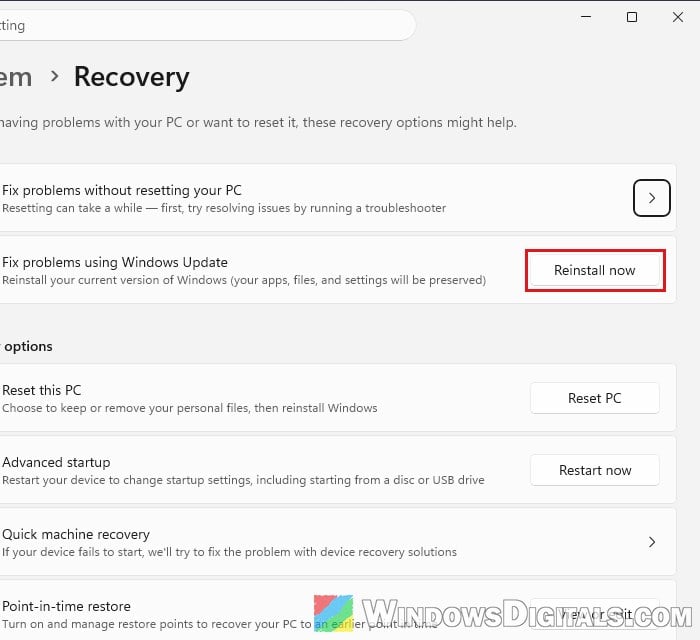
- Choose whether to let your PC restart automatically 15 minutes after the installation finishes, then select OK.
Keep your PC plugged in until it’s done, then check Windows Update for 26H2 again.
Note: This option doesn’t appear on PCs managed by a work or school organization, or with certain update policies set.
Pro tip: “Reinstall your current version of Windows” Message
Upgrade with the ISO as a last resort
If Windows Update still won’t cooperate, you can run the 26H2 setup yourself from Microsoft’s official disk image (ISO). Back up your important files first, just in case.
- Go to the official Windows 11 download page and download the Windows 11 Disk Image (ISO).
- Right-click the ISO file and select Mount, then double-click setup.exe in the mounted drive.
- Follow the prompts, and make sure you choose to keep your personal files and apps. If you’re not sure which option to pick, stop there and get someone who knows to help you.
Once setup finishes, your PC will be on 26H2 without going through Windows Update at all.