If you’ve already switched back to classic Outlook, but Outlook keeps opening as the new Outlook again after every restart or Windows update, you’re far from the only one. This guide will show you why it happens and how to stay on classic Outlook in Windows 11 or 10.
Also see: How to Get Outlook to Open Links in Chrome on Windows 11/10
Page Contents
Why does Outlook keep switching to the new Outlook?
Windows 11 now comes with the new Outlook app already installed, and Microsoft is slowly moving people over to it. Some common reasons you keep ending up there are:
- Automatic switching by Microsoft: People with a personal Microsoft 365 Family or Personal subscription and only personal accounts (Outlook.com, Hotmail and so on), as well as business plans on the Current Channel, can be switched over automatically.
- A policy set by your organization: On a work or school PC, IT can turn on a migration policy that switches you again a set number of days after you switch back, or even every time you open classic Outlook.
- The wrong shortcut: The Outlook icon on your taskbar or Start menu may now open the new Outlook instead of Outlook (classic).
- Email links: The new Outlook may be the default app for email links, so clicking one opens it.
- Classic Outlook isn’t installed: Many new PCs don’t come with classic Outlook at all.
Switch back properly from the new Outlook
Microsoft’s own way back to classic Outlook is from inside the new Outlook. Here’s how to do it:
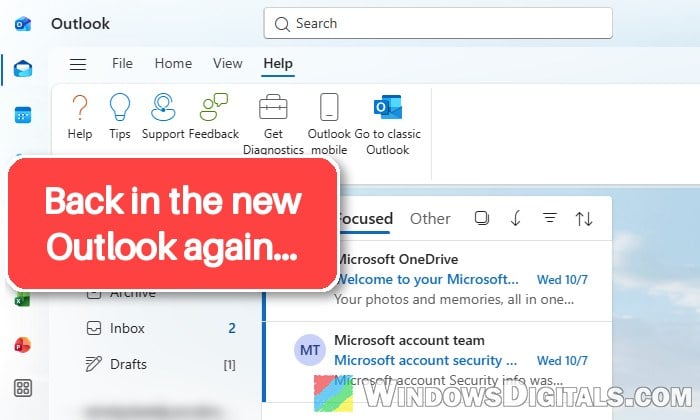
- Open the new Outlook, go to the “Help” tab and select “Go to classic Outlook“. If you see a “New Outlook” toggle in the top-right corner instead, turn it off.
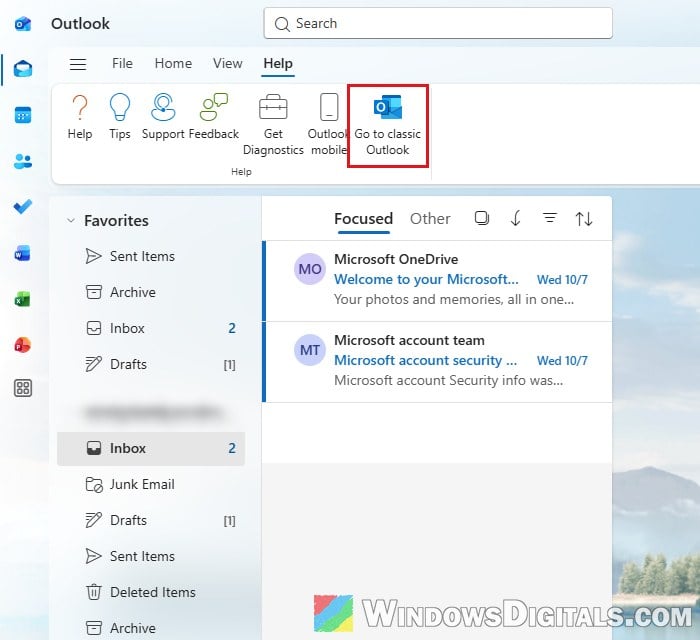
- A “Feedback to Microsoft” window asks what made you switch back. You can answer it and click “Submit“, or just click “Skip Feedback” (not “Stay in new Outlook“).
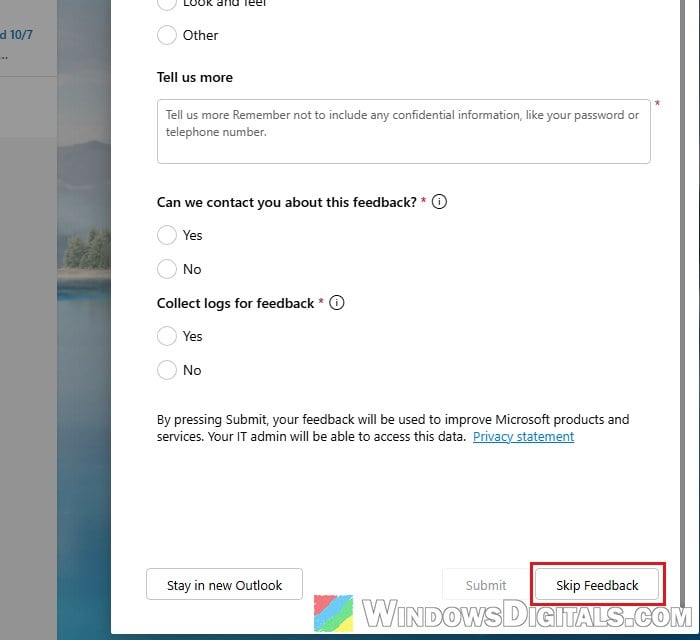
Classic Outlook then opens, and the new Outlook is minimized to the taskbar. Close both, restart your PC and see if Outlook stays on classic.
Might be useful: New Outlook Won’t Open Attachments in Windows 11
Turn off “Automatically switch me to the new Outlook app”
If Microsoft switches your account automatically, classic Outlook has an option that keeps doing it. Here’s how to turn it off:
- Open classic Outlook and go to File > Options.
- Select “General” and scroll down to “New Outlook options“.
- Uncheck “Automatically switch me to the new Outlook app” (called “Automatically switch me to new Outlook” in some versions) and click “OK“.
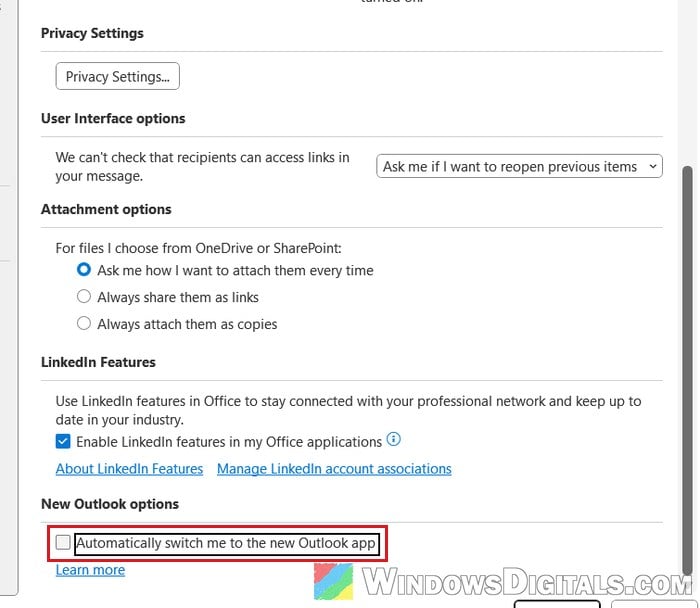
- Close Outlook completely and open it again.
If this option isn’t there, Microsoft doesn’t switch your account by itself, so read on.
Pin “Outlook (classic)” to the taskbar
A lot of people on Reddit and Microsoft’s forums say pinning classic Outlook is what finally kept them on it. Once the new Outlook is installed, the “Outlook” icon you’ve always clicked may start the new app, while classic Outlook gets its own entry, “Outlook (classic)“.
- Right-click the current Outlook icon on your taskbar and select “Unpin from taskbar“.
- Click Start and search for “Outlook (classic)“.
- Right-click “Outlook (classic)” in the results and select “Pin to taskbar“.
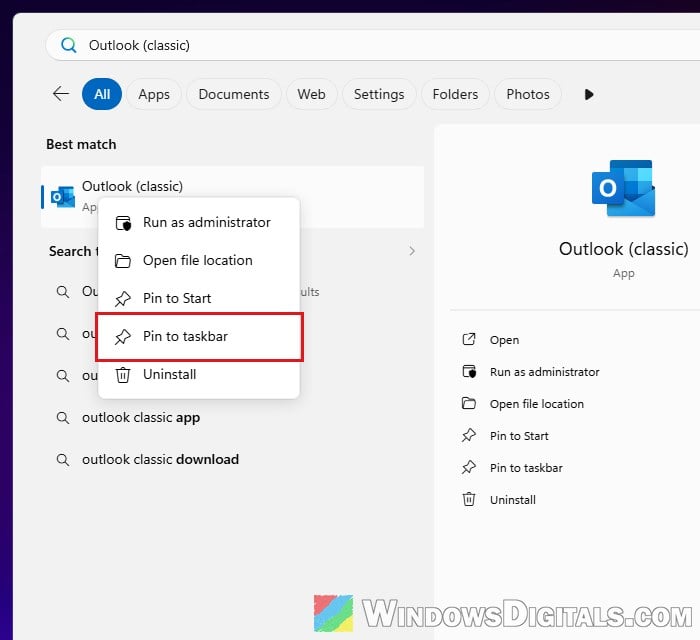
- From now on, open Outlook only from this new icon.
Tip: For a desktop shortcut, classic Outlook’s program file is usually C:\Program Files\Microsoft Office\root\Office16\OUTLOOK.EXE (or the same path under Program Files (x86)).
Make email links open classic Outlook
If the new Outlook only pops up when you click an email address on a web page or in a PDF, it’s set as the default app for email links. Change it back in Settings:
- Press Win + I to open Settings, then go to Apps > Default apps.
- In the search box at the top, type “mailto“.
- Click the result that shows up (the app that currently opens email links), choose “Outlook (classic)” from the list and click “Set default“.
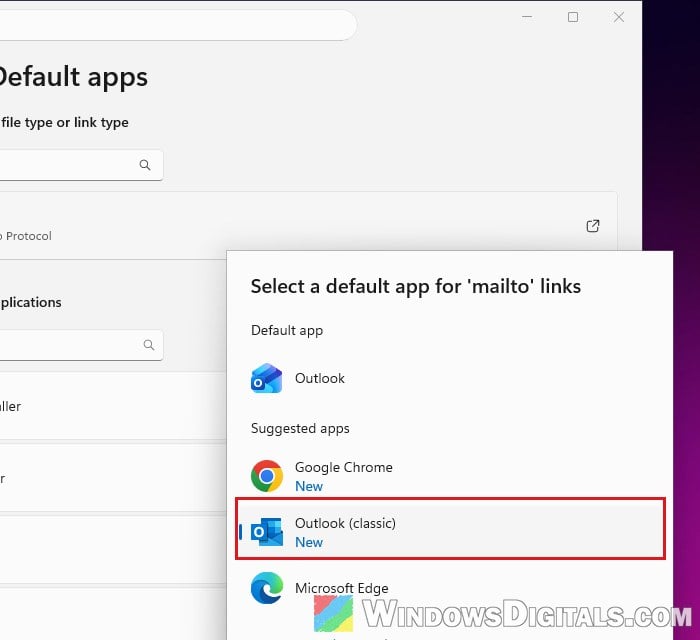
Click an email link again and it should now open a new message in classic Outlook.
Related guide: How to Set Default Email Client (mailto) in Chrome
Set “UseNewOutlook” to 0 in the registry
Classic Outlook keeps a registry value called UseNewOutlook that decides whether it hands you over to the new Outlook when it starts. When it’s set to 1, launching classic Outlook takes you to the new one. Setting it to 0 turns that off.
Incorrectly changing the registry can cause serious problems in Windows. Please at least create a system restore point first, and if you’re not comfortable with this, skip it and use the fixes above instead.
- Close Outlook. Press Win + R, type “regedit” and press Enter to open Registry Editor.
- Copy and paste the following path to the address bar and press Enter (if it isn’t found, use the command below the steps instead):
HKEY_CURRENT_USER\Software\Microsoft\Office\16.0\Outlook\Preferences
- Double-click “UseNewOutlook” and change its “Value data” to 0. If the value isn’t there, right-click an empty area, select New > DWORD (32-bit) Value, name it UseNewOutlook and leave it at 0.
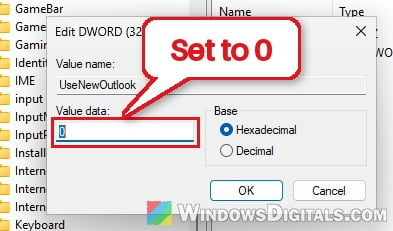
- Click “OK“, close Registry Editor and open classic Outlook.
You can also do the same with a single command in Command Prompt, which creates the key if it’s missing:
reg add "HKCU\Software\Microsoft\Office\16.0\Outlook\Preferences" /v UseNewOutlook /t REG_DWORD /d 0 /f
Restart your PC and open classic Outlook to see if it stays put this time.
What if it’s a work or school PC?
On a PC managed by your company or school, the switching is often set by IT through Microsoft’s “Admin-Controlled Migration to New Outlook” policy, which can switch you again after a set number of days, or on every launch. A policy set by your organization overrides anything you change yourself, so the registry fix above may not stick. In that case, ask your IT team. According to Microsoft, they can turn that migration off by setting the DoNewOutlookAutoMigration policy to 0.
Install classic Outlook if it’s missing
If you can’t find “Outlook (classic)” anywhere, or clicking it shows “We couldn’t verify and install this because it is not available in the Microsoft Store. To install, download it from the publisher’s website“, classic Outlook isn’t installed. Microsoft offers it as a separate download:
- Go to Microsoft’s “Install or reinstall classic Outlook on a Windows PC” page.
- Find your language in the list and click the “Download” link next to it, then follow the prompts to install it.
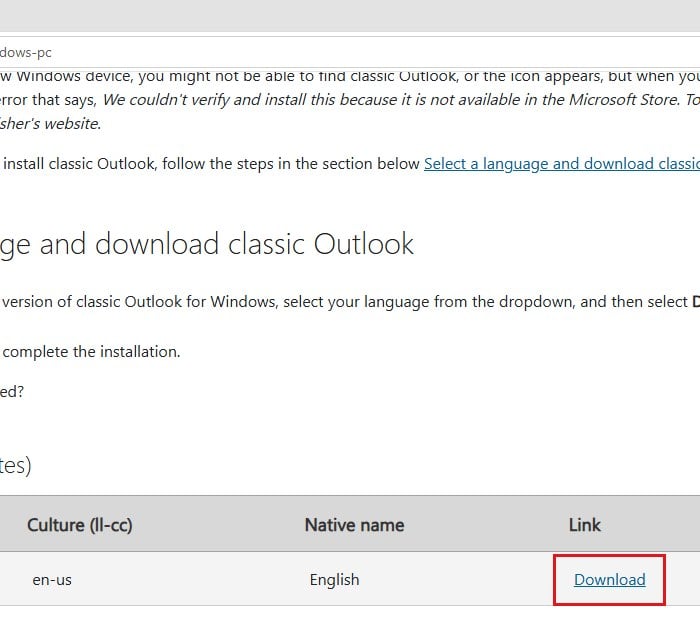
Please note that classic Outlook needs an Office or Microsoft 365 plan that includes it. If you’re on Microsoft 365 Basic, for example, it won’t be available. Once it’s installed, pin it to the taskbar as shown earlier.
Remove the new Outlook app (optional)
If you never want to see the new Outlook again, you can uninstall it like any other app.
- Go to Settings > Apps > Installed apps.
- Search for “Outlook“, click the three dots next to the new Outlook (listed simply as “Outlook“, by Microsoft Corporation) and select “Uninstall“. Don’t pick the other Outlook entry, such as “Microsoft Outlook 2016“, since that’s classic Outlook.
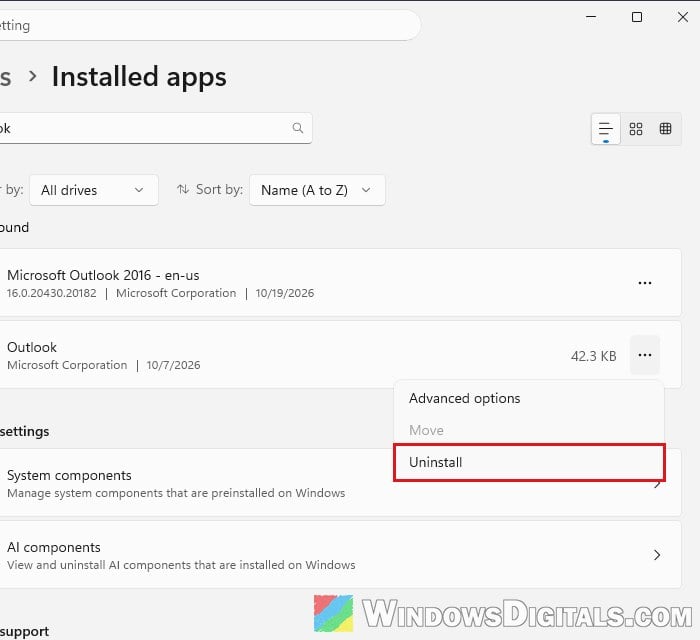
Or, to remove it for every account on the PC and keep Windows updates from installing it again, run these commands from Microsoft in PowerShell (as administrator) instead of uninstalling it in Settings. The first one keeps it from coming back, and the second one removes it:
Remove-AppxProvisionedPackage -AllUsers -Online -PackageName (Get-AppxPackage Microsoft.OutlookForWindows).PackageFullName
Remove-AppxPackage -AllUsers -Package (Get-AppxPackage Microsoft.OutlookForWindows).PackageFullName
Keep in mind that using the “Try the new Outlook” toggle in classic Outlook later can install the new app again. Microsoft has also said that businesses will see the new Outlook become the default from March 2027, but classic Outlook will still be supported until at least 2029, so you’re not being forced off it just yet.