If the keyboard on your Surface Laptop or Surface Pro suddenly stopped typing letters in any app or text box, or stopped working altogether while things like the power button or the Fn key still respond, it can be a setting, a driver, an update or the keyboard itself. This guide will show you how to tell which one it is and what you can do to get it typing again on Windows 11 or 10.
Also see: Keyboard or Mouse Not Working After Windows 11/10 Update
Page Contents
Why did my Surface keyboard stop typing?
This is a pretty common issue you’ll find on the Surface subreddit and Microsoft Q&A, on anything from an older Surface Laptop 3 to the newer Surface Pro 11 and Surface Laptop 7. Some of the usual reasons are:
- Filter keys or Sticky keys got turned on by accident, which changes how Windows reads your key presses.
- The keyboard stopped right after a Windows or Surface update (a common report on Microsoft Q&A).
- On a Surface Pro, the keyboard isn’t connecting properly to the tablet, because of dirt or damage on the connector.
- Dust or debris under a few keys, or a real hardware fault in the keyboard.
Microsoft gives a simple way to tell software and hardware apart: if the keyboard works in the Surface UEFI (the firmware settings screen) but not in Windows, it’s software. We’ll get to that test below.
In the meantime, you can still type with the on-screen keyboard (Win + Ctrl + O) or plug in any USB or Bluetooth keyboard. If an external keyboard works fine, the Surface’s own keyboard is the likely problem. If the same keys fail there too, it’s more likely Windows or a driver.
Force restart your Surface
This sounds a little too simple, but a force restart is one of the first things Microsoft asks you to do for a Surface keyboard problem, and it’s quick. This method is for the Surface Laptop, Surface Pro 5 and later, Surface Book 2 and 3, Surface Go and Surface Studio.
- Select Start > Power > Shut down and wait for the Surface to turn off.
- Press and hold the power button for 20 seconds. If the Surface logo shows up, keep holding until you see it again, then let go.
Once Windows loads, try typing in Notepad or a browser’s address bar.
On a Surface Pro, reattach the keyboard
If you’re using a Surface Pro keyboard or Type Cover, it connects to the tablet through the magnetic connector at the bottom. Some Surface Pro 11 owners on Reddit found their keyboard dead after every start until they pulled it off and clicked it back on, so the connection is worth checking.
- Unplug the Surface from the charger.
- Detach the keyboard and check the connector for dirt, crumbs or damage.
- Reattach it so that the magnets touch the bottom edge of the Surface.
- Press Caps Lock and Fn a few times and see if their lights turn on and off.
If the lights respond but the keys still don’t type, keep going with the fixes below. If the lights don’t respond at all, it points to a hardware problem with the keyboard.
Turn off Filter keys and Sticky keys
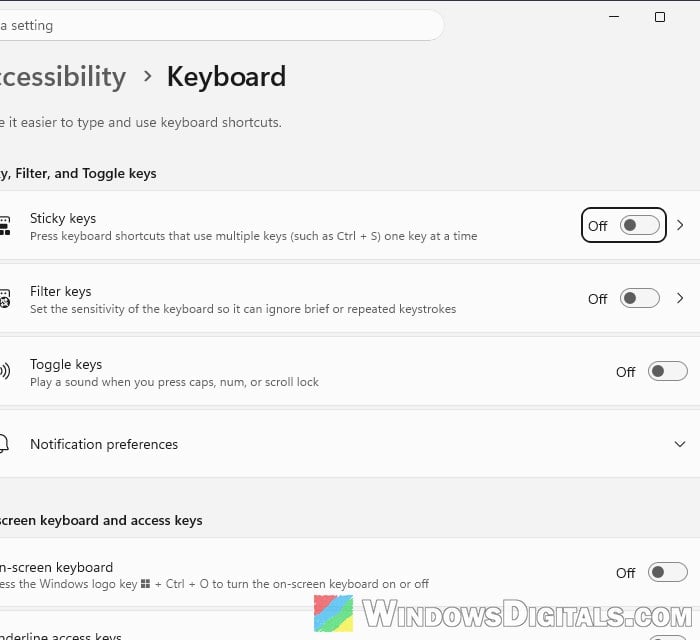
Filter keys tells Windows to ignore brief or repeated key presses. When it’s turned on by accident, it can look like the keyboard simply stopped typing. In one Microsoft Q&A thread about a Surface keyboard that stopped working after an update, the most helpful answer was to turn Filter keys off.
Here’s how to check it with your mouse or touchpad:
- Right-click the Start button and select Settings.
- Go to Accessibility > Keyboard (on Windows 10, Ease of Access > Keyboard).
- Turn off Filter keys and Sticky keys.
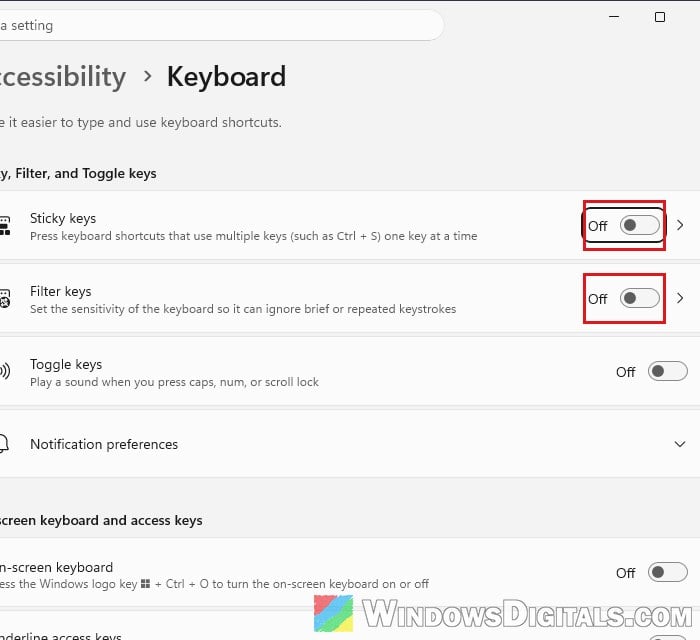
Then try typing again. On the same page, you’ll also find the On-screen keyboard toggle, which is handy while you’re fixing this.
Related problem: Windows 11 Keyboard Shortcuts Not Working (Fix)
Only a few keys not working? Clean them
If it’s just a few keys that don’t respond, dust or crumbs under them are a likely reason. Blow compressed air between the keys and try again. In one Microsoft Q&A thread, a Surface Laptop owner found that a bit of debris under the keys was the whole problem.
Several keys stop working at once on a Surface Laptop 7?
On the Surface Laptop 7, a few owners on Reddit reported a handful of keys going dead together, often after waking it up or reopening the lid. The original poster found that pressing Win + Ctrl + Shift + B brought the keys back, and another user confirmed it worked for them. Microsoft lists this shortcut as a way to wake the device when the screen is blank or black.
It’s only a quick workaround, though, since another person said it doesn’t always work, and a business user said Microsoft asked them to send in the affected laptops.
Install the latest Surface updates
Surface keyboards rely on Surface-specific drivers and firmware, and Microsoft sends them through Windows Update. If an update broke the keyboard, a newer one may fix it. Before you start, keep the keyboard attached, plug in the charger and make sure the battery is at least 40%.
- Open the Surface app.
- Expand Help & support and select Check for updates.
- You can also open Windows Update in Settings and check for updates there.
- Install everything that’s available and restart.
- Open the taskbar search box and type “View optional updates” (use the on-screen keyboard if you need to), then open it.
- Install any driver updates labeled “Surface” that show up there, and restart.
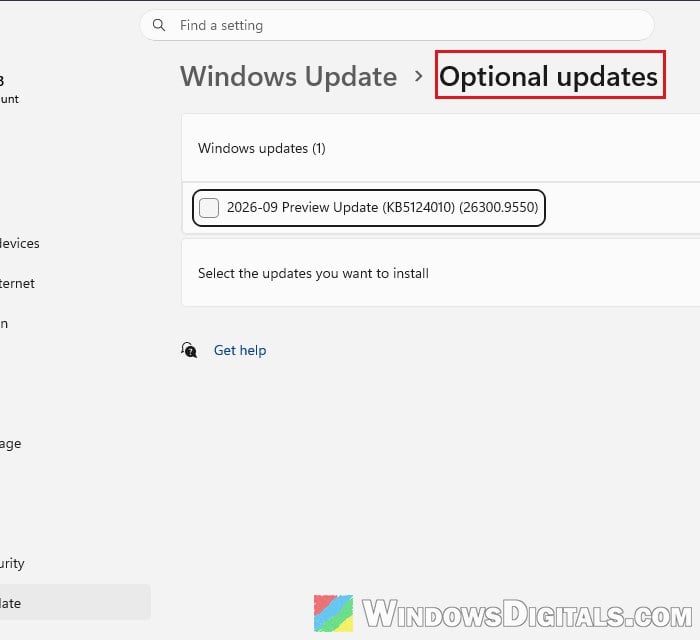
After the restart, try typing in Notepad again.
Reinstall the keyboard driver
If the keyboard stopped after a driver update, removing the driver lets Windows install it again from scratch on the next restart. A Microsoft support agent suggests this for Surface keyboards, though one user said it didn’t change anything for them.
- Right-click the Start button and select Device Manager.
- Expand Keyboards.
- Right-click your keyboard and select Uninstall device, then confirm.
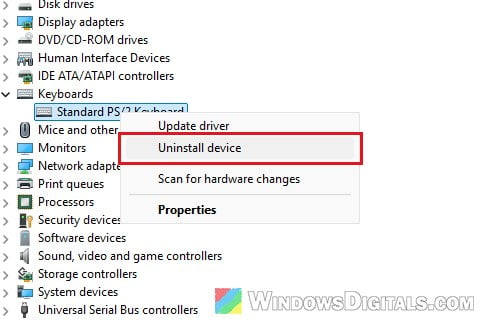
- Restart your Surface. Windows reinstalls the keyboard driver by itself, so try typing once it’s back.
Test the keyboard in Surface UEFI
On a Surface Pro, the Surface UEFI works without Windows, so if the keys respond there, the keyboard itself is fine and the problem is somewhere in Windows. On a Surface Laptop, use the external keyboard test from the start of this guide instead. Here’s how to test it on a Surface Pro:
- Turn off your Surface and wait about 10 seconds.
- Press and hold the volume-up button, then press and release the power button.
- Keep holding volume-up until the Surface UEFI screen appears.
- Press the Up and Down arrow keys and see if the selection moves.
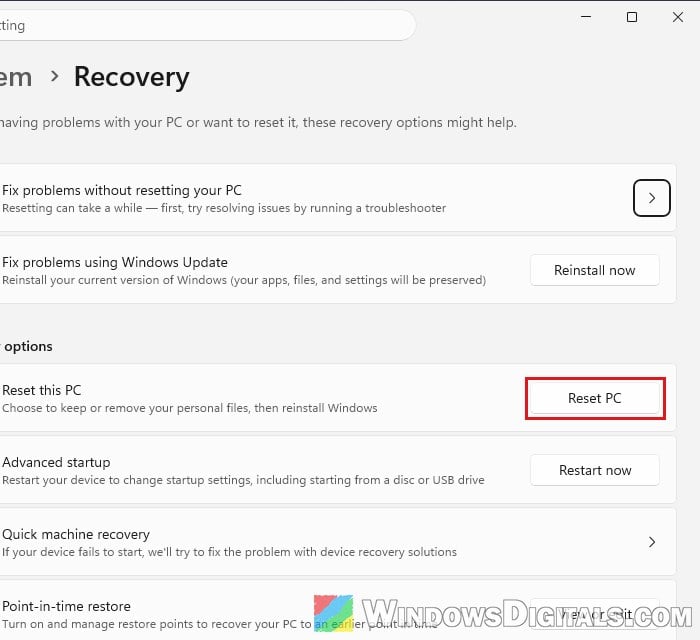
If the keys work in UEFI, Microsoft’s fix is to reset Windows while keeping your files. Back up anything important first, and if you’re not sure about this step, get someone to help you instead. Go to Settings > System > Recovery, click Reset PC, choose Keep my files and then Cloud download.
Learn more: How to Reset Windows 11/10 to Factory Default
If the keys don’t work in UEFI either, it’s most likely a hardware fault with the keyboard. Submit a service request from the device repair page in your Microsoft account, especially if your Surface or keyboard is still under warranty. On Surface Pro keyboards, the serial number is printed on the keyboard’s spine.