If your PC gets stuck on the manufacturer’s logo, shows “Preparing Automatic Repair” and then crashes with the stop code DRIVER_PNP_WATCHDOG (0x1D5) before restarting and doing it all over again, it means a driver is hanging while Windows sets up your hardware. This guide will show you what usually causes it and what you can do to get your Windows 11 or 10 PC to boot again.
Also see: Preparing Automatic Repair Windows 10/11 Black Screen Loop
Page Contents
What does DRIVER_PNP_WATCHDOG mean?
According to Microsoft, this stop code means that a driver failed to finish a Plug and Play (PnP) operation within a set time. Plug and Play is what Windows uses to detect and start your hardware, like your drives, USB ports and other devices. When one driver doesn’t respond in time, a watchdog timer runs out and Windows stops with the blue screen.
From what people reported on Microsoft Q&A and Reddit, some common reasons are:
- A Windows update that was installed right before the problem started (several users say the loop began after an update).
- A driver that doesn’t work properly with your hardware, often a storage or chipset driver.
- A failing drive or another device that no longer responds the way it should.
Since Windows won’t load, most of the fixes below start from the recovery screen (WinRE).
Get to the recovery screen first
Windows opens its recovery environment by itself after two failed attempts to start. If it doesn’t, you can force it:
- Turn on the PC and wait for the Windows logo to appear.
- Press and hold the power button until the PC shuts down.
- Repeat this once more.
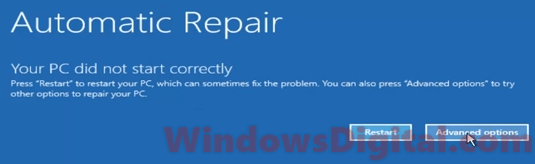
- On the third start, wait for the Automatic Repair screen, then select Advanced options.
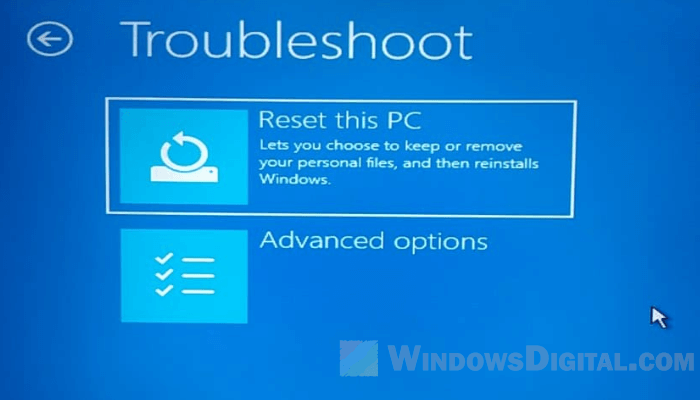
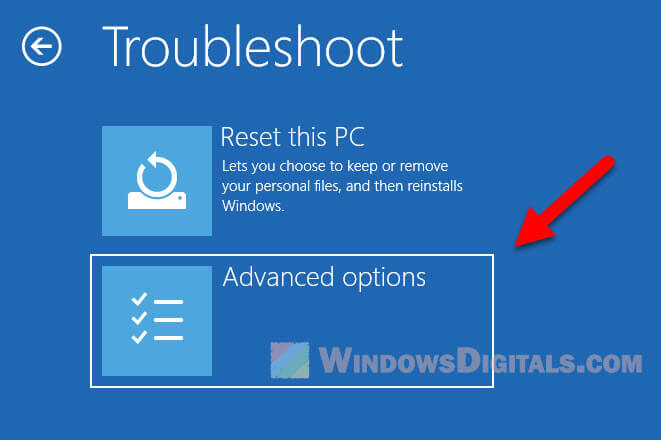
- Select Troubleshoot > Advanced options.
In some reports, even the Windows installation USB crashed with the same stop code. If that’s your case too, go straight to the hardware section, or the one on installing Windows further below.
Run Startup Repair
Startup Repair checks for common problems that keep Windows from loading and fixes what it can. To be honest, I haven’t seen anyone say this alone fixed this blue screen, but it only takes a few minutes, so it’s worth trying first.
- In Advanced options, select Startup Repair.
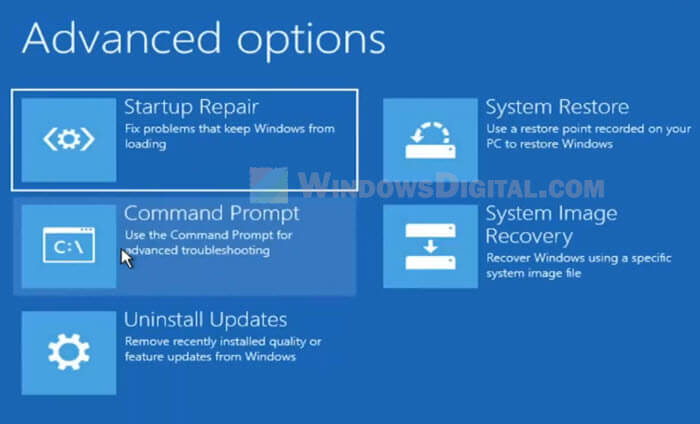
- Wait for it to finish, then let the PC restart.
If the blue screen comes back, try the next fix.
Uninstall the latest update
Several of the reports start the same way: an update installs, the PC restarts, and it never gets back to the desktop. Removing that update from the recovery screen can undo what it changed.
- In Advanced options, select Uninstall Updates.
- Choose the latest quality update or the latest feature update, whichever was installed just before the problem started, and follow the prompts.
This doesn’t always work, though. One user on Reddit couldn’t even uninstall the update, so if it fails, move on.
Boot into Safe Mode and check your drivers
Safe Mode starts Windows with only the basic drivers. If your PC boots fine there, the problem may be one of the drivers Safe Mode doesn’t load, which you can update or roll back.
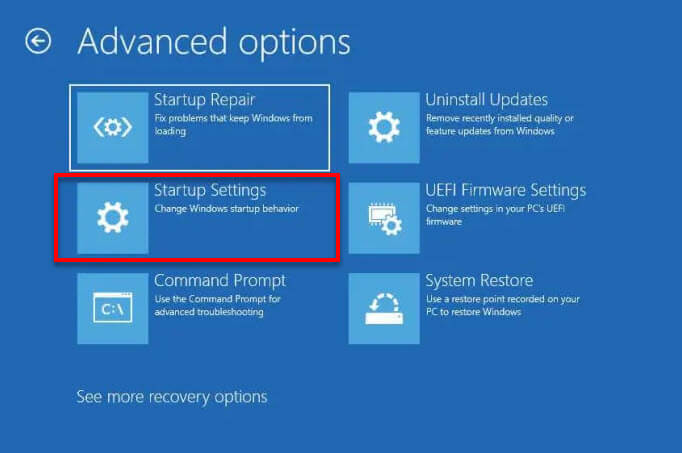
- In Advanced options, select Startup Settings, then click Restart.
- When the list appears, press 4 for Safe Mode, or 5 for Safe Mode with Networking if you need the internet to download drivers.
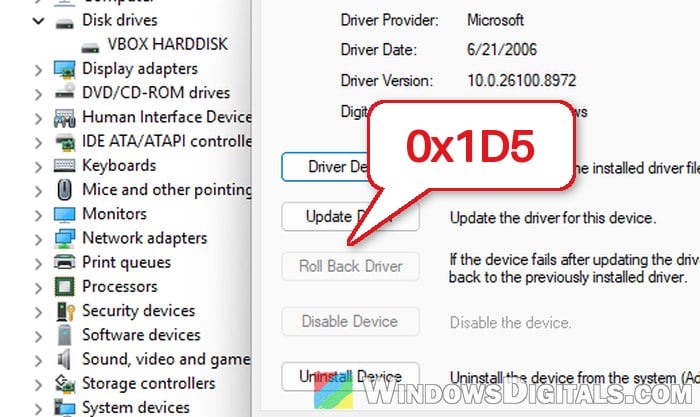
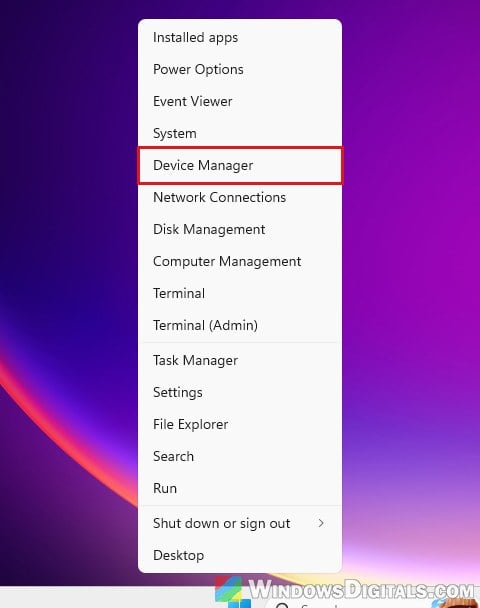
- Once you’re in Windows, right-click the Start button and select Device Manager.
- Look for any device with a yellow exclamation mark, for example under Storage controllers or Disk drives.
- Right-click the device and select Properties.
- Go to the Driver tab.
- Click Update Driver, or Roll Back Driver if it’s available and the problem started after a driver update.
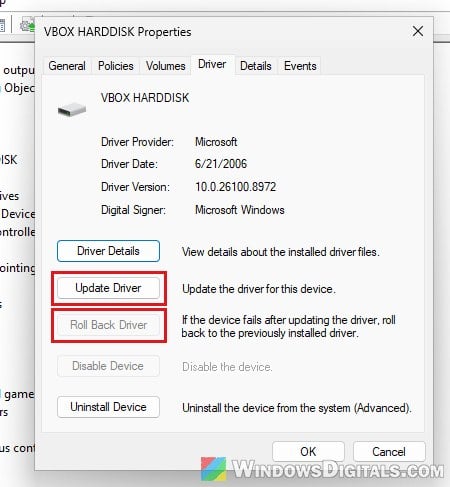
Then restart normally and see if Windows loads. If you don’t know which driver is to blame, copy the dump files from C:\Windows\Minidump to a USB drive and share them on Microsoft Q&A or a forum, where someone can tell you which driver they point to.
Pro tip: Windows 11 Dump File Location
Unplug extra hardware and check the drive
Since this stop code is about a device not responding, the problem can also be hardware. Two users on Reddit traced it to a failing hard drive. In one case a repair shop found the factory hard drive had died, and the other user narrowed it down by unplugging the drive’s SATA cables. Another person on Microsoft Q&A got their laptop to boot again just by unplugging a faulty touchpad cable.
Here’s what you can try:
- Shut down and unplug everything you don’t need (USB drives, hubs, docks, printers, controllers). Keep only the keyboard, mouse and monitor.
- If you added any new hardware before the error, remove it first.
- On a desktop, disconnect any extra drives and leave only the one with Windows on it. Then remove other non-essential parts (a Wi-Fi card, DVD drive or second graphics card) one at a time, and test after each.
- If the PC boots to the BIOS but the BIOS doesn’t list your drive, or the PC only gets past the error with the drive unplugged, the drive is likely failing.
If your PC or laptop is still under warranty, contact the manufacturer rather than opening it up yourself.
Linked issue: Stop Code Kernel_Data_Inpage_Error BSOD in Windows 11/10
Restore your PC to an earlier point
If you have a restore point from before the problem, System Restore in Advanced options can roll back the system files and settings to that point without touching your personal files. Pick one dated before the blue screens started.
Might be useful: How to System Restore Windows 11/10 to a Previous Date
Reset the BIOS to its defaults
Be warned: Changing the wrong BIOS setting can stop your PC from booting at all. If you’re not sure what you’re doing, it’s better to get someone to help you instead.
Some answers on Microsoft Q&A suggest loading the BIOS defaults, in case a wrong BIOS setting is keeping one of your devices from starting properly. Select UEFI Firmware Settings in Advanced options (or press the BIOS key during startup), look for the option that loads the default settings (the name differs by brand), then save and exit.
The same answers also suggest updating the BIOS. Only do this with the file from your PC or motherboard maker’s support page for your exact model, since a failed BIOS update can brick the motherboard. Don’t expect too much, though: one person cleared the CMOS on a freshly updated BIOS and still got the error.
Getting 0x1D5 while installing Windows?
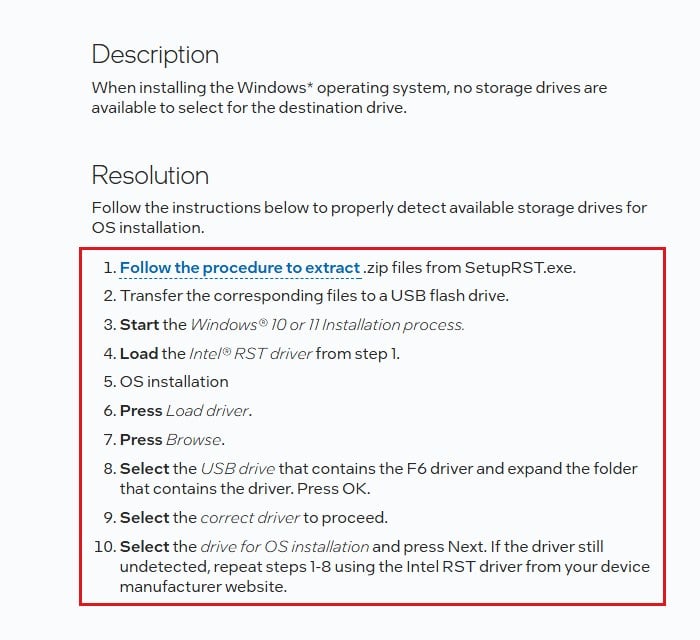
If the blue screen shows up during a clean install of Windows 11 or 10 on an 11th gen or newer Intel PC, the Intel RST/VMD storage controller may be involved. Intel’s support article for when no drives show up during setup (https://www.intel.com/content/www/us/en/support/articles/000092508/technologies.html) says to extract the Intel RST driver from SetupRST.exe to a USB stick, then use the Load driver option in Windows setup to load it.
Reset or reinstall Windows as a last resort
If nothing above works and the hardware checks out, go to Troubleshoot > Reset this PC and choose to keep your personal files. If even that fails, a clean install from a USB drive is the last option. Two users on Reddit ended up reinstalling, and in one case the hard drive had to be replaced first. Before wiping anything, copy your important files off the drive, for example from another PC.