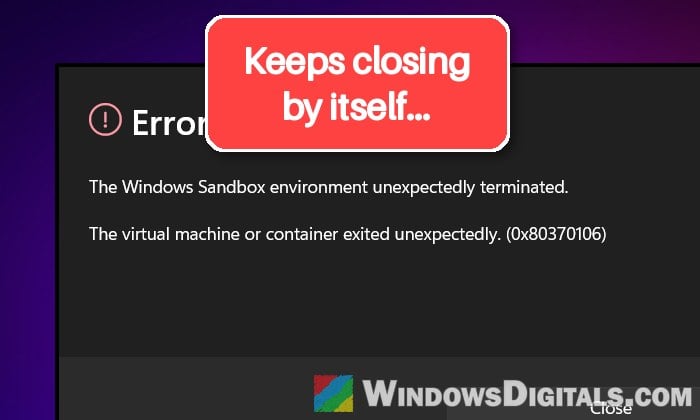
If Windows Sandbox starts up fine but then closes by itself after a few minutes with the message “The Windows Sandbox environment unexpectedly terminated. The virtual machine or container exited unexpectedly. (0x80370106)“, it’s most likely a bug that came with a recent Windows 11 update, and it often hits as soon as you open a browser or Task Manager inside the Sandbox. This guide will explain what’s causing it and what you can do until it’s fixed.
Also see: KB5124010 Update Crashing Games and Apps on Windows 11
Page Contents
Why does Windows Sandbox crash with error 0x80370106?
Error 0x80370106 simply means that the virtual machine behind Windows Sandbox stopped unexpectedly. Microsoft lists it as “The virtual machine or container exited unexpectedly”, so the code alone doesn’t tell you much. The more useful clue is when it started.
The crashes started with KB5124010, the optional preview update Microsoft released on September 22, 2026 (OS Build 26200.9550 for 25H2 and 26300.9550 for 26H2). Uninstalling it makes Sandbox stable again, and for one user, reinstalling it brought the crashes straight back. The bug also carried over into the October 13, 2026 security update (KB5127648), builds 26200.9711 and 26300.9711, so even if you never installed the preview update, you probably have the update with the bug now.
A few things are known about it so far:
- What sets it off: it usually happens when you browse the web in Microsoft Edge or Chrome inside the Sandbox, when you open Task Manager in it (that one usually crashes it within seconds), or while you install apps or play videos.
- What’s behind it: according to users who analyzed the crash dumps, it’s a bug in Windows’ graphics driver inside the Sandbox, so the Sandbox’s own copy of Windows crashes and takes the whole window with it.
- Not every PC gets it: two PCs on the same build can behave differently, one crashing and the other running normally.
As of this writing, Microsoft hasn’t listed it as a known issue on its Windows release health page, even though quite a few people have run into it.
Pro tip: How to Check if a KB Update is Installed in Windows 11
Install the next Windows update as soon as it’s out
The fix looks like it’s coming in the next update. Microsoft has been testing the next Windows 11 update, KB5127936 (builds 26200.9807 and 26300.9807), with Windows Insiders in the Release Preview channel, and users already on build 26300.9807 say Windows Sandbox no longer crashes. KB5127936 is the preview of the November 2026 update, so it should reach everyone as an optional update in the coming weeks. Microsoft hasn’t said when.
To get it as soon as it’s available, follow the steps below:
- Open Settings and go to Windows Update.
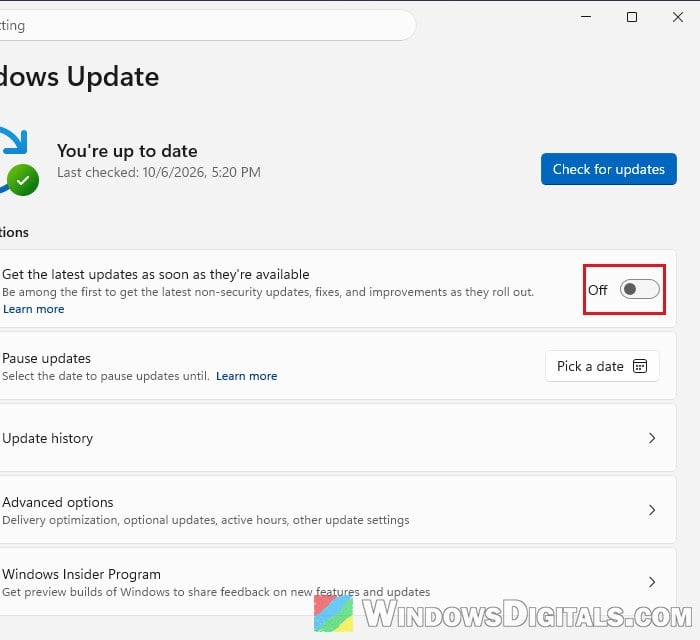
- Turn on “Get the latest updates as soon as they’re available“, so your PC gets the latest non-security updates and fixes as soon as they roll out.
- Click Check for updates and install what it finds.
- Optional updates don’t always show up on that page. Go to Advanced options > Optional updates and see if a newer preview update for Windows 11 is listed there.
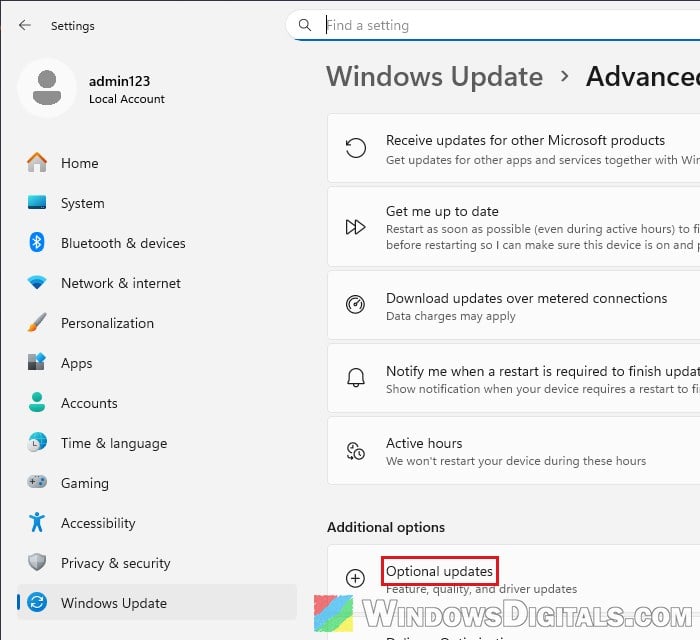
- Restart your PC when it asks you to.
Once your PC is on build 26200.9807 or 26300.9807 (or anything newer), start Windows Sandbox again and do what used to crash it, like opening Edge or Task Manager.
Related problem: Windows Update Error 0x80073712 “Some update files are missing or have problems”
Uninstall the latest update if you need Sandbox right now
If you can’t wait for the fix, removing the update that brought the bug is the only workaround that has worked so far. Here’s the catch, though: if your PC already has the October security update (KB5127648), that’s the one you’ll be removing, and it takes October’s security fixes with it. Only do this if you really need Sandbox for work and you’re okay with being a little behind on security for a few weeks.
Note: Removing a cumulative update only takes you back to the update you had before it. If that was KB5124010, the bug will still be there, so you’ll have to wait for the fix. Sometimes the update won’t even uninstall, so if it fails, move on to the other options below.
To uninstall the latest update, follow the steps below:
- Open Settings and go to Windows Update > Update history.
- Scroll down to Related settings and click Uninstall updates.
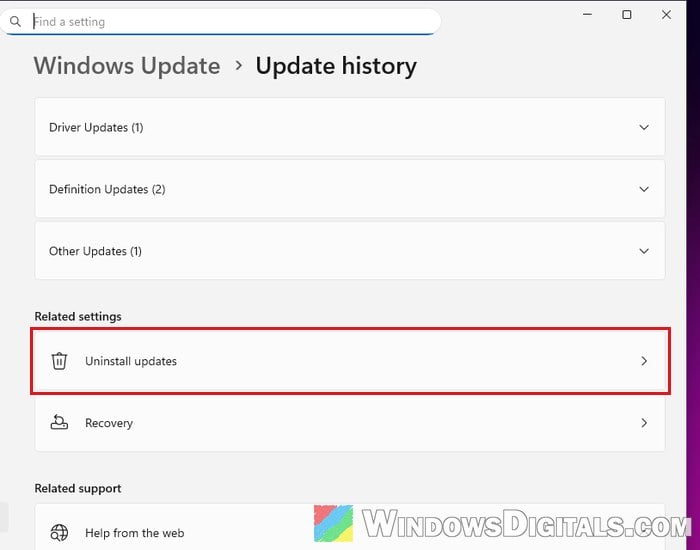
- Find the most recent update in the list (KB5127648 or KB5124010) and click Uninstall.
- Restart your PC when it’s done.
Windows Update will try to install the same update again, so stop it for now. Go back to Settings > Windows Update, turn off “Get the latest updates as soon as they’re available“, and next to Pause updates, click Pick a date and choose how long to hold off updates.
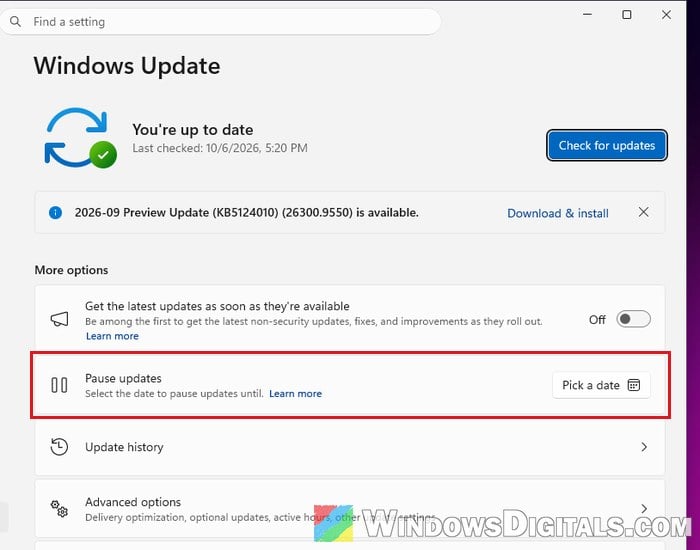
Pausing also delays security updates, so remember to resume them as soon as the fixed update is out.
Related guide: How to Roll Back Windows 11/10 Update to Previous Version
Get the fixed build early through the Release Preview channel
If you rely on Windows Sandbox every day and don’t want to remove a security update, the other option is to join the Windows Insider Program and pick the Release Preview channel. According to Microsoft, this channel gets fixes and features just before they’re released to everyone, and it’s where the fixed build is right now.
Here’s how to do it:
- Open Settings and go to Windows Update > Windows Insider Program (you need to be an administrator to see it).
- If it asks you to, select Open Diagnostics & feedback and turn on Send optional diagnostic data, then go back. Until you do, the Get started button stays grayed out.
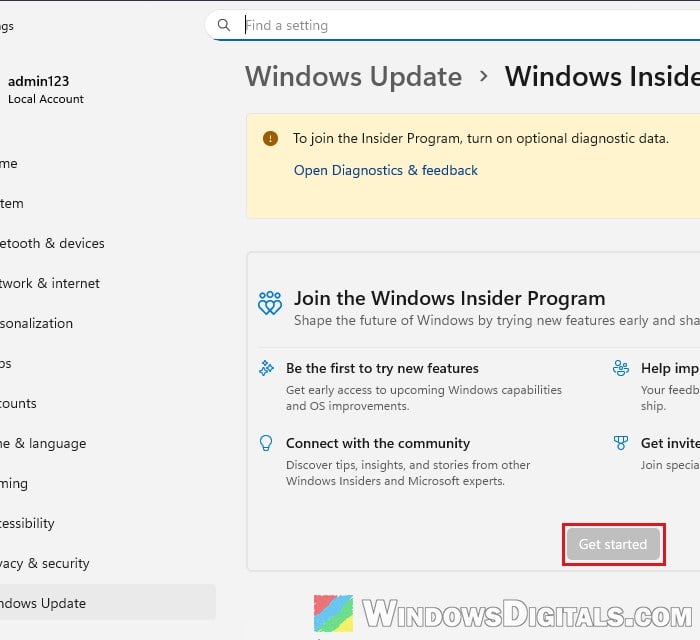
- Click Get started, link your Microsoft account and click Continue.
- Choose the Release Preview channel, accept the agreement and restart your PC.
- After the restart, go to Settings > Windows Update and click Check for updates.
Please note that Microsoft says moving from one Insider channel to another later might need a clean install of Windows, so stick to Release Preview and don’t pick the Beta or Dev channel for this.
Avoid what triggers the crash in the meantime
If you’d rather just wait for the fix, you can still use Sandbox for short tasks if you stay away from what crashes it most often. Don’t open Task Manager inside the Sandbox, and keep your time in Edge or Chrome there as short as possible. This won’t stop every crash, since installing apps can also set it off, but it can buy you enough time to open a file or check a download.
What doesn’t help (so you can skip it)
When Sandbox crashes like this, the usual advice is to repair Windows or turn off the Sandbox’s graphics features. On the affected builds, none of these stop the crashes:
- Turning off the Sandbox’s virtual GPU (vGPU), whether through Group Policy or the
AllowVGPUregistry value. - Turning off hardware acceleration in Edge inside the Sandbox (at best, it only puts off the crash for a few minutes).
- Running SFC and DISM, or turning the Windows Sandbox feature off and on again in “Turn Windows features on or off“.
That’s because the bug is in the update itself, not in a broken setting or file on your PC. Once the fixed update is out, resume updates if you paused them and install it.