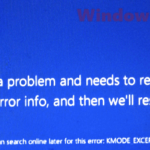
If your Windows 11 PC keeps crashing with the stop code “HYPERVISOR_ERROR” (bug check 0x00020001), often right after a cold boot, when a certain game or app starts, or when you start a virtual machine, it means the hypervisor, a layer that runs underneath Windows, has crashed. This guide will show you what usually causes it and how to stop the crashes.
Also see: Kmode_Exception_Not_Handled on Windows 11 or 10 (Fix)
Page Contents
What does HYPERVISOR_ERROR actually mean?
The hypervisor is the thin layer that Hyper-V uses to run virtual machines. The catch is that Windows 11 starts it even if you never turned on Hyper-V, because security features like Memory integrity (virtualization-based security) run on top of it. So when the hypervisor crashes, the whole PC goes down with it. On newer Windows 11 versions the crash screen is black instead of blue, but it shows the same HYPERVISOR_ERROR stop code.
From the many reports on places like Reddit and Microsoft’s forums, the crash usually comes down to one of these:
- A faulty Windows update. Microsoft confirmed that its May 26, 2026 preview update caused HYPERVISOR_ERROR crashes on some PCs, and fixed it in June.
- Processor power-management drivers, such as Intel’s power management driver (intelppm), or an outdated chipset driver.
- Virtualization features or apps, like Hyper-V, Memory integrity or VMware Workstation.
- An unstable CPU or RAM, because of an overclock, an undervolt or a memory profile (EXPO or XMP), or simply failing hardware.
Linked issue: Dump file creation failed due to error in Windows 11
Install the latest Windows updates first
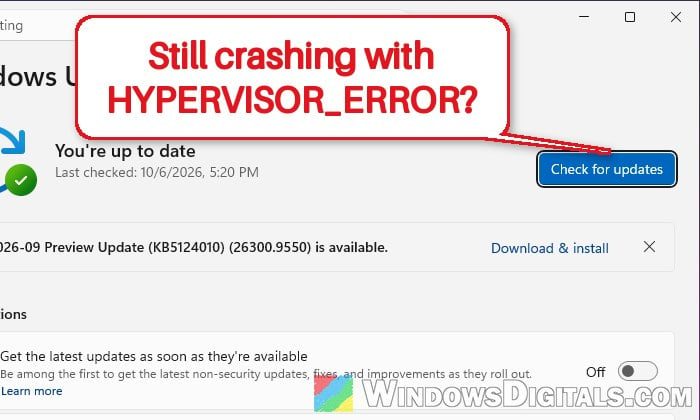
Microsoft’s June 9, 2026 update (KB5094126) fixed an issue where the May 26, 2026 update (KB5089573) could cause HYPERVISOR_ERROR and KMODE_EXCEPTION_NOT_HANDLED crashes during restarts, virtual machine use or while running some games. Every later cumulative update includes that fix. Here’s what you should do:
- Open Settings > Windows Update and click Check for updates.
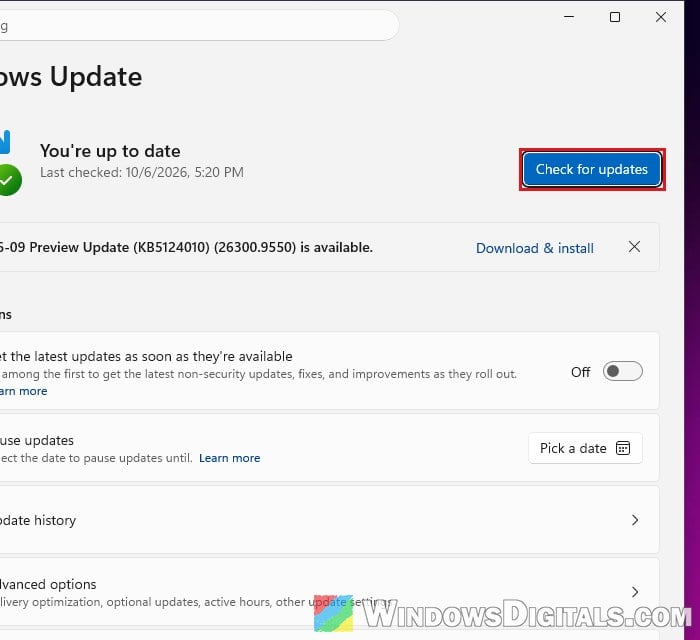
- Install everything it finds, including the cumulative update, and restart your PC.
- To see which build you’re on, press Win + R, type “winver” and press Enter.
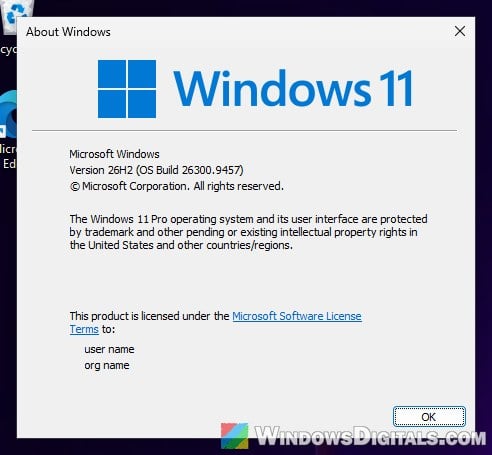
- If it shows OS Build 26100.8524 or 26200.8524 (the May 2026 preview), you’re still on the buggy update, so keep updating.
Use your PC for a day or two and see if the blue screen comes back. If the crashes started right after an update and there’s nothing newer to install yet, you can also roll back that update until Microsoft fixes it.
If you use VMware Workstation and the PC only crashes when you start a virtual machine, update VMware Workstation as well, since the May 2026 bug also hit virtual machine use.
Update your chipset and power-management drivers
Processor power-management drivers show up in some of these crashes (Intel’s intelppm driver, for example), so an outdated chipset or power-management driver is worth ruling out. Get the latest chipset driver from your PC or motherboard maker’s support page (on AMD desktops, the AMD chipset driver). On Intel laptops, also update the Intel power management or Dynamic Tuning driver from the laptop maker’s page.
Restart your PC after installing them, then use it normally to see if the crash still happens.
Turn off Memory integrity (as a test)
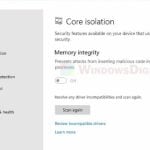
Memory integrity is one of the features that keeps the hypervisor running all the time. Turning it off for a while shows you whether it’s involved. To do so, follow the steps below:
- Open Windows Security and go to Device security > Core isolation details.
- Switch Memory integrity to Off.
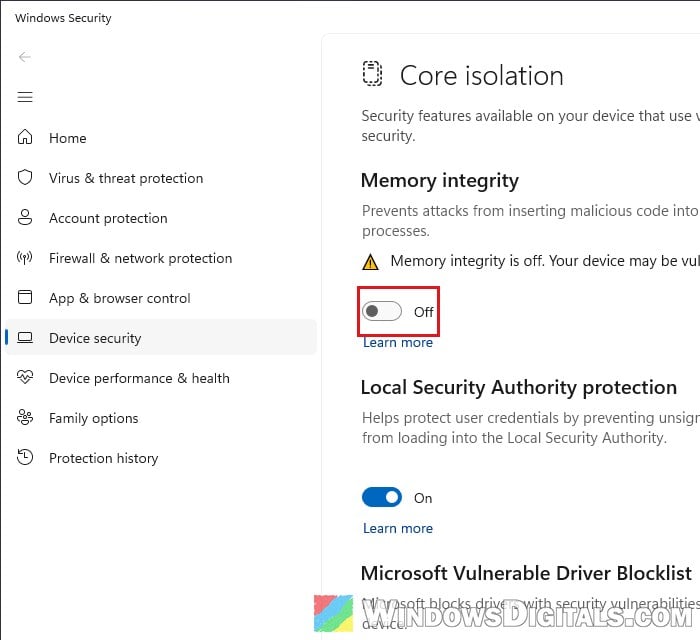
- Restart your PC.
Important: Memory integrity helps keep malicious code out of Windows’ core processes. If the crashes continue with it off, turn it back on.
Related concern: Memory Integrity Can’t Be Turned On (Windows 11)
Turn off the hypervisor if you don’t use virtual machines
If you don’t use Hyper-V, WSL 2, Windows Sandbox or any other virtual machine software, you can stop Windows from loading the hypervisor at all. In some cases this stopped the crashes, including ones that only happened on a cold boot, but it doesn’t work for everyone, so treat it as a test too. Keep in mind that those virtualization features, and Memory integrity, won’t work while it’s off.
Uncheck the virtualization features
If any of these features are on, here’s how to turn them off:
- Press Win + R, type “optionalfeatures” and press Enter to open Windows Features.
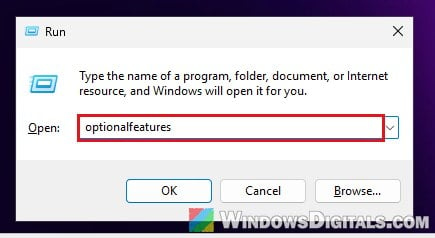
- Uncheck Hyper-V (only on Pro and Enterprise), Virtual Machine Platform and Windows Hypervisor Platform, whichever are checked.
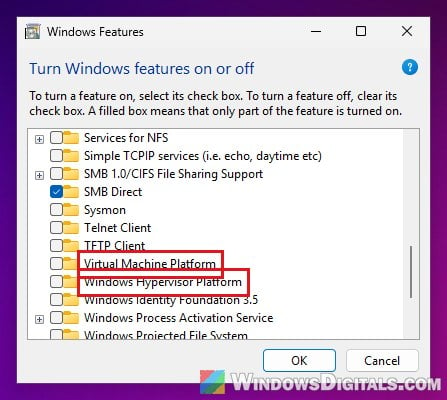
- Click OK and restart your PC when asked.
Turn off the hypervisor’s launch with a command
If it still crashes, turn off the hypervisor’s boot option itself. If your drive uses BitLocker, have your recovery key at hand before changing boot settings.
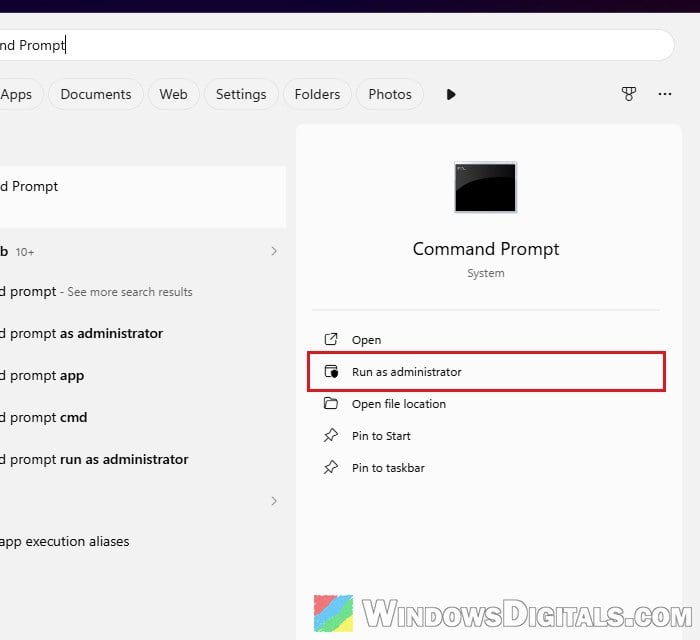
- Search for “Command Prompt” in the Start menu and click Run as administrator on the right.
- Run the following command:
bcdedit /set hypervisorlaunchtype off
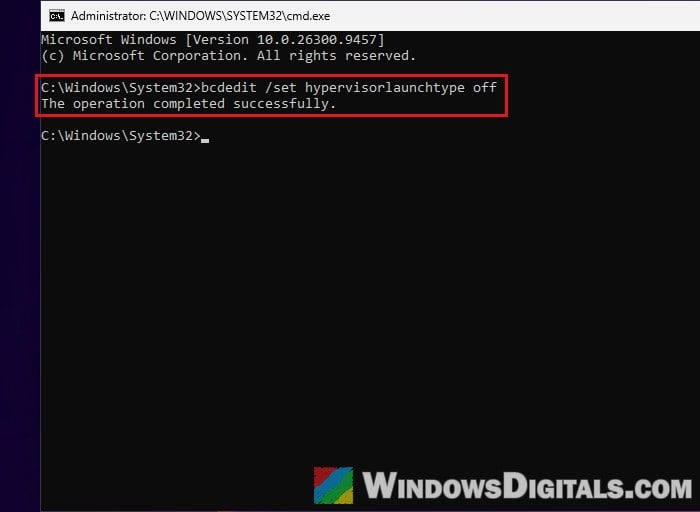
- Restart your PC for the change to take effect.
Use your PC normally for a few days and see if the blue screen comes back. To undo it later, run bcdedit /set hypervisorlaunchtype auto and restart.
Remove any overclock, undervolt or EXPO/XMP profile
The dump files of this crash can show a hardware error signal sent to the CPU, which usually comes from the CPU itself or other hardware. That’s why an unstable CPU or RAM is a main suspect, especially with random crashes. Here’s what you should check:
- Undo any CPU overclock or undervolt, including PBO and Curve Optimizer on Ryzen CPUs.
- Turn off EXPO or XMP in the BIOS so the RAM runs at its default speed, or simply load the BIOS defaults.
- Keep an eye on your CPU temperature to make sure it isn’t overheating.
It’s also a good idea to test your RAM. Search for “Windows Memory Diagnostic” in the Start menu, open it and choose “Restart now and check for problems (recommended)“. Your PC restarts right away, so save your work first.
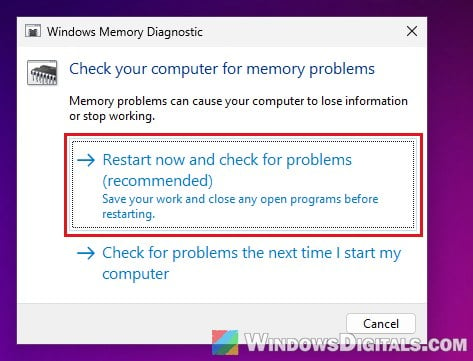
If the memory test shows errors, or you keep getting WHEA errors as well, the problem is most likely hardware. If your PC is still under warranty, contact the manufacturer.
Related problem: Windows 11/10 “Whea_Uncorrectable_Error” BSOD
Update the BIOS
Sometimes a BIOS update is the real fix. Dell, for example, traced HYPERVISOR_ERROR crashes on some of its AMD desktops to AMD processor power-management defects and fixed them with a BIOS update. Check if your PC or motherboard maker has a newer stable BIOS (not a beta) for your model, and install it using only the file and method from the maker’s support page.
Be warned: A BIOS update can be risky. If it’s interrupted, for example by a power cut, it can brick your motherboard. If you’re not sure what you’re doing, it’s better to get someone to help you instead.
Might be useful: Windows 11 Not Activated After BIOS Update
Repair Windows system files with SFC and DISM
Corrupted system files are a less likely cause, but there’s no harm in running these two tools. Open Command Prompt as administrator again and run these commands one by one, pressing Enter after each:
sfc /scannow
DISM /Online /Cleanup-Image /RestoreHealth
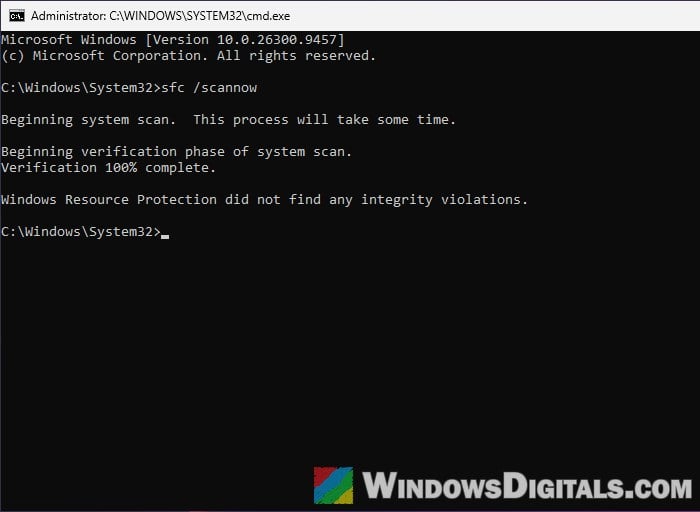
Restart your PC once both are done.
Find out what’s behind the crash from the dump file
If none of the above helped, the dump files Windows saves in C:\Windows\Minidump after each crash can show which driver was running when the hypervisor failed. You can open them with Microsoft’s WinDbg and run !analyze -v, but it’s easier to upload them to a forum’s BSOD help section and let someone there read them.
Learn more: Windows 11 Dump File Location