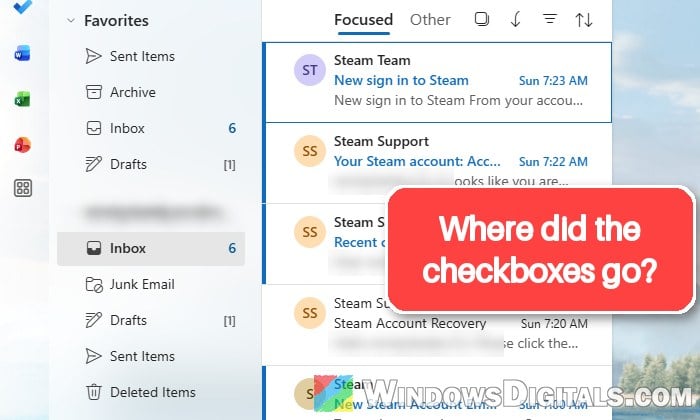
If the little checkboxes on the left of each email have disappeared in Outlook.com or the new Outlook for Windows, and you can no longer tick a bunch of messages to delete, move or report them at once, it’s not something you broke. Outlook changed how the message list works in October 2026, and this guide will show you how to bring the checkboxes back, plus other ways to select multiple emails.
Also see: Classic Outlook Keeps Switching Back to the New Outlook, What to do?
Page Contents
Why did the checkboxes disappear in Outlook?
Since mid-October 2026, people using Outlook.com, Outlook on the web and the new Outlook app have been suddenly finding their message list without checkboxes, without changing any setting themselves. It’s caused by an interface update: Outlook now has a new setting that decides what shows on the left of each message, with three choices: Sender images, Checkboxes and Name only.
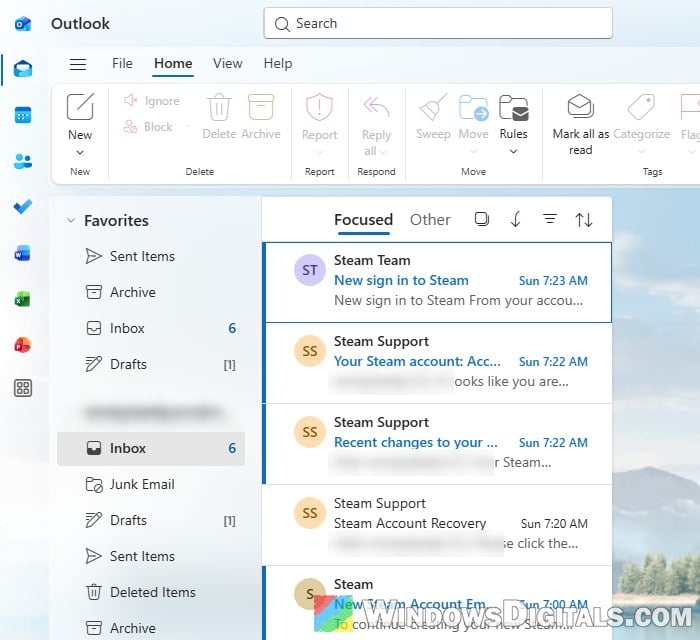
Depending on your account, here’s what you’ll see:
- If you had sender images turned off before, Outlook will most likely put you on Name only, which has no checkboxes at all.
- With Sender images, the checkbox is still there, but it only shows when you hover over a sender’s picture or initials.
- The setting is rolling out gradually, so it can show up on one of your accounts and not yet on another, even in the same browser.
It’s a pretty common complaint right now on Reddit and Microsoft’s forums, and switching it to Checkboxes is what fixed it for most people who already have the setting.
Turn on “Checkboxes” in the message list settings
This is the fix that brings the checkboxes back for good. It works the same in Outlook.com in your browser and in the new Outlook app on Windows 11 or 10, since both use the same settings. Here’s how to do it:
- Open Outlook.com or the new Outlook app.
- Click the Settings icon (the gear) at the top right.
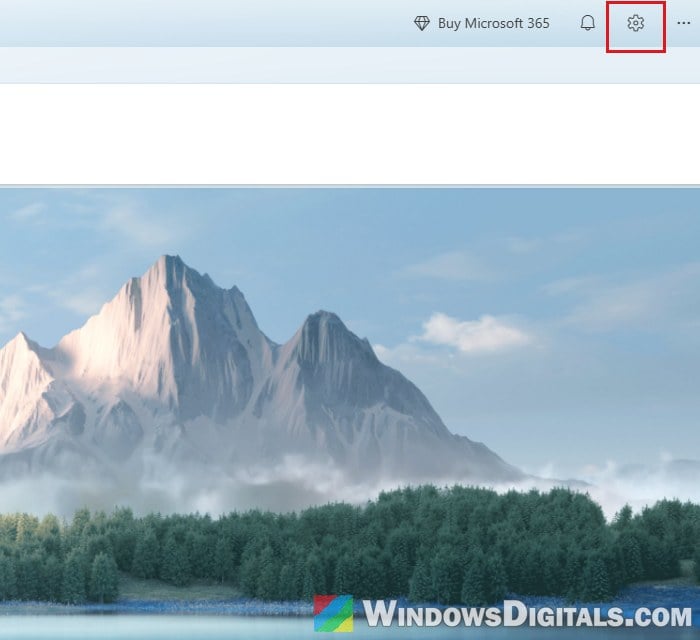
- In the new Outlook app, you can also open Settings from File > Settings or View > View settings.
- Go to Mail > Message List.
- Under Layout, find “How do you want messages to appear in the message list?“.
- Select Checkboxes (the middle option).
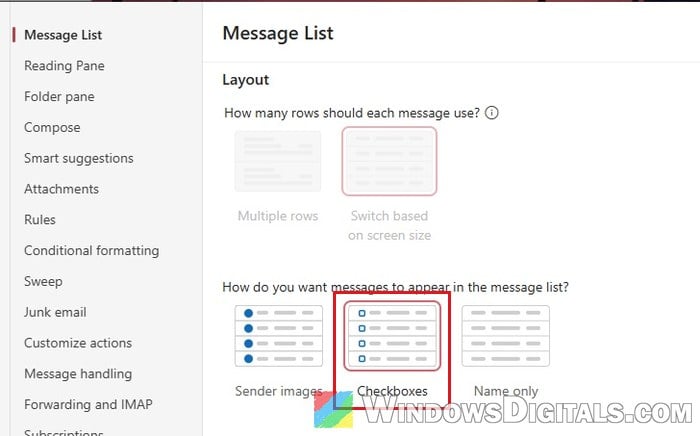
- If there’s a Save button at the bottom, click it, then close the settings window.
The checkboxes should now show next to every message, and a checkbox next to the folder name lets you select everything in the folder at once.
Can’t find the setting?
Because the change is still reaching accounts one by one, the three Layout choices may not be in your settings yet. On accounts that haven’t got it, the same Message List page still has the older “Show sender images” checkbox near the bottom instead, and the checkboxes are only hidden behind the sender pictures (see the hover tip below).
Either way, the methods below still let you select multiple emails.
Linked issue: New Outlook Won’t Open Attachments in Windows 11
Use the “Select” button above the message list
If you don’t want checkboxes showing all the time, there’s a small Select button (a square icon) above the message list, next to the folder name in Outlook.com or next to the Focused and Other tabs in the new Outlook app. Clicking it puts the list into a selection mode, and the checkboxes appear until you click it again. Here’s how to use it:
- Open the folder you want to clean up, for example your Inbox.
- Click the Select icon above the message list.
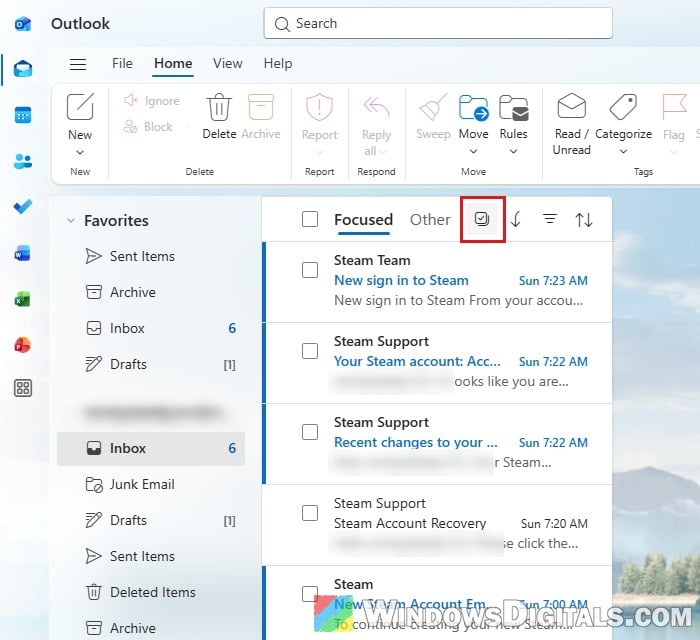
- Tick the messages you want.
- Use Delete, Move, Archive or another button in the toolbar on all of them at once.
Not everyone has this button, though. Some people found it missing on their account after the update, which is why the setting above is the more reliable fix.
Hover over the sender picture
If your layout is set to Sender images, the checkboxes aren’t gone, they’re just hidden behind the round pictures or initials of each sender. Move your mouse over a sender’s picture and it turns into a checkbox you can tick. Once one message is ticked, you can keep ticking others the same way.
This works fine for a handful of emails, but if you clean up your inbox often, switching the layout to Checkboxes saves you the hovering.
Select multiple emails with Ctrl or Shift
The good old keyboard way still works in every version of Outlook, including classic Outlook on Windows, which never got the new Checkboxes setting:
- Hold Ctrl and click each email you want to select.
- Click the first email, then hold Shift and click the last one to select everything in between.
- Hold Shift and press the Up or Down arrow key to extend the selection one message at a time.
- Press Ctrl + A in the message list to select all of the messages in it.
Might be useful: Deleting or Hiding Default Folders in Outlook
Just clearing out junk mail? Empty the whole folder
A lot of people noticed the missing checkboxes while trying to clear out their Junk Email folder. If you just want everything in there gone, you don’t need to select anything. Right-click Junk Email in the folder list and choose Empty. The option is greyed out when the folder is already empty.
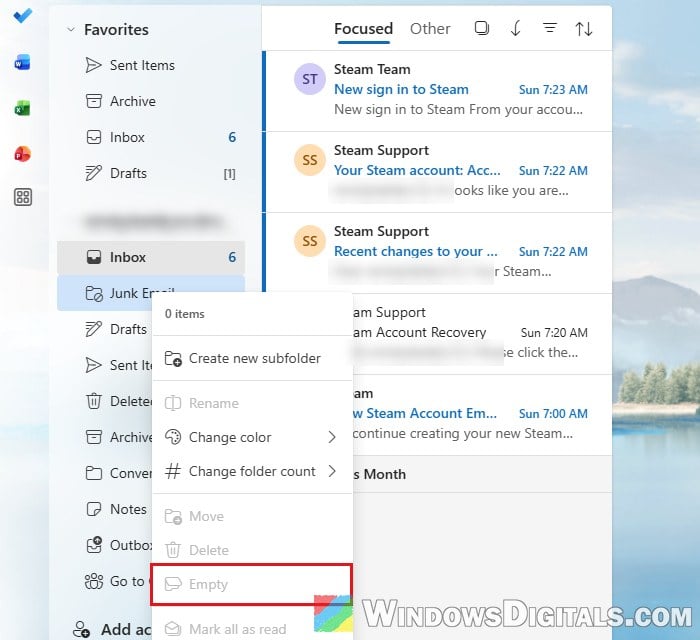
Just make sure nothing you need ended up in Junk first, because this deletes every message in the folder. And if you’d rather have the old Select behavior back, you can tell Microsoft through Help > Feedback in Outlook, since there’s no option to fully undo the change for now.