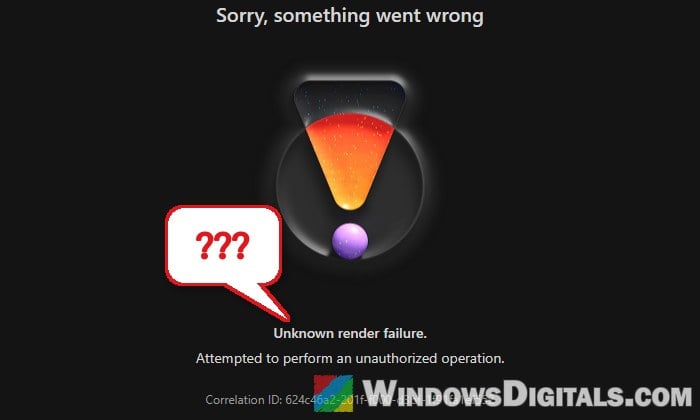
If you open OneDrive in your browser and get “Sorry, something went wrong” with “Unknown render failure. Attempted to perform an unauthorized operation” instead of your files, you’re not the only one, and your files are very likely still there. This guide will show you how to find out whether the problem is your browser or your account, and what you can do about each.
Also see: OneDrive Not Syncing or Uploading Files in Windows 11 (Sync Paused)
Page Contents
What does “Unknown render failure” in OneDrive mean?
The message only tells you that OneDrive’s website couldn’t load the page. It says nothing about what went wrong, and Microsoft hasn’t explained it either. Under the message you’ll usually see a Correlation ID and a time stamp, which only Microsoft can look up.
From the many reports on Microsoft’s forums, it shows up in two quite different ways:
- Only in one browser: the same account works in another browser, an InPrivate window or on another PC. Then it’s your browser’s saved cookies, cache or an extension, and you can fix it yourself.
- Everywhere: every browser, every device, sometimes the phone app too (“We can’t open the file” or “Couldn’t download file“). Then it’s a problem with your account on Microsoft’s side.
It happens with personal accounts (including paid Microsoft 365 Personal ones) and work or school accounts alike, and it has also shown up right after a Microsoft account password change.
Reload the page and give it a little time
Yes, this sounds a bit silly, but the error is sometimes temporary. Reload the page with F5 a few times, or close the tab and open https://onedrive.live.com again. Sometimes the page loads after a few tries, and the error has also gone away on its own after a few days.
Try an InPrivate window or another browser
This is the most useful test, because it tells you right away whether the problem is your browser or your account. An InPrivate (or Incognito) window starts without any of your saved cookies or site data. Another browser, like Chrome instead of Edge, also got some people back into their files.
In Microsoft Edge, here’s how to do it:
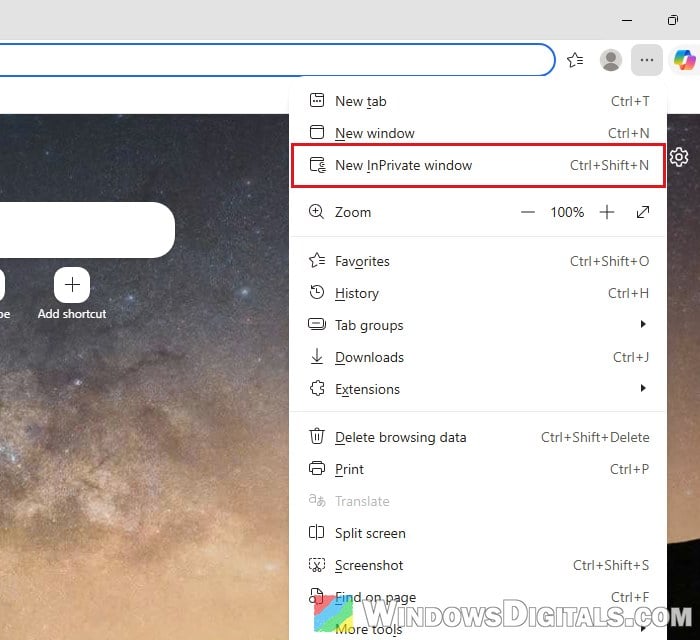
- Click the Settings and more (…) button in the top-right corner of Edge and select New InPrivate window. You can also press Ctrl + Shift + N.
- In the InPrivate window, go to
https://onedrive.live.comand sign in with your Microsoft account. - Open My files and try opening a file.
If OneDrive works there, the problem is your normal browser, and clearing its saved data for OneDrive (next section) is the thing to try. If it fails everywhere, skip ahead to the OneDrive app and support sections.
Clear OneDrive’s cookies and site data in your browser
When OneDrive only fails in your normal browser, the saved sign-in cookies or cached site data for OneDrive are the usual suspect. Deleting only these entries means you’ll have to sign in to OneDrive again, but your other websites stay signed in.
Here’s how to do it in Microsoft Edge:
- Click Settings and more (…) and select Settings.
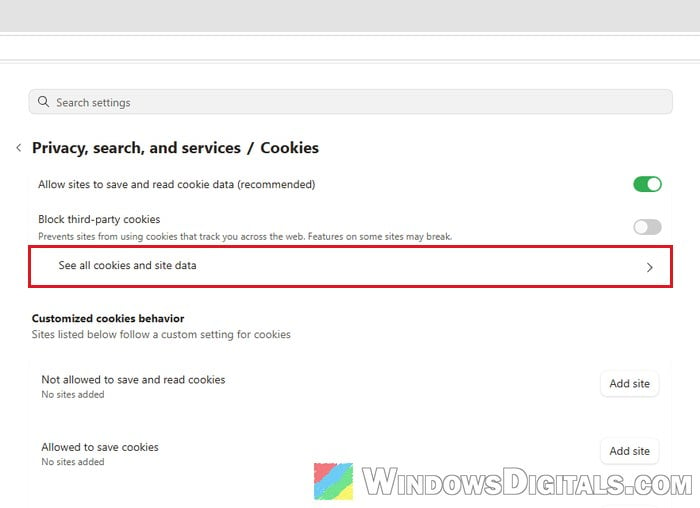
- Go to Privacy, search, and services, then Cookies, and click See all cookies and site data.
- Type “live.com” in the Search cookies box at the top right.
- Click the down arrow next to live.com to show its entries: live.com, login.live.com (Microsoft’s sign-in) and onedrive.live.com.
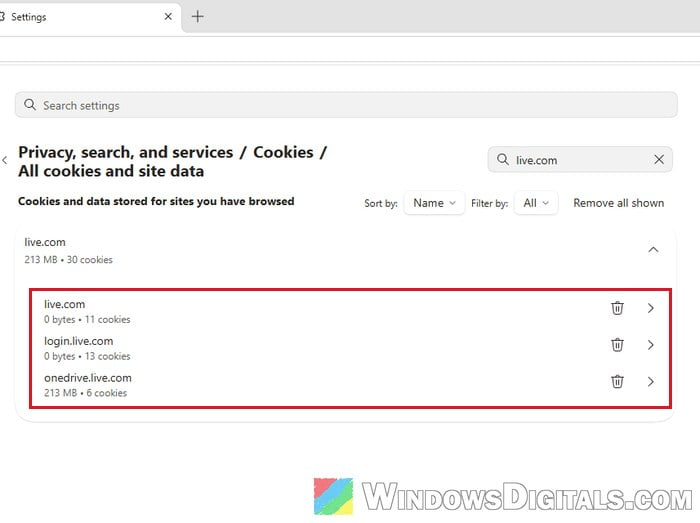
- Click the trash can (Delete) icon next to each of them, or click Remove all shown to delete them all at once.
- Close every Edge window, open Edge again and sign in at
https://onedrive.live.com.
While you’re at it, turn off your extensions for a test, especially ad blockers and privacy tools, since they can block parts of the page. Clearing the data doesn’t always last, though, and the error can come back after a few days.
Might be useful: How to Clear Cookies in Windows 11
Try another network or turn off your VPN
A VPN or a proxy can also get in the way of OneDrive’s website. If you use one, turn it off and reload OneDrive, or try a different connection for a minute, like your phone’s mobile hotspot.
Get to your files through the OneDrive app in the meantime
Even when the website is broken, your files usually aren’t gone. Often the OneDrive app on Windows or on the phone kept working while the website showed the error.
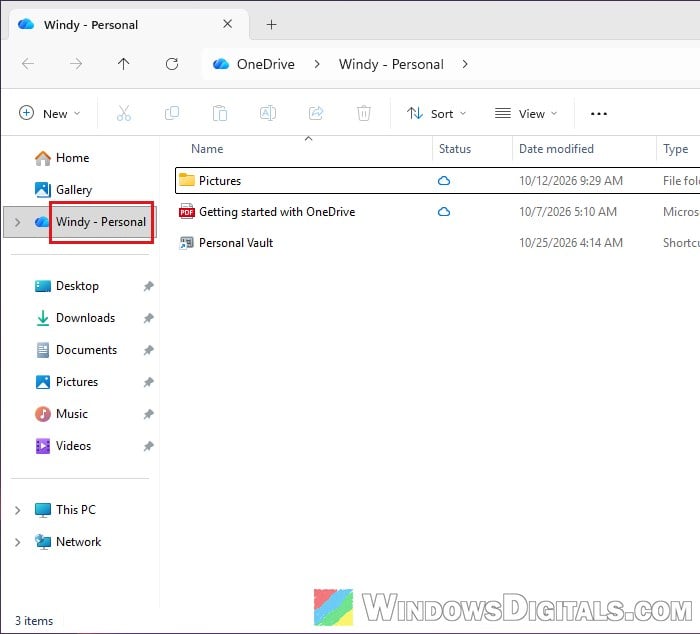
On Windows, open File Explorer and click your OneDrive in the left pane (the blue cloud icon, named after your account). Files already downloaded to your PC open from there as usual.
If you have the OneDrive app on your phone, try opening your files there too. Note that this isn’t a sure thing: when the problem is with your account, the phone app can fail at the same time.
Reset or reinstall the OneDrive app
Resetting the OneDrive app on your PC is worth a try, though it hasn’t fixed this error for everyone. According to Microsoft, a reset doesn’t delete any of your files, but OneDrive syncs everything again afterwards, so give it some time. Downloading the OneDrive app again has also cleared the error before.
To reset OneDrive, follow the steps below:
- Press Win + R to open the Run dialog box.
- Copy and paste the following command, then press Enter:
%localappdata%\Microsoft\OneDrive\onedrive.exe /reset
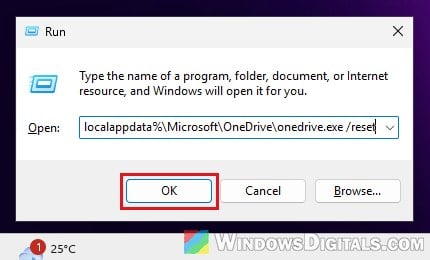
- If Windows says it cannot find the file, run this one instead:
C:\Program Files\Microsoft OneDrive\onedrive.exe /reset
If that fails too, try this one:
C:\Program Files (x86)\Microsoft OneDrive\onedrive.exe /reset
- Open the Start menu, search for “OneDrive” and open the app to start it again.
If the reset doesn’t help, uninstall OneDrive and install it again. Uninstalling doesn’t touch the files stored in your OneDrive account.
- Search for “Add or remove programs” in the Start menu and open it (it opens Installed apps).
- Type “OneDrive” in the search box.
- Click the three dots (…) next to Microsoft OneDrive and select Uninstall.
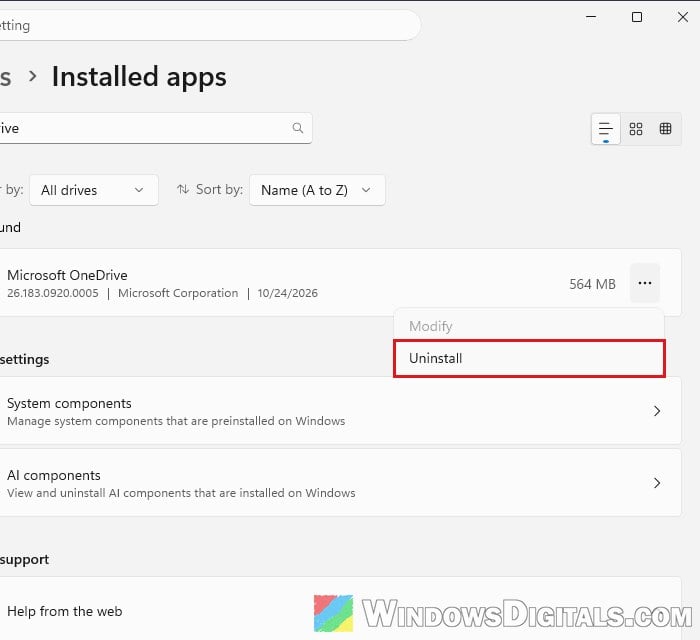
- Download the OneDrive app again from Microsoft’s OneDrive website, install it and sign in.
Related guide: How to Reset or Reinstall OneDrive in Windows 11
Contact Microsoft support with the correlation ID
If OneDrive fails in every browser, on every device and on another network, there’s nothing more you can fix on your end. The problem is with your account on Microsoft’s side, and only their support team can look into it.
Before you contact them, note down these, since support will ask for them:
- the Correlation ID shown on the error page (it’s different on every attempt, so note the ID and the time from the same error)
- the exact date, time and time zone of the error
- what you’ve already tried: other browsers, InPrivate, other devices and networks
To get to Microsoft’s support from OneDrive itself, follow the steps below:
- On
https://onedrive.live.com, click the Settings (gear) icon in the top-right corner. The error page still shows it. - Select Help.
- In the Help pane, scroll down to Other Resources and click Contact Support.
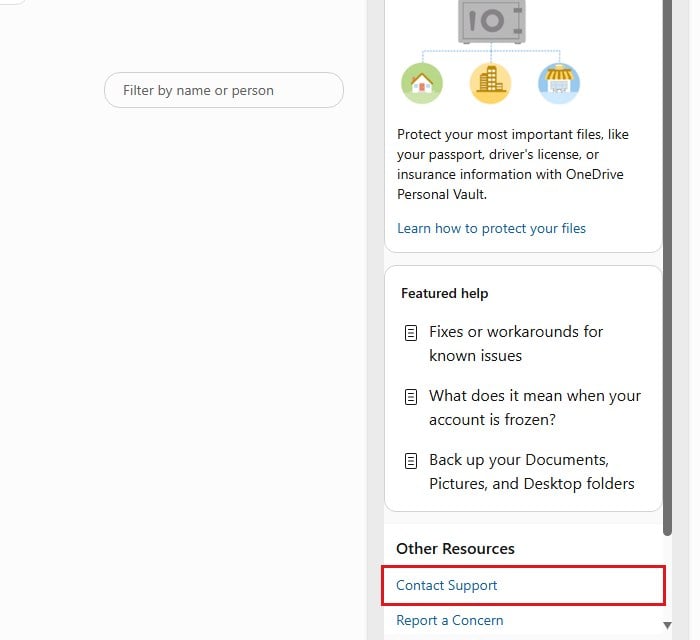
- On the Contact Microsoft Support page that opens, describe the problem in a few words, like “OneDrive unknown render failure“, and click Get Help.
When you reach someone, give them the details you noted down above.