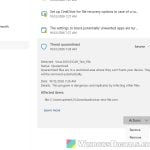
If Windows Security keeps warning you about “Trojan:PowerShell/Boxter” (with an ending like .HGS!MTB, .HNBD!MTB or .ABN!MTB) and the same threat shows up again seconds or minutes after Defender blocks or removes it, it means something on your PC keeps relaunching it. This guide will show you how to find what keeps bringing it back and how to get rid of it for good on Windows 11 or 10.
Also see: Defender Asks to Restart to Remove Threats, but They’re Still There on Windows 11
Page Contents
Why does Boxter keep coming back?
Boxter is a family of trojans, and the PowerShell versions are mostly used to get a foothold on a PC and download more malware. Some can also steal information or open a backdoor.
The affected item in the detection is usually Windows’ own PowerShell, like amsi:\Device\HarddiskVolume4\Windows\System32\WindowsPowerShell\v1.0\powershell.exe. That file isn’t the problem. Defender is catching a malicious script running inside PowerShell, and blocking the script doesn’t stop whatever started it.
That’s why the alert keeps coming back. Something keeps relaunching PowerShell with the script, usually one of these:
- A scheduled task with a random name that runs every minute or so.
- A startup entry or a Run key in the registry that starts it every time you sign in.
- A WMI event subscription, which runs the script in memory without leaving a normal file behind.
It usually gets in through cracked or bundled software, a phishing attachment, or a fake “verify you’re human” page that tells you to press Win + R, paste a command and press Enter.
Before you start, disconnect the PC from the internet. And don’t delete powershell.exe or click Allow on the threat. Deleting PowerShell breaks Windows, and allowing the threat lets the malware keep running.
Linked issue: PowerShell pop up for a second and high CPU usage
What if it was found only once, in a browser cache?
If the detection points to your browser’s cache folder (for example ...\Firefox\Profiles\...\cache2\entries) and doesn’t come back, it’s a much smaller deal. Let Defender remove it, clear your browser’s cache, and you’re usually done.
Find and delete the scheduled task that relaunches it
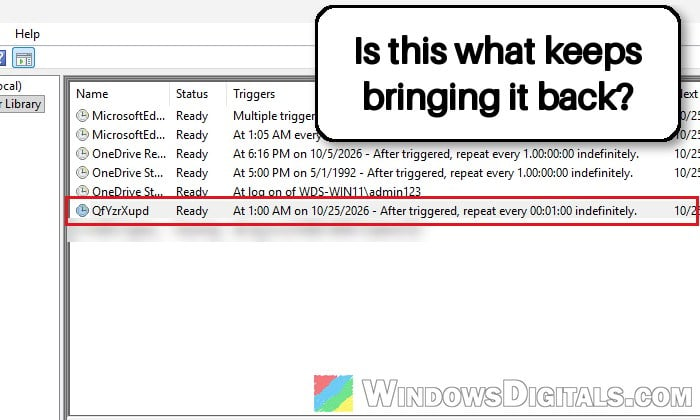
A scheduled task is the most common thing behind a Boxter detection that keeps repeating, and removing it is the fix that has worked for most people on Microsoft’s forums. The task usually has a random name, sits outside the Microsoft > Windows folders, and runs PowerShell or a file from your AppData folder over and over.
Here’s how to find it:
- Press Win + R, type
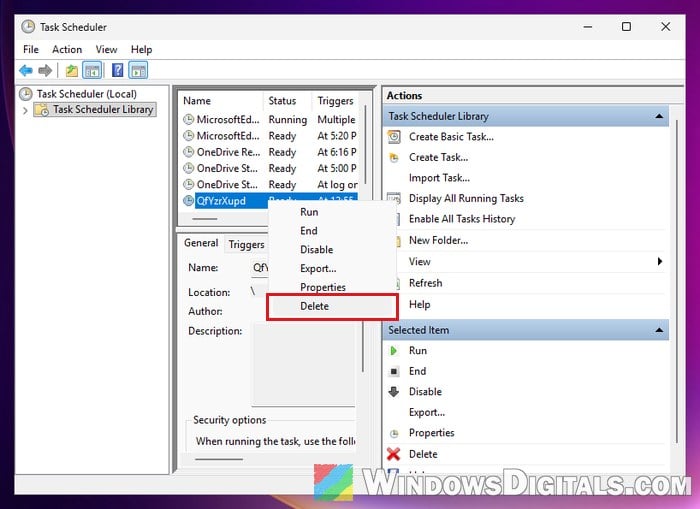
taskschd.mscand press Enter to open Task Scheduler. - In the left pane, click Task Scheduler Library.
- Go through the tasks in the middle, and click any task with a random or odd name.
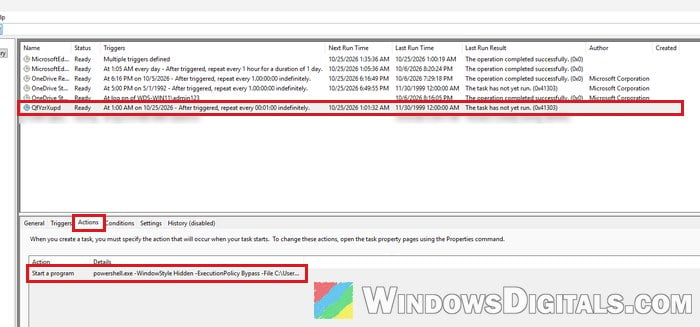
- Click the Actions tab at the bottom to see what it runs.
- Look for actions that run
powershell.exewith options like-WindowStyle Hidden(or-w h),-EncodedCommand(or-e) or-ExecutionPolicy Bypass(or-ep bypass), or that run an .exe or .bat file inAppData\RoamingorProgramData. - Write down the full path of the file in the action.
- Right-click the task and select Delete.
- Press Win + R, type
%appdata%and press Enter.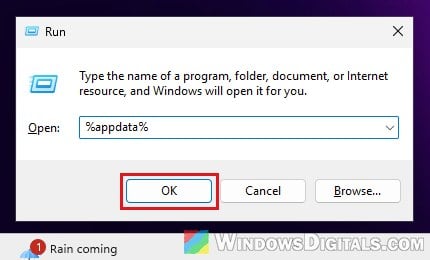
- Open the folder from the path you wrote down (usually a folder with random letters) and delete it, along with the file the task was running.
Once the task and its files are gone, restart your PC. The detection should stop coming back.
Check startup apps and the Run key
If there’s no odd task, or the alert still comes back after you deleted one, the malware may start from your startup apps or the registry instead.
First, check the startup apps:
- Press Ctrl + Shift + Esc to open Task Manager.
- Go to Startup apps and look for anything you don’t recognize.
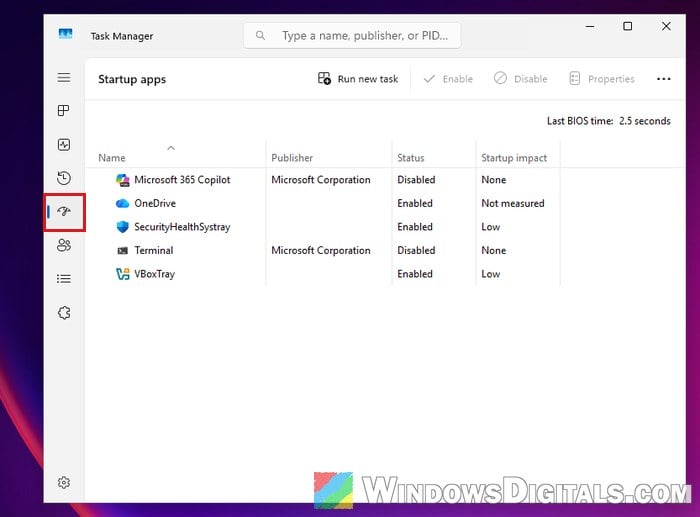
- Right-click a suspicious entry and select Disable.
Pro tip: Unknown Program in Task Manager Startup Tab Windows 11/10
Next, the Run key in the registry. Deleting the wrong registry entry can cause problems, so only delete one you’re sure is the malware, and create a restore point first. If in doubt, use Autoruns (next section) instead.
- Press Win + R, type
regeditand press Enter. - Copy and paste the following path to the address bar, and press Enter:
HKEY_CURRENT_USER\Software\Microsoft\Windows\CurrentVersion\Run
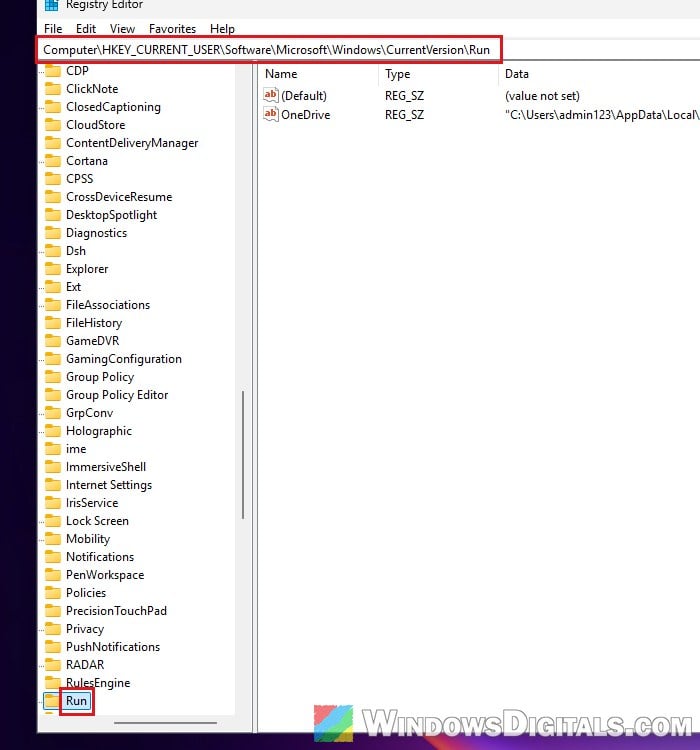
- Look at the Data column. An entry that runs PowerShell with the options above, or a file in AppData with a random name, is the one to right-click and Delete.
Restart your PC and see if the detection still comes back.
Use Autoruns to see everything that starts by itself
If you still can’t find what launches it, Autoruns from Microsoft’s Sysinternals shows every place a program can start from in one window, including WMI entries, which Task Scheduler and Task Manager don’t show at all.
- Download Autoruns from Microsoft at
https://learn.microsoft.com/en-us/sysinternals/downloads/autorunsand extract the zip file. - Right-click Autoruns64.exe and select Run as administrator.
- Open the Options menu and make sure Hide Microsoft Entries is checked. A task that runs PowerShell still shows up.
- Check the Logon, Scheduled Tasks and WMI tabs for entries that run PowerShell or files in AppData with random names.
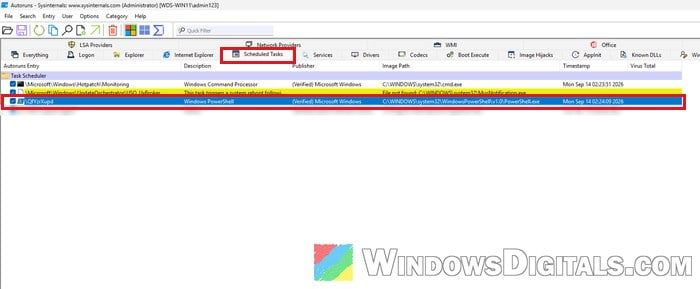
- Uncheck an entry to disable it, or right-click it and select Delete to remove it.
Restart your PC afterward and see if Windows Security still finds the threat.
Run a Microsoft Defender Offline scan
Once the thing that relaunches it is gone, a Microsoft Defender Offline scan cleans up what’s left. It runs from outside Windows, so it can catch malware that hides while Windows is running.
Save your work first, since the PC will restart. Here’s how to run it:
- Open Windows Security and go to Virus & threat protection.
- Under Current threats, click Scan options.
- Select “Microsoft Defender Antivirus (offline scan)” and click Scan now.
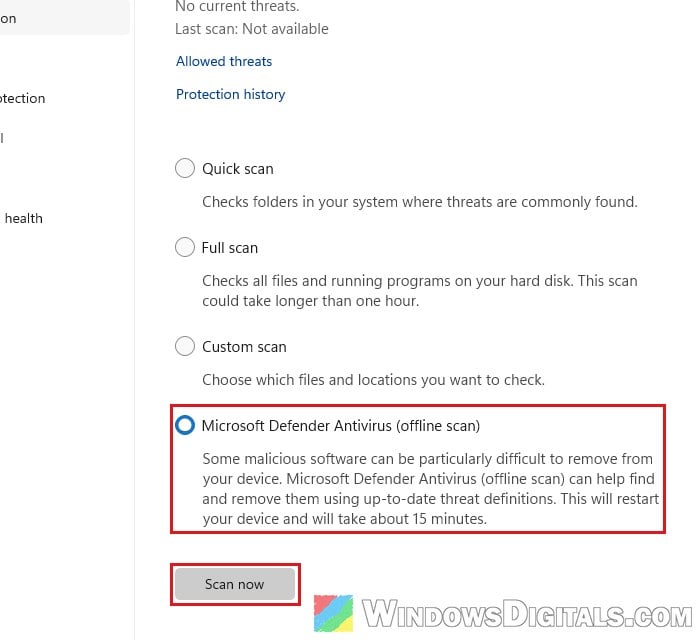
The scan takes about 15 minutes, and the PC restarts on its own. Check Protection history afterward to see what it found.
Might be useful: Can’t Clear Protection History in Windows 11/10 Defender
Remove what’s left with a command
If a detection still shows as active, one command tells Defender to remove all active threats:
- Open the Start menu, search for “PowerShell“, right-click it and select Run as administrator.
- Run the following command:
Remove-MpThreat
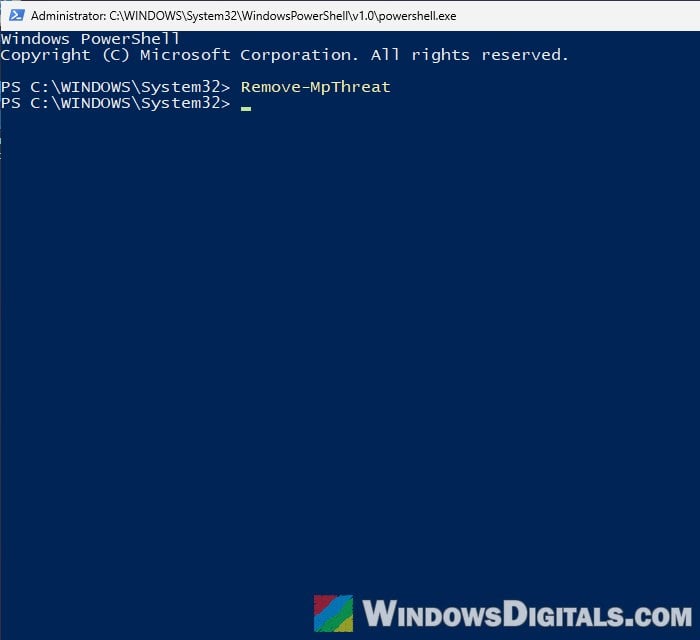
It only removes what Defender has already detected, so if the task or startup entry is still there, the threat comes right back.
Get a second opinion with Microsoft Safety Scanner
Other scanners sometimes find nothing while Defender keeps finding Boxter, so a second scan from Microsoft’s own tool is a good check.
- Download Microsoft Safety Scanner (64-bit) from
https://learn.microsoft.com/en-us/defender-endpoint/safety-scanner-download. - Open the downloaded file and check “Accept all terms of the preceding license agreement“.
- Click Next twice.
- Choose Full scan and click Next to start it.
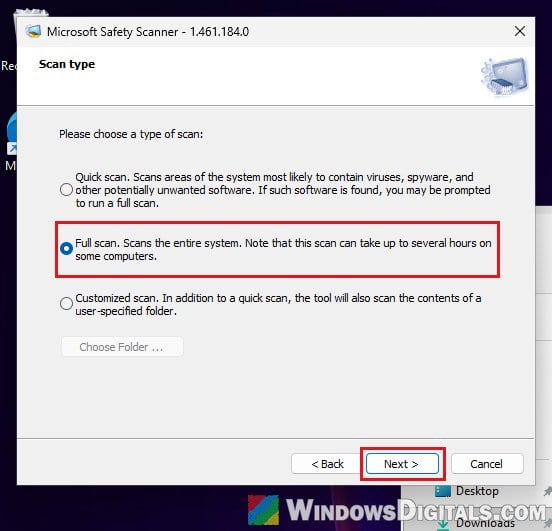
When it finishes, it shows what it found and tries to remove it. Safety Scanner stops working 10 days after you download it, so get a fresh copy for any later scan.
If it still keeps coming back
If the detection still returns after all this, the safest option is to back up your personal files and reset or reinstall Windows.
Since this kind of malware can steal information, change your important passwords from another device and sign out of other sessions where you can. And if a website ever asks you to paste a command into the Run box or PowerShell to “prove you’re human”, close it. No real CAPTCHA works that way.