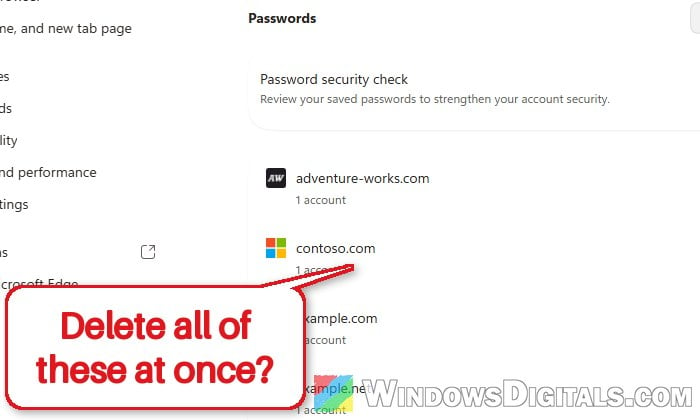
If you’re moving to another password manager like Bitwarden or Keeper, or you just want a clean start, you’ll quickly notice that Microsoft Edge has no “Delete all” button for saved passwords, and the Passwords option is gone from “Clear browsing data” too. With hundreds of saved logins, deleting them one at a time isn’t really an option. This guide will show you how to remove all of them at once, including the copy that’s synced to your Microsoft account.
Also see: How to Clear Cookies in Windows 11
Page Contents
Why is there no “Delete all” option for passwords in Edge?
Until early 2026, you could tick “Passwords” in Edge’s “Clear browsing data” window and wipe them all in one go. That changed with Edge 146 (March 2026). According to Microsoft’s release notes, Passwords was removed from that list because people kept deleting their saved passwords by accident while clearing their history, and then couldn’t sign in to their sites. Microsoft now wants you to manage (and delete) passwords in the password manager instead.
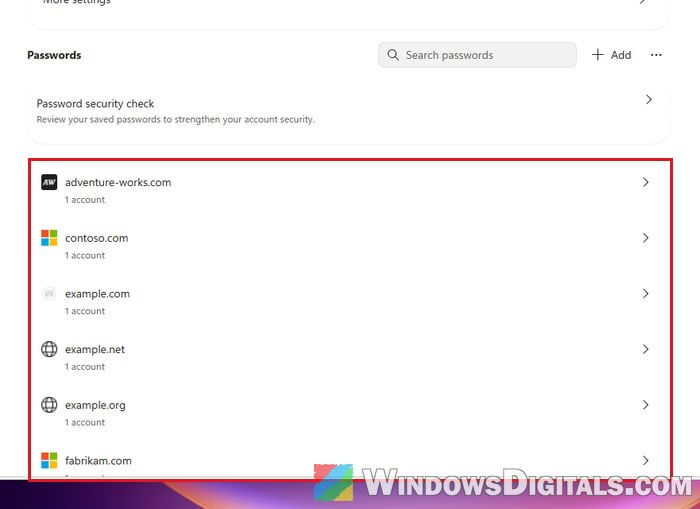
The problem is that the password manager doesn’t let you select more than one entry. It lists your saved sites, and you have to open each one to delete it. Older guides mention checkboxes to select several passwords at once, but those were on the old password page and aren’t there anymore.
This is a pretty common complaint you’ll find on Reddit and Microsoft’s forums. What does work is deleting the file where Edge keeps your passwords, which we’ll walk through below.
Pro tip: How to Clean Up AppData Folder in Windows 11
Export a copy of your passwords first (optional)
If you’re switching to another password manager, export your passwords before deleting anything, so you can import them there. Edge has no undo button for deleted passwords, so export them now if you might need them later. Here’s how to do it:
- Type
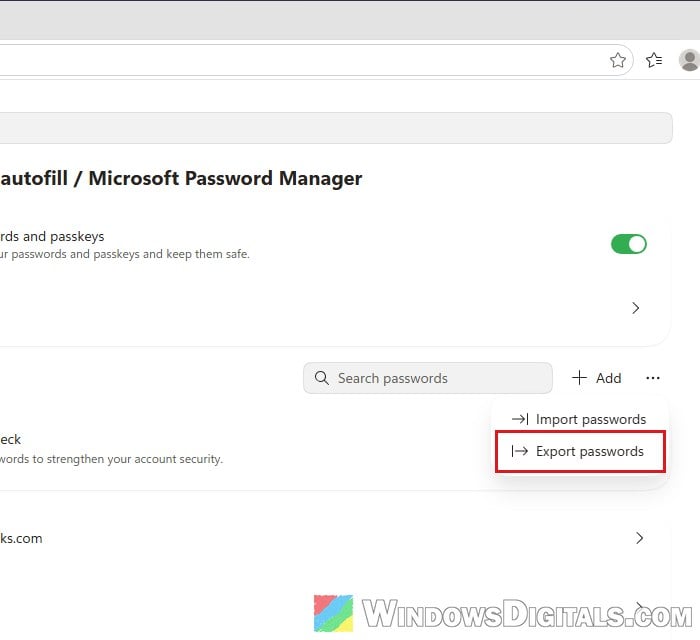
edge://settings/autofill/passwordsin Edge’s address bar and press Enter. - Click the “…” button next to “Add” above your password list.
- Select “Export passwords” and save the file.
Turn off password sync (if you’re signed in to Edge)
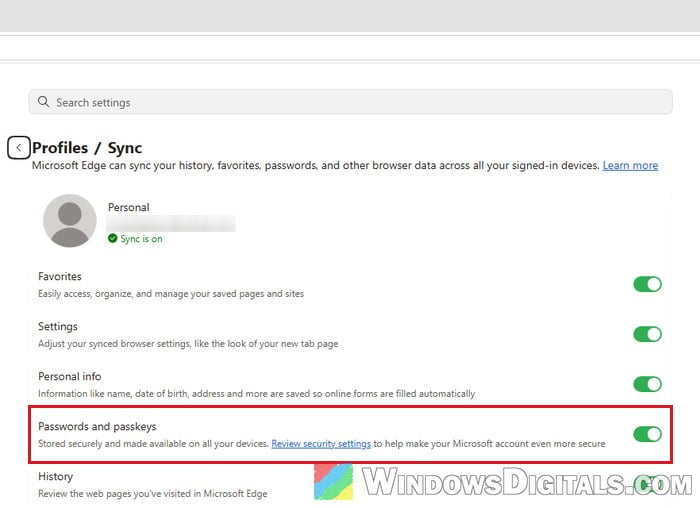
If you’re signed in to Edge with sync turned on, your passwords are also stored in your Microsoft account. If you only delete them on your PC, the synced copy will come back. That’s why you need to stop Edge from syncing passwords first:
- In Edge, click “Settings and more” (the “…” button) and select “Settings“.
- Go to Profiles > Sync (or type
edge://settings/profiles/syncin the address bar). - Turn off the “Passwords and passkeys” toggle.
Do the same on every other device where you use Edge with the same account. Otherwise those devices can sync your passwords right back.
Delete the “Login Data” file to remove all saved passwords
Edge keeps the saved passwords of each profile in a file called Login Data, inside that profile’s folder. If you delete this file while Edge is closed, every saved password in that profile is gone at once. Edge starts with an empty password list the next time you open it. Here’s how to do it:
- In Edge, type
edge://versionin the address bar and press Enter. - Look for “Profile path” and copy the path next to it. For your main profile it usually looks like this:
C:\Users\<your name>\AppData\Local\Microsoft\Edge\User Data\Default
Every other profile has its own folder, and the folder name doesn’t always match the profile’s name (a profile called “Profile 1” can sit in “Default”), so always check
edge://versionin the profile you want to clear.
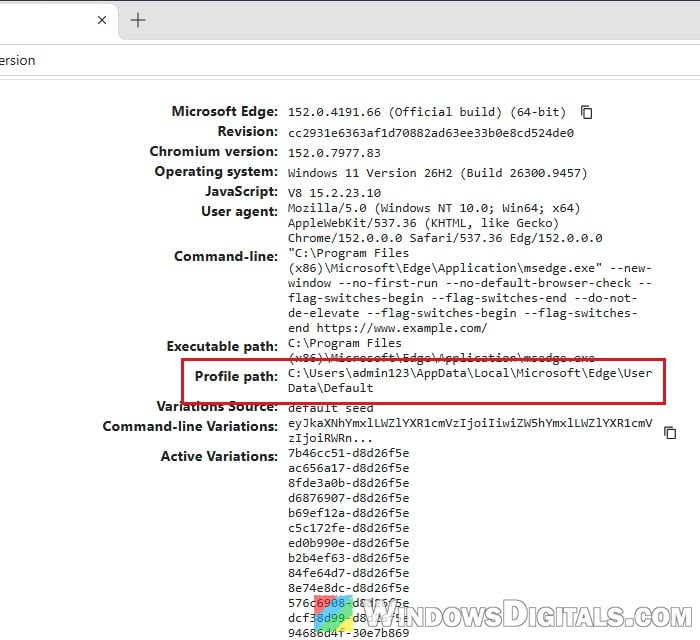
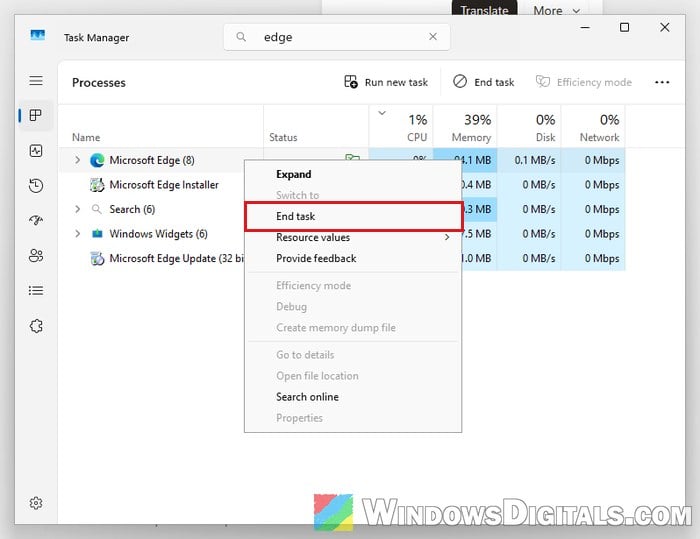
- Close Edge. Edge often keeps running in the background after you close its window, and the file can’t be deleted while it does. Press Ctrl + Shift + Esc to open Task Manager, right-click “Microsoft Edge” and select “End task“.
- Alternatively, open Command Prompt and run this command to close every Edge process:
taskkill /f /im msedge.exe
- Alternatively, open Command Prompt and run this command to close every Edge process:
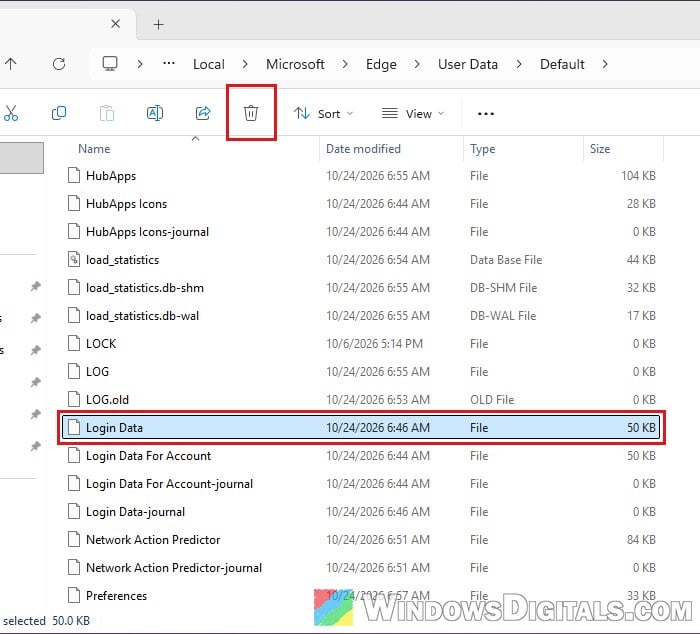
- Open File Explorer, paste the profile path you copied into the address bar and press Enter.
- Find the file named “Login Data” (just “Login Data”, not “Login Data For Account” or “Login Data-journal” below it), select it and click the “Delete” (trash can) button in the toolbar. Leave the other files in the folder alone.
- Open Edge again and go to
edge://settings/autofill/passwords.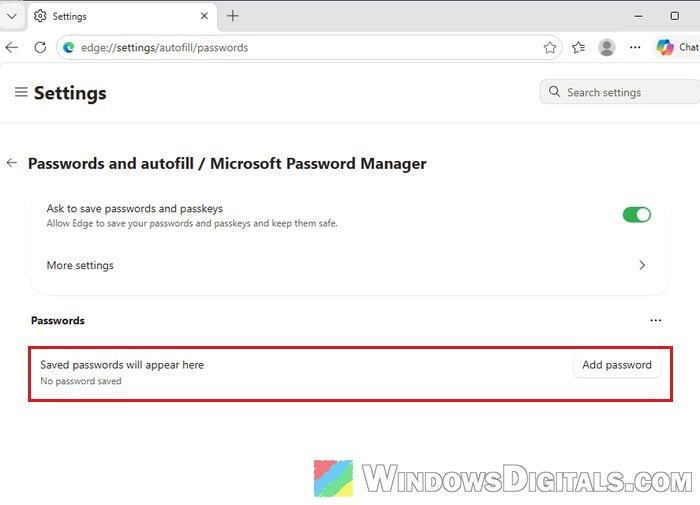
Your saved passwords list should now be empty, with “No password saved” where the list used to be. In some cases, a handful of passwords may still show up afterwards. If that happens, just delete those few by hand (see the last section).
Might be useful: Force Close Program in Windows 11 without Task Manager
Remove the synced copy from Microsoft’s servers (Reset sync)
If you were syncing passwords, a copy of them still sits on Microsoft’s servers even after the Login Data file is gone. To delete that copy, you need to reset sync. Please be warned that this doesn’t only remove passwords: it clears all of your synced Edge data (favorites, history and the rest) from the cloud, and then uploads what’s on this PC again when sync resumes. Microsoft recommends exporting your favorites first (Ctrl + Shift + O, then More options (…) > Export favorites).
Here’s how to do it:
- Make sure password sync is off on your other devices too (see the sync section above).
- On this PC, go to Settings > Profiles > Sync.
- Scroll down to “Re-sync data to this device” and click “Reset sync data from Microsoft servers“.
- Click “Reset sync“, confirm if Edge asks, and keep Edge open until it’s done.
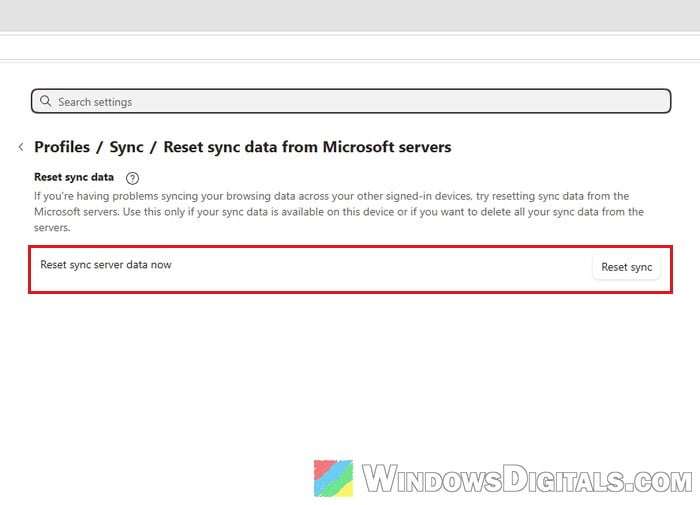
The reset can take anywhere from a few seconds to a few minutes. If it fails, Microsoft suggests waiting a few hours and trying again. After that, you can turn password sync back on. Your other devices will need to sign in again to sync, so if they still have the passwords saved, delete them there first.
Related guide: Clear Cache (Memory, Browsers, Temp Files) in Windows 11/10
Using more than one Edge profile?
Each Edge profile has its own folder and its own Login Data file, so the steps above only clear the profile you checked in edge://version. Open edge://version in each of your other profiles and repeat the steps for its folder.
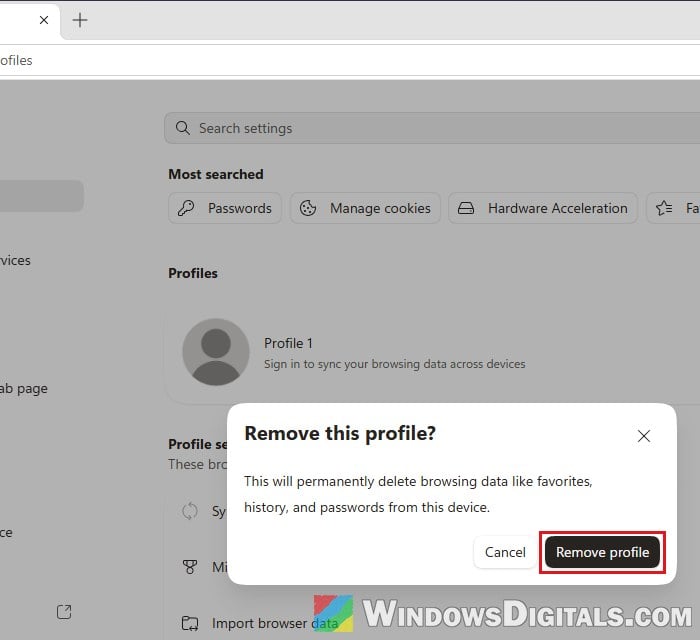
If you don’t need a profile anymore, you can remove it entirely, passwords included. Go to Settings > Profiles in that profile and click the trash can icon next to its name. Edge warns that this “will permanently delete browsing data like favorites, history, and passwords from this device”. Click “Remove profile” to confirm.
Only a few passwords to delete? Do it one by one
If you only want to get rid of a few saved passwords, the password manager is enough. Go to edge://settings/autofill/passwords and click the site you want to remove. Windows asks for your PIN or password before Edge shows it.
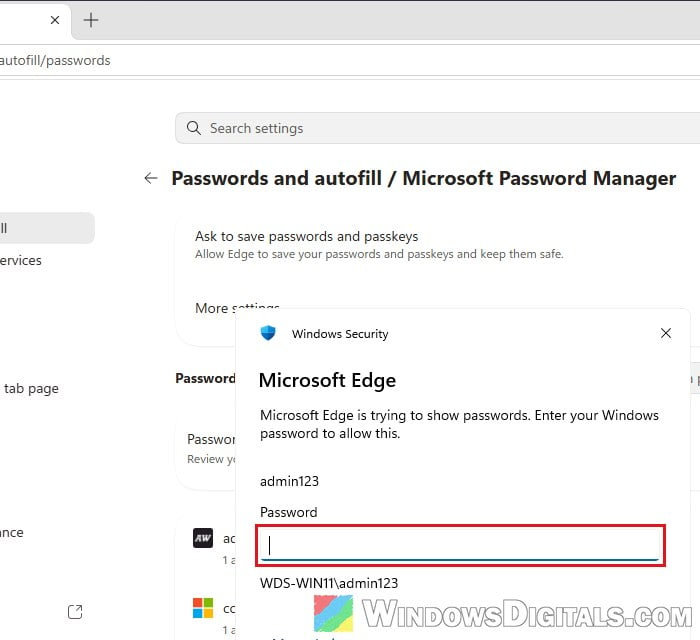
Then click “Delete” and confirm with “Delete” again. Keep in mind that if sync is on, a password you delete this way is also deleted on all of your synced devices.