If a Windows 11 update such as KB5127648 installs normally and asks you to restart, but then hangs on a black screen or the boot logo partway through and rolls itself back, leaving “Install error – 0x800f0845” in Windows Update, this guide will show you what’s likely causing it and what you can do to fix it.
Also see: Windows Rollback Loop After Windows 11/10 Update (Fix)
Page Contents
Why does 0x800f0845 keep coming back?
The update downloads and installs, Windows restarts, the progress screen gets to around 30% or close to 100%, and then the PC freezes, restarts or goes into Automatic Repair before Windows undoes the update.
It’s not only the October 2026 update (KB5127648). The same error has shown up with the May, August and September 2026 updates too (KB5089549, KB5121003 and KB5129195), and on some PCs it happens every month. Microsoft hasn’t listed it as a known issue for KB5127648, so there’s no official fix yet.
The tricky part is that the usual repairs often don’t help. People have run DISM and even reset their PC, and the next update still rolled back. That points to something that loads during that restart, like a driver or the BIOS, more than to damaged files:
- Software that installs its own driver, such as game anti-cheat, third-party antivirus, or RGB and fan control tools
- An outdated BIOS, with mini PCs showing up often among affected PCs
- Damaged update files, which is the less likely cause here
It’s a pretty common issue on Reddit and Microsoft’s forums. The fixes below start with what has worked for people and end with the riskier ones.
Linked issue: Windows 11 Update Fails With Error 0x80070306 (KB5127648)
Turn off or uninstall anti-cheat and other apps with their own drivers
Some apps load a driver that runs deep inside Windows. When the update tries to finish installing during the restart, one of these drivers can get in the way, and Windows rolls the whole update back. One example is game anti-cheat: turning off or uninstalling FACEIT Anti-Cheat has let the update install for several people (so far on Windows 10, but the driver works the same way on Windows 11). If you have FACEIT AC, click Show hidden icons on the taskbar, right-click the FACEIT AC icon and choose Disable, then install the update.
Third-party antivirus and RGB, fan control or monitoring tools are also worth a look. Many of these tools use an old driver called WinRing0x64.sys that Microsoft Defender now flags, so they’re worth removing first while you test. Microsoft also suggests unplugging USB drives, docks and anything else you don’t need while the update installs.
To uninstall an app you suspect, follow the steps below:
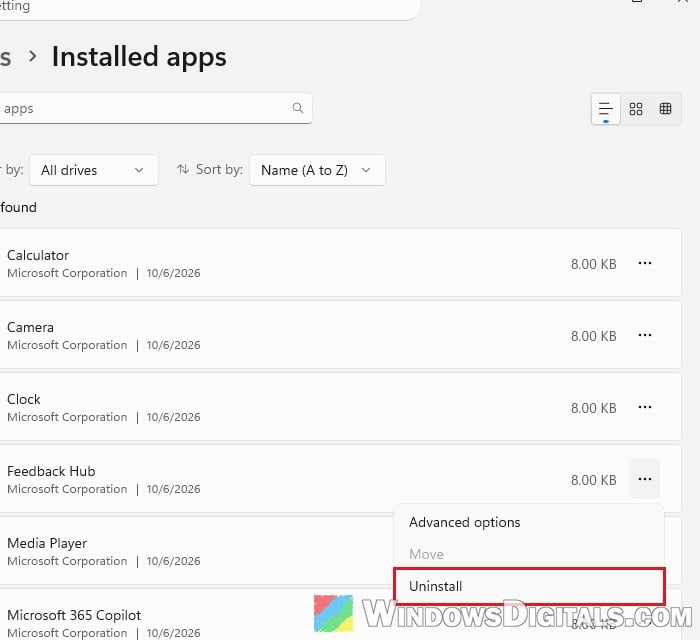
- Press Win + I and go to Apps > Installed apps.
- Find the app in the list, click the three dots next to it and select Uninstall.
- Restart your PC, then go to Settings > Windows Update and install the update again.
If the update goes through, you can reinstall the app afterwards, ideally its latest version. You may need to turn it off again before next month’s update.
Do a clean boot to find the culprit
If you’re not sure which app is causing it, a clean boot starts Windows with only Microsoft’s own services. Keep in mind that it stops services, not every driver, so an anti-cheat program may still need to be uninstalled.
Here’s how to do it:
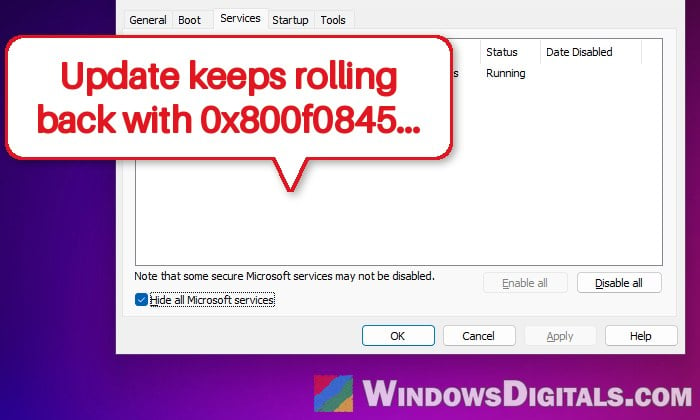
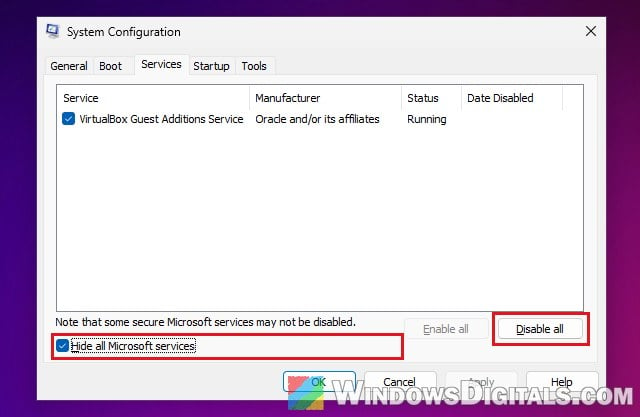
- Press Win + R, type “msconfig” and press Enter.
- Go to the Services tab, check “Hide all Microsoft services“, then click Disable all.
- Go to the Startup tab, click Open Task Manager and disable the startup apps there.
- Close Task Manager, click OK in System Configuration, then restart your PC and install the update again.
Once you’re done, go back to the Services tab in msconfig, click Enable all, click OK and turn your startup apps back on, then restart.
Use “Fix problems using Windows Update”
If the update still rolls back, Windows 11 can reinstall your current version of Windows through Windows Update. It repairs damaged system components along the way and installs the latest version, which can get your PC past the update that keeps failing. According to Microsoft, it keeps your apps, files and settings.
It doesn’t fix 0x800f0845 for everyone, but it’s worth trying before the steps further down. Keep your PC plugged in and connected to the internet while it runs. Here’s what you should do:
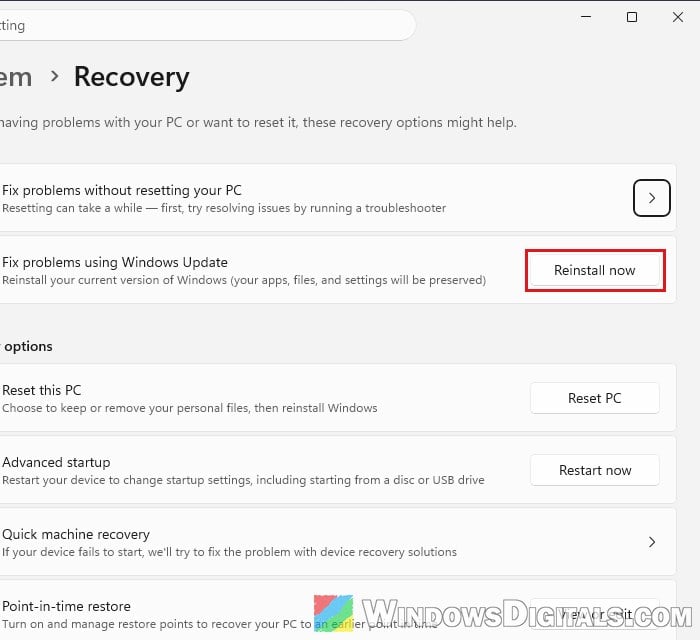
- Press Win + I and go to System > Recovery.
- Under “Fix problems using Windows Update“, click Reinstall now.
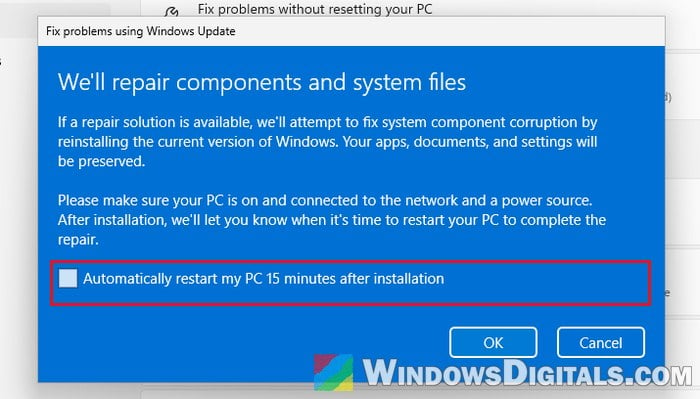
- Check “Automatically restart my PC 15 minutes after installation” if you want Windows to restart by itself, then click OK.
- Let it finish, restart if needed, then go to Settings > Windows Update and check for updates.
Microsoft says this option isn’t shown on PCs managed by a work or school organization, or when certain update policies are set.
Learn more: “Reinstall your current version of Windows” Message
Reset the Windows Update download folder
Windows keeps the update files it downloads in a folder called SoftwareDistribution. If something in there is broken, Windows keeps trying to install the same damaged files. Renaming the folder makes Windows download everything again from scratch.
Do this only when no update is waiting for a restart. Restart your PC first if it asks you to. Follow the steps below:
- Click Start, type “cmd“, and select Run as administrator for Command Prompt, then click Yes.
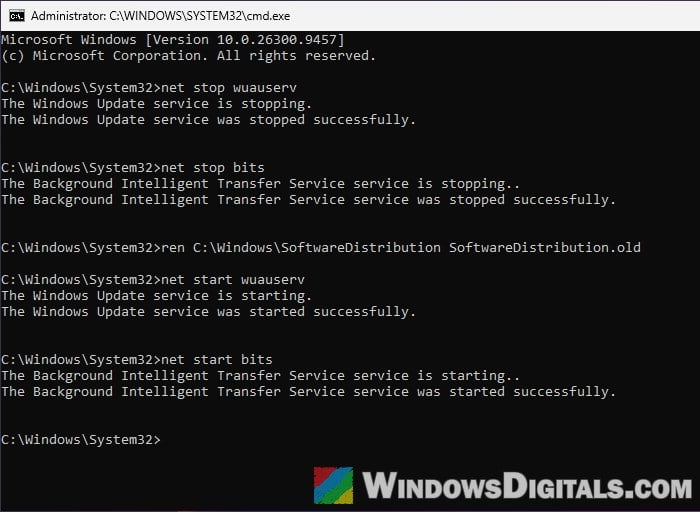
- Type the following commands one by one, and press Enter after each:
net stop wuauserv
net stop bits
ren C:\Windows\SoftwareDistribution SoftwareDistribution.old
net start wuauserv
net start bits
- Restart your PC and try the update again.
If the update now installs without rolling back, you can delete the SoftwareDistribution.old folder later.
Repair system files with DISM and SFC
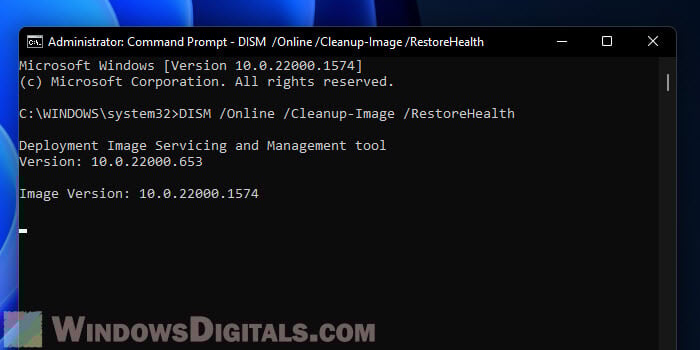
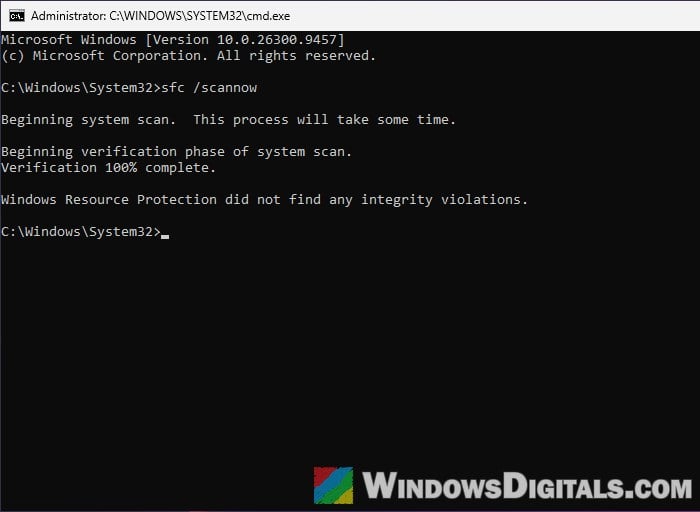
These two commands rarely fix this particular error, but they’re quick and safe. DISM repairs the files Windows uses to install updates, and SFC then checks the system files themselves.
Here’s how to run them:
- Open Command Prompt as administrator, as above.
- Type the following command and press Enter:
DISM.exe /Online /Cleanup-image /Restorehealth
- When it’s done, type the following command and press Enter:
sfc /scannow
- Restart your PC and install the update again.
Pro tip: Can I cancel “SFC /scannow” while it’s running?
Update your BIOS and chipset drivers
On at least one mini PC, the update kept getting stuck at the boot logo and rolling back until the maker sent a newer BIOS. It didn’t help on every PC, but if your maker has released a newer BIOS, it’s worth checking. Look on the support page for your exact PC or motherboard model, and install the latest chipset drivers from the same page.
Be warned: A BIOS update is risky. If the power goes out or the update is interrupted, it can leave your PC unable to start. Follow your maker’s instructions exactly, and if you’re not sure what you’re doing, it’s better to get someone to help you instead.
If nothing works, pause updates and wait
If the error keeps coming back no matter what you try, the problem may be on Microsoft’s side, and a later update may install where this one won’t.
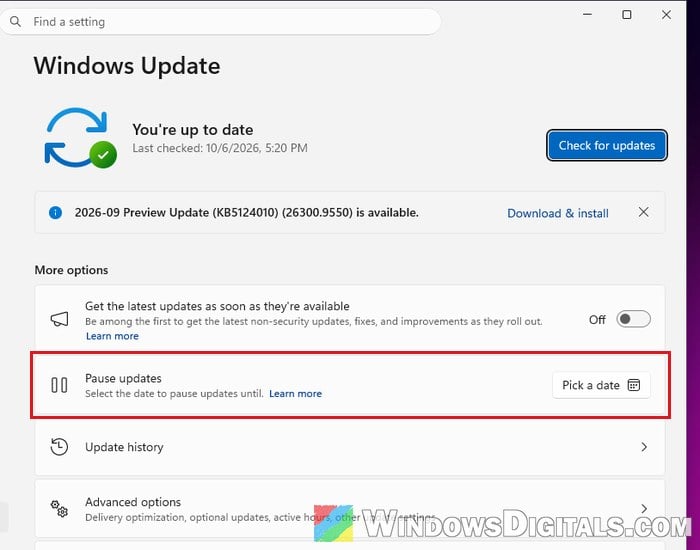
In the meantime, you can pause updates so Windows doesn’t keep trying and rolling back:
- Press Win + I and go to Windows Update.
- Next to Pause updates, click Pick a date and choose the date to pause updates until. On older versions of Windows 11, it may look different.
Windows may not let you pause until the latest update is installed, so this won’t work on every PC. You can also report the problem to Microsoft through the Feedback Hub (Win + F).