If Reliability Monitor on your Windows 11 or 10 PC keeps showing “Installation Failure: Windows failed to install the following update with error 0x80073D02: 9NTXGKQ8P7N0-MicrosoftWindows.CrossDevice“, sometimes on several days in a row, it usually means the Microsoft Store tried to update a small Windows component while that component was still running. This guide will explain what this update is, why it keeps failing, and how to get it installed.
Also see: What is “Mobile devices” (CrossDeviceService.exe)?
Page Contents
What is MicrosoftWindows.CrossDevice and why does its update fail?
MicrosoftWindows.CrossDevice is the package name of Cross Device Experience Host, a Windows component published by Microsoft and updated through the Microsoft Store. The “9NTXGKQ8P7N0” part is simply its Store ID. It’s the piece behind the Mobile devices page in Settings, which lets your PC work with your phone, and it can be installed and updated even if you’ve never linked a phone at all.
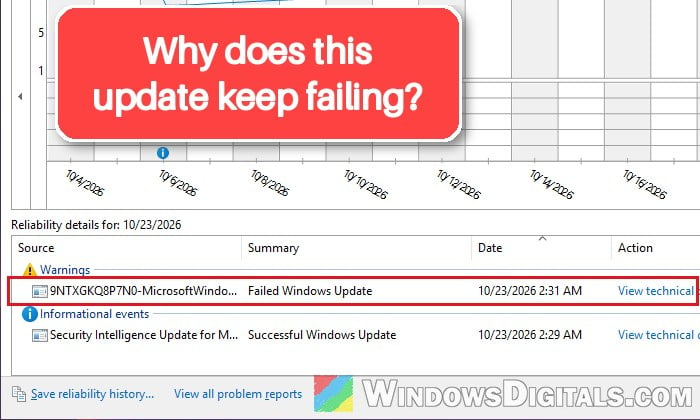
In Reliability Monitor, the failure shows up under “Warnings” as a “Failed Windows Update“, even though it’s really a Store app update.
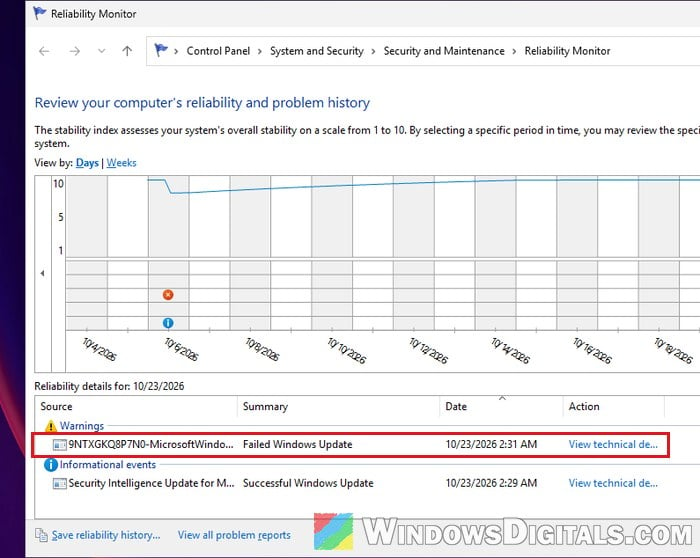
If you double-click the entry, the “Problem Details” page shows the full message with the error code.
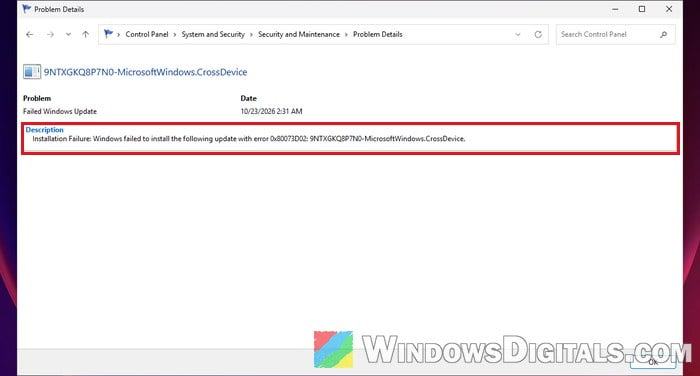
According to Microsoft, error 0x80073D02 means “the package couldn’t be installed because resources it modifies are currently in use“. In plain words, the update tried to replace Cross Device Experience Host’s files while some part of it was still running in the background, so Windows refused to touch it. Since this update comes through the Store and not Windows Update, the failure usually only shows up in Reliability Monitor, not on the Windows Update page, and the PC keeps working normally.
It’s a pretty common error that you’ll find discussed on Microsoft’s forums and ElevenForum, and the same error code shows up for other Store-delivered components too, such as App Installer. Windows 10 PCs get it as well, since they still receive Store updates even though Windows 10 support ended in October 2025.
Suggested read: LiveKernelEvent 144 Hardware Error in Reliability Monitor, Why?
Restart and check if it installed on a later try
In many cases, this error fixes itself. The Store tries the update again later, and once nothing is holding the component, it installs fine. A restart is the quickest way to make sure nothing from Cross Device Experience Host is still running when the next try comes.
It sounds too simple, but it’s the first thing to try. Here’s what you should do:
- Restart your PC normally.
- Click Start, type “reliability” and open “View reliability history“.
- Click the most recent days in the chart, one at a time, and look under “Informational events” for a “Successful Windows Update” entry with the same “9NTXGKQ8P7N0-MicrosoftWindows.CrossDevice” name.
If the successful entry is there, the update went through and there’s nothing else to do. The old failed entries stay in the history, but they’re harmless. If the failure comes back the next day even after a restart, update the component yourself with one of the methods below.
Update Cross Device Experience Host from Microsoft Store
Instead of waiting for the next background try, you can ask the Store to check for updates right away, while you’re not using anything related to your phone. Here’s how to do it:
- Open Microsoft Store.
- Click the “Downloads” icon near the bottom of the left sidebar. This opens the “Updates & downloads” page.
- Click “Check for updates” and let the Store download and install whatever it finds.
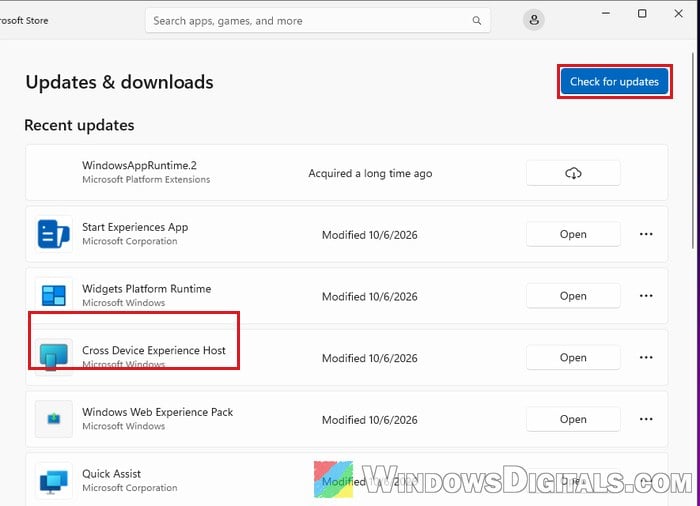
Cross Device Experience Host shows up in the “Recent updates” list with a new “Modified” date once its update is done. On older versions of the Store, the same button is called “Get updates” and sits under “Library“.
Linked issue: Microsoft Store “Error encountered – One of the update services is not running properly”
Install the update with winget
If the Store keeps failing, you can install the latest version with winget (Windows Package Manager), the command-line app installer built into Windows. It can install Store apps by their Store ID, so you can point it straight at Cross Device Experience Host. To do so, follow the steps below:
- Search for “cmd” in the Start menu, right-click Command Prompt and select “Run as administrator“.
- Type the following command and press Enter:
winget install 9NTXGKQ8P7N0 --accept-source-agreements --accept-package-agreements
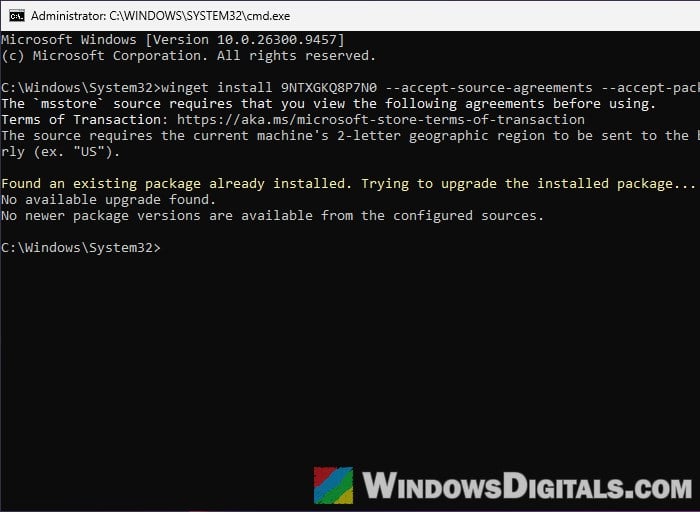 The two “accept” options only save you from typing Y at the agreement prompts.
- Wait for winget to finish.
If a newer version exists, winget downloads and installs it. If it says “Found an existing package already installed” followed by “No available upgrade found“, you already have the latest version and there’s nothing to install right now.
Clear the Microsoft Store cache
If neither the Store nor winget can install the update, a broken Store cache could be getting in the way, and clearing it only takes a few seconds. Here’s what you should do:
- Press Win + R to open the Run dialog box.
- Type
wsreset.exeand press Enter.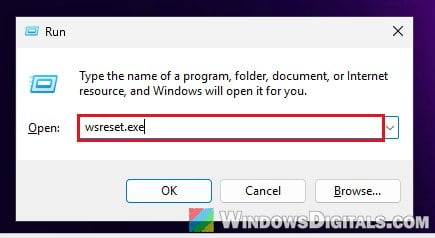
- Wait until Microsoft Store opens by itself, then try “Check for updates” again.
Might be useful: Can’t Download or Install Apps on Microsoft Store
Remove and reinstall Cross Device Experience Host
If none of the above works, removing the component and installing a fresh copy can get it unstuck. Please note that your PC loses its phone features until it’s installed again, and if you had a phone linked under Mobile devices, you may need to link it again afterwards. Here’s how to do it:
- Search for “PowerShell” in the Start menu, right-click Windows PowerShell and select “Run as administrator“.
- Run the following command to remove Cross Device Experience Host for all users:
Get-AppxPackage -AllUsers MicrosoftWindows.CrossDevice | Remove-AppxPackage -AllUsers
- Then install it again with winget:
winget install 9NTXGKQ8P7N0 --accept-source-agreements --accept-package-agreements
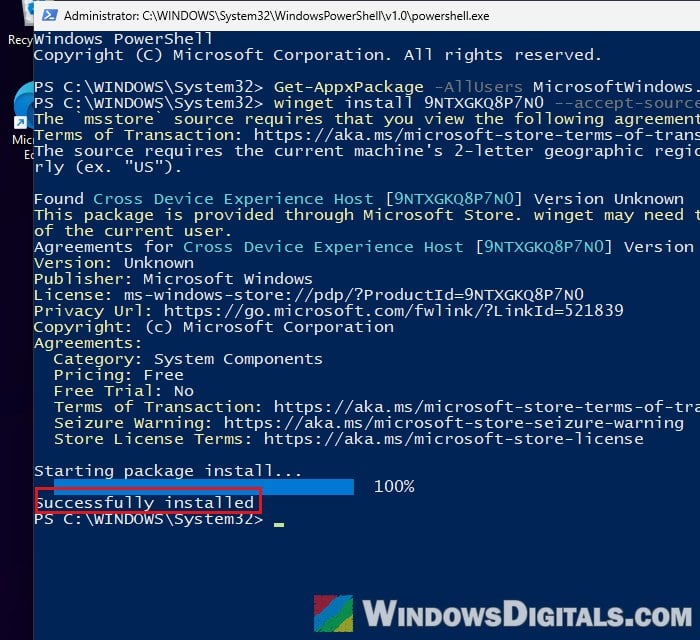 You can also install it from its Store page instead:
 https://apps.microsoft.com/detail/9NTXGKQ8P7N0 - If you use your phone with your PC, open Settings > Bluetooth & devices > Mobile devices and turn on “Allow this PC to access content and capabilities from your mobile devices” again.
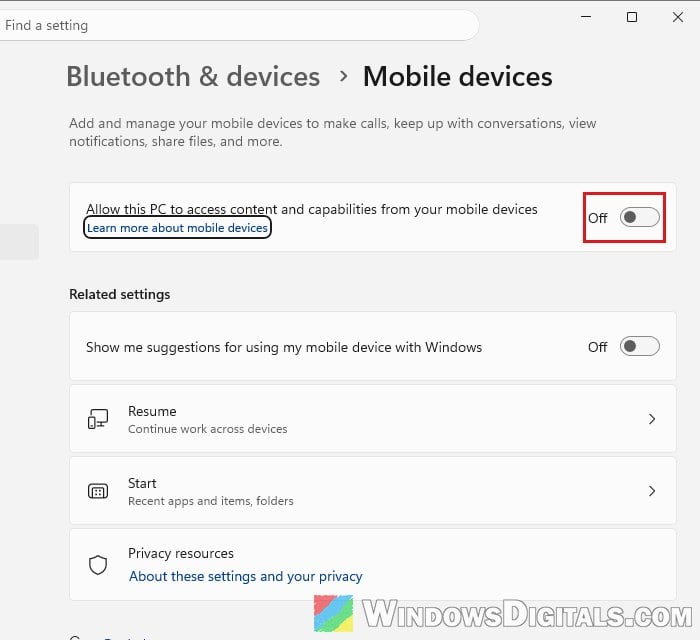
After that, keep an eye on Reliability Monitor for a few days to see if the failed entries come back.
Repair Windows as a last resort
If the error still won’t go away, especially on a Windows install that hasn’t been refreshed in a long time, a repair reinstall of Windows can clear it. It reinstalls the current version of Windows while keeping your apps, files and settings. It takes a while, so only go this far if the failed entries really bother you, since the error on its own doesn’t harm anything. To start it, follow the steps below:
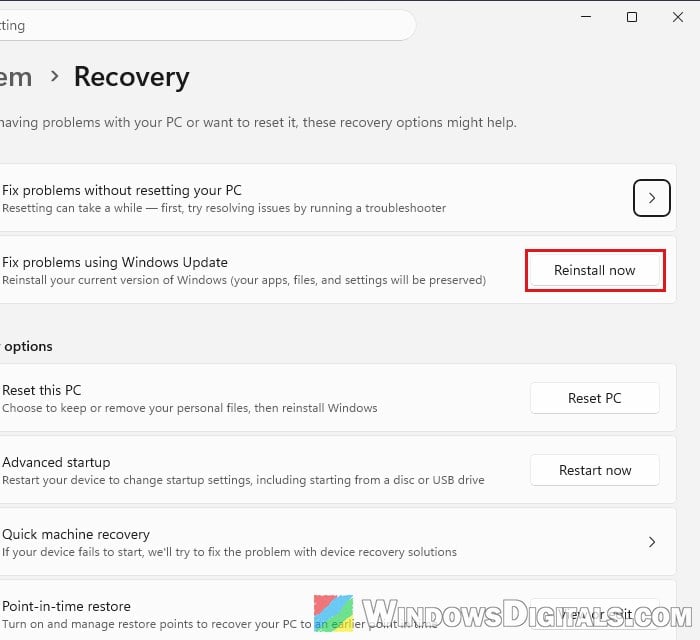
- Open Settings > System > Recovery.
- Next to “Fix problems using Windows Update“, click “Reinstall now” and follow the prompts.
On Windows 10, the same kind of repair is done from the Windows 10 ISO: mount it, run setup.exe and choose “Keep personal files and apps“. It’s still a good idea to back up anything important first.