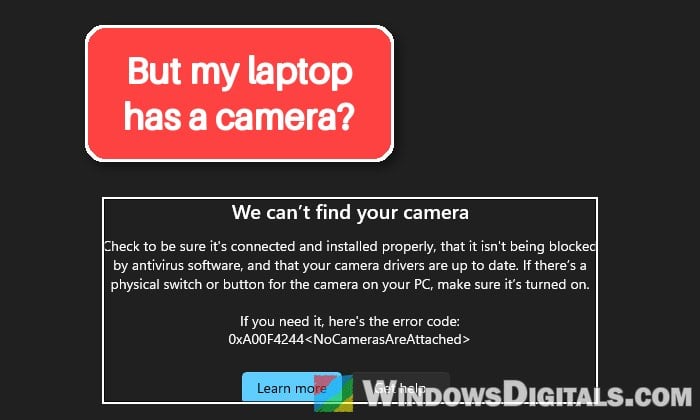
If you open the Camera app on Windows 11 or 10 and it says “We can’t find your camera” with the error code “0xA00F4244<NoCamerasAreAttached>“, it means Windows doesn’t see any camera at all, built-in or external. This guide will show you what could be wrong and how to get the camera detected again.
Also see: Camera Error 0xA00F429F “WindowShowFailed” in Windows 11
Page Contents
What does error 0xA00F4244 mean?
Microsoft describes it as Windows failing to recognize a built-in or external camera, and says the usual reason is the camera driver (outdated, missing or corrupted). The camera can also simply be switched off: by a key or shutter on the laptop, in Windows itself, or in the BIOS. And sometimes the camera module or its cable has failed.
Plenty of people run into it, mostly on HP, ASUS and Lenovo laptops, and it can happen with an external webcam too. Since Windows can’t see the camera at all, first make sure it isn’t just turned off somewhere, then move on to the driver.
Is the camera switched off or unplugged?
A lot of laptops have a camera kill switch, and with it on, Windows may act as if there’s no camera. Check for:
- A camera key on the top row (often an F key you press with Fn)
- A small slider or shutter over the lens, or a switch on the side of the laptop
If you’re using an external webcam, move it to another USB port, and if possible, try it on a different computer. After flipping anything back on, close and reopen the Camera app.
Might be useful: How to Test Camera on Windows 11
Make sure the camera isn’t disabled
If the camera is disabled, no app can see it, and the Camera app shows exactly this error. There are three places where that can happen.
In Settings (Windows 11): Open Settings > Bluetooth & devices > Cameras. A disabled camera shows up in its own list of disabled cameras. Click Enable next to it. This needs an administrator account.
In Device Manager (Windows 11 or 10):
- Right-click the Start button and select Device Manager.
- Expand Cameras (or Imaging devices on some PCs).
- If the camera’s icon has a small down arrow, right-click it and select Enable device.
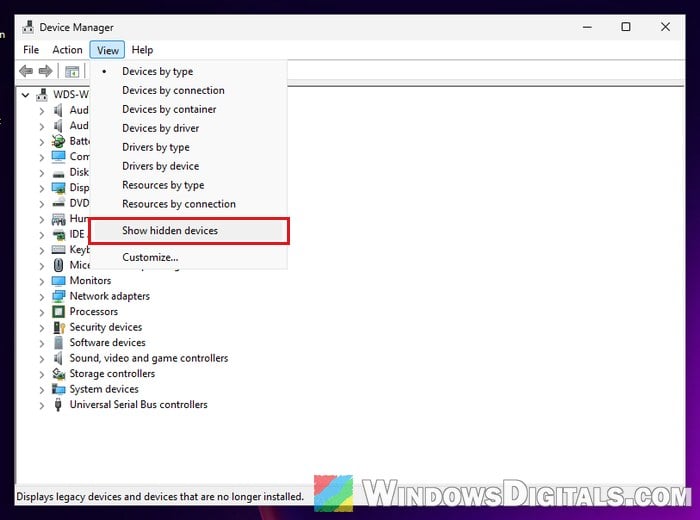
- Can’t find the camera there? Click View > Show hidden devices and look again. A faded entry means Windows knows the camera but can’t see it right now.
In the BIOS: If Settings and Device Manager look fine, check the BIOS (or UEFI) too. Some laptops have a setting there that cuts the built-in camera off before Windows even starts. On Dell laptops, press F2 at the Dell logo, open Integrated Devices and make sure Enable Camera is turned on. On other brands, look for something like Integrated Camera; the name and place vary. Save, exit and let Windows start.
Then open the Camera app to see if it finds the camera.
Are privacy settings blocking the camera?
Privacy settings shouldn’t hide the camera from Windows, but if they block apps, the Camera app can’t use it either, so it’s worth a glance:
- Go to Settings > Privacy & security > Camera.
- Turn on Camera access and “Let apps access your camera“.
- Make sure Camera is switched on in the app list below.
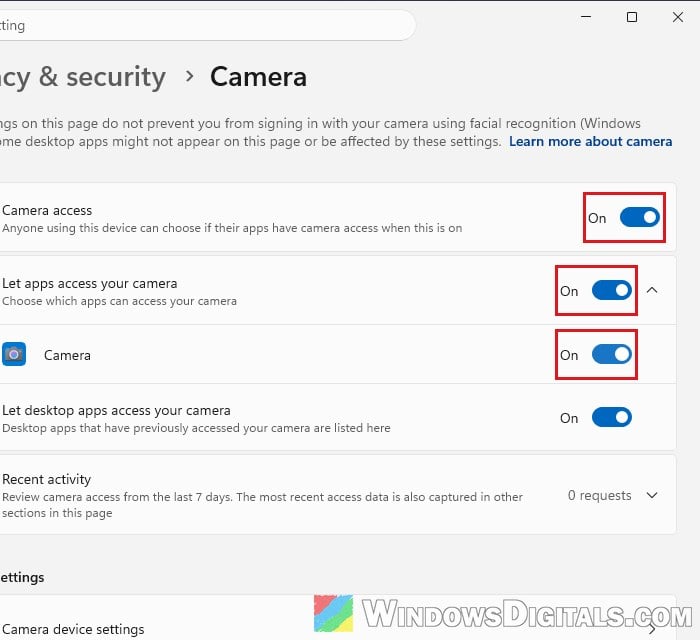
Then open the Camera app again.
Run the camera troubleshooter
Windows troubleshooters don’t usually fix much, but Microsoft recommends this one for 0xA00F4244. Open the Get Help app from the Start menu, search for the Windows Camera troubleshooter and follow it. When it’s done, try the Camera app again.
Get the camera driver from Windows Update
Since the driver is the most likely cause, Windows Update is the easiest place to get a fresh one. Camera drivers often come as optional updates, which Windows doesn’t install by itself. Here’s where to look:
- Open Settings > Windows Update and click Check for updates. Install what it finds.
- Go to Advanced options > Optional updates.
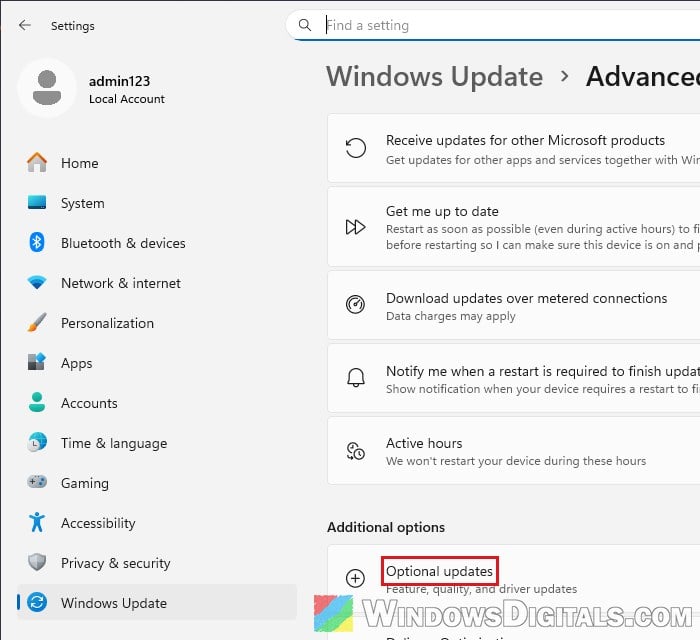
- Under the driver updates, tick any camera driver and install it.
- Restart your PC, then open the Camera app.
Reinstall the camera driver
If the camera is listed in Device Manager but the Camera app still can’t find it, the driver may be broken. Removing it and letting Windows set it up again often brings the camera back. Follow the steps below:
- In Device Manager, expand Cameras (or Imaging devices).
- Right-click your camera and select Uninstall device.
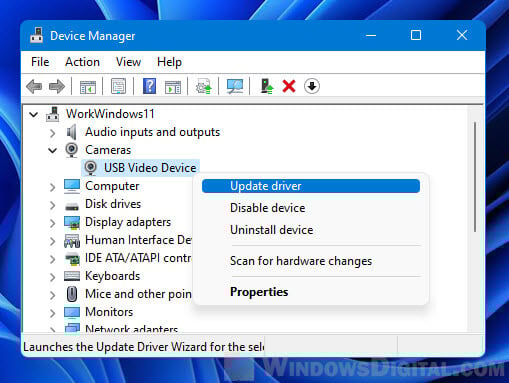
- If you see “Attempt to remove the driver for this device“, tick it, then click Uninstall.
- Restart your PC. If the camera doesn’t come back by itself, open Device Manager and click Action > Scan for hardware changes.
Linked issue: Can’t Completely Uninstall a Driver in Windows 11 (Fix)
Switch to the “USB Video Device” driver
Microsoft’s other suggestion is to put the camera on Windows’ own generic driver. You might lose some extras like Windows Hello face sign-in, but it’s a good test when the maker’s driver won’t work. Here’s how:
- In Device Manager, right-click the camera under Cameras and select Properties.
- On the Driver tab, click Update driver.
- Choose “Browse my computer for drivers“, then “Let me pick from a list of available drivers on my computer“.
- Select USB Video Device, click Next, then Close.
If USB Video Device isn’t in the list, skip this and move on to the next section. If it is, restart and check the Camera app.
Get the driver from your laptop or webcam maker
Windows doesn’t always pick the driver your camera actually needs. For a laptop, go to the maker’s support site, enter the model or serial number, and download the newest camera driver, along with the chipset and BIOS updates. For an external webcam, get the driver from the webcam maker’s site.
To find out who made the camera, open its Properties in Device Manager and check the manufacturer. If it just says Microsoft, the camera is on a generic driver, and you’ll need your PC’s documentation or the maker’s site to find the right one. Once it’s installed, restart and test the Camera app again.
Be warned: If a BIOS update is cut off halfway, for example because the battery died, the PC may not start again. Keep the laptop on its charger, do exactly what the maker’s guide says, and if you’re unsure, ask someone who knows to do it for you.
Learn more: How to See What Drivers Are Installed in Windows 11
Repair or reset the Camera app
This error is almost never the Camera app’s fault, but ruling it out only takes a minute:
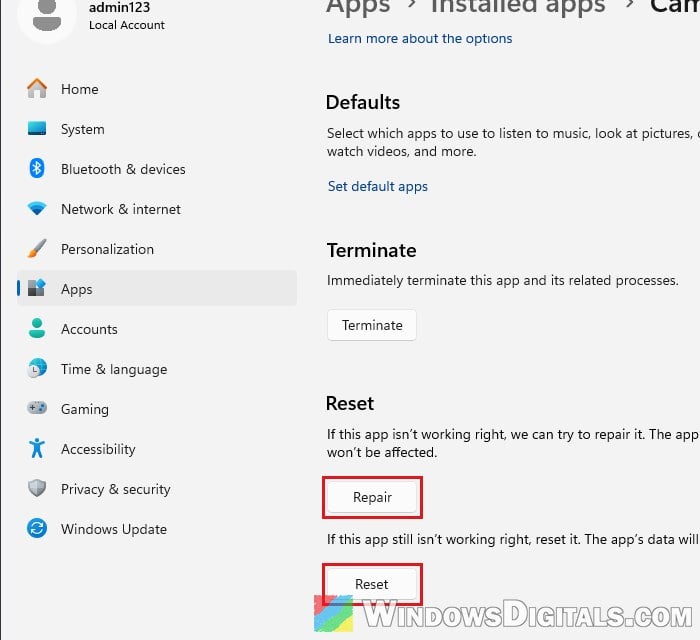
- Go to Settings > Apps > Installed apps and find Camera.
- Click the three-dot menu next to it and choose Advanced options.
- Click Repair. If the error stays, go back and click Reset.
Camera keeps dropping out? Likely a hardware problem
When a built-in camera disappears and reappears every few minutes, or Device Manager shows it with Code 45 (the device isn’t connected), it usually points to a loose internal connection or a failing camera module. The same is true if the camera is gone from Device Manager entirely, hidden devices included, after everything above.
Run your laptop maker’s hardware diagnostics. If even they can’t find the camera, it’s most likely the hardware. If the laptop is under warranty, send it in with the error code and Code 45 if you have it. In the meantime, a plug-in USB webcam is the quickest way to get back on video calls.