If you use Read Aloud in Microsoft Edge with one of the Natural voices and it has suddenly started skipping whole paragraphs, stopping halfway or not starting at all, while the basic voice still reads normally, it’s most likely not your PC. This guide explains what’s going on and what you can do about it until Microsoft fixes it.
Also see: Microsoft Edge Share Feature Not Working
Page Contents
Why is Read Aloud skipping paragraphs with Natural voices?
The problem started around October 12, 2026. Since then, people on Microsoft’s forums have reported the same thing: with a Natural voice selected, Read Aloud jumps two or three paragraphs ahead, starts reading from the wrong place, goes quiet partway, or does nothing when you press play. In most cases, switching to a basic voice makes it read the page just fine.
On Windows 11, it showed up right around the October 13 Windows updates, but it isn’t only a Windows 11 thing. It also happens with Edge on a Mac and on the Beta version of Edge, and in one case it kept happening even after clearing the cache, signing out of the profile and reinstalling Edge. That’s why the Windows update seems to be a coincidence in timing rather than the cause.
The likely reason has to do with how the voices work:
- Natural voices (the ones with “Online (Natural)” in their name) are streamed from Microsoft’s online service while Read Aloud is playing. That’s why they only show up when you’re connected to the internet.
- Basic voices such as Microsoft David or Zira are installed on your PC and work offline.
Since only the Natural voices are affected, on different computers and platforms, the problem most likely sits on Microsoft’s side, with the online voices or how Edge talks to them. Microsoft hasn’t confirmed a bug or a fix date yet, so the fixes below are mainly workarounds and checks to rule out your own setup.
Switch to a basic (local) voice for now
This is the most reliable workaround until Microsoft sorts out the Natural voices. The basic voices don’t sound as natural, but they don’t depend on Microsoft’s voice service, so they usually read every paragraph in order.
Here’s how to change the voice:
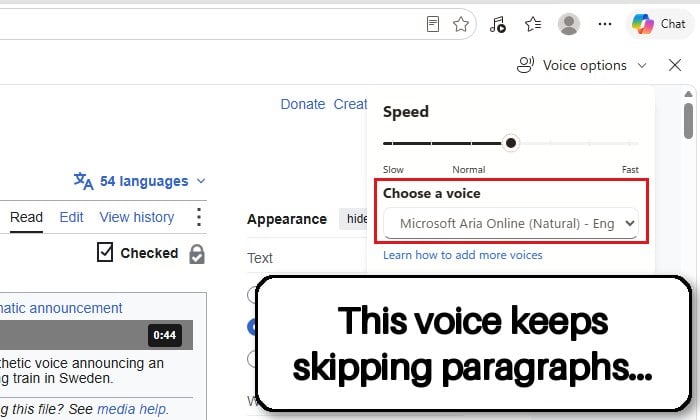
- Open the page you want to listen to in Edge, right-click on the page and select “Read aloud” (or “Read aloud selection” if you’ve selected some text), or press Ctrl + Shift + U.
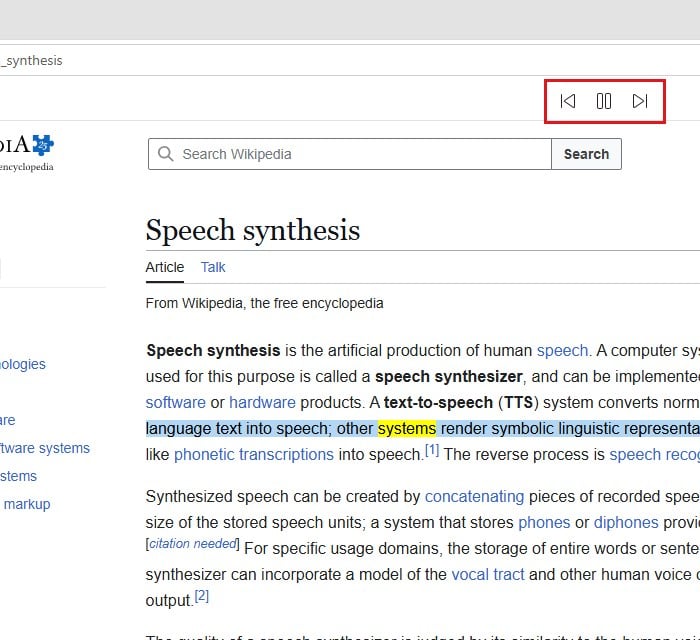
- On the Read Aloud bar at the top of the page, click “Voice options“. Under “Choose a voice“, you’ll see the voice you’re using now, for example Microsoft Aria Online (Natural).
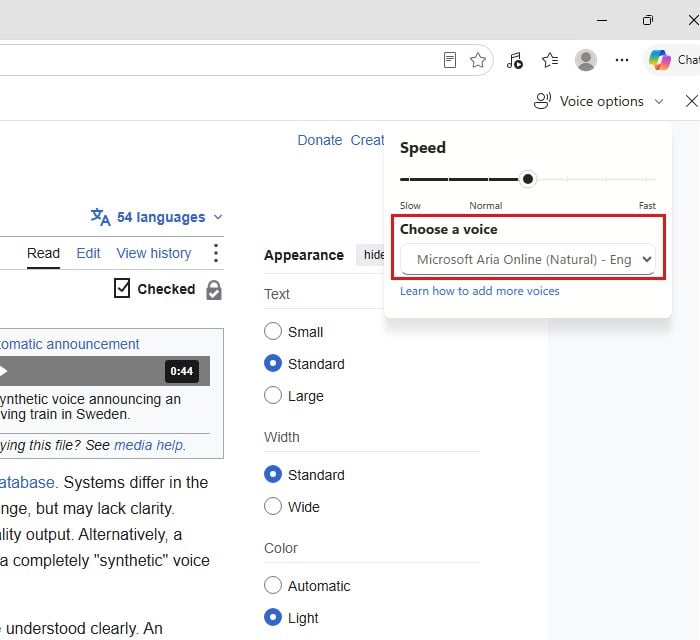
- Open the voice list and pick a voice that doesn’t have “Online (Natural)” in its name, such as Microsoft David, Microsoft Mark or Microsoft Zira. They’re at the top of the list.
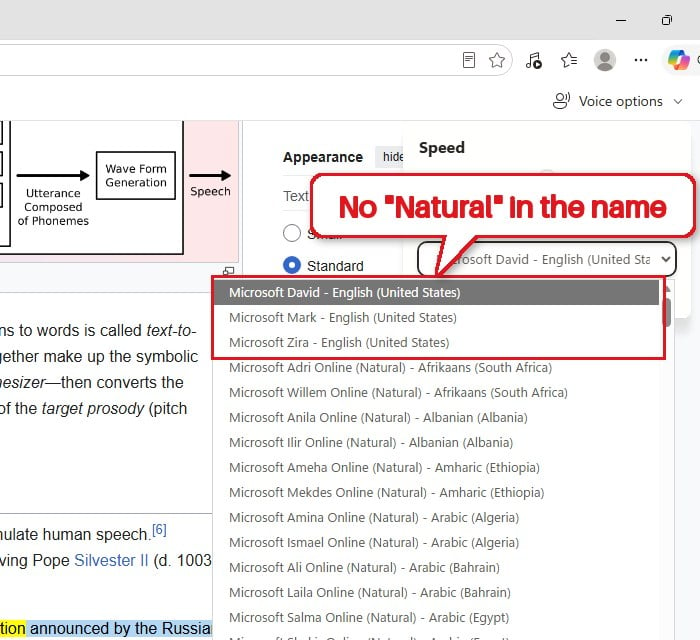
- Press play again.
If it now reads every paragraph, the Natural voices are the problem. Switch back to your favorite Natural voice every now and then to see if it’s fixed, since it sometimes comes back on its own after a few tries. Closing all Edge windows and opening Edge again is also worth a try.
If a basic voice skips paragraphs as well, the voice isn’t the problem. The page or an extension is more likely, so go on to the Reading mode and extension checks below.
Pro tip: How to Change Default Audio Output Device on Windows 11
Update Microsoft Edge
If Microsoft fixes this in the browser rather than on its servers, the fix will come with an Edge update. Edge usually updates itself, but it doesn’t hurt to check.
- Click the three dots (Settings and more) at the top right of Edge and select “Settings“.
- Select “About Microsoft Edge” in the left pane. You can also type
edge://settings/helpin the address bar and press Enter. - Edge checks for updates and installs any it finds. If it says updates are underway, wait a few minutes and refresh the page, then click “Restart” when it asks you to.
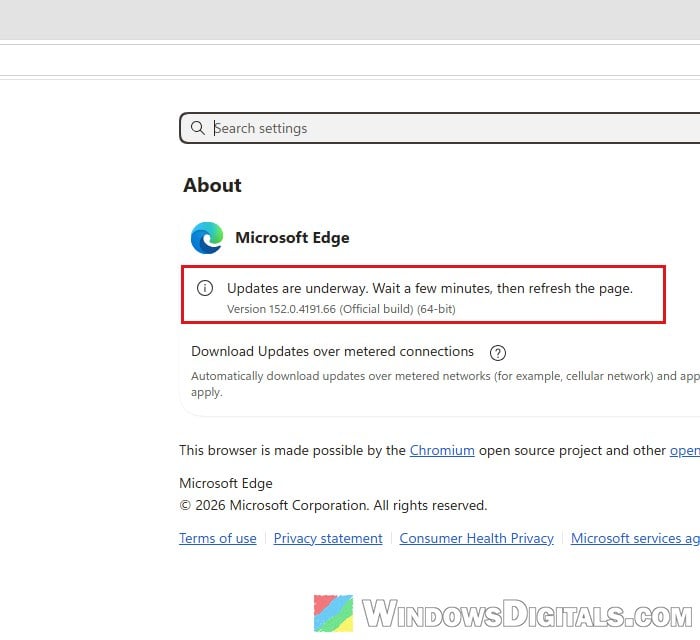
After the restart, try Read Aloud with the Natural voice again.
Might be useful: How to Voice Type in Windows 11
Try Read Aloud in Reading mode
Reading mode strips a page down to its text, without the menus, ads and other clutter around it. Trying Read Aloud there is a quick way to tell whether the voice is the problem or the page’s layout is confusing it.
- Select a few paragraphs on the page, right-click the selection and click “Open selection in Reading mode“. On some pages you can also press F9.
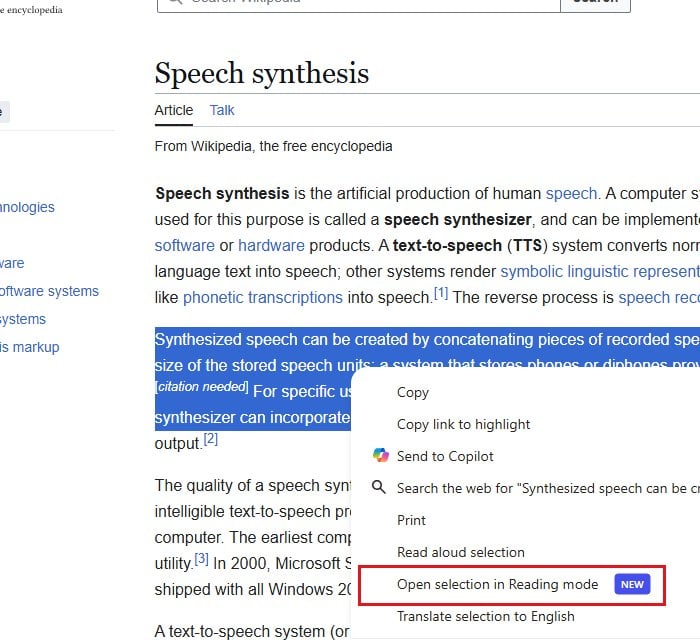
- In Reading mode, click “Read aloud” on the toolbar and use the same voice you were using before.
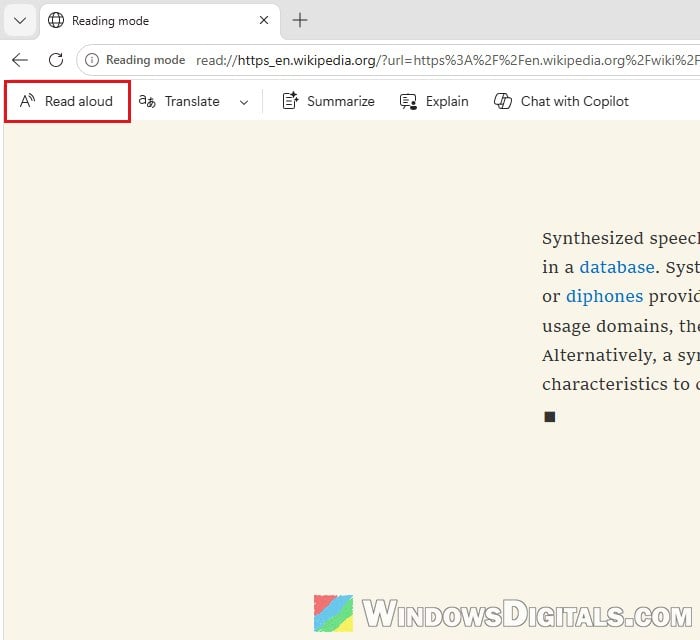
If the voice reads everything fine in Reading mode, the page itself is what trips it up, and you can keep using Reading mode for that site. If a Natural voice still skips there, it’s the voice, so stick with a basic voice. If even a basic voice skips, check your extensions next.
Check if an extension is getting in the way
Extensions that change web pages, like translators, ad blockers, reader tools and accessibility add-ons, can interfere with Read Aloud too. An InPrivate window is an easy way to test this, since extensions usually don’t run there.
- Press Ctrl + Shift + N (or click the three dots and select “New InPrivate window“) to open an InPrivate window.
- Open the same page and start Read Aloud with the same voice.
- If it works there, go back to a normal window, click the three dots and select “Extensions” > “Manage extensions“.
- Turn off the extensions that change pages, one at a time, and try Read Aloud again after each.
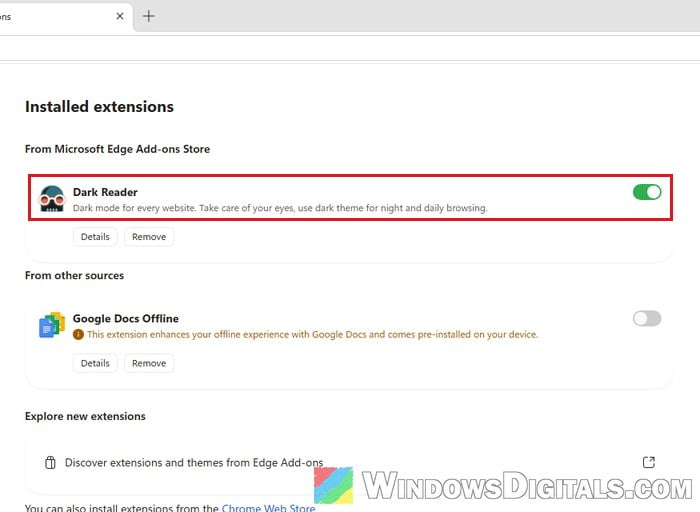
If Read Aloud skips paragraphs in the InPrivate window as well, your extensions aren’t the cause and you can leave them on.
Reset Edge settings (last resort)
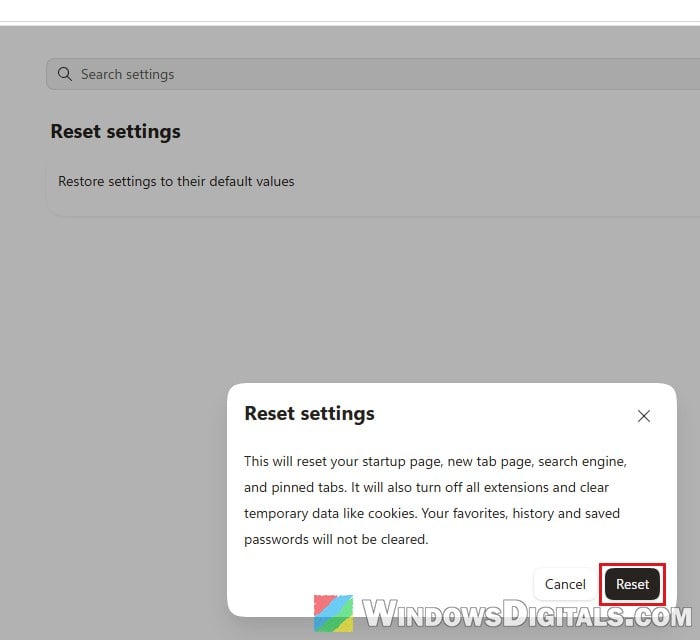
Resetting Edge puts your startup page, new tab page, search engine and pinned tabs back to default, turns off all your extensions and clears temporary data like cookies. Your favorites, history and saved passwords stay. Don’t expect too much from this one, though. There are no reports of even a full reinstall fixing it, so a reset mostly rules out a messed-up profile on your end. It won’t fix a problem on Microsoft’s side.
- Click the three dots, select “Settings” and then “Reset settings” in the left pane.
- Click “Restore settings to their default values“.
- Read what will be reset and click “Reset“.
Let Microsoft know
Microsoft asks people with this problem to send feedback from Edge. Here’s how to do it:
- Press Alt + Shift + I in Edge, or click the three dots and select “Help and feedback” > “Send feedback“.
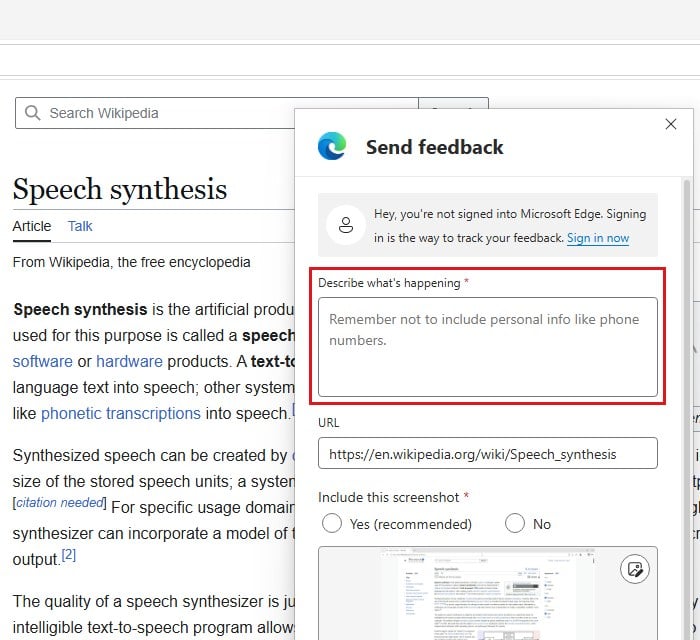
- Describe what happens: which Natural voice you use, that it skips paragraphs or won’t start, and that the basic voice works fine.
- If you can, add a short screen recording that shows the skipping, then send it.