If your Surface Slim Pen 2 won’t charge in your Surface Pro keyboard’s storage tray or the Slim Pen Charger, the LED doesn’t light up when you dock it, and the pen doesn’t even show up in Bluetooth anymore, you’re not alone: it’s a pretty common problem on the Surface Pro 8, 9, 10 and 11. Once the pen’s battery has drained completely, it can stop showing any sign of life at all. This guide will show you how to get the pen charging again and how to tell whether it’s the pen or the keyboard that has failed.
Also see: Surface Keyboard Stopped Typing Letters or Not Working
Page Contents
What the pen’s LED is telling you
Before trying anything, put the pen in the tray or charger and look at the small LED on it. According to Microsoft, this is what each light means:
- White, fading in and out: the pen is docked and charging.
- Amber, fading in and out: the battery is low.
- Amber and white, flashing: the charging accessory needs an update (see the firmware section below).
- White, flashing: the pen is in pairing mode.
- White, solid: the pen has paired with your Surface.
The LED turns off once the pen is fully charged, so a pen that’s been charging for a while and shows no light might simply be full. But if the pen still doesn’t respond to the tip or the top button, and you’ve never seen the LED light up in the tray, keep reading.
Keep your Surface plugged in and turned on
The Slim Pen 2 charges wirelessly from the keyboard tray or charger, and the Surface (or whatever is charging the pen) has to be turned on. If your Surface is turned off, in hibernation or low on battery, it may not charge the pen at all.
So plug your Surface into its charger, keep it turned on, and leave the pen in the tray. Even on battery alone, the tray might not charge the pen reliably.
Seat the pen properly and give a dead pen time
The pen needs to sit flat and snap into the middle of the tray, with the button side facing outwards. Make sure it isn’t off to one side or lying at an angle.
While you’re at it, wipe the pen and the keyboard’s pen tray with a dry, soft microfiber cloth or a cotton swab, and check that no small metal bits are stuck to the magnetic area of the tray.
A fully drained pen can take a long time to show any sign of life. Once the pen is seated properly with the Surface plugged in, leave it overnight (8 to 12 hours) before deciding it’s dead.
Suggested read: Laptop Battery “Plugged in, not charging” in Windows 10/11
Reconnect the keyboard after a full shutdown
If the pen still won’t charge in the keyboard tray, the keyboard might not be properly connected to your Surface. Microsoft’s own fix is to detach the keyboard and fully shut down the Surface before reattaching it. Here’s how to do it:
- Detach the keyboard from your Surface.
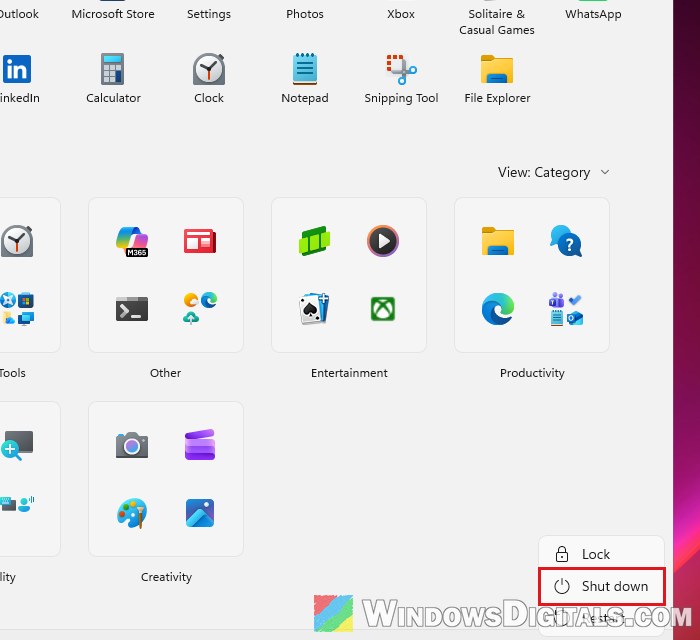
- Tap or click Start > Power > Shut down, and wait for the Surface to shut down.
- Press and hold the power button for 20 seconds. If you see the logo screen appear before then, keep holding it until the 20 seconds are up.
- Reattach the keyboard and turn the Surface back on.
- Press
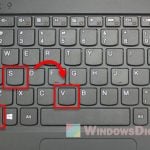
Capsand Fn on the keyboard to check that it’s getting power. - Put the pen back in the storage tray and check whether the LED fades white.
If you use the Surface Slim Pen Charger instead of a keyboard, check that all of its connections are plugged in properly, then dock the pen again and watch the LED.
Update the keyboard or charger firmware
The keyboard and the Slim Pen Charger have their own firmware, and an outdated one can stop the pen from charging. This is especially likely if the LED flashes amber and white. Here’s how to update it:
- Connect the keyboard or Slim Pen Charger to your Surface and place the pen in it.
- Open the Surface app.
- Expand Help & support.
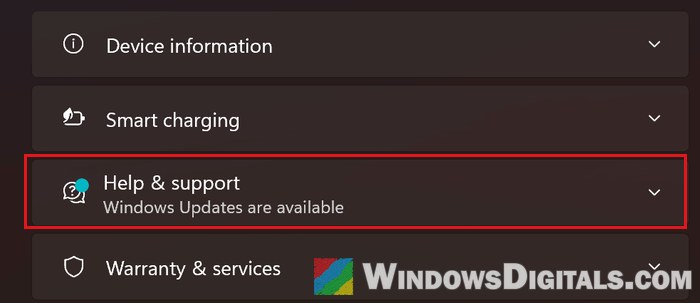
- Select Check for updates. This opens Windows Update.
- Install any available updates and restart your Surface if asked.
- Put the pen back in its tray or charger and check whether the LED now shows it charging.
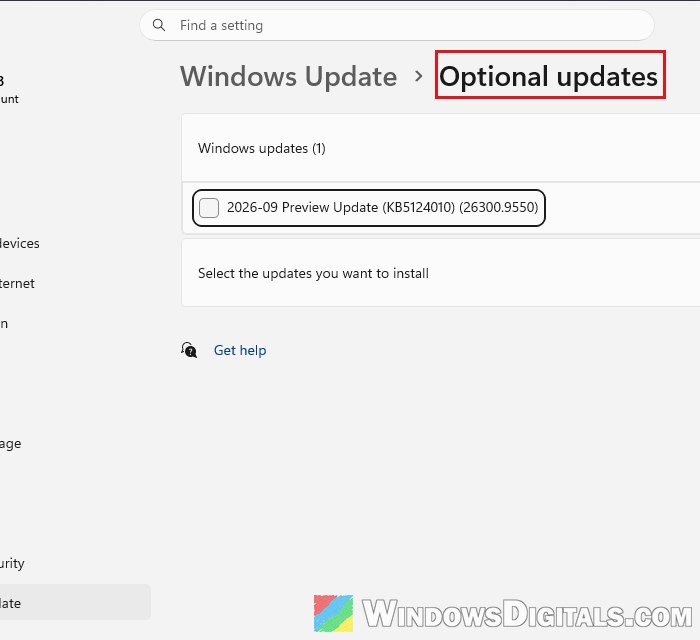
Surface firmware and driver updates can also sit under Settings > Windows Update > Advanced options > Optional updates, so check there too and install anything listed for your Surface.
Might be useful: How to Install or Update Driver in Windows 11
Pair the pen again
If the pen charges but still doesn’t connect, pair it with your Surface again. This only works once the pen has some charge, so skip it while the LED stays completely dark.
- Press and hold the top button of the pen for about 5 to 7 seconds, until the LED flashes white.
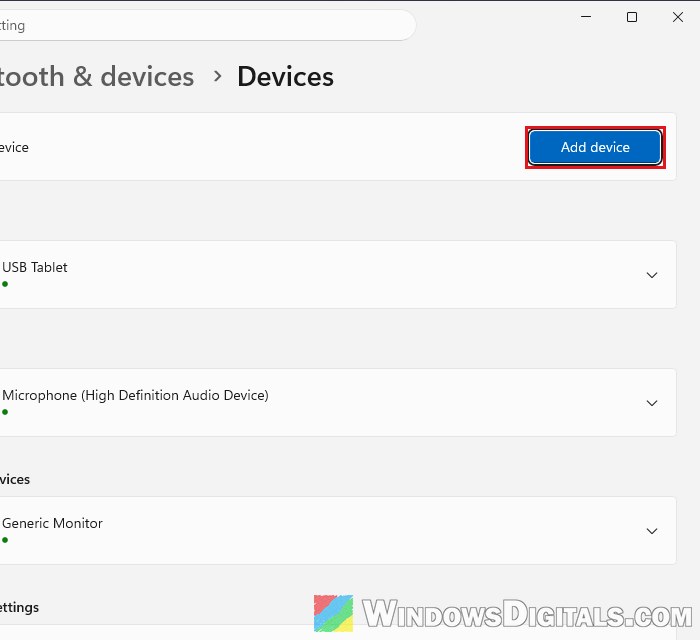
- On your Surface, open Settings > Bluetooth & devices > Devices, and click Add device.
- Choose Bluetooth.
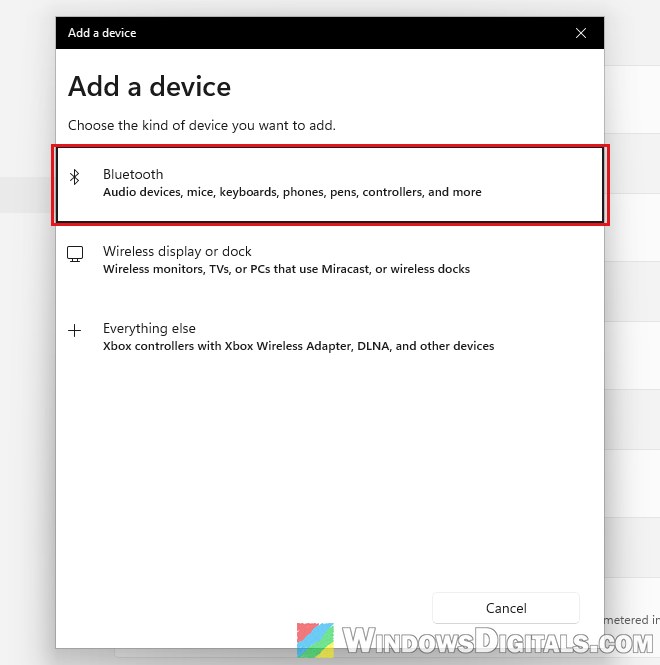
- Select your Surface Slim Pen from the list to pair it.
After it pairs, open the Surface app again. Your pen should be listed among the connected accessories at the bottom, where you can select it to see its battery level.
Linked issue: Bluetooth Not Detecting Devices in Windows 11
Try another charger to find out which part failed
If nothing above worked, the next step is finding out whether it’s the pen or the keyboard. Try charging the pen somewhere else: a Surface Slim Pen Charger, a friend’s or colleague’s compatible Surface keyboard, or a Surface Laptop Studio, which charges the pen under its keyboard.
- The pen charges somewhere else: your keyboard’s charging part is the problem, and the keyboard (or the original charger) needs to be serviced or replaced. This turns out to be the cause quite often, and some people simply buy a Slim Pen Charger and keep using the pen with it.
- The pen won’t charge anywhere: the pen’s battery or charging circuit has most likely failed. Unfortunately, the Slim Pen 2 can’t be repaired, so it needs to be replaced.
If the pen or keyboard is still under warranty, Microsoft can replace it (you can check the warranty status at https://account.microsoft.com/devices). On your Microsoft account’s devices page, choose to request service for your Surface (register it first if it isn’t listed), choose Accessory, and pick your pen issue. If it’s out of warranty, a paid replacement is still an option.