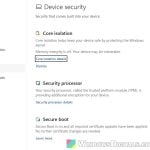
If you turned off CSM and enabled Secure Boot on your Windows 11 or 10 PC because a game like Battlefield 6 or Call of Duty asked for it, and now the PC turns on but the monitor stays black or says “No signal” (or you get a blue repair screen loop), you can usually get the picture back. This guide will explain why it happens and how to get Secure Boot working.
Also see: Windows 11 PC Won’t Boot Past the BIOS, Why?
Page Contents
Why does the screen go black after enabling Secure Boot?
Secure Boot only works when the PC boots in pure UEFI mode, which is why you had to turn off CSM (Compatibility Support Module, the “Legacy” boot mode) first. Then everything that runs before Windows has to support UEFI too. The common reasons are:
- The graphics card’s firmware has no UEFI support (called GOP), so with CSM off it can’t show a picture.
- Windows was installed in Legacy mode on an MBR disk, so it can’t start without CSM.
- The Secure Boot keys were cleared or changed, so the card’s firmware may no longer be trusted.
- An old motherboard BIOS, which may not trust newer hardware yet.
Get the picture back first
Before you can check any of these, you need to see the BIOS again. Here’s what you can try:
- Switch the cable to HDMI (or DVI) instead of DisplayPort, or try another monitor or a TV. Some older graphics cards stay blank on DisplayPort until Windows loads.
- If your CPU has integrated graphics, turn off the PC, unplug it, take out the graphics card (or just move the cable) and connect the monitor to the motherboard’s own video port. Intel CPUs ending in “F” and most Ryzen CPUs without a “G” don’t have it.
- In the BIOS, turn Secure Boot off and CSM back on for now, then save and restart. This usually brings Windows back.
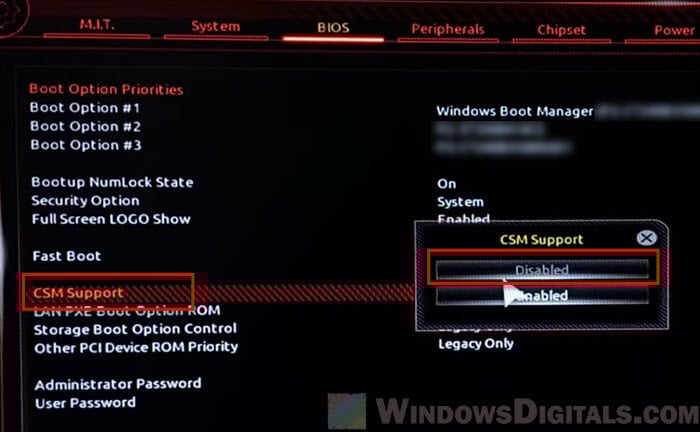
Can’t see the BIOS at all? Clear the CMOS
If none of the video outputs show anything, clear the CMOS. This resets every BIOS setting to its defaults. Here’s how to do it:
- Turn off the PC and unplug the power cord.
- Press the Clear CMOS (CLR_CMOS) button on the motherboard for about 5 to 10 seconds. If there’s no button, short the CLRTC or CLR_CMOS pins instead, or take out the CMOS battery for a few minutes. Your manual shows which applies.
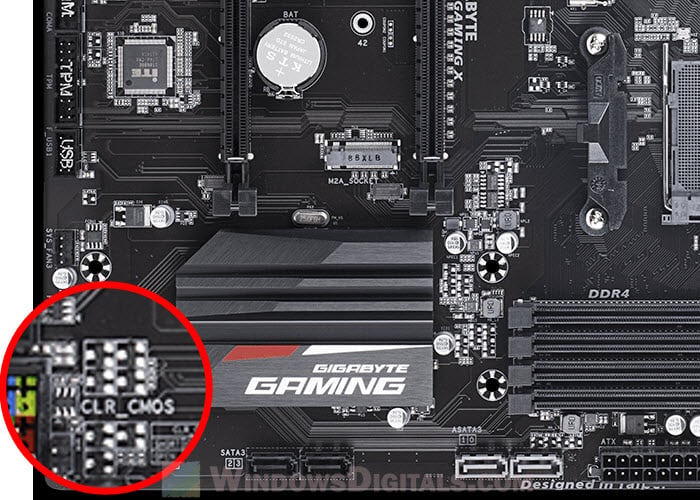
- Plug the PC back in, turn it on and enter the BIOS (on ASUS boards, press F1), load the optimized defaults, then save and exit.
Please note that on newer motherboards the defaults may already have CSM off, so this won’t always help. Then you’ll need integrated graphics or a newer graphics card to get back in.
Pro tip: How to Clear CMOS without Removing Battery or Jumper Cap
Check that Windows is installed in UEFI mode on a GPT disk
A black screen, “no bootable device” or a blue “repair” screen with Secure Boot on can also mean Windows was installed in Legacy mode. With CSM back on, start Windows and check:
- Press Win + R, type “msinfo32” and press Enter.
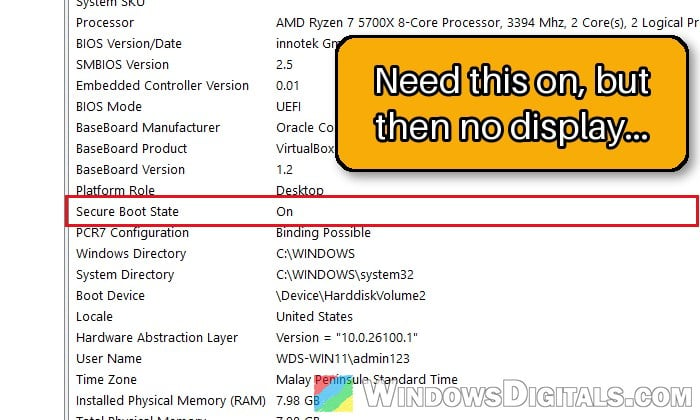
- In “System Summary“, “BIOS Mode” should say UEFI, not Legacy. “Secure Boot State” shows whether Secure Boot is on.
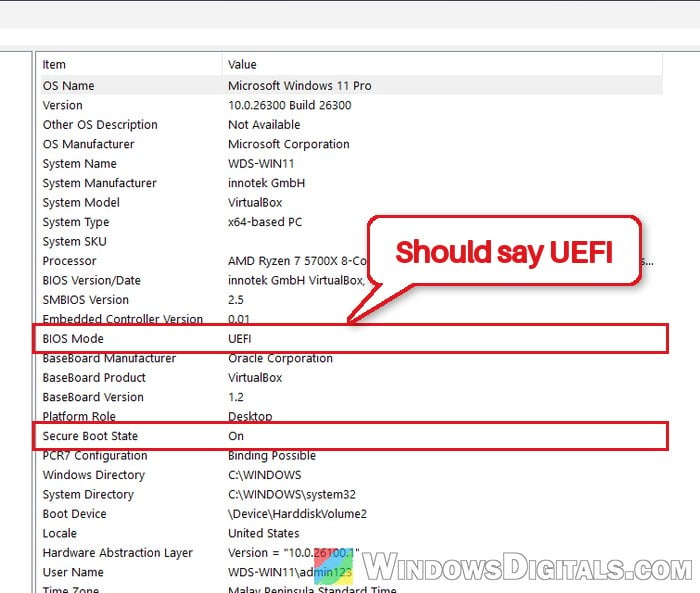
- To check the disk, press Win + X and select “Disk Management“.
- Right-click your Windows disk (usually the “Disk 0” box on the left, not a partition), select “Properties“, and open the “Volumes” tab. Next to “Partition style“, a GPT disk shows GUID Partition Table (GPT). If it shows MBR instead, the disk needs converting.
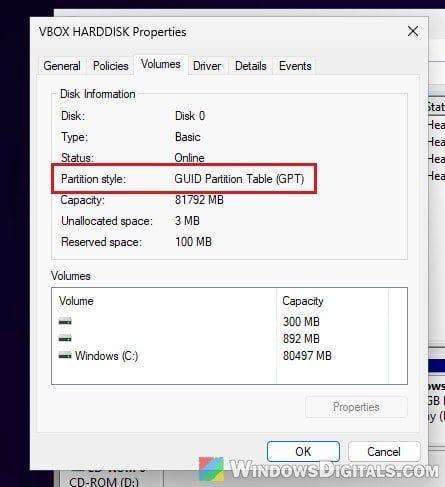
Microsoft’s MBR2GPT tool converts the disk to GPT without deleting your files, if the disk meets its requirements (the first command checks). If your Windows disk isn’t Disk 0, change the 0 below.
Be warned: The conversion can’t be undone. Back up your files first and suspend BitLocker if it’s on. If you’re not sure what you’re doing, it’s better to get someone to help you instead.
- Open Command Prompt as administrator.
- Check the disk:
mbr2gpt /validate /disk:0 /allowFullOS
- If it says “Validation completed successfully“, convert the disk:
mbr2gpt /convert /disk:0 /allowFullOS
- Restart into the BIOS, turn CSM off (UEFI boot), then save and exit. Windows won’t start until you do.
Once Windows starts, open “msinfo32” again. “BIOS Mode” should now say UEFI.
Linked issue: MBR2GPT “Cannot find OS partition(s) for disk 0” in Windows 11 or 10
Check if your graphics card supports UEFI
If Windows is already UEFI and GPT, suspect the graphics card. Most recent cards support UEFI, but older ones may not.
The free GPU-Z tool shows this with a UEFI checkbox next to the card’s BIOS version. It’s ticked on a card with UEFI support. If it isn’t, no setting fixes it: keep CSM on (and Secure Boot off), or replace the card if the game needs Secure Boot.
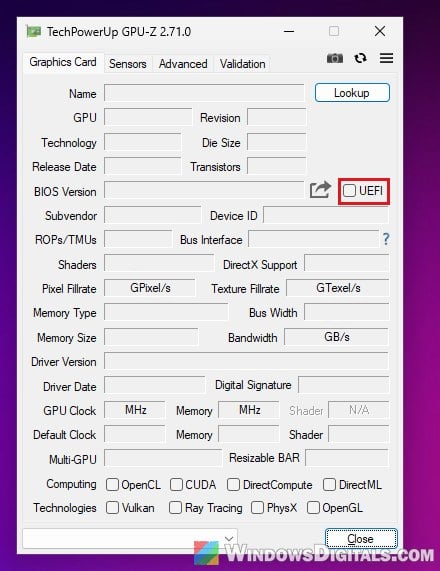
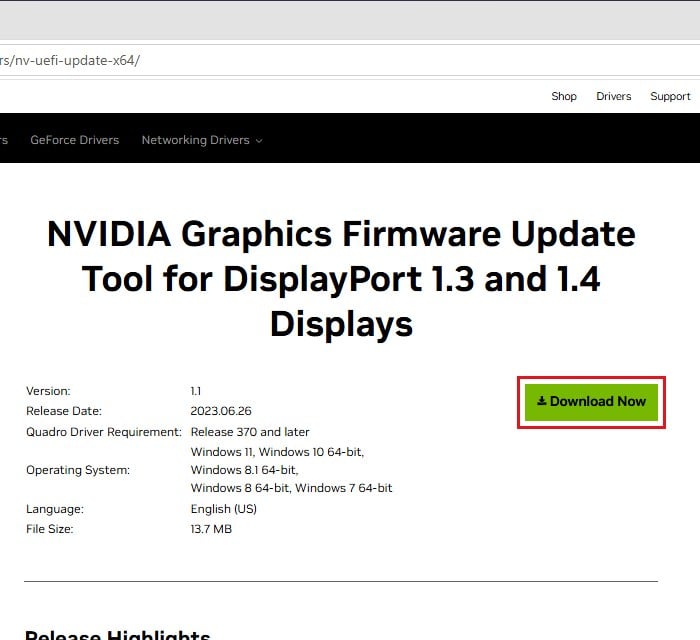
With a GeForce GTX 700, 900 or 10-series card (or a TITAN X or Xp) on a DisplayPort 1.3 or 1.4 monitor, NVIDIA has a firmware update for a blank screen or hang on boot. Download the NVIDIA Graphics Firmware Update Tool for DisplayPort 1.3 and 1.4 Displays from https://www.nvidia.com/en-us/drivers/nv-uefi-update-x64/ and run it in Windows. It only offers the update if your card needs it.
Enable Secure Boot with the default keys, in the right order
Many of the worst cases, where even the BIOS won’t show, came after people deleted the platform key or loaded custom keys right after turning CSM off. So change one thing at a time, and make sure the PC still starts after each change.
- Turn “CSM” off, save, and boot into Windows once to make sure it starts.
- Go back into the BIOS and enable Secure Boot with the factory default keys:
- On ASUS boards, set Boot > Secure Boot > OS Type to “Windows UEFI mode“. If Secure Boot still shows as not active, set “Secure Boot Mode” to “Custom“, open “Key Management“, select “Clear Secure Boot Keys” and then “Install Default Secure Boot keys” right away, which puts the default keys straight back.
- On Gigabyte boards, switch “Secure Boot Mode” to “Custom” and back to “Standard“, and accept restoring the factory default keys when asked.
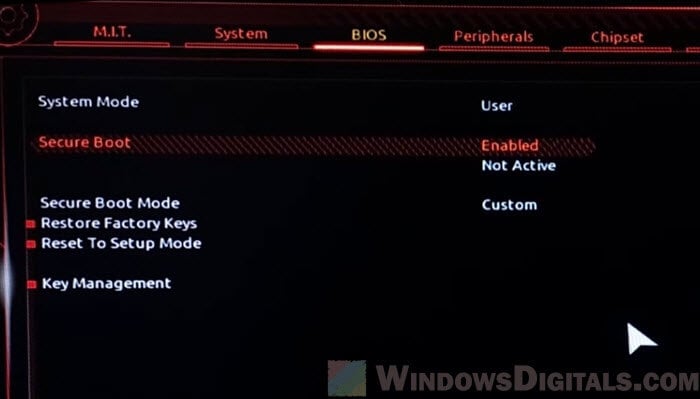
- On other boards, look for an option to install or restore the default keys, and don’t delete the platform key unless the manual says to.
- Save and restart.
Back in Windows, “Secure Boot State” in msinfo32 should now say On.
Related guide: Enabling TPM 2.0 and Secure Boot on Gigabyte Mobo
Update the motherboard BIOS
If it still goes black, update the BIOS. According to Microsoft, PC makers update the list of trusted hardware from time to time. With the picture back, download the latest version from your motherboard’s support page and use the BIOS’s built-in flash tool.
Be warned: If the power goes out or something goes wrong during a BIOS update, it can brick your motherboard. Follow your motherboard maker’s instructions exactly, and if you’re not sure, get someone to help you instead.
Related concern: Windows 11 Not Activated After BIOS Update
What if the PC still shows nothing at all?
If nothing brings a picture back, the BIOS may be stuck with bad Secure Boot settings. Some boards have a BIOS Flashback button (the name varies by maker) that reflashes the BIOS from a USB drive without a picture; check your manual. Otherwise, a repair shop can reflash the BIOS chip. If the board is still under warranty, contact the maker first.