If you’re trying to uninstall an app on Windows 11 and, instead of the uninstaller, you get “Smart App Control blocked an app that may be unsafe“, it’s because Smart App Control is blocking the app’s own uninstaller, not the removal itself. This guide will explain why it happens and show you how to remove the app anyway, with or without turning Smart App Control off.
Also see: “Smart App Control Has Blocked Part of This App” in Windows 11
Page Contents
Why does Smart App Control block an uninstaller?
Smart App Control checks every program before Windows lets it run. According to Microsoft, it first asks Microsoft’s cloud service whether the file is likely to be safe. If there’s no answer for that file, it only lets it run if it’s signed with a trusted certificate. Everything else is blocked.
The thing is, an uninstaller is a program of its own, usually a file like unins000.exe in the app’s folder. When you click “Uninstall” in Settings, Windows simply starts that file. If the uninstaller isn’t signed and Microsoft’s cloud doesn’t know it, Smart App Control blocks it like any other unknown program.
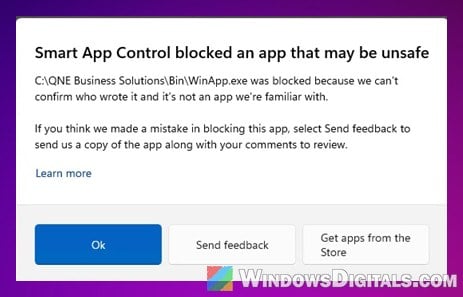
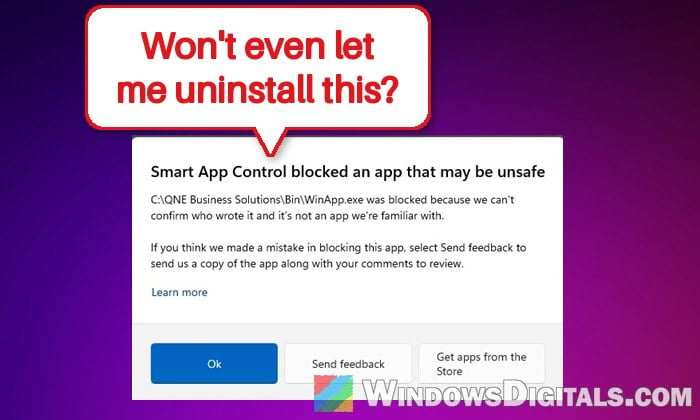
The message shows the full path of the file it blocked and says Windows can’t confirm who wrote it. In the example above it’s the app itself. When you’re trying to remove an app, it’s usually the uninstaller, such as unins000.exe.
This usually happens in situations like these:
- The app was installed while Smart App Control was off or in evaluation mode. In evaluation mode it only watches and blocks nothing, but Windows can switch it on later.
- An app that ran fine for days suddenly gets flagged, and from then on both the app and its uninstaller are blocked.
- Old software that’s no longer supported or updated.
- Some apps that use Windows Installer (.msi), such as Trend Micro’s Deep Security Agent, show a Windows Installer error instead: “There is a problem with the Windows Installer package. A DLL required for install to complete could not be run. Contact your support personnel or package vendor.” Trend Micro confirms this happens when Smart App Control is on.
Microsoft also says there’s currently no way to make an exception for a single app. So you either turn Smart App Control off for a moment, or remove the app without its uninstaller.
Check that Smart App Control is really what’s blocking it
Event Viewer can confirm it. Here’s how:
- Press Win + R, type
eventvwr.mscand press Enter. - In the left pane, go to “Applications and Services Logs” > “Microsoft” > “Windows” > “CodeIntegrity” > “Operational“.
- Look for events with ID 3077. Each one is a file that was blocked, with its full path in the event’s details.
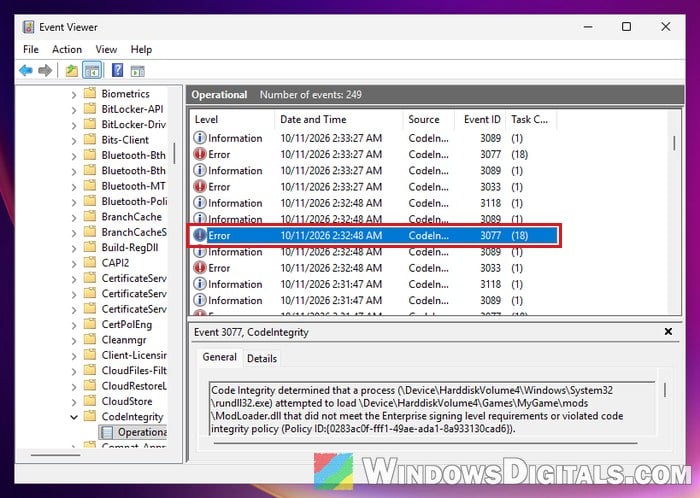
Don’t rely on Protection history in Windows Security for this, as Smart App Control blocks don’t always show up there.
Related problem: Windows Cannot Find unins000.exe on Windows 11
Scan the app before you do anything else
Smart App Control doesn’t only block unsigned files, it also blocks malware and potentially unwanted apps. If the app was flagged out of nowhere after working fine, it’s worth making sure it’s not something nasty before you turn any protection off. Here’s what you should do:
- Open File Explorer and go to the app’s folder, usually in
C:\Program FilesorC:\Program Files (x86). - Right-click the folder, select “Show more options” and then “Scan with Microsoft Defender…“.
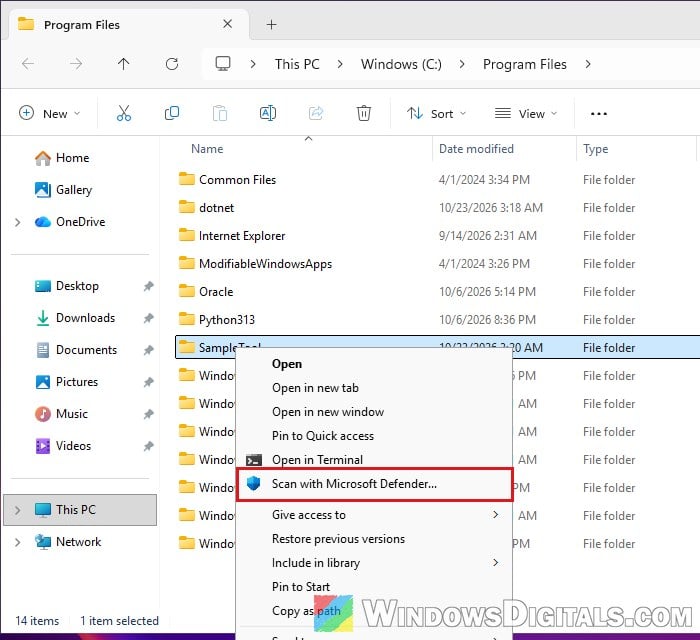
- If Microsoft Defender finds a threat, let it remove the threat from Windows Security instead of running the app’s own uninstaller.
If the scan comes back clean, go ahead with one of the methods below.
Might be useful: How to Scan an .exe File for Viruses to Check If It’s Safe
Turn off Smart App Control, uninstall, then turn it back on
This is the easiest and cleanest way, since the app’s own uninstaller gets to run and remove everything it installed. It’s also the fix that comes up most on Reddit and Microsoft’s forums, and Trend Micro gives the same advice for its own software.
Please be warned that while Smart App Control is off, it won’t stop untrusted apps from running, so turn it back on as soon as you’re done. Microsoft Defender keeps running either way.
Note: Turning Smart App Control back on without reinstalling Windows needs at least the April 2026 security update (KB5083769). And if the October 2026 update KB5127648 is installed, the “On” option may be grayed out after you turn it off (see below).
Here’s how to do it:
- Open the Start menu, search for “Windows Security” and open it.
- Click “App & browser control“, then “Smart App Control settings” under “Smart App Control“.
- Select “Off“. If a User Account Control prompt appears, click “Yes“.
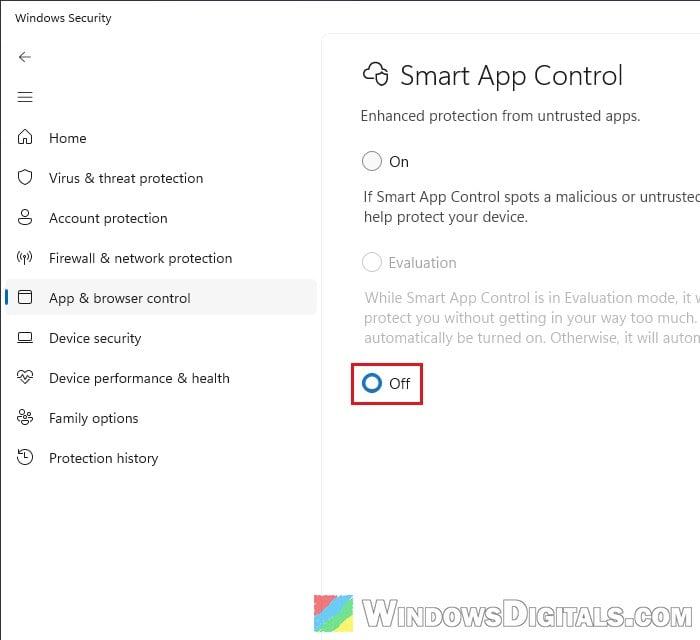
- Open “Settings” > “Apps” > “Installed apps“, click the three dots next to the app and select “Uninstall“. Click “Uninstall” again to confirm. If a User Account Control prompt appears for the uninstaller, click “Yes“, then follow the app’s uninstaller.
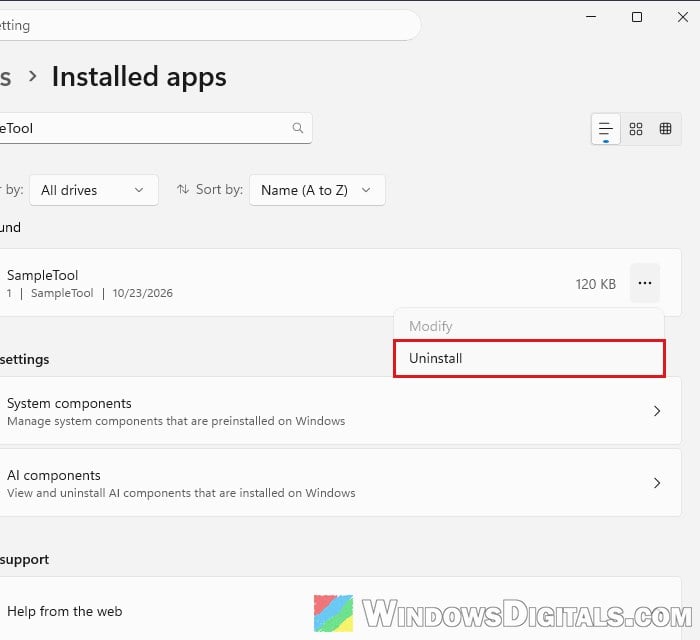
- Restart your PC.
- Go back to “Windows Security” > “App & browser control” > “Smart App Control settings” and select “On“. Click “Yes” if a User Account Control prompt appears.
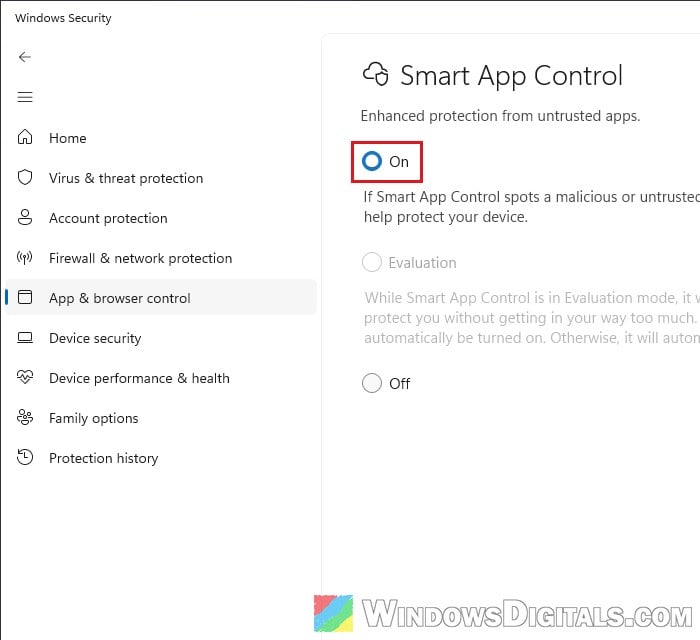
After turning it back on, restart your PC once more so that the protection is fully active again.
What if you can’t turn Smart App Control back on?
Until April 2026, turning Smart App Control off was a one-way trip, and the only way to get it back was to reset or reinstall Windows. Since the April 2026 security update (KB5083769), you can switch it on or off at any time from the same page.
With the October 2026 update KB5127648 installed, though, the “On” option can be grayed out once Smart App Control has been turned off. Microsoft gives a registry workaround until it’s fixed.
Linked issue: Smart App Control Grayed Out After KB5127648 in Windows 11
Remove the app manually (keeps Smart App Control on)
If you’d rather not turn Smart App Control off at all, you can remove the app by hand. This skips the uninstaller completely, so it can leave some leftovers behind, such as settings in your user folder. It also involves the registry, and incorrectly changing the registry can cause serious problems. Please at least create a system restore point first. If you’re not sure what you’re doing, the previous method is the safer choice.
A third-party uninstaller like Revo Uninstaller won’t help much here, since Smart App Control can block it just like the app’s own uninstaller. Follow the steps below instead:
- Press Ctrl + Shift + Esc to open Task Manager. If the app is running, select it and click “End task“.
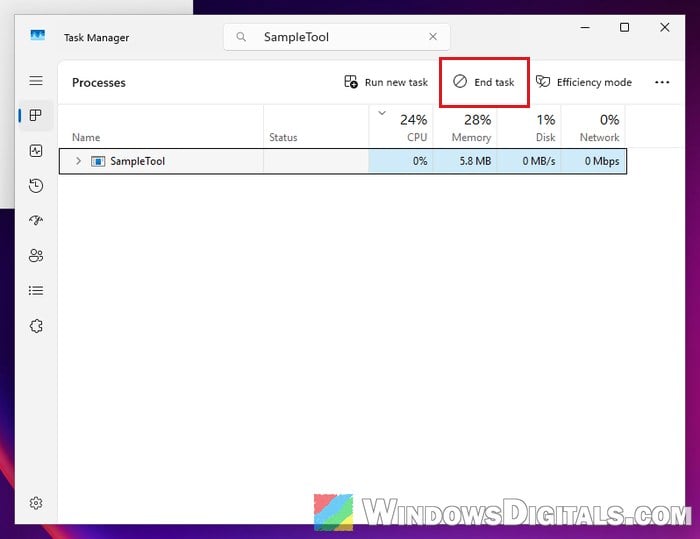
- Open File Explorer, go to
C:\Program Files(orC:\Program Files (x86)), and delete the app’s folder.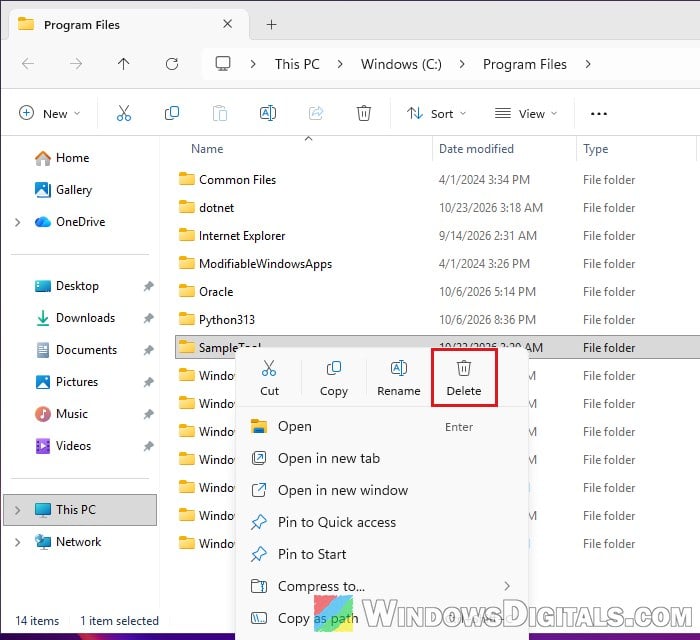
- Press Win + R, type
regeditand press Enter. Click “Yes” in the User Account Control prompt. - Copy and paste the following path to the address bar and press Enter:
HKEY_LOCAL_MACHINE\SOFTWARE\Microsoft\Windows\CurrentVersion\Uninstall
- Click through the keys under “Uninstall” and look at the “DisplayName” value on the right. Once you find the one with the app’s name, right-click that key and select “Delete“.
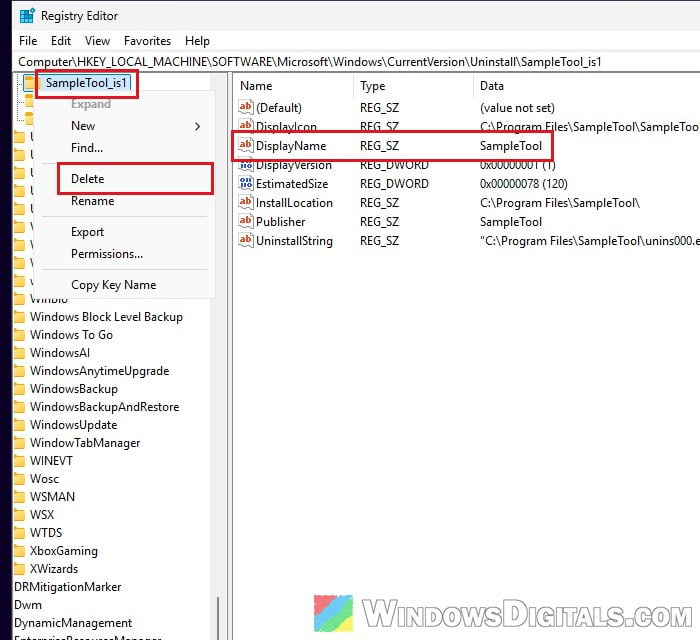
- If the app isn’t there, check the same path under
HKEY_LOCAL_MACHINE\SOFTWARE\WOW6432Node\Microsoft\Windows\CurrentVersion\Uninstall(32-bit apps) andHKEY_CURRENT_USER\Software\Microsoft\Windows\CurrentVersion\Uninstall(apps installed only for your account).
Once the key is gone, the app no longer shows up in “Installed apps“. If Windows says a file in the folder is still in use, restart your PC and delete the folder again, or see how to force delete a file in use by another program.